
Audio.cpp Local Text-to-Speech (TTS) & Voice Cloning Guide
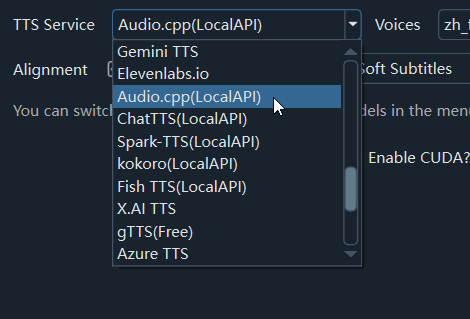
Starting from version v4.16, the software introduces a lightweight and efficient local TTS backend: audio.cpp. It supports several top open-source speech models, primarily used for local voice cloning and generating speech using reference audio.
WARNING
⚠️ Important Permission Notice (Windows Users Please Read)
On Windows, please make sure to run this software as Administrator. Otherwise, audio.cpp may fail or crash due to insufficient low-level system permissions.
1. Download and Install audio.cpp Runtime Components
audio.cpp requires low-level system binary files (audiocpp_cli) to run:
1. Automatic Download (Recommended)
- Windows / macOS: The software has a built-in auto-downloader. When you use it for the first time, it will automatically download the precompiled package for your current system:
- Windows default auto-download:
bin-windows-x64-cuda12.4.zip - macOS default auto-download:
bin-macos-arm64-metal.tar.gz
- Windows default auto-download:
- Linux / Ubuntu: Automatic download is currently not supported. Please follow the manual setup steps below.
2. Manual Download & Custom Setup
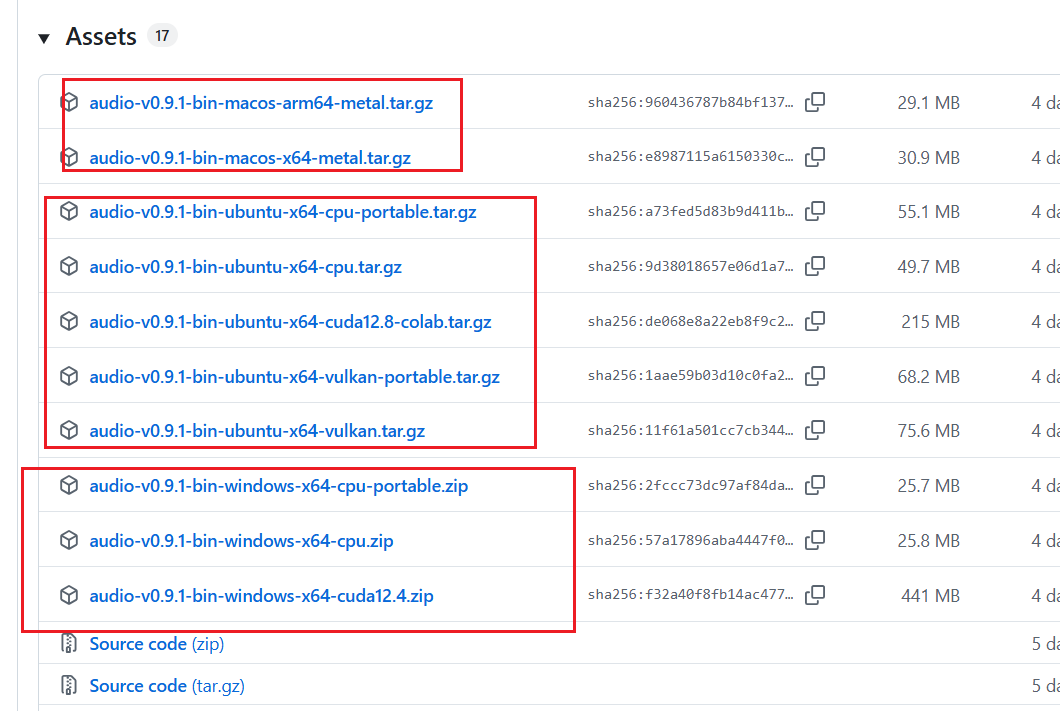
If the automatic download is slow, or if you want to use hardware acceleration for other GPUs (such as Intel or AMD), you can download the files manually from the audio.cpp Official Releases:
| Operating System | GPU Type | Recommended Download Version |
|---|---|---|
| Windows | NVIDIA GPU | Versions related to bin-windows-x64-cuda |
| Windows | AMD GPU / Integrated Graphics / CPU only | bin-windows-x64-vulkan or bin-windows-x64-cpu |
| macOS | Apple Silicon (M-series chips) | bin-macos-arm64-metal |
| Linux | Based on your hardware | bin-ubuntu-x64-cuda / cpu / vulkan |
Extraction & Installation Path: Extract the downloaded package into the Software Root Directory/audio_cpp/ folder (create the folder manually if it does not exist). Make sure that audiocpp_cli.exe (Windows) or audiocpp_cli (macOS/Linux) is located directly inside this folder.
Software Root Directory/
  └── audio_cpp/
        ├── audiocpp_cli.exe (or audiocpp_cli)
        └── ... other dynamic library files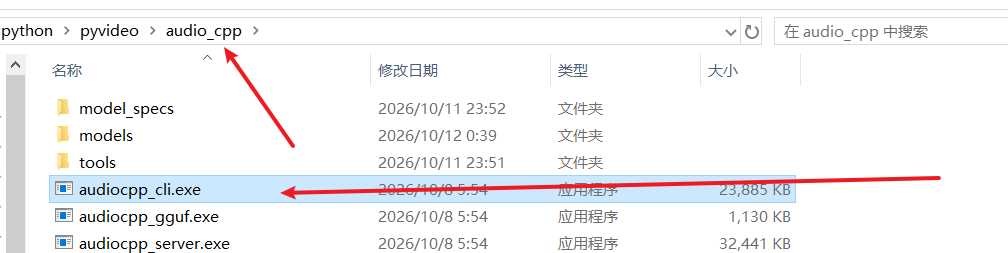
2. Configuration & How to Use
1. Open the Settings Window
In the top menu bar of the software, click: TTS Settings → Audio.cpp.
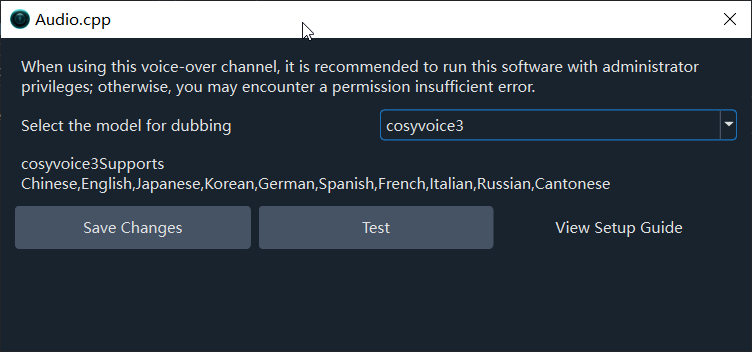
2. Using the Settings
- Select Voice Model: Choose your preferred model from the drop-down menu (
omnivoiceis recommended by default). When you switch models, the supported languages will be displayed below in real-time. - Test:
💡 Note on Testing: audio.cpp is a voice cloning engine and requires reference audio during tests. The software will automatically use the reference audio you previously added under F5-TTS. If it shows "No reference audio exists", please add at least one reference audio sample in your voice cloning settings before testing.
- Save: Saves the currently selected model and closes the window.
3. Built-in Models and Supported Languages
omnivoice is recommended by default—it provides the best compatibility and supports the widest range of languages.
When using it for the first time, the required model will be downloaded automatically. You don't need to download it manually.
How to manually download models
When automatically downloaded, models are saved in:software directory/audio_cpp/models/[model folder name]/model_file.gguf
You can also download models manually. Please note that the model must be in .gguf format and placed inside its corresponding folder. You can find the required folder name and download link in software directory/videotrans/voicejson/audiocpp.json.
"qwen3_tts": {
    "type": "tts",
    "file": "Qwen3-TTS-12Hz-1.7B-Base-GGUF/qwen3-tts-12hz-1.7b-base-q8_0_v2.gguf",
    "url": "https://huggingface.co/audio-cpp/audio.cpp-gguf/resolve/main/Qwen3-TTS-12Hz-1.7B-Base-GGUF/qwen3-tts-12hz-1.7b-base-q8_0_v2.gguf?download=true",
	"support_languages":["zh", "en", "ja", "ko", "de", "fr", "ru", "pt", "es", "it"],
    "is_reference_text": true,
    "is_language": false,
    "is_seed": false
}- The
"file":value representsfolder name/model file name. For example, if"file": "Qwen3-TTS-12Hz-1.7B-Base-GGUF/qwen3-tts-12hz-1.7b-base-q8_0_v2.gguf", the model folder path will be:software directory/audio_cpp/models/Qwen3-TTS-12Hz-1.7B-Base-GGUF - The
"url":is the download link. Copy and paste this link into your web browser to download the.ggufmodel file.
| Model Name | Language Support | Features & Recommendations |
|---|---|---|
| omnivoice (Default) | All software built-in languages | Best overall performance, covers the most languages, top recommendation |
| qwen3_tts | Chinese, English, Japanese, Korean, German, French, Russian, Portuguese, Spanish, and Italian | Excellent semantic understanding and natural intonation |
| cosyvoice3 | Chinese, English, Japanese, Korean, German, Spanish, French, Italian, Russian, Cantonese (yue) | Alibaba model series, outstanding performance in Chinese and Cantonese |
| fish_audio | 80+ major languages | High audio quality, great for multilingual voice cloning |
| voxcpm2 | 30 languages including Chinese, English, Japanese, Korean, German, French, Russian, Thai, Vietnamese, etc. | Covers major Southeast Asian and European languages |
| moss_tts_nano | 19 languages including Chinese, English, German, Spanish, French, Japanese, Italian, Korean, Russian, Arabic, etc. | Lightweight and fast, ideal for low-spec computers |
| moss_tts_local | 19 languages including Chinese, English, German, Spanish, French, Japanese, Italian, Korean, Russian, Arabic, etc. | Heavy-duty models offer higher quality but require more video memory and are best suited for high-performance graphics cards. |
| confucius4_tts | 14 languages including Chinese, English, Japanese, Korean, German, French, Spanish, Italian, Thai, Vietnamese, etc. | Versatile voice cloning model |
| index_tts2 | Chinese, English, Japanese, Spanish, Arabic | Based on index_tts2.5, preserves emotions well |
| breeze_tts | Chinese (zh), English (en) only | Focused on Chinese and English synthesis |
| dots_tts | Chinese (zh), English (en) only | Focused on Chinese and English synthesis |
| firered_audio | Chinese (zh), English (en) only | Focused on Chinese and English synthesis |
| irodori_tts | Japanese language synthesis is supported only. | Japanese language synthesis is supported only. |
| higgs_audio_tts | 80+ major languages | Highly versatile with natural speech performance |
| chatterbox | 19 languages including English, French, German, Italian, Spanish, Korean, etc. (No Chinese) | Ideal for non-Chinese voiceover tasks |
4. Advanced: Manually Adding New Models (Advanced Users)
⚠️ Warning: This step involves modifying JSON files and using command-line tools. Regular users do not need to do this—the built-in models are enough for almost all use cases.
The official audio.cpp repository supports many models. If you want to try out new models released by the official team, follow these steps to add them manually:
Step 1: Confirm the Model Supports Voice Cloning
- Visit the audio.cpp Official TTS Model Documentation.
- Find the model you want to add and click into its details page.
- Make sure the documentation includes a
Voice Cloningexample, otherwise it cannot be integrated into this software.
Step 2: Get Model Parameters and Download Information
Run the following command in your terminal (Terminal / CMD) to get accurate info (in case the docs are outdated):
python tools/model_manager_v2.py info <your_model_family_name>For example, checking higgs_audio_tts will output something like:
id: higgs_audio_tts_4b_q8_0
family: higgs_audio_tts
target: Higgs-Audio-v3-TTS-4B-GGUF
file: Higgs-Audio-v3-TTS-4B-GGUF/higgs-audio-v3-tts-4b-q8_0.ggufStep 3: Modify the Software Configuration File
Open the file: Software Directory/videotrans/voicejson/audiocpp.json
Add a comma , before the last closing brace }, and append your model configuration using the template below:
  "your_unique_model_name": {
    "type": "tts",
    "file": "relative_path_to_model_file",
    "url": "https://huggingface.co/audio-cpp/audio.cpp-gguf/resolve/main/relative_path_to_model_file?download=true",
    "support_languages": ["zh", "en"],
    "is_reference_text": true,
    "is_language": false,
    "is_seed": true
}Parameter Configuration Reference:
type: Refer to the--taskargument in the documentation example. If it saysclon, enter"clon"; if it saystts, enter"tts".file: Enter the full path shown afterfile:in the terminal output.url: Standard format:https://huggingface.co/audio-cpp/audio.cpp-gguf/resolve/main/[replace this with your file value]?download=true.support_languages: A list of language codes supported by this model (if you are unsure about the language limits, you can delete this line).is_reference_text: Check if the Voice Cloning example command contains--reference-text. If it does, set totrue; otherwise, set tofalse.is_language: Check if the documentation examples orCommon Optionscontain the--languageoption. If yes, set totrue; otherwise, set tofalse.is_seed: If the documentation options (Request Options) support--seed, it is recommended to set this totrue; otherwise, set tofalse.
Save the file and restart the software. You will now see your newly added model in the model drop-down list in the settings window.