
Kokoro TTS Voice Channel
What is it?
Kokoro TTS is a lightweight voice synthesis project supporting 8 languages: Chinese, English, Japanese, French, Italian, Portuguese, Spanish, and Hindi. It provides a web interface and API endpoints.
Advantages:
- Supports 8 languages
- Web interface for previewing audio
- Compatible with OpenAI API format
- Lightweight and fast to start
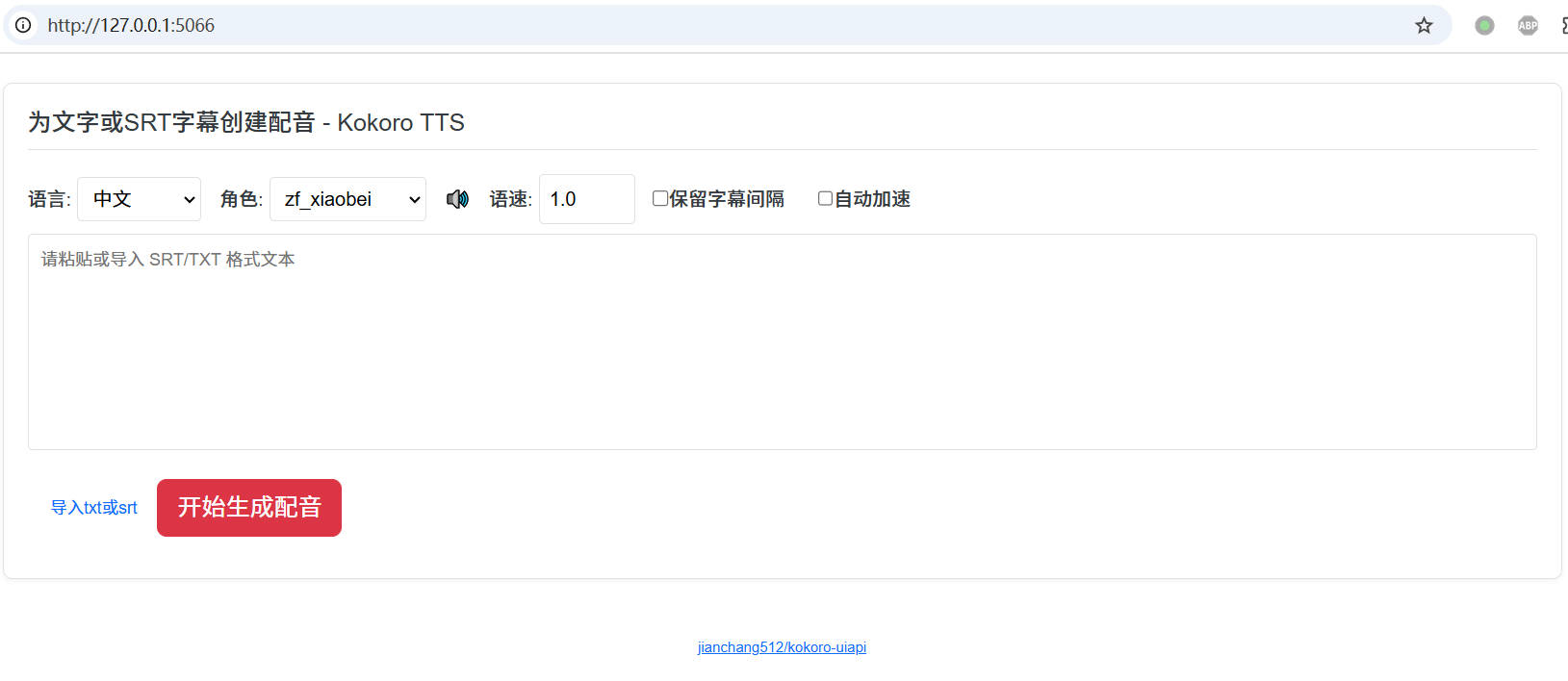
Project Information
- Repository: https://github.com/jianchang512/kokoro-uiapi
- Default UI address after starting:
http://127.0.0.1:5066 - Supports dubbing for text and SRT subtitles
- Supports online preview and download
- Supports subtitle alignment
Installation
Windows Users
- Download the package: https://github.com/jianchang512/kokoro-uiapi/releases/v0.1
- Extract and double-click
start.batto launch - For GPU acceleration, make sure you have an NVIDIA GPU with CUDA 12 installed
Linux/macOS Users
Prerequisites:
- Python 3.8+ (3.10-3.11 recommended)
- ffmpeg installed:
- Linux:
apt install ffmpegoryum install ffmpeg - macOS:
brew install ffmpeg
- Linux:
Installation Steps:
bash
# 1. Clone the repository
git clone https://github.com/jianchang512/kokoro-uiapi

# 2. Create and activate a virtual environment
cd kokoro-uiapi
python3 -m venv venv
source venv/bin/activate

# 3. Install dependencies
pip3 install -r requirements.txt

# 4. Start
python3 app.pyUsing It in pyVideoTrans
Step 1: Start Kokoro TTS
- Windows package: double-click
start.bat - Source install: run
python3 app.py
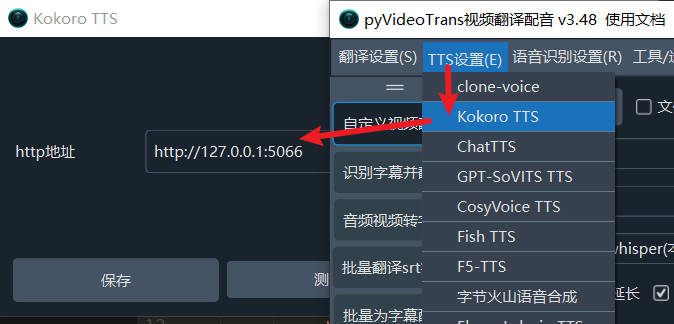
Step 2: Configure pyVideoTrans
- Upgrade pyVideoTrans to v3.48+ or later
- Go to Menu → TTS Settings → Kokoro TTS
- In the HTTP address field, enter:
http://127.0.0.1:5066 - Click the test button to verify the connection
- Save the settings
Step 3: Start Dubbing
- Return to the main interface
- Select
Kokoro TTSfrom the Voice Channel dropdown - Choose the target language and voice
- Click the dubbing button to start
OpenAI API Compatibility
Kokoro TTS's API is compatible with the OpenAI TTS format, so you can use the OpenAI SDK to call it.
API Details
- Endpoint:
http://127.0.0.1:5066/v1/audio/speech - Method:
POST - Content-Type:
application/json
Request Parameters
json
{
    "input": "Text to synthesize",
    "voice": "Voice name",
    "speed": 1.0
}OpenAI SDK Example
python
from openai import OpenAI

client = OpenAI(
    api_key='123456',
    base_url='http://127.0.0.1:5066/v1'
)

try:
    response = client.audio.speech.create(
        model='tts-1',
        input='Hello, my dear friends',
        voice='zf_xiaobei',
        response_format='mp3',
        speed=1.0
    )
    with open('./test_openai.mp3', 'wb') as f:
        f.write(response.content)
    print("MP3 file saved successfully")
except Exception as e:
print(f"An error occurred: {e}")Voice List
English Voices
af_alloy, af_aoede, af_bella, af_jessica, af_kore, af_nicole, af_nova,
af_river, af_sarah, af_sky, am_adam, am_echo, am_eric, am_fenrir,
am_liam, am_michael, am_onyx, am_puck, am_santa, bf_alice, bf_emma,
bf_isabella, bf_lily, bm_daniel, bm_fable, bm_george, bm_lewisChinese Voices
zf_xiaobei, zf_xiaoni, zf_xiaoxiao, zf_xiaoyi,
zm_yunjian, zm_yunxi, zm_yunxia, zm_yunyangJapanese Voices
jf_alpha, jf_gongitsune, jf_nezumi, jf_tebukuro, jm_kumoOther Language Voices
- French:
ff_siwis - Italian:
if_sara, im_nicola - Hindi:
hf_alpha, hf_beta, hm_omega, hm_psi - Spanish:
ef_dora, em_alex, em_santa - Portuguese:
pf_dora, pm_alex, pm_santa
Proxy/VPN
The source deployment method requires downloading voice pt files from Hugging Face, so you may need to set up a proxy or VPN beforehand.
Alternatively, you can download the models in advance and extract them to the app.py directory:
- Model download: https://github.com/jianchang512/kokoro-uiapi/releases/download/v0.1/moxing--jieya--dao--app.py--mulu.7z