
TTS Service: Qwen-TTS
Qwen-TTS is an advanced speech synthesis technology from the Alibaba Tongyi Qianwen team, capable of converting text into highly realistic and natural-sounding human voices. A key highlight is its ability to automatically adjust speech rhythm and emotion based on text content.
Supported languages: Chinese, English, Japanese, Korean, German, French, Russian, Portuguese, Spanish, Italian.
pyVideoTrans supports 2 forms of Qwen3-TTS:
- Local Built-in (Offline): Built into the software, no internet required, uses a fixed 0.6B model.
- Alibaba Bailian API (Online): Accessed via Alibaba Cloud API, requires internet and API Key.
1. Qwen3-TTS Local Built-in (Offline)
Prerequisites
| Requirement | Details |
|---|---|
| pyVideoTrans version | ≥ v4.04 |
| Model size | ~5GB (auto-download on first use) |
| Hardware | NVIDIA GPU recommended (GPU acceleration) |
Downloading Models (Auto-download on first use)
First use will automatically download both Base and CustomVoice models (~5GB total). Please be patient.
Manual Download (Optional)
If auto-download is too slow:
Open the
modelsfolder in the software directory, create 2 new folders:models--Qwen--Qwen3-TTS-12Hz-0.6B-Basemodels--Qwen--Qwen3-TTS-12Hz-0.6B-CustomVoice
Open the Base model page, download all files and folders into
app_dir/models/models--Qwen--Qwen3-TTS-12Hz-0.6B-Base/.Open the CustomVoice model page, download all files and folders into
app_dir/models/models--Qwen--Qwen3-TTS-12Hz-0.6B-CustomVoice/.
Switching to the 1.7B Model (Slower synthesis, better quality)
Simply overwrite the 0.6B model files with the 1.7B model files.
- Open https://huggingface.co/Qwen/Qwen3-TTS-12Hz-1.7B-Base/tree/main, download all files and overwrite into
app_dir/models/models--Qwen--Qwen3-TTS-12Hz-0.6B-Base/. - Open https://huggingface.co/Qwen/Qwen3-TTS-12Hz-1.7B-CustomVoice/tree/main, download all files and folders into
app_dir/models/models--Qwen--Qwen3-TTS-12Hz-0.6B-CustomVoice/.
Configuring Reference Audio
For cloning a voice from a 3~10 second reference audio clip.
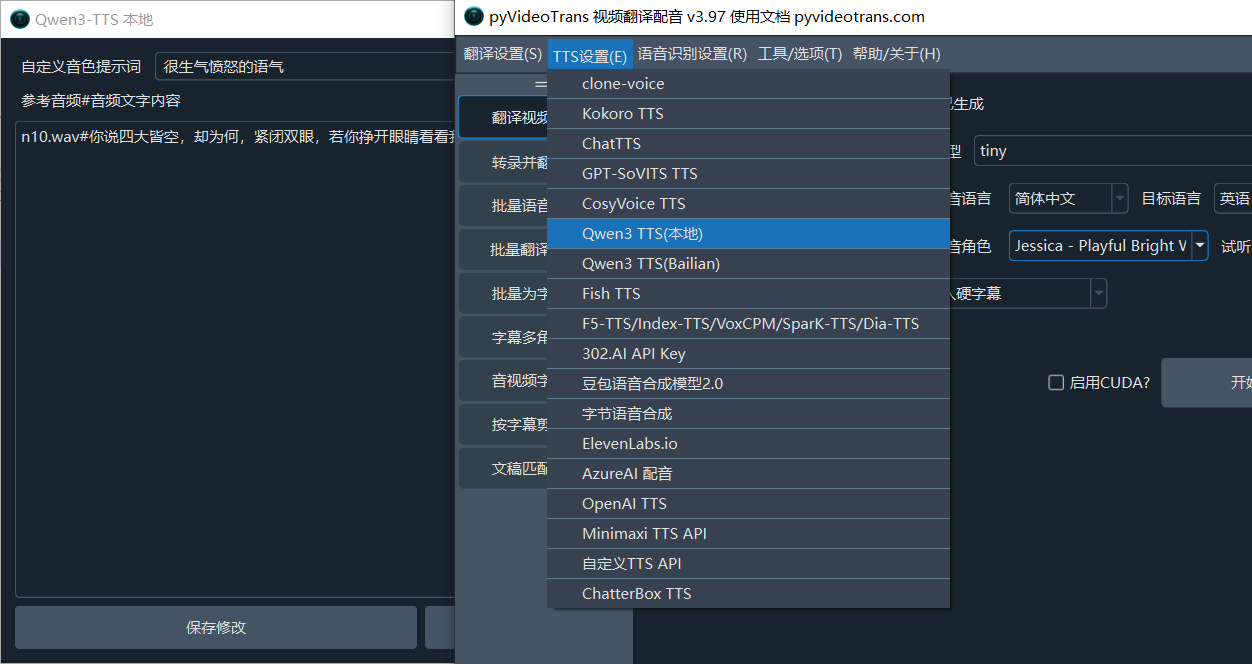
Path: Menu → Tools → TTS Settings → Qwen-TTS (Local)
Fill in reference audio filename and its corresponding text, one per line.
Reference Audio Format
audio_filename.wav#text spoken in the audioExample
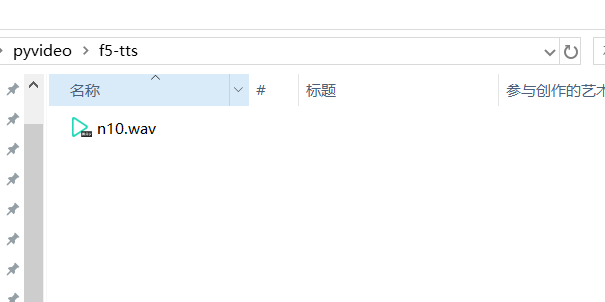
n10.wav#你说四大皆空,却为何紧闭双眼,你若挣开眼睛看看我,我不相信,你两眼空空Place n10.wav in the f5-tts folder under the software directory. After the #, enter the text spoken in the audio.
Not recommended for beginners or users unfamiliar with Alibaba Bailian
Alibaba Bailian's API is quite confusing. Available models differ by region (North China 2, Singapore, East China, etc.). API keys are region-specific. Changing models may require changing endpoints. Different models support different voices. You may encounter many unexpected issues.
2. Alibaba Bailian API / Qwen3-TTS (Online)
Qwen3-TTS supports 10 languages and multiple Chinese dialects. Model name:
qwen3-tts-flashView Qwen3-TTS voice list
Step 1: Get and Configure API Key
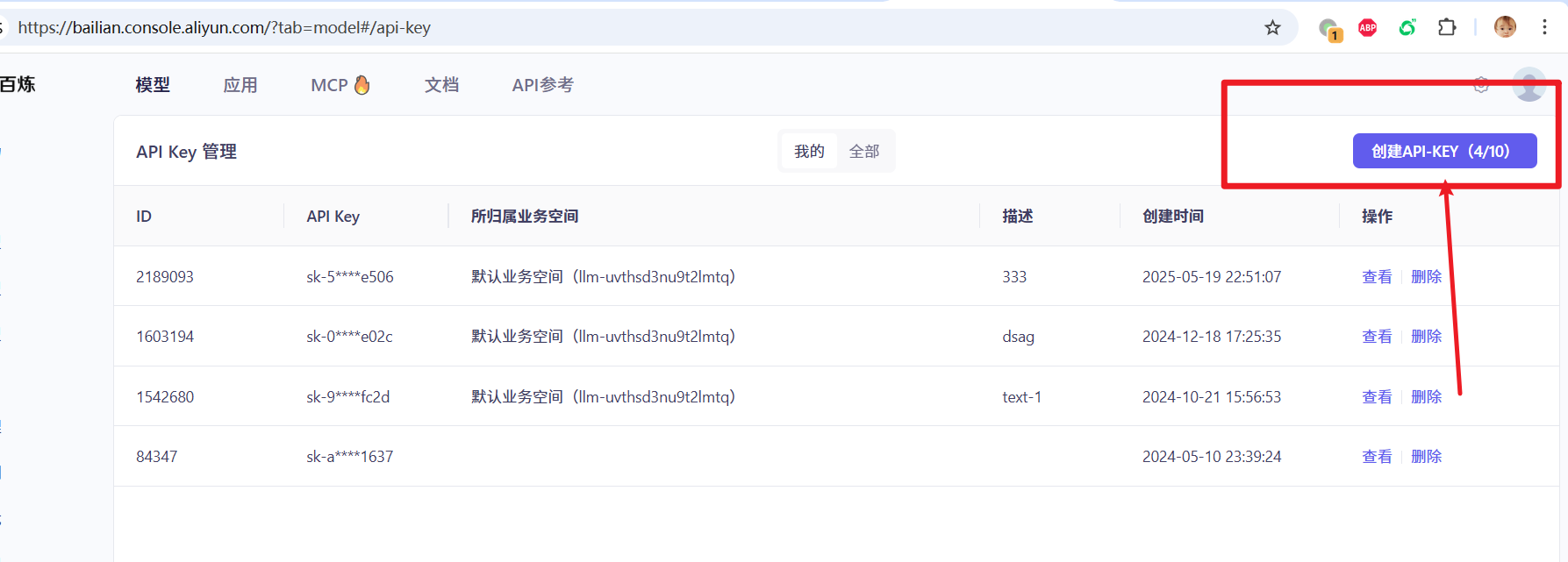
- Visit the Alibaba Bailian platform: https://bailian.console.aliyun.com/?tab=model#/api-key
- Log in with your Alibaba Cloud account (register if needed).
- On the API-KEY management page, click "Create API-KEY". A string starting with
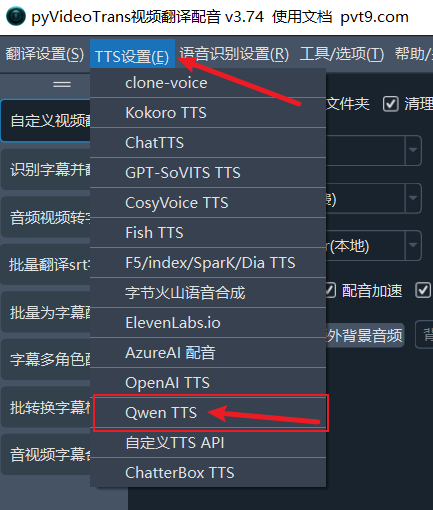
sk-will be generated — this is your API Key. Copy it. In pyVideoTrans, go to the top menu →TTS Settings → Qwen TTS.
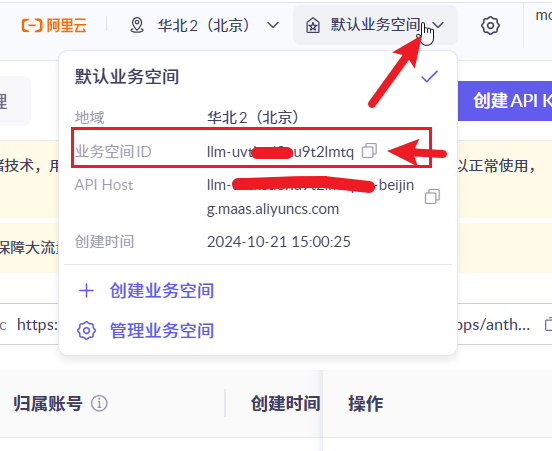
- Click
Workspacein the top-right corner, copy your workspace ID, return to pyVideoTrans, and paste it intoTTS Settings → Qwen TTS's workspace ID field.
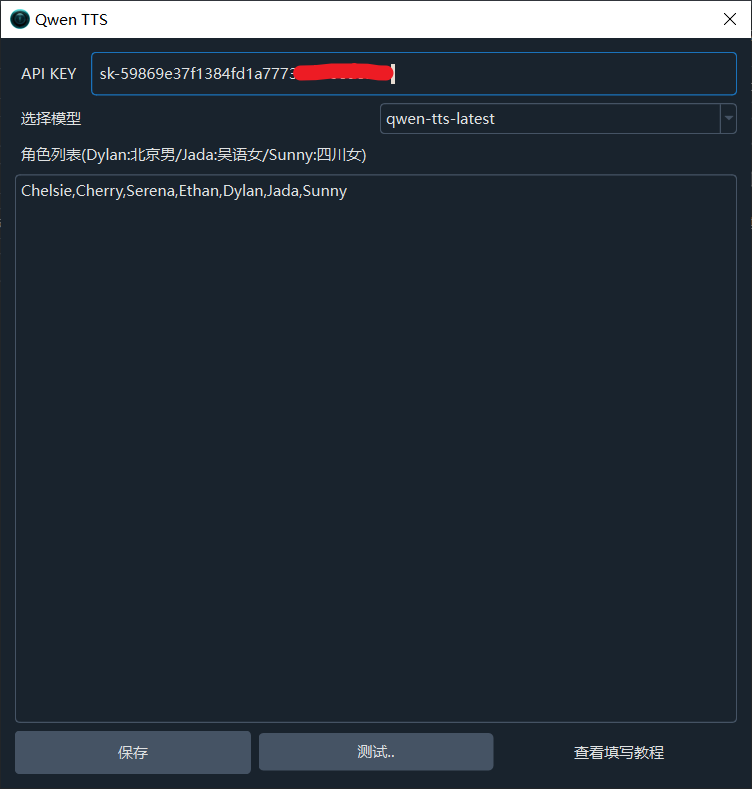
- In the "Qwen3 TTS" configuration window, paste the API Key into the "API Key" field. Click "Test" to preview the audio. If you hear sound, configuration is successful. Click "Save".
Step 2: Use Qwen3-TTS in Video Translation
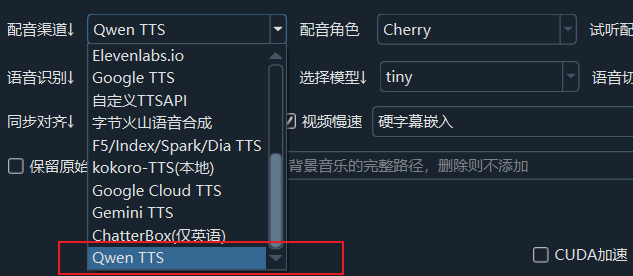
After configuration, select "Qwen3 TTS" from the "TTS Service" dropdown on the main interface, and choose your preferred voice from the "Voices" menu.
- Cherry: Standard female voice
- Sunny: Sichuan dialect
- Dylan: Beijing dialect
- See more voices in the list below
Step 3: Use in Batch Dubbing and Multi-speaker Dubbing
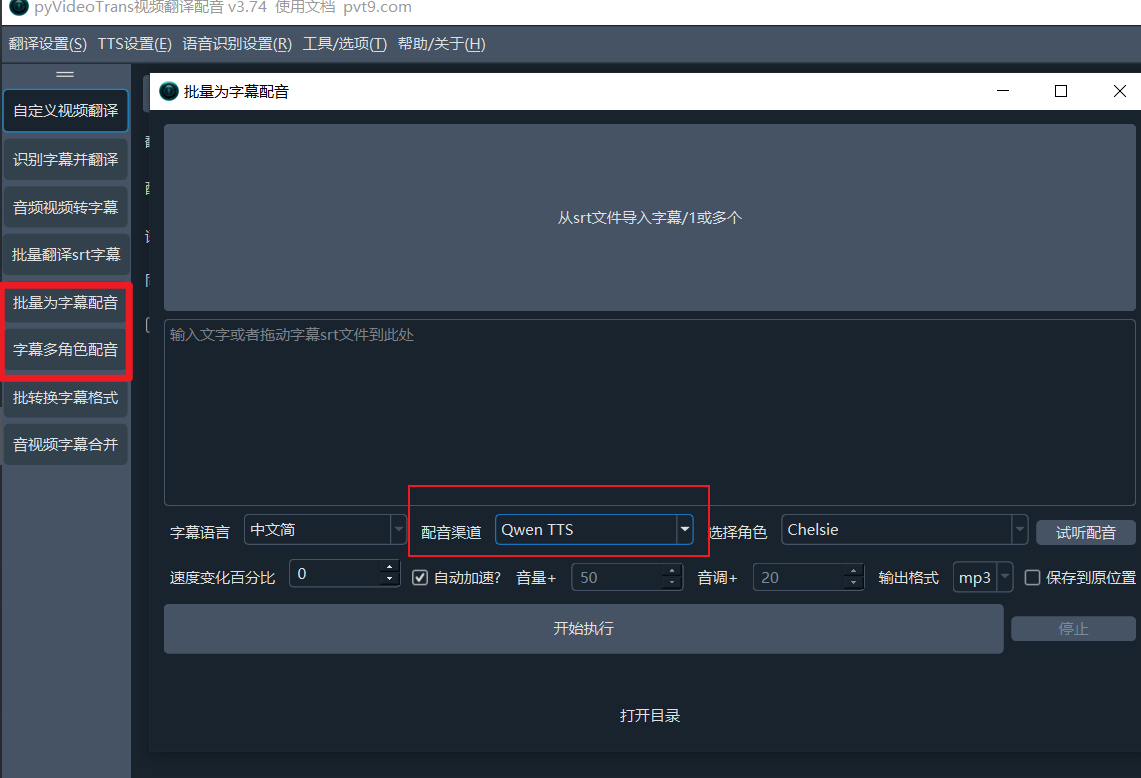
Qwen-TTS's capabilities extend to batch processing:
- Batch subtitle dubbing: Select "Qwen TTS" and your preferred voice in the batch dubbing interface.
- Multi-speaker dubbing: Assign different Qwen-TTS voices to different roles in the multi-speaker dubbing panel.
3. Available Voices
Here are all voices supported by Qwen3-TTS (online version):
| Chinese Name | English Code | Type |
|---|---|---|
| 芊悦(Cherry) | Cherry | Standard female |
| 苏瑶(Serena) | Serena | Standard female |
| 晨煦(Ethan) | Ethan | Standard male |
| 千雪(Chelsie) | Chelsie | Standard female |
| 茉兔(Momo) | Momo | Standard female |
| 十三(Vivian) | Vivian | Standard female |
| 月白(Moon) | Moon | Standard female |
| 四月(Maia) | Maia | Standard female |
| 凯(Kai) | Kai | Standard male |
| 不吃鱼(Nofish) | Nofish | Standard male |
| 萌宝(Bella) | Bella | Child voice |
| 詹妮弗(Jennifer) | Jennifer | English female |
| 甜茶(Ryan) | Ryan | English male |
| 卡捷琳娜(Katerina) | Katerina | Russian female |
| 艾登(Aiden) | Aiden | English male |
| 沧明子(Eldric Sage) | Eldric Sage | English male |
| 乖小妹(Mia) | Mia | Standard female |
| 沙小弥(Mochi) | Mochi | Standard female |
| 燕铮莺(Bellona) | Bellona | Standard female |
| 田叔(Vincent) | Vincent | Standard male |
| 萌小姬(Bunny) | Bunny | Standard female |
| 阿闻(Neil) | Neil | Standard male |
| 墨讲师(Elias) | Elias | Standard male |
| 徐大爷(Arthur) | Arthur | Standard male |
| 邻家妹妹(Nini) | Nini | Standard female |
| 诡婆婆(Ebona) | Ebona | Standard female |
| 小婉(Seren) | Seren | Standard female |
| 顽屁小孩(Pip) | Pip | Child voice |
| 少女阿月(Stella) | Stella | Standard female |
| 博德加(Bodega) | Bodega | Standard male |
| 索尼莎(Sonrisa) | Sonrisa | Standard female |
| 阿列克(Alek) | Alek | Standard male |
| 多尔切(Dolce) | Dolce | Standard female |
| 素熙(Sohee) | Sohee | Korean female |
| 小野杏(Ono Anna) | Ono Anna | Japanese female |
| 莱恩(Lenn) | Lenn | Standard male |
| 埃米尔安(Emilien) | Emilien | French male |
| 安德雷(Andre) | Andre | Standard male |
| 拉迪奥·戈尔(Radio Gol) | Radio Gol | Standard male |
| 上海-阿珍(Jada) | Jada | Shanghainese female |
| 北京-晓东(Dylan) | Dylan | Beijing dialect male |
| 南京-老李(Li) | Li | Nanjing dialect male |
| 陕西-秦川(Marcus) | Marcus | Shaanxi dialect male |
| 闽南-阿杰(Roy) | Roy | Southern Min dialect male |
| 天津-李彼得(Peter) | Peter | Tianjin dialect male |
| 四川-晴儿(Sunny) | Sunny | Sichuan dialect female |
| 四川-程川(Eric) | Eric | Sichuan dialect male |
| 粤语-阿强(Rocky) | Rocky | Cantonese male |
| 粤语-阿清(Kiki) | Kiki | Cantonese female |
FAQ
1. Local version downloads models very slowly on first use
~4GB of model files will be auto-downloaded on first use. Please be patient.
2. API version shows AuthenticationError
The API Key is invalid or expired. Log back into Alibaba Bailian to obtain a new API Key.
3. Dubbing sounds unnatural
- Try different voices
- For the local version, try adding voice style guidance prompts
- Ensure good reference audio quality (clear pronunciation, no noise)