
Using Existing SRT Subtitles and Vocal/Background Audio
If you already have matching or self-prepared SRT subtitles of higher quality and don't want to use the auto-generated ones;
Or if you have pre-separated vocal and background audio files you want the software to use directly.
0. Understanding Default Output Rules
- When "Folder" mode is unchecked (default output location): A
_video_outfolder is created next to the selected video. For example, if the video isD:/videos/001.mp4, output goes toD:/videos/_video_out/, with each video in a subfolder named{video_name(no ext)}-{video_ext}, e.g.,D:/videos/_video_out/001-mp4. - When "Folder" mode is checked: Output goes to
_video_out/{folder_name}/at the same level as the selected folder. For example, if the folder isD:/videos/ceshi, output goes toD:/videos/_video_out/ceshi/, with each video in a subfolder named{video_name(no ext)}-{video_ext}.
When you click "Save To..." to set a custom output directory, the default location won't be used.
For simplicity, it is recommended NOT to manually specify an output directory. The following guide assumes you're using the default location.
I. Importing Local SRT Subtitles
If each subtitle line starts with
[spk_number]or[speaker_number](e.g.,[spk1],[speaker2]), it is recognized as speaker information. In single-video mode, you can assign dubbing roles by speaker after translation. This is ignored in batch mode.
Prerequisites
Use simple filenames: Low-level tools have poor compatibility with Chinese characters, spaces, and special symbols. Rename your video files to a combination of English letters, numbers, and underscores (e.g.,
myvideo.mp4).Enable file extension display:
- Win10: Open folder → Click "View" → Check "File name extensions"
- Win11: Open folder → Click "View" → "Show" → Check "File name extensions"
1. Manual Method
For small numbers of videos (e.g., single digits), follow this manual method.
Assuming the video file is myvideo.mp4, translating from English to Chinese:
Step 1: Create a _video_out folder in the same directory as the video file.
Step 2: Enter _video_out and create a subfolder named after the video with extension:
_video_out/myvideo-mp4/⚠️ For v3.87 and later, the extension is required. Format:
[filename]-[video-format], e.g.,myvideo-mp4orvideo1-avi.
Step 3: Copy your subtitle files into the subfolder and rename them to standard language codes:
_video_out/myvideo-mp4/en.srt      ← Source subtitle (English)
_video_out/myvideo-mp4/zh-cn.srt ← Target subtitle (Chinese)Step 4: Back in the software main window, do NOT check "Clear Output" (this would delete existing subtitles). Import the video and run translation. The software will detect the existing subtitles in _video_out and skip the ASR and translation stages, going directly to dubbing and compositing.
2. Automated Method — Ideal for large batches (tens or hundreds of videos)
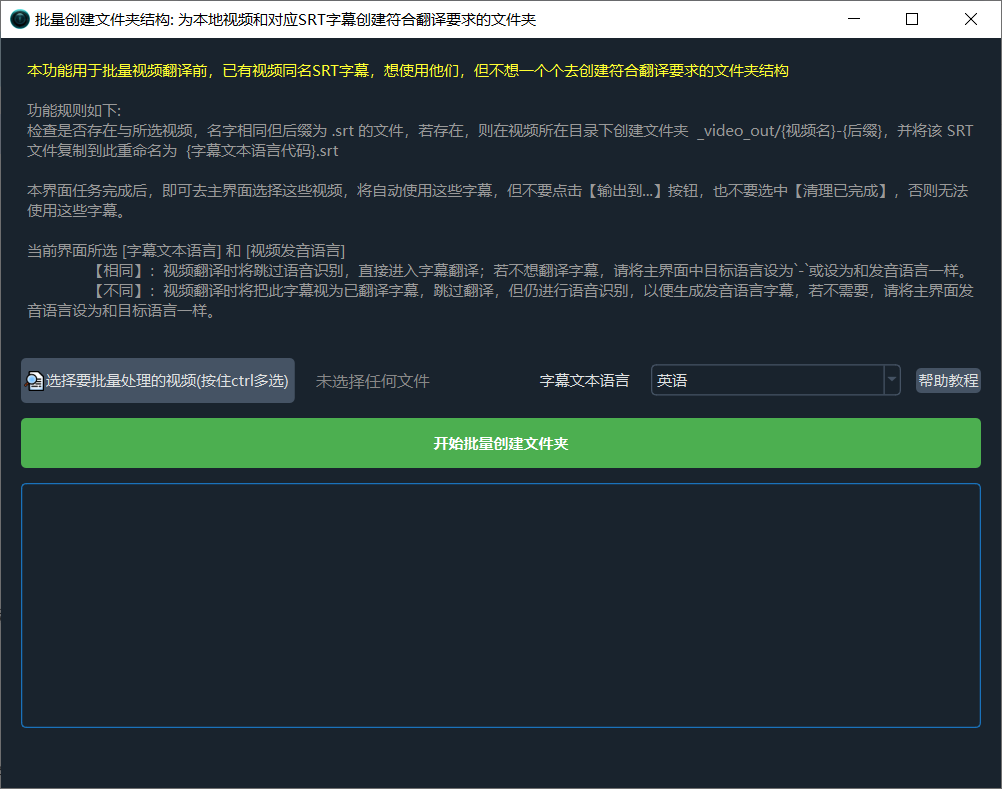
Ensure video and subtitle file names are identical (except extension) and located in the same folder.
For example:
- D:/myvideos/123.mp4
- D:/myvideos/123.srt
- D:/myvideos/abc.mp4
- D:/myvideos/abc.srt
Click Menu → Tools/Options → Create folder structure in batch.
- Select the videos to process (hold
Ctrlfor multi-select,Ctrl+Ato select all). - Select the subtitle language: Must match the actual language of the subtitle text.
- If the selected language is the same as the video's spoken language: The subtitle will be treated as the spoken-language subtitle — speech recognition will be skipped.
- If the selected language is different from the video's spoken language: The subtitle will be treated as already-translated — it won't be translated again, but speech recognition will still run. If you don't need speech recognition, set the spoken language to match the target language.
- Once done, go back to the main interface, select these videos, and the software will automatically use the subtitles. Do NOT click the "Save To..." button, and do NOT check "Clear Output", or the subtitles will be deleted.
II. Importing External Vocal and Background Audio
The built-in vocal separation uses CPU-only processing and is very slow. For faster results, use a third-party tool like UVR5-GUI with GPU acceleration:
Step 1: Use the third-party tool to separate the audio into:
- Vocal file (voice without background music)
- Instrumental file (background music without vocals)
Output format must be wav.
Step 2: Rename the files:
vocal.wav       ← Vocal
instrument.wav ← InstrumentalStep 3: Copy both files to the _video_out/myvideo-mp4/ folder.
Step 4: Do NOT check "Clear Output". You must check both "Separate Vocal/BGM" and "Re-embed Background Audio".
III. Language Code Reference
| Language | Code | Language | Code |
|---|---|---|---|
| English | en | Chinese (Simplified) | zh-cn |
| Chinese (Traditional) | zh-tw | Japanese | ja |
| Korean | ko | French | fr |
| German | de | Spanish | es |
| Russian | ru | Portuguese | pt |
| Italian | it | Arabic | ar |
| Turkish | tr | Vietnamese | vi |
| Hindi | hi | Thai | th |
| Polish | pl | Dutch | nl |
| Swedish | sv | Greek | el |
| Indonesian | id | Malay | ms |
| Norwegian | nb | Romanian | ro |
| Khmer | km | Urdu | ur |
| Cantonese | yue | Persian | fa |
| Hebrew | he | Bengali | bn |
| Filipino | fil | - | - |