
Single Video Interactive Mode
When you translate only one video at a time, the software enters Interactive Mode. After each processing stage completes, an editing window will pop up, allowing you to manually proofread and fine-tune the results to ensure the best final output.
If you select multiple videos at once, they will be processed simultaneously in batch mode without pauses.
If you don't want these editing windows to pop up, go to
Menu bar → Tools/Options → Advanced Options → Countdown for single video pause, and set it to 0.
Stage 1: After Speech Recognition — Subtitle Edit Window
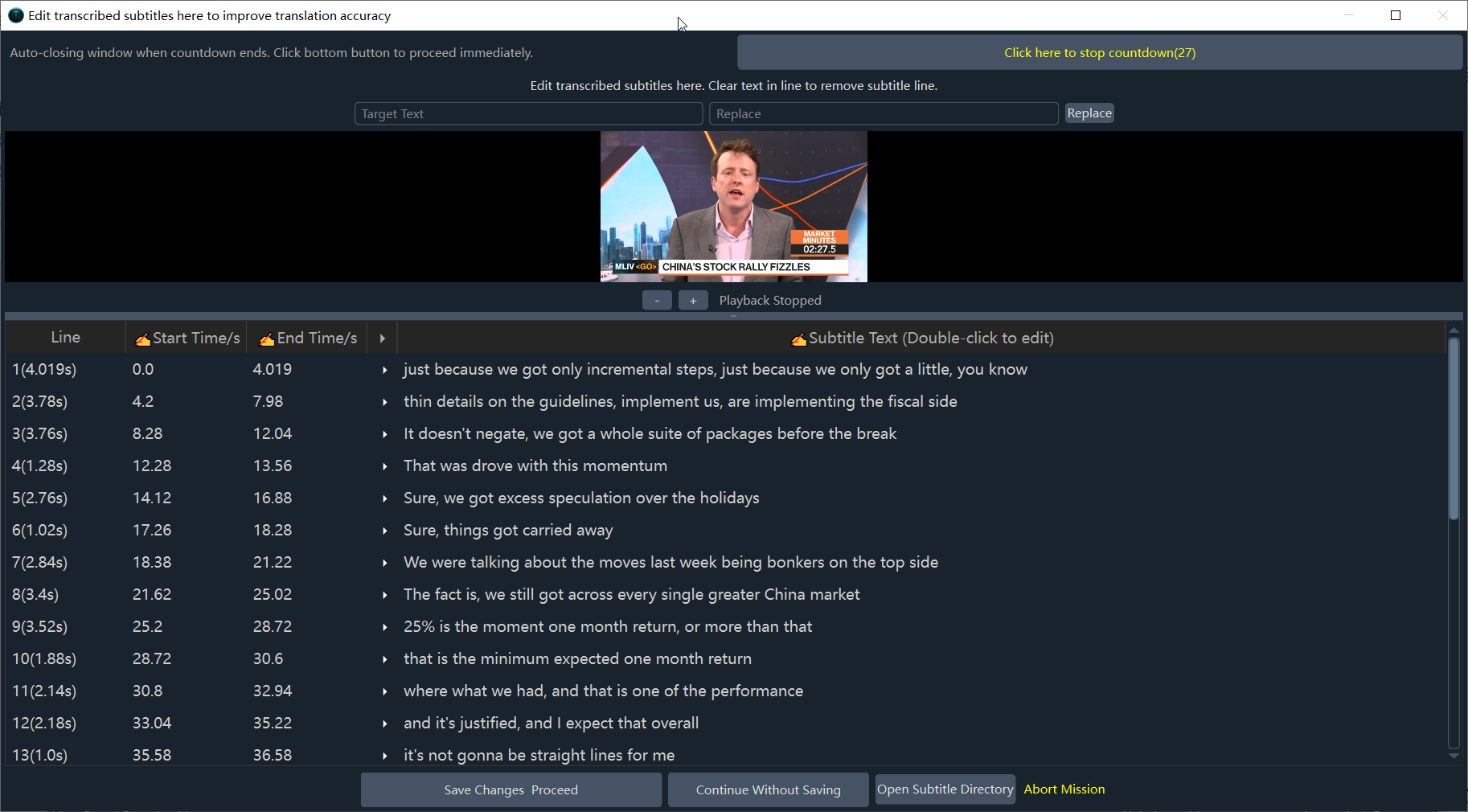
If you do not need to make changes, simply click the Continue Without Saving button at the bottom.
If you want to edit, please first click the countdown button in the top-right corner to stop the countdown. Otherwise, the window will automatically close and proceed to the next step when the timer reaches 0.
Columns with a
pencil iconcan be edited by double-clicking. For example, theStart TimeandEnd Timecolumns (representing start/end times in seconds) can be adjusted manually.Click the triangle play button to preview the video clip corresponding to that subtitle line.
Advanced Tip: If you prefer using a third-party tool to edit subtitles, click the Open Subtitle Directory button, locate the
OriginalLanguageCode.srtfile (e.g.,zh-cn.srtfor Chinese audio), edit and save it in your external editor, and then click Continue Without Saving in the software. The software will automatically use your modified file for subsequent steps.
Stage 2: After Subtitle Translation — Dubbing Assignment Window
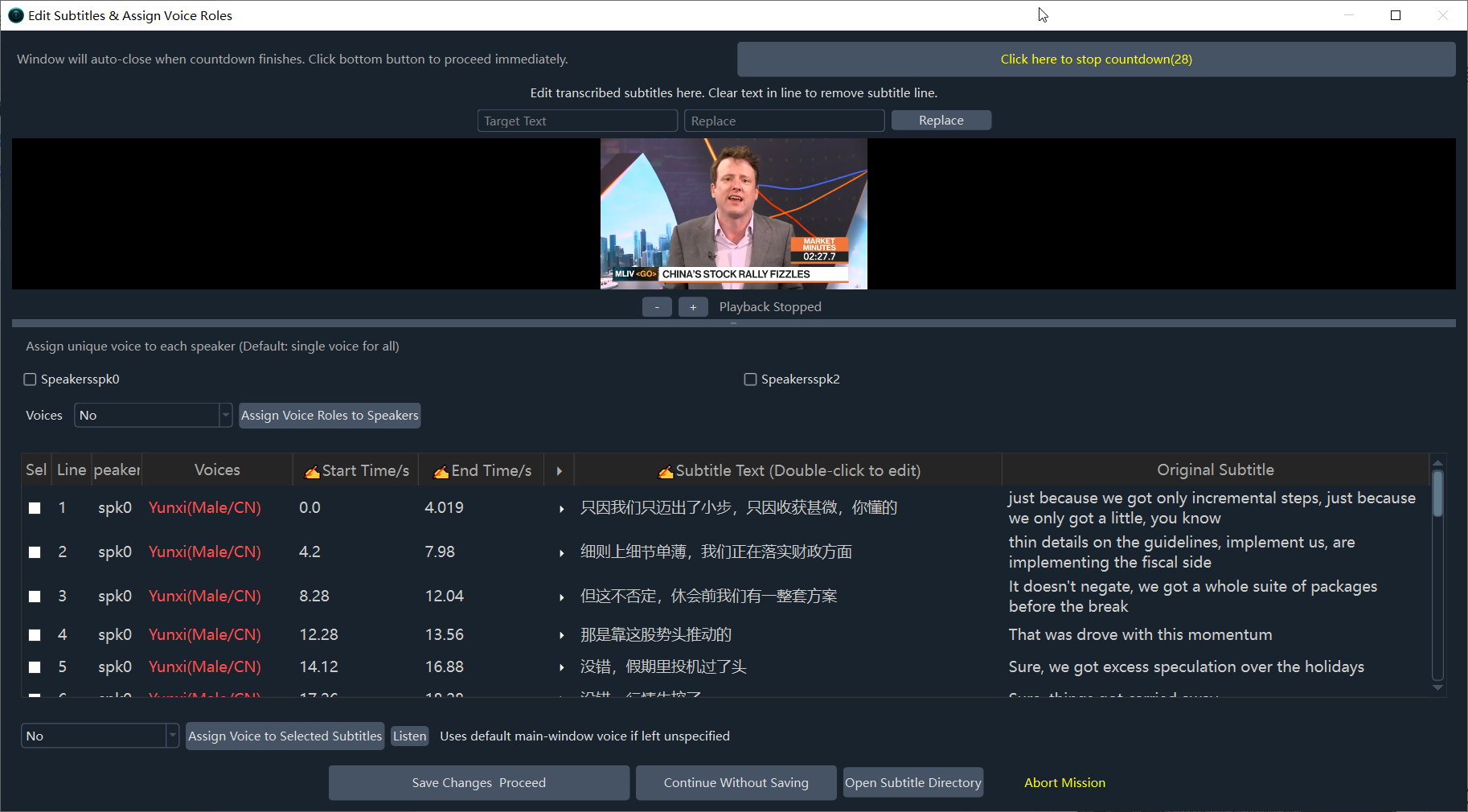
Similarly, before making any changes, click the countdown button in the top-right corner to turn it off; otherwise, the window will close automatically when the timer reaches 0 and proceed to the next step.
Columns with a
pencil iconcan be edited by double-clicking (such asStart TimeandEnd Timein seconds).You can assign a specific dubbing voice/character to each individual subtitle line.
You can assign a voice to each recognized speaker to achieve multi-character dubbing.
Click the play button to preview the corresponding video clip for that subtitle line.
Advanced Tip: Just like in Stage 1, you can click Open Subtitle Directory to find the translated SRT file (e.g.,
en.srt), edit and save it using an external editor, and then click Continue Without Saving.
Stage 3: After Dubbing — Proofreading & Re-dubbing Panel
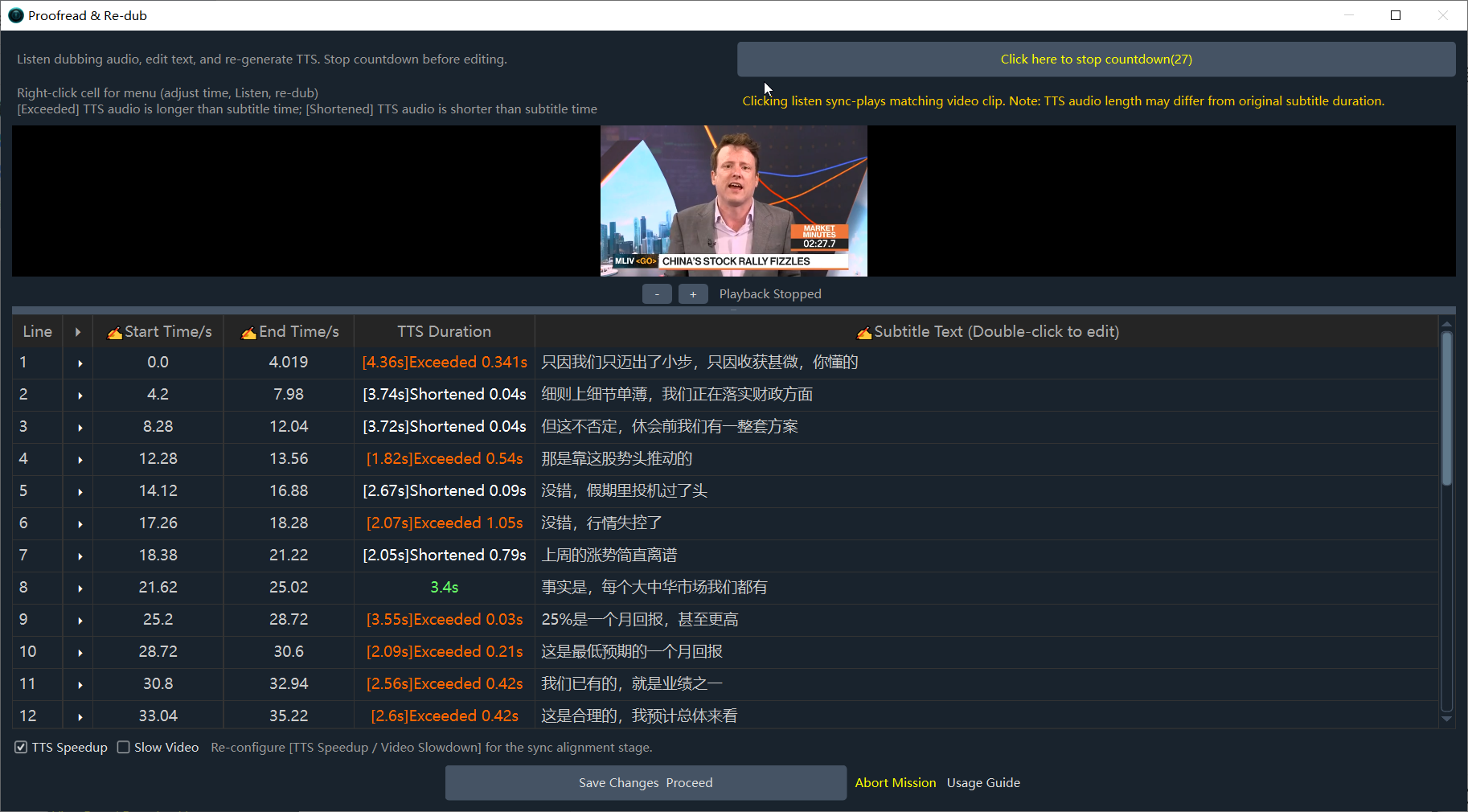
Before making changes, click the countdown button in the top-right corner to turn off the countdown so it won't auto-advance.
Columns with a
pencil iconcan be edited by double-clicking (such asStart TimeandEnd Timein seconds).Click the play button to preview the video clip along with the current dubbed audio. Note: At this stage, neither the audio nor the video has been speed-adjusted yet, so they may not be perfectly synchronized. You can adjust the subtitle text length based on the preview and right-click to re-dub.
Based on the preview, you can choose whether to enable
TTS SpeeduporSlow Video.
Each row represents a subtitle line, consisting of 6 columns (from left to right):
- Line (e.g.,
[1]): The subtitle line number. - Play: Click to play the video clip and dubbed audio for this line.
- Start Time/s: Double-click the cell to edit manually (or select the cell and press
Ctrl + Left/Right Arrowto adjust the time).- Right-click cell →
Decrease Start Time by 0.1s: Starts this line 0.1s earlier. - Right-click cell →
Increase Start Time by 0.1s: Starts this line 0.1s later. - Note: The start time cannot be earlier than the end time of the previous line.
- Right-click cell →
- End Time/s: Double-click the cell to edit manually (or select the cell and press
Ctrl + Left/Right Arrowto adjust the time).- Right-click cell →
Decrease End Time by 0.1s: Ends this line 0.1s earlier. - Right-click cell →
Increase End Time by 0.1s: Ends this line 0.1s later. - Note: The end time cannot be later than the start time of the next line.
- Right-click cell →
- TTS Duration: Right-click on the cell to access the
ListenandRe-duboptions.- x.xxs <Exceeded> x.xxs: The dubbed audio is longer than the subtitle time slot. The software will automatically speed up the audio. If you don't want the audio sped up, extend the End Time or shorten the subtitle text and re-dub.
- x.xxs <Shortened> x.xxs: The dubbed audio is shorter than the subtitle time slot. This is normal, and there will simply be a brief silence.
- Subtitle (Double-click to edit): Double-click to edit the subtitle text directly. Right-click to show the
ListenandRe-dubbuttons.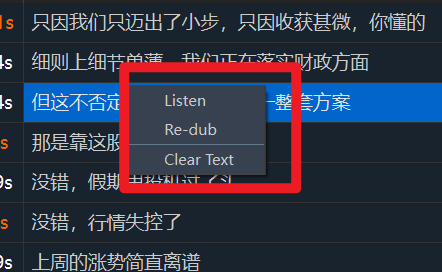
- Re-dub: After modifying the text, you must click this button so the program can regenerate the audio for the updated text.
- Listen: Plays the audio for this line to check pronunciation and tone.
Stage 4: After Secondary Recognition — Subtitle Edit Window
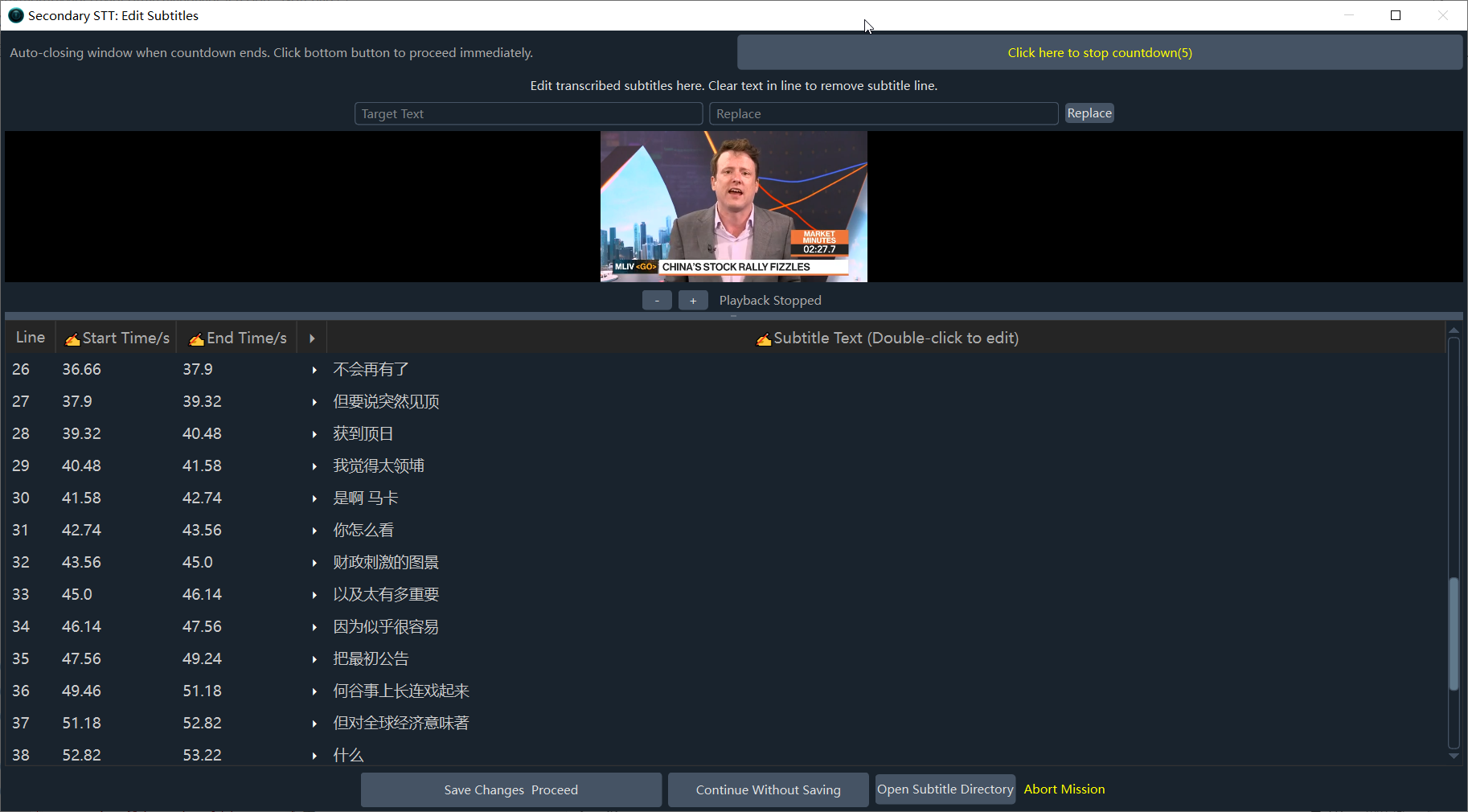
This window will pop up if you have enabled Secondary Recognition, dubbing is active, and hard subtitles are not embedded. You can correct any typos here, then click save and continue.
- Columns with a
pencil iconcan be edited by double-clicking (such asStart TimeandEnd Timein seconds) for manual adjustments.
Important Notes
- Save and Continue: Confirm that everything is correct, save your subtitle edits, and proceed to the next step.
- Abort Task: Cancel the current operation and close the window.
💡 Tips:
- If the subtitle list is very long, please be patient when scrolling or clicking. The software is optimized and will generally respond quickly.
- If a line of text is cleared or its dubbing duration shows as 0s, no audio will be synthesized for that line.
Related Documents
- Improving AI Subtitle Translation Quality — Translation Mode Comparison & Glossary Usage
- Better Utilization of Local LLMs as Translation Channels — Local LLM Configuration Guide
- Customizing AI Translation Prompts — How to Customize Translation Prompts
- Recommended Settings for Best Video Translation Results — Optimal Configuration for Each Stage
- Causes and Solutions for "Blank Subtitle Lines" After Translation