
This article explains how to use the ByteDance Speech Recognition Large Model - Fast Version in the speech recognition channels.
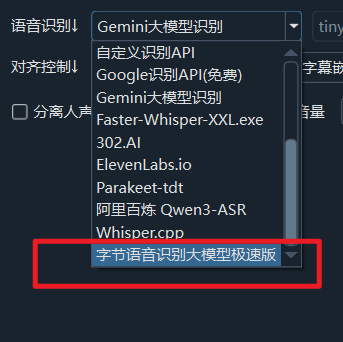
Please note, this refers to the
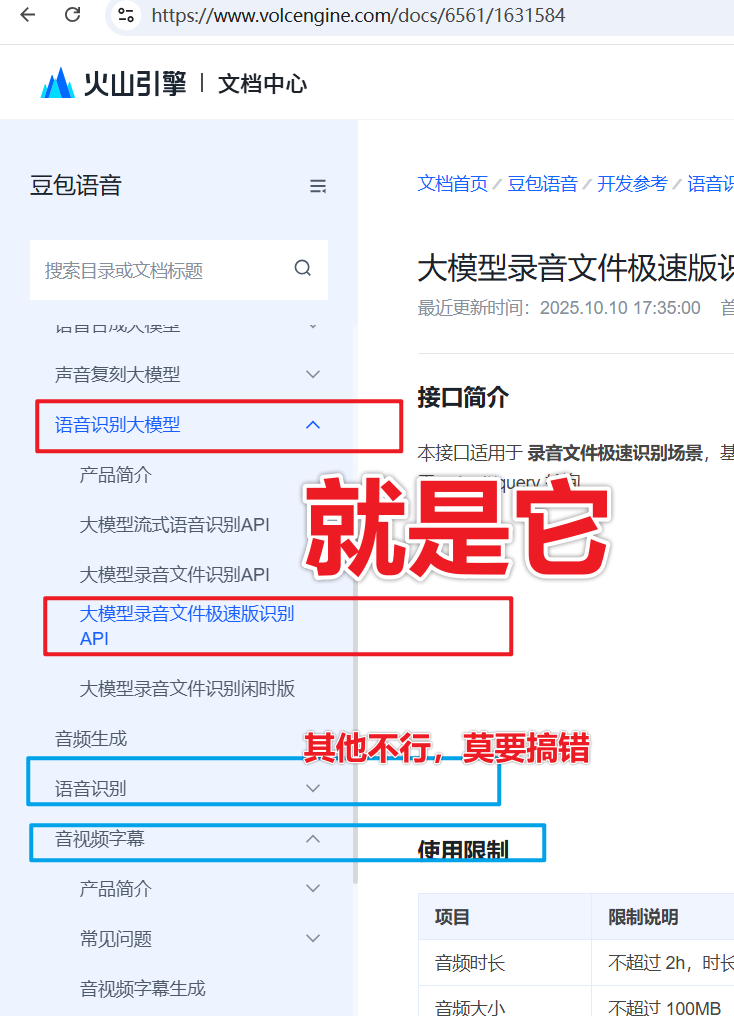
ByteDance Speech Recognition Large Model - Fast Version, which is not the same as theByteDance Volcano Subtitle Generationchannel.Furthermore, Volcano Engine offers many similarly named speech recognition services. You must use the specific
Audio File Recognition - Speech Recognition Large Model Fast Version API. The corresponding ByteDance documentation address is: https://www.volcengine.com/docs/6561/1631584
First, Log In and Register on Volcano Engine
Open the Volcano login page https://console.volcengine.com/auth/login. If you don't have an account, you'll need to register first and complete real-name verification.
The Volcano backend might look cluttered. After logging in, it's recommended to directly open this address to go to the application creation management page: https://console.volcengine.com/speech/app. Otherwise, beginners might accidentally create an Agent Application, which naturally cannot be used with this software.
Then, select Legacy Version in the top-left corner. The new version often lacks clear information, making it difficult for beginners to find the correct location.
Create an Application
After completing the login and real-name verification in the previous step, open the address to enter application creation management (https://console.volcengine.com/speech/app). Please double-check that you are using the Legacy Version in the top-left corner.
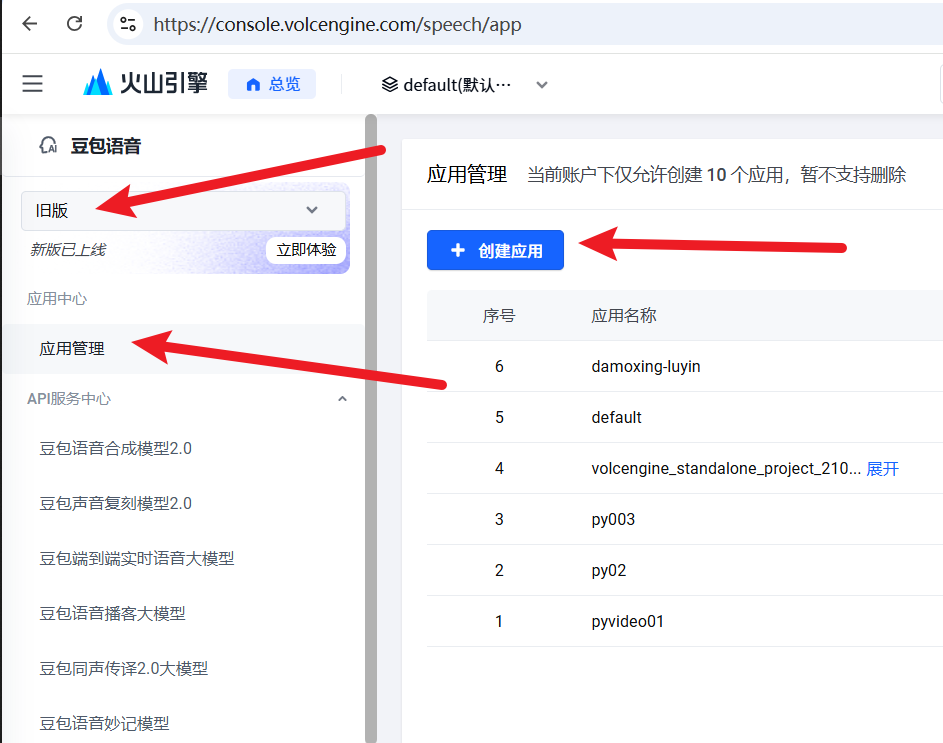
Click "Create Application". Fill in an English name, the description is optional. The important part is the list of checkboxes below. Select Audio File Recognition Large Model - Audio File Recognition Large Model Fast Version. This is mandatory; others can be left unchecked.
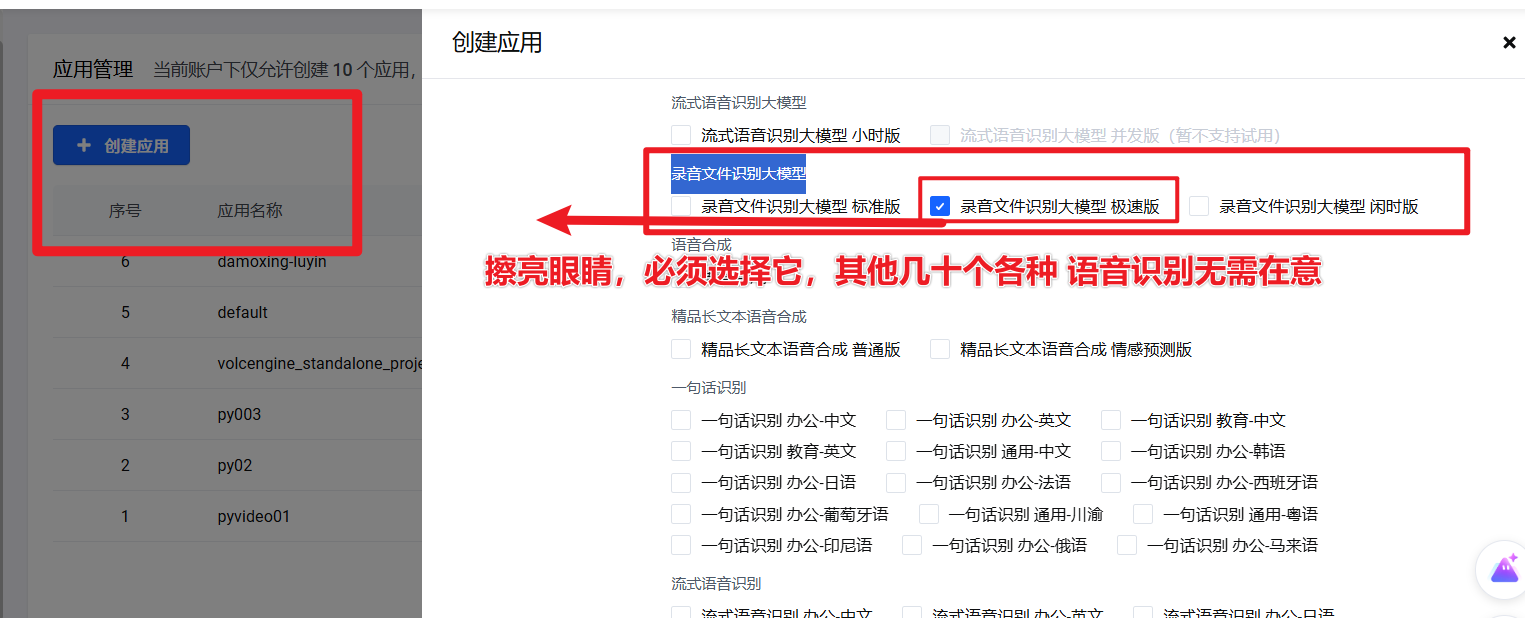
Special Note: Among the many similarly named Speech Recognition options, you must precisely select Audio File Recognition Large Model - Audio File Recognition Large Model Fast Version. Otherwise, errors will definitely occur during use.
Why must it be the Fast Version? Because the Standard Version requires passing a public URL address for an audio/video file. This means you must upload your local file to a server, then give the URL to ByteDance, who then downloads the file from that server. This is obviously not suitable.
Click OK and proceed to the next step: Get APP ID and Access Token.
Get Access Token / Activate the Official Version
Please double-check that the top-left corner shows Legacy Version. Then, from the left menu, navigate to API Service Center -> Speech Recognition Large Model -> Audio File Recognition Large Model. If the selected product is incorrect, it will definitely not work properly.
You can also go directly to this address: https://console.volcengine.com/speech/service/10012
You will see all created applications. Select the one you want to use.
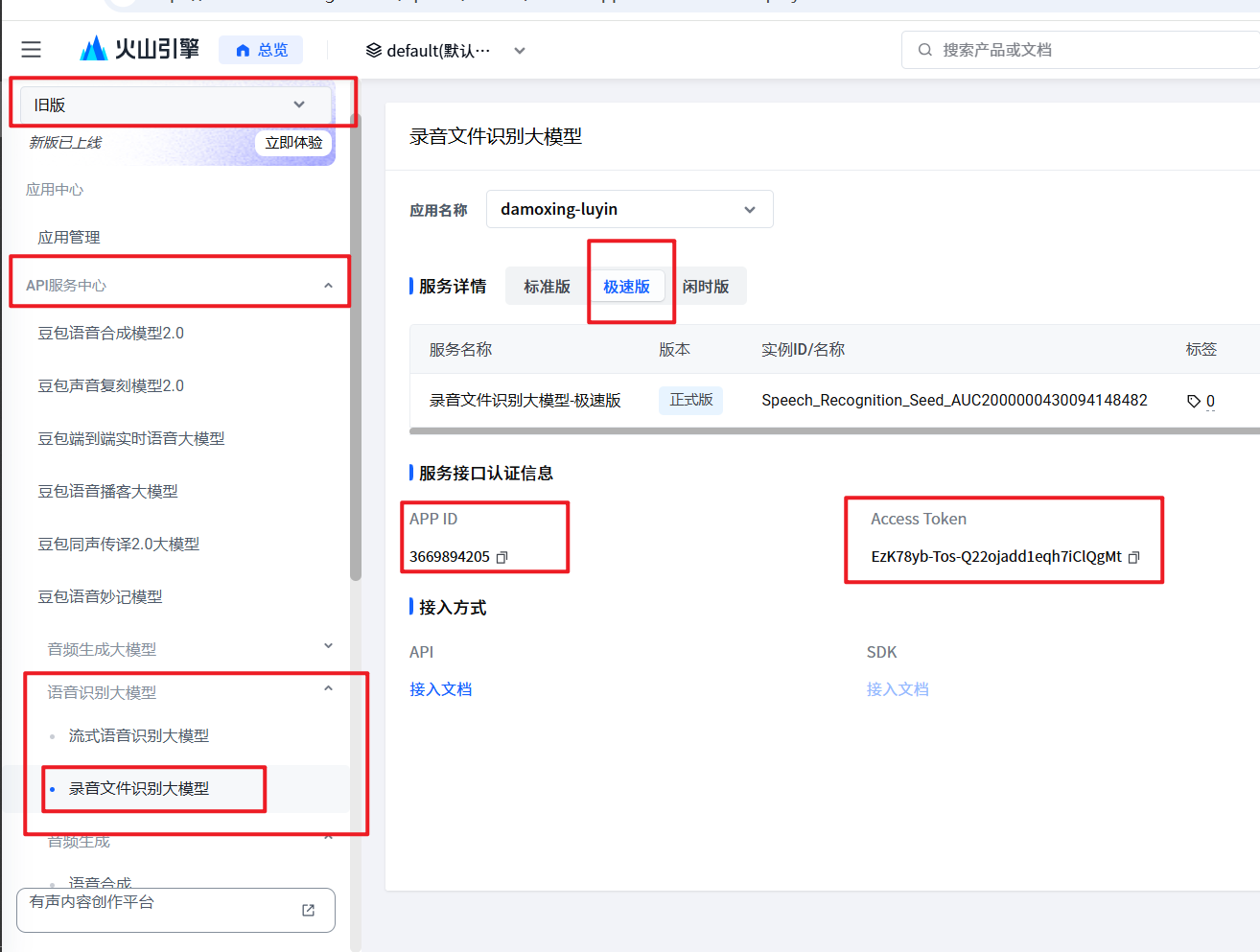
As shown above, select the application you want to use, and you must choose the Fast Version. If you don't see the Fast Version tag, you are in the wrong menu. Please switch to the Legacy Version in the top-left corner and search again.
Scroll to the bottom of the page to find the "Service Interface Authentication Information" section. Copy the APP ID and Access Token. These two pieces of information will be used in the code.
Using it in the pyVideoTrans Software
Special Note:
ByteDance Speech Recognition Large Model - Fast VersionandByteDance Volcano Subtitle Generationare two different things and need to be configured separately.
- Open the pyVideoTrans video translation and dubbing software. Go to
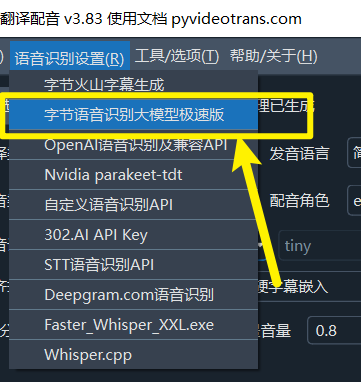
Menu -> Speech Recognition Settings -> ByteDance Speech Recognition Large Model - Fast Version. - Fill in the APP ID and Access Token.
- Save. Then, on the main interface, simply select "ByteDance Speech Recognition Large Model - Fast Version".