
Chatterbox TTS Voice Channel
After version 4.01, Chatterbox-TTS is built-in and can be used directly without deploying the separate API service mentioned at the bottom of this page.
On first use, the model will be downloaded online. If the download fails, you can also open this page (https://huggingface.co/ResembleAI/chatterbox/tree/main) and manually download all files to the
software directory/models/chatterboxfolder.
For versions prior to v4.01, deploying the following API service is still required.
This is a high-performance Text-to-Speech (TTS) service based on Chatterbox-TTS. It provides an API interface compatible with OpenAI TTS, an enhanced interface supporting voice cloning, and a simple web user interface.
This project aims to offer developers and content creators a privately deployable, powerful, and easily integrable TTS solution.
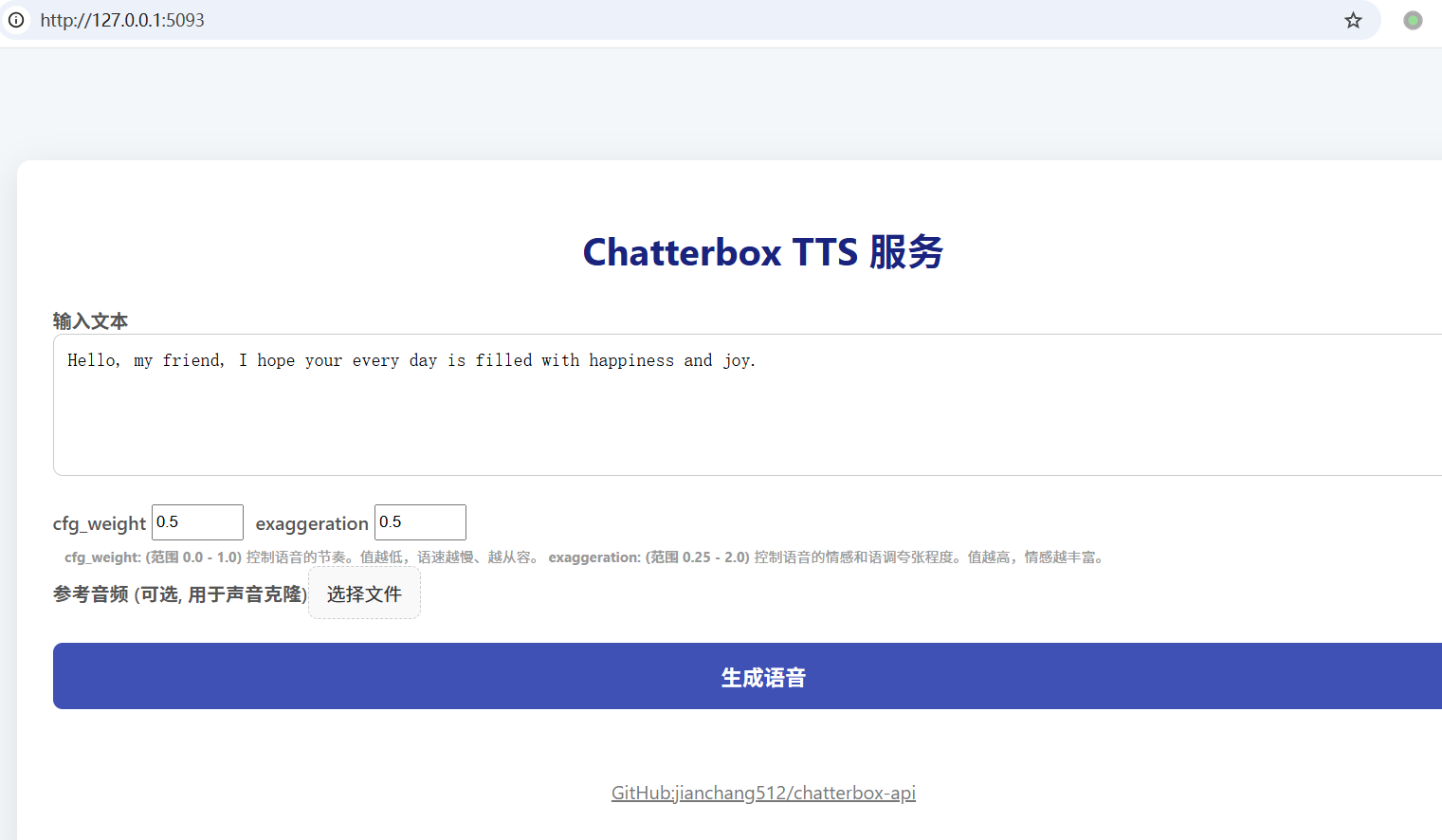
Project Address: https://github.com/jianchang512/chatterbox-api
Usage in pyVideoTrans
This project can serve as a powerful TTS backend for pyVideoTrans, providing high-quality English dubbing.
Start This Project: Ensure the Chatterbox TTS API service is running locally (
http://127.0.0.1:5093).Update pyVideoTrans: Make sure your pyVideoTrans version is updated to
v3.73or higher.Configure pyVideoTrans:
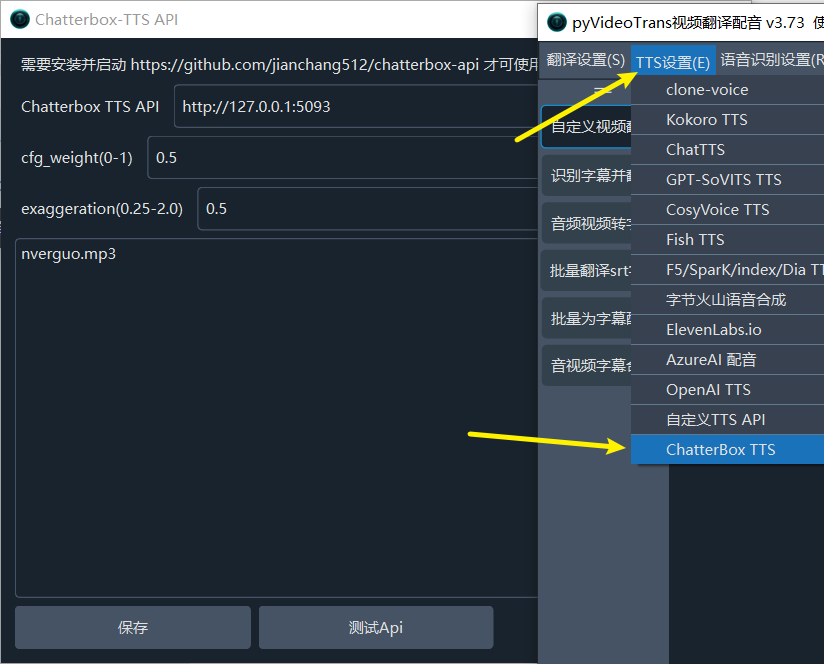
- In the pyVideoTrans menu, go to
TTS Settings->Chatterbox TTS. - API Address: Enter the service address, default is
http://127.0.0.1:5093. - Reference Audio (Optional): If you want to use voice cloning, enter the filename of the reference audio here (e.g.,
my_voice.wav). Ensure this audio file is placed in thechatterboxfolder within the pyVideoTrans root directory. - Adjust Parameters: Adjust
cfg_weightandexaggerationas needed for optimal results.
Parameter Adjustment Suggestions:
- General Scenarios (TTS, Voice Assistants): Default settings (
cfg_weight=0.5,exaggeration=0.5) work well for most cases. - Fast-Speaking Reference Audio: If the reference audio has a fast pace, try reducing
cfg_weightto around0.3to improve the rhythm of the generated speech. - Expressive / Dramatic Speech: Try a lower
cfg_weight(e.g.,0.3) and a higherexaggeration(e.g.,0.7or higher). Raisingexaggerationusually speeds up the voice, while loweringcfg_weighthelps balance it, making the rhythm more deliberate and clearer.
- In the pyVideoTrans menu, go to
Quick Start Method 1: Windows Users
We provide a portable package win.7z for Windows users containing all dependencies, significantly simplifying the installation process.
Download and Extract:
Baidu Netdisk download link [built-in model total 4G (CPU runtime, GPU method see below)] https://pan.baidu.com/s/1zXzRAQ0P7X8LJp4OrCvw7w?pwd=1234
Start the Service:
Double-click the Start Service.bat script in the root directory.
When you see information similar to the following in the command prompt window, the service has successfully started:
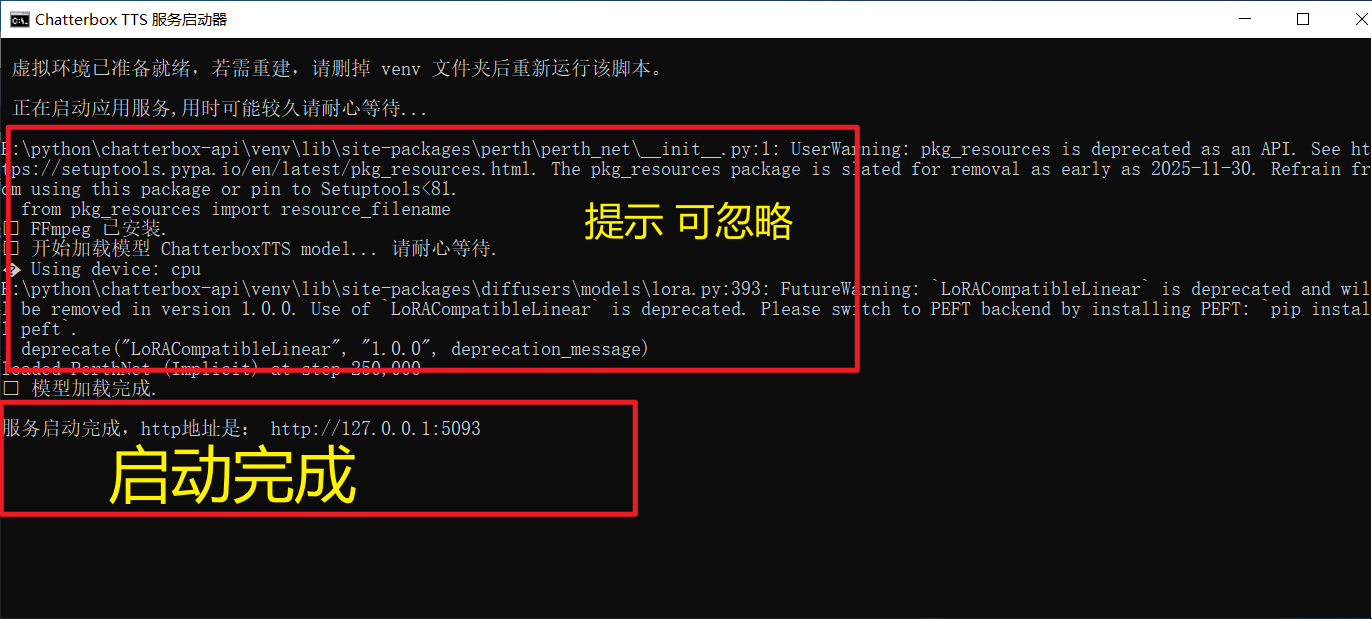
    ✅ Model loaded successfully.
Service started. HTTP address is: http://127.0.0.1:5093Method 2: macOS, Linux, and Manual Installation Users
For macOS, Linux users, or Windows users who prefer a manual environment setup, please follow the steps below.
1. Prerequisites
- Python: Ensure Python 3.9 or higher is installed.
- ffmpeg: An essential audio/video processing tool.
- macOS (using Homebrew):
brew install ffmpeg - Debian/Ubuntu:
sudo apt-get update && sudo apt-get install ffmpeg - Windows (Manual): Download ffmpeg and add it to the system environment variable
PATH.
- macOS (using Homebrew):
2. Installation Steps
# 1. Clone the project repository
git clone https://github.com/jianchang512/chatterbox-api.git
cd chatterbox-api

# 2. Create and activate a Python virtual environment (Recommended)
python3 -m venv venv
# on Windows:
# venv\Scripts\activate
# on macOS/Linux:
source venv/bin/activate

# 3. Install dependencies
pip install -r requirements.txt

# 4. Start the service
python app.pyOnce the service starts successfully, you will see the service address http://127.0.0.1:5093 in the terminal.
⚡ Upgrade to GPU Version (Optional)
If your computer has an NVIDIA graphics card supporting CUDA and you have correctly installed the NVIDIA Driver and CUDA Toolkit, you can upgrade to the GPU version for significant performance improvements.
Windows Users (One-click Upgrade)
- First, ensure you have successfully run
Start Service.batonce to complete the basic environment installation. - Double-click the
Install NVIDIA GPU Support.batscript. - The script will automatically uninstall the CPU version of PyTorch and install the GPU version compatible with CUDA 12.6.
Linux Manual Upgrade
After activating the virtual environment, execute the following commands:
# 1. Uninstall the existing CPU version of PyTorch
pip uninstall -y torch torchaudio

# 2. Install PyTorch matching your CUDA version
# The following command is for CUDA 12.6. Please get the correct command from the PyTorch website based on your CUDA version.
pip install torch torchaudio --index-url https://download.pytorch.org/whl/cu126You can visit the PyTorch Official Website to get the installation command suitable for your system.
After the upgrade, restart the service. You should see Using device: cuda in the startup logs.
📖 Usage Guide
1. Web Interface
Once the service is started, open http://127.0.0.1:5093 in a browser to access the Web UI.
- Input Text: Enter the text you want to convert in the text box.
- Adjust Parameters:
cfg_weight: (Range 0.0 - 1.0) Controls the rhythm of the speech. Lower values result in slower, more deliberate speech. For fast-paced reference audio, you can lower this value (e.g., 0.3).exaggeration: (Range 0.25 - 2.0) Controls the emotional and tonal exaggeration of the speech. Higher values mean richer emotion and potentially faster speech.
- Voice Cloning: Click "Choose File" to upload a reference audio file (e.g., .mp3, .wav). If a reference audio is provided, the service will use the cloning interface.
- Generate Speech: Click the "Generate Speech" button. After a short wait, you can listen and download the generated MP3 file online.
2. API Calls
Interface 1: OpenAI Compatible Interface (/v1/audio/speech)
This interface does not require a reference audio file and can be called directly using the OpenAI SDK.
Python Example (using openai SDK):
from openai import OpenAI
import os

# Point the client to our local service
client = OpenAI(
    base_url="http://127.0.0.1:5093/v1",
    api_key="not-needed"  # API key is not required, but the SDK expects it
)

response = client.audio.speech.create(
    model="chatterbox-tts",   # This parameter is ignored
    voice="en",              #
    speed=0.5,               # Corresponds to the cfg_weight parameter
    input="Hello, this is a test from the OpenAI compatible API.",
    instructions="0.5"     # (Optional) Corresponds to the exaggeration parameter. Note: must be a string.
    response_format="mp3"    # Optional: 'mp3' or 'wav'
)

# Stream the audio to a file
response.stream_to_file("output_api1.mp3")
print("Audio saved to output_api1.mp3")Interface 2: Voice Cloning Interface (/v2/audio/speech_with_prompt)
This interface requires uploading both the text and a reference audio file using multipart/form-data format.
Python Example (using requests library):
import requests

API_URL = "http://127.0.0.1:5093/v2/audio/speech_with_prompt"
REFERENCE_AUDIO = "path/to/your/reference.mp3"  # Replace with your reference audio path

form_data = {
    'input': 'This voice should sound like the reference audio.',
    'cfg_weight': '0.5',
    'exaggeration': '0.5',
    'response_format': 'mp3'  # Optional: 'mp3' or 'wav'
}

with open(REFERENCE_AUDIO, 'rb') as audio_file:
    files = {'audio_prompt': audio_file}
    response = requests.post(API_URL, data=form_data, files=files)

if response.ok:
    with open("output_api2.mp3", "wb") as f:
        f.write(response.content)
    print("Cloned audio saved to output_api2.mp3")
else:
    print("Request failed:", response.text)