
pyVideoTrans WebUI User Guide
⚠️ Important Notice
The WebUI version implements only a subset of features. It is designed primarily for:
- Cloud server deployment (remote access to translation services)
- LAN deployment (separating the server from the end-user machine)
- Docker containerized deployment
For full functionality, use the desktop client (
sp.exe) or run from source (sp.py). The desktop version supports more API channel configurations, real-time interactive editing, batch processing, and other advanced features.
1. Deployment Methods
1.1 Source Deployment (Recommended)
git clone https://github.com/jianchang512/pyvideotrans.git
cd pyvideotrans
uv sync --extra webuiStart the service:
uv run webui.py                    # Default 0.0.0.0:7860
uv run webui.py --port 8080        # Custom port
uv run webui.py --host 127.0.0.1   # Local-only access
uv run webui.py --share # Create a public Gradio linkAccess at: http://127.0.0.1:7860 or http://<server-ip>:7860
1.2 Docker Deployment
# Build image
git clone https://github.com/jianchang512/pyvideotrans.git
cd pyvideotrans
docker build -t pyvideotrans-webui .

# Run
docker run -d -p 7860:7860 --name pyvideotrans pyvideotrans-webui

# Persist config and output
docker run -d -p 7860:7860 \
  -v ./data/output:/app/output \
  -v ./data/config:/app/videotrans \
  --name pyvideotrans pyvideotrans-webui

# GPU acceleration
docker run -d -p 7860:7860 --gpus all \
  -v ./data/output:/app/output \
  -v ./data/config:/app/videotrans \
--name pyvideotrans pyvideotrans-webui1.3 Google Colab
- Open https://colab.research.google.com/drive/1kPTeAMz3LnWRnGmabcz4AWW42hiehmfm?usp=sharing
- Sign in to your Google account → Click Run All
- Wait for the
*.gradio.livelink to appear, then click to use
⚠️ The free tier of Colab has a 4–6 hour usage limit.
1.4 Huggingface.co
- Open https://huggingface.co/spaces/mortimerme/pyvideotrans
- Click the three-dot menu in the top-right corner and select
Clone repository - Clone the repo to your own account and run it
Free tier runs on 2 CPU cores; GPU resources require a paid plan on huggingface.co.
2. Interface Overview
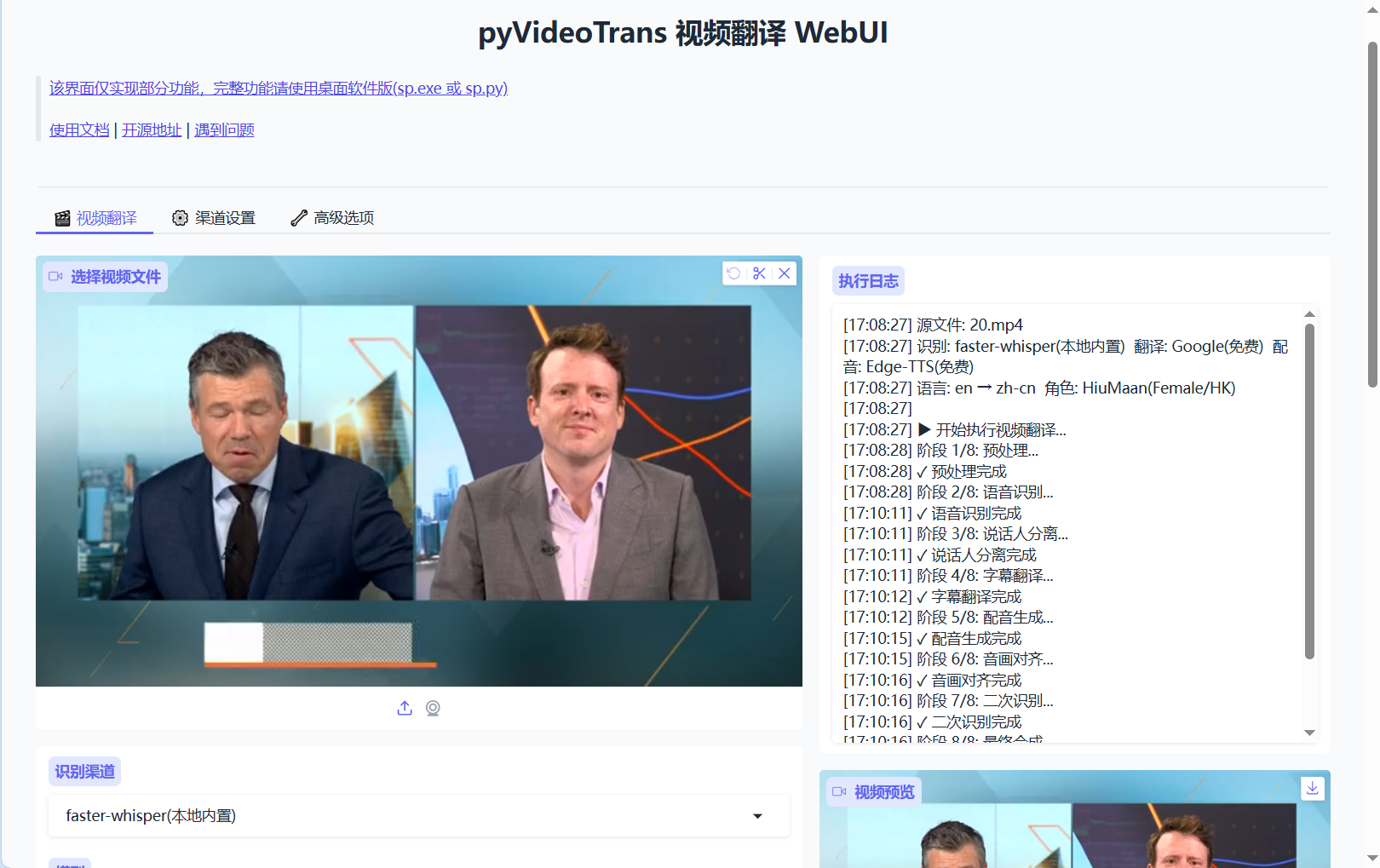
The WebUI is organized into three tabs:
2.1 🎬 Translate A/V (Main Interface)
File Selection: Supports mp4/mkv/avi/mov/webm/wav/mp3/m4a/flac and other formats
ASR Channel: Options include faster-whisper / openai-whisper / Qwen-ASR / FunASR / Huggingface_ASR (all local built-in free channels)
Translation Channel: Options include Google / Microsoft / M2M100 (free channels)
Dubbing Channel: Options include Edge-TTS / Qwen3-TTS / MOSS-TTS / Piper / VITS / Supertonic / ChatterBox / gTTS (free / local built-in channels)
Alignment & Subtitles: Dubbing speedup, video slowdown, speech rate / volume / pitch adjustment, subtitle embedding type
More Settings: Denoise, punctuation handling, vocal/BGM separation, BGM re-embedding, CUDA acceleration
Hard Subtitle Style Editing: Full customization of font, colors, outline, shadow, alignment, and more
2.2 ⚙️ Channel Settings
Configure API endpoints, SK keys, models, and more for each channel. Shared with the desktop version — config saved in videotrans/params.json.
Includes: Translation channels, ASR channels, dubbing channels, reference audio settings
To use API channels, you must first configure the API endpoint and SK key using the desktop version (
sp.exe).
2.3 🔧 Advanced Options
Configure global advanced parameters, fully shared with the desktop version's Tools/Options → Advanced Options.
Includes: General settings, video output control, ASR parameters, subtitle translation adjustment, subtitle dubbing adjustment, subtitle-audio-video alignment, Whisper model prompts
3. Running a Translation
- Select video/audio files
- Configure ASR / translation / dubbing parameters
- Click the Start button
During execution:
- The button changes to show "In Progress" and becomes disabled
- The log panel on the right displays real-time progress across 8 stages
- When complete, the button is restored; the video preview area allows in-browser playback, and files are available for download
4. Comparison with Desktop Version
| Feature | WebUI | Desktop |
|---|---|---|
| Full video translation pipeline | ✅ | ✅ |
| API channels (configure via desktop first) | ✅ | ✅ |
| Advanced options configuration | ✅ | ✅ |
| Real-time interactive subtitle editing | ❌ | ✅ |
| Batch processing | ❌ | ✅ |
| In-browser video preview | ✅ | ❌ |
| Remote access / Docker | ✅ | ❌ |
5. FAQ
Q: Startup error "No module named gradio"uv sync --extra webui
Q: How to persist Docker config-v ./data/output:/app/output -v ./data/config:/app/videotrans
Q: How to use GPU with Docker Install nvidia-container-toolkit, then: docker run --gpus all ...
Q: How to use API channels Configure the API endpoint and SK key using the desktop version first. WebUI reads params.json automatically.
Q: How to create a public linkuv run webui.py --share — the console outputs a temporary *.gradio.live link