
Miniconda is a lightweight version of Anaconda that helps you quickly install Python and various packages. It's more suitable for beginners running AI programs than the full Anaconda distribution.
This tutorial will guide you step-by-step through installing Miniconda on Windows 10, using the official download link, configuring a Python 3.10 environment, and installing some common modules. Don't worry, even if you have no prior experience, you can easily get it done!
Step 1: Download and Install Miniconda
Download Miniconda
Open your browser, enter this URL, and press Enter: https://www.anaconda.com/download/success#miniconda
Scroll down to the "Miniconda" section, click the download link for Windows, or use this direct link: https://repo.anaconda.com/miniconda/Miniconda3-latest-Windows-x86_64.exe
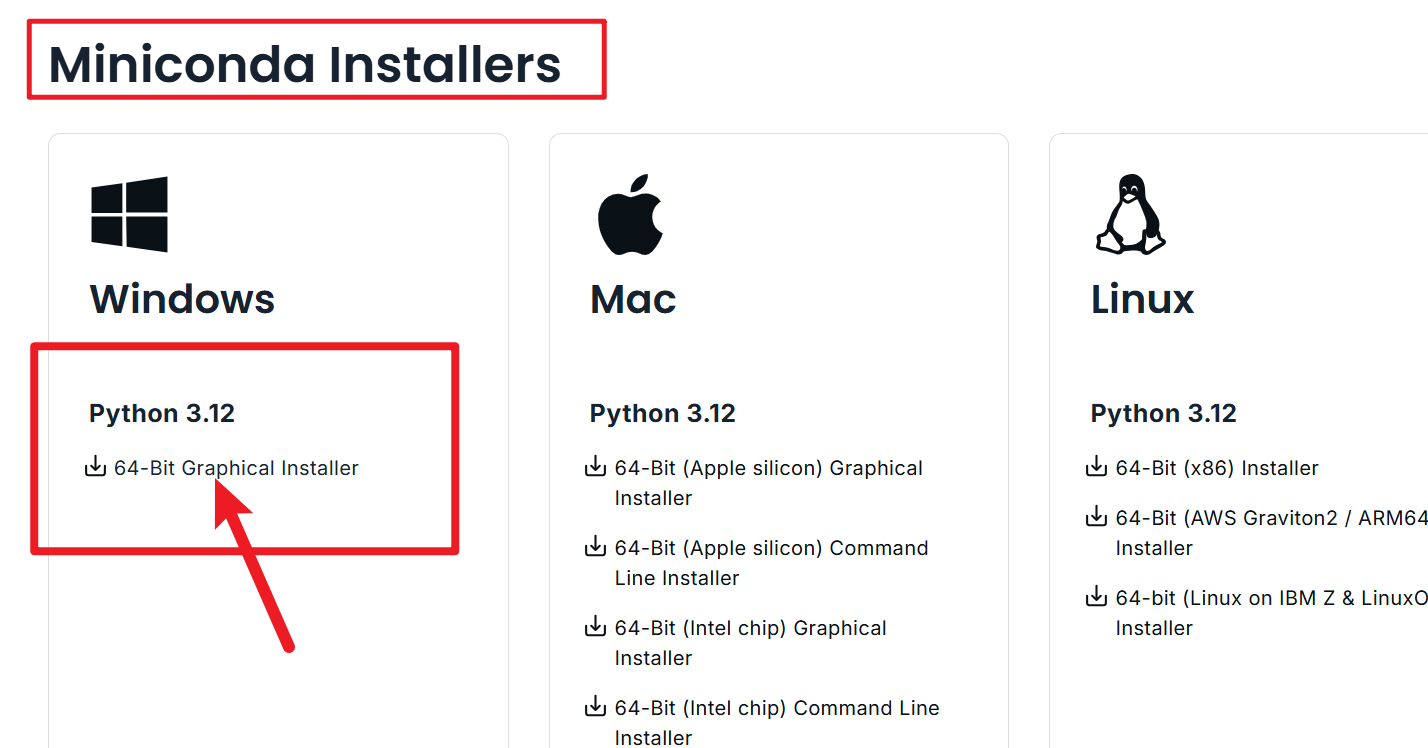
The file will be saved to your "Downloads" folder (e.g.,
C:\Users\YourUsername\Downloads), with a filename likeMiniconda3-latest-Windows-x86_64.exe.
Install Miniconda
Double-click the downloaded file to open the installer window.
Click "Next", then agree to the license terms (click "I Agree").
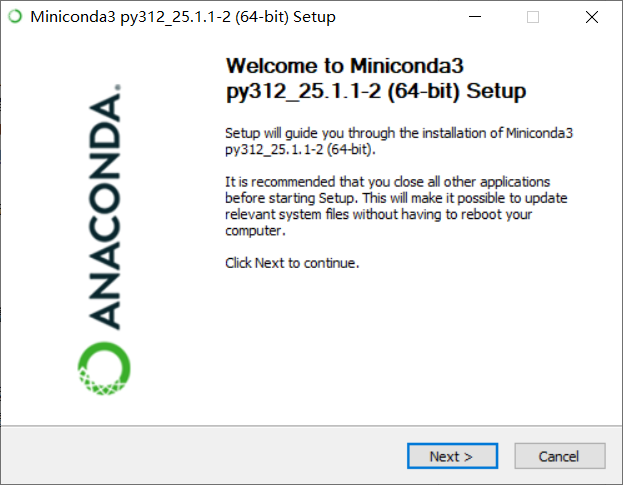
Important: On the "Advanced Options" page, check the box for Add Miniconda3 to my PATH environment variable. This allows you to use the
condacommand directly. Otherwise, you will encounter the error:'conda' is not recognized as an internal or external command, operable program or batch file.
Note: Some computers might warn that adding to PATH is not recommended. Ignore this warning and check the box. This is a common pitfall for beginners; if you don't check it, the commands won't work later.
- Click "Install", wait a few minutes for the process to complete, then click "Finish".
Step 2: Check Installation and Create a Python 3.10 Virtual Environment
Open the Command Line Terminal (CMD)
- Press the Windows key + R on your keyboard to open the "Run" dialog.
- Type
cmdand press Enter to open the black command line window.
Check if Miniconda is Installed Successfully
- In the command line, type:
conda --versionPress Enter. If you see something likeconda 25.1.1, the installation was successful.
- In the command line, type:

If it says "'conda' is not recognized...", it means the environment variable wasn't added. Reinstall and make sure to check Add Miniconda3 to my PATH environment variable. 
- Create a Python 3.10 Virtual Environment
- In the command line, type:
conda create -n myai python=3.10 myaiis the name of the environment, which you can change (e.g.,ai_env).
- After pressing Enter, the system will download Python 3.10 and some base packages. It will ask for confirmation "Y/N". Type
yand press Enter to continue the installation.
- In the command line, type:

- Activate the Virtual Environment
- Type:
conda activate myaiPress Enter. If you see(myai)appear at the beginning of the command line prompt, you have successfully entered the environment.
- Type:

- Common Virtual Environment Commands
- Deactivate the environment: Type
conda deactivateand press Enter. The(myai)prefix will disappear. - View all environments: Type
conda env listto see a list of environments you've created. - Delete an environment (if you no longer need it): Type
conda env remove -n myai.
- Deactivate the environment: Type
Step 3: Use pip to Install Modules and requirements.txt
Ensure You Are in the Virtual Environment
- Type
conda activate myaiand confirm that(myai)is present in the command line prompt.
- Type
Install a Common Module for Testing
- For example, install
numpy(a mathematical computing tool needed by many AI programs):pip install numpyPress Enter. After download and installation, you can check the version withpython -c "import numpy; print(numpy.__version__)".
- For example, install
Install from requirements.txt
- If your AI software provides a
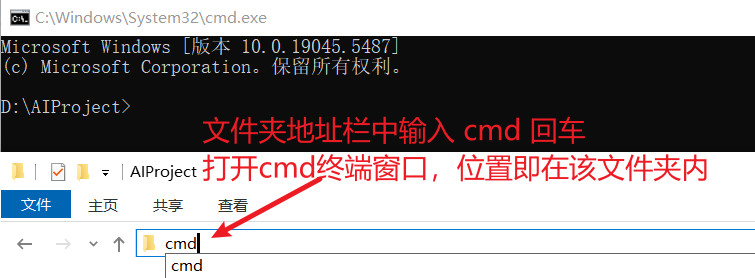
requirements.txtfile (listing required packages), copy it to a folder (e.g., a new folder "AIProject" on your desktop). - Navigate to that folder, then delete the contents of the folder address bar, type
cmd, and press Enter to open a terminal window in that location:
- If your AI software provides a
- Then type:
pip install -r requirements.txtPress Enter. This will automatically install all packages listed in the file.
Step 4: Common pip Commands and Troubleshooting Frequent Errors
Common pip Commands
- Check pip version:
pip --versionto see if it's up-to-date. - Upgrade pip: If the version is old, type
pip install --upgrade pip. - List installed packages:
pip listto see what's installed. - Uninstall a package: For example,
pip uninstall numpyto remove it.
- Check pip version:
Common Errors and Solutions
Network Error (Slow download or failure):
- It might be a network issue. Try a few more times, or use a domestic mirror in China to speed up downloads:
pip install -r requirements.txt -i https://pypi.tuna.tsinghua.edu.cn/simple
- It might be a network issue. Try a few more times, or use a domestic mirror in China to speed up downloads:
Permission Error (Access Denied):
- Run CMD as an administrator: Right-click the Start menu, select "Command Prompt (Admin)", and try the command again.
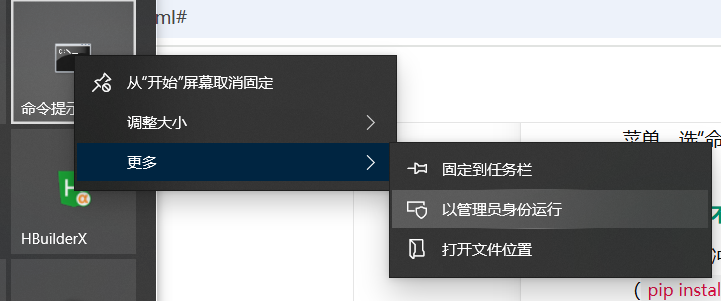
- Run CMD as an administrator: Right-click the Start menu, select "Command Prompt (Admin)", and try the command again.
Dependency Conflict (Version incompatibility):
- If prompted about a package conflict, try upgrading pip (
pip install --upgrade pip) and then reinstalling. If it still doesn't work, ask the software author for recommended versions.
- If prompted about a package conflict, try upgrading pip (
Command Not Recognized:
- If
pipdoesn't work, trypython -m ensurepipfollowed bypython -m pip install --upgrade pipto repair it.
- If
Now Miniconda is installed, your Python 3.10 environment is configured, and you can install various required packages. If your AI software has run instructions (e.g., python run.py), try entering the corresponding command while in the virtual environment (with the (myai) prefix active).