
ByteDance Speech Synthesis Model 2.0 (Doubao TTS 2.0) Guide
What is it?
Doubao TTS 2.0 is a high-quality Chinese voice synthesis service from ByteDance (the company behind TikTok), built on large language model technology. It produces natural and fluid voice output.
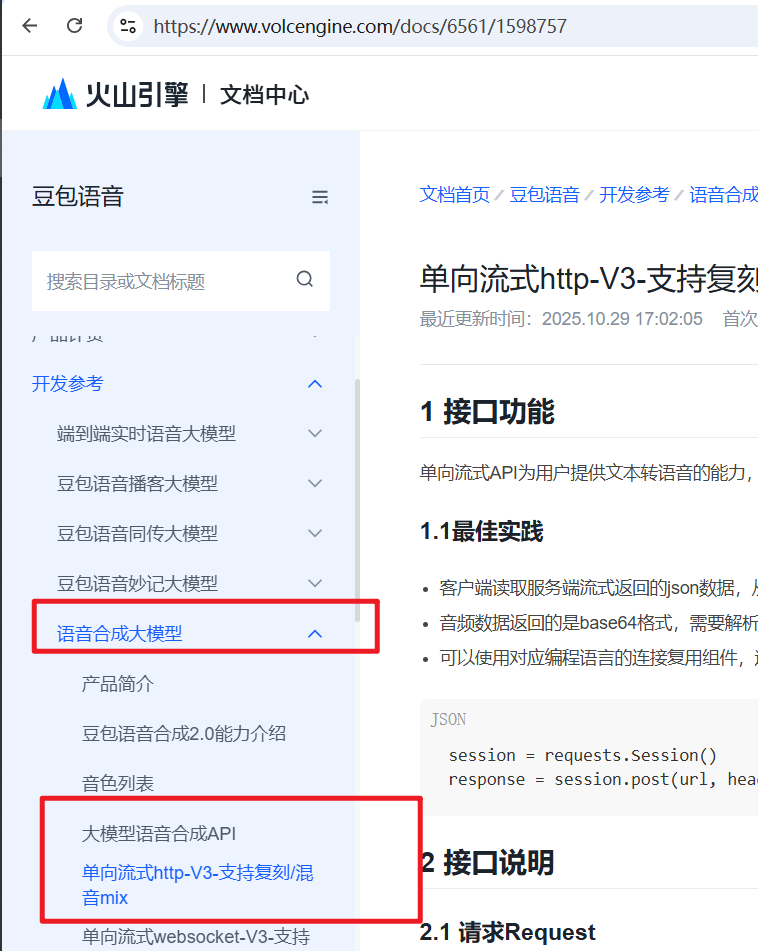
Important: ByteDance has many similarly-named speech synthesis products. This guide specifically covers the "Speech Synthesis Model → Large Model Speech Synthesis API" — make sure you select the right one, otherwise it won't work.
How to Get Started
Step 1: Register and Log In
- Visit Volcengine Console
- Register an account and log in
- Complete identity verification (required)
Step 2: Create an Application
- In the console, find Doubao Speech Synthesis Model 2.0
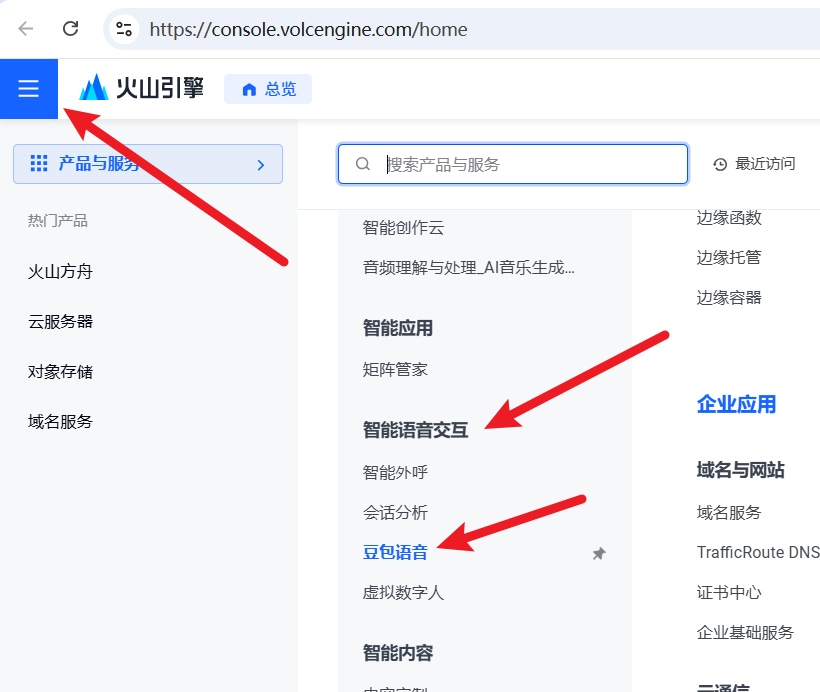
Or go directly to: https://console.volcengine.com/speech/app
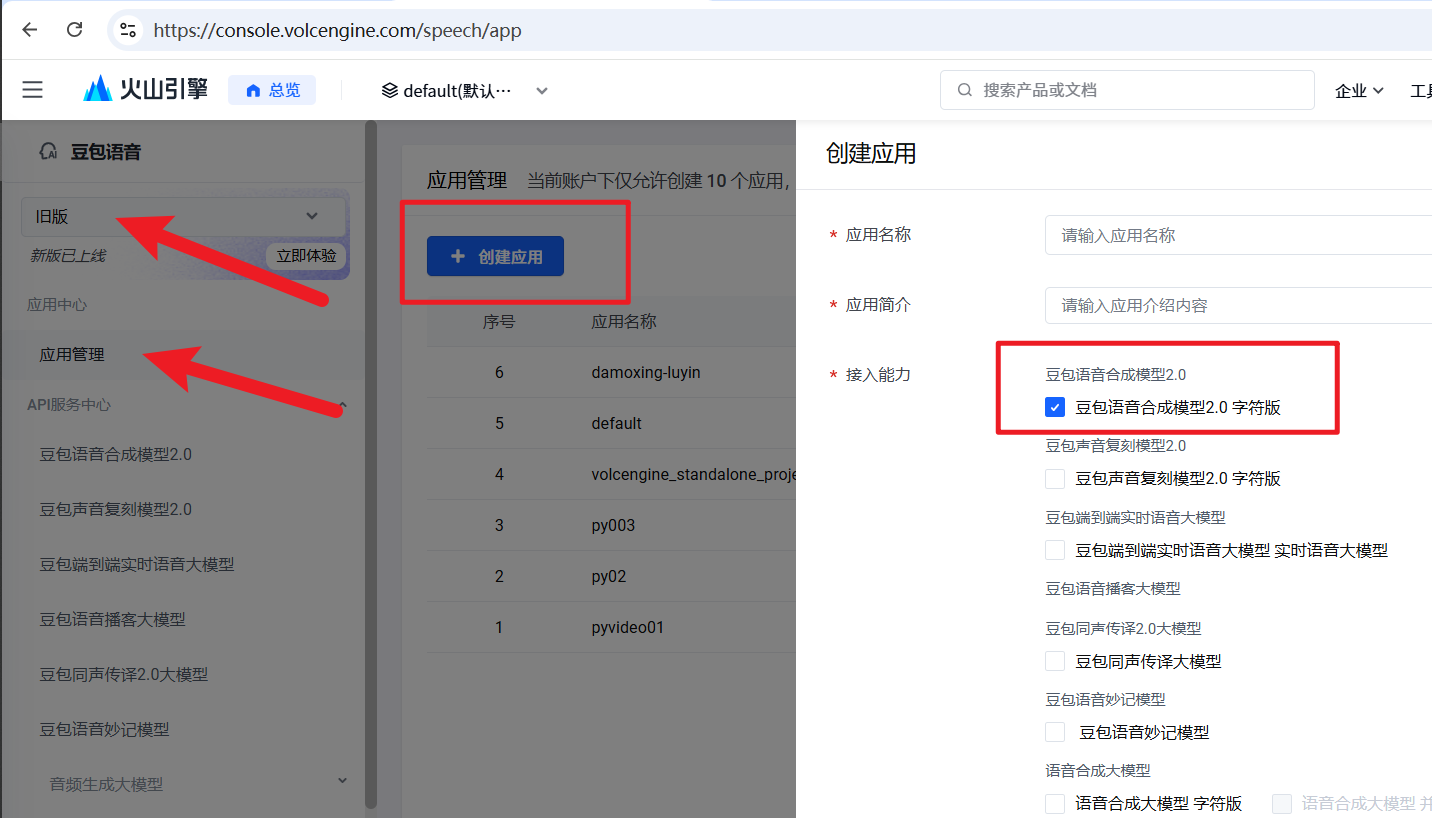
Note: Switch to "Legacy" mode in the upper left corner — the new interface is cluttered and hard to navigate
Navigate through: Legacy → Application Center → Application Management → Create Application

- Fill in an application name and description (any value works)
- Important: You must check the "Doubao Speech Synthesis Model 2.0 → Doubao Speech Synthesis Model 2.0 Character Version" checkbox
Step 3: Activate Free Trial or Paid Plan
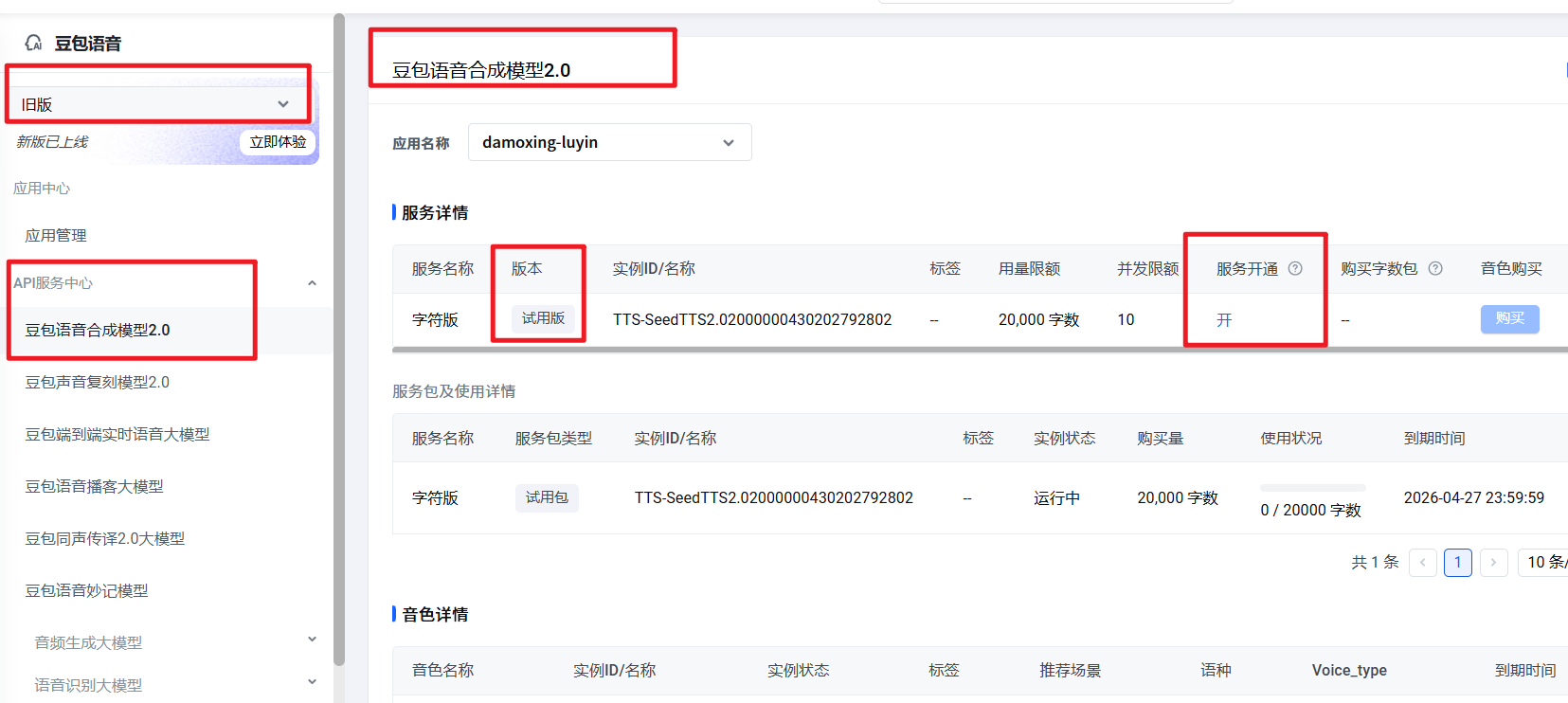
- Visit the speech synthesis page: https://console.volcengine.com/speech/service/10035
- At the top, select the application you just created
- Click "Free Trial" to activate
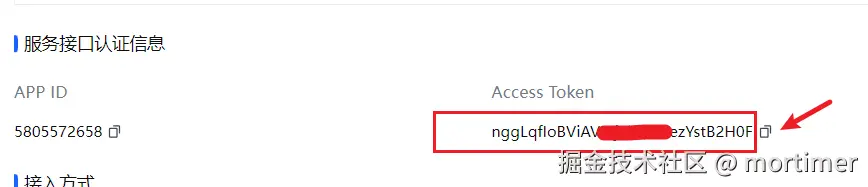
Step 4: Copy Configuration Details
Scroll down on the page and copy the following:
- App ID: Visible at the bottom of the page
- Access Token: To the right of the App ID — click to copy
Using It in pyVideoTrans
Step 1: Enter Configuration
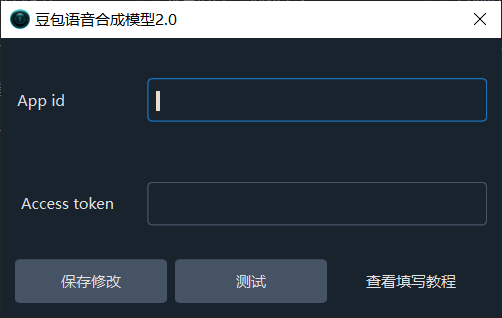
- Open the software and go to Menu → TTS Settings → Doubao Speech Synthesis Model 2.0
- Enter your App ID and Access Token
- Click the test button to verify the connection
- Save after a successful test
Step 2: Select a Voice
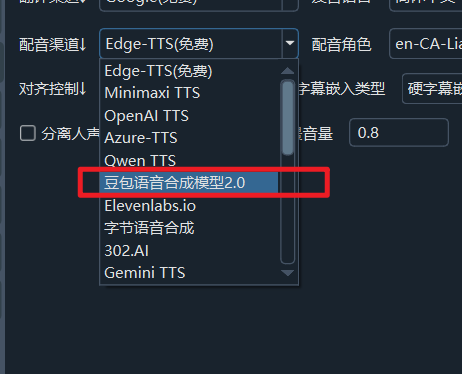
- Return to the main interface
- Select Doubao Speech Synthesis Model 2.0 from the Voice Channel dropdown
- Choose the target language
- Select a voice from the Voice dropdown — click to preview
Important Notes
- Many voices require separate activation and purchase in the ByteDance console
- If a voice fails or is unavailable, you likely need to purchase it separately
- Make sure you've selected "Large Model Speech Synthesis API" and not a similar product
- The App ID and Access Token must correspond to the application you created
Troubleshooting
| Issue | Solution |
|---|---|
| Can't find Doubao Speech Synthesis Model 2.0 | Switch to "Legacy" mode and follow the navigation path |
| Test failed | Verify your App ID and Access Token are correct |
| Some voices unavailable | You need to separately activate and purchase those voices in the ByteDance console |
| Identity verification prompt | Complete identity verification in the Volcengine console |