
Why Install Visual Studio Community?
You may have heard of Visual Studio, hailed as the "Number One IDE in the Universe" (Integrated Development Environment). It is indeed very powerful, but also quite "substantial." For those not specifically engaged in .NET development, it's usually not necessary to install it.
However! If you frequently need to try running open-source AI projects (like Python-based ones) on your Windows computer, then installing Visual Studio Community becomes almost essential. This is because many Python libraries (we call them "dependencies") require a "compilation" step on your computer during installation, and this process needs Microsoft's C++ compilation tools (MSVC for short). If your computer lacks the MSVC environment, installing these Python libraries will fail, displaying error messages similar to the ones below:
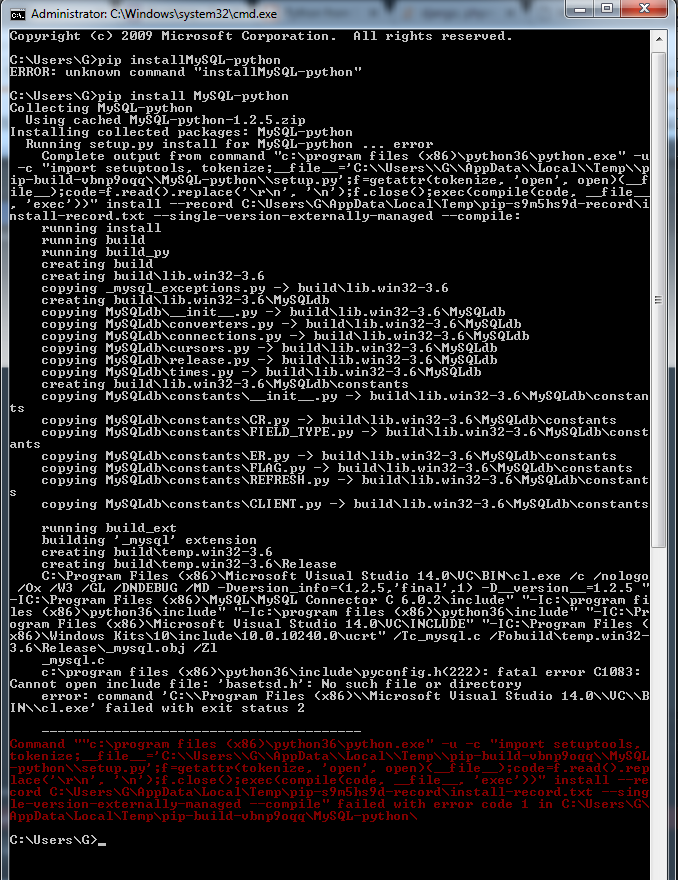
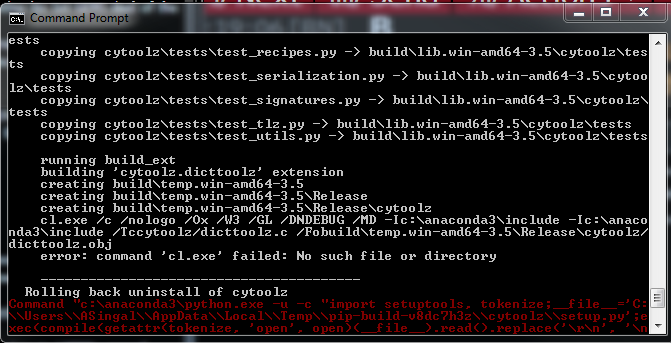
Fortunately, the simplest and most recommended method to install the MSVC compilation environment is to install the free Visual Studio Community edition. Let's see how to do it.
Step 1: Download the Visual Studio Installer
- Open your browser and visit:
https://visualstudio.microsoft.com/zh-hans/free-developer-offers/ - On the page, find the
Visual Studio Communitysection and click the "Free Download" button below it.
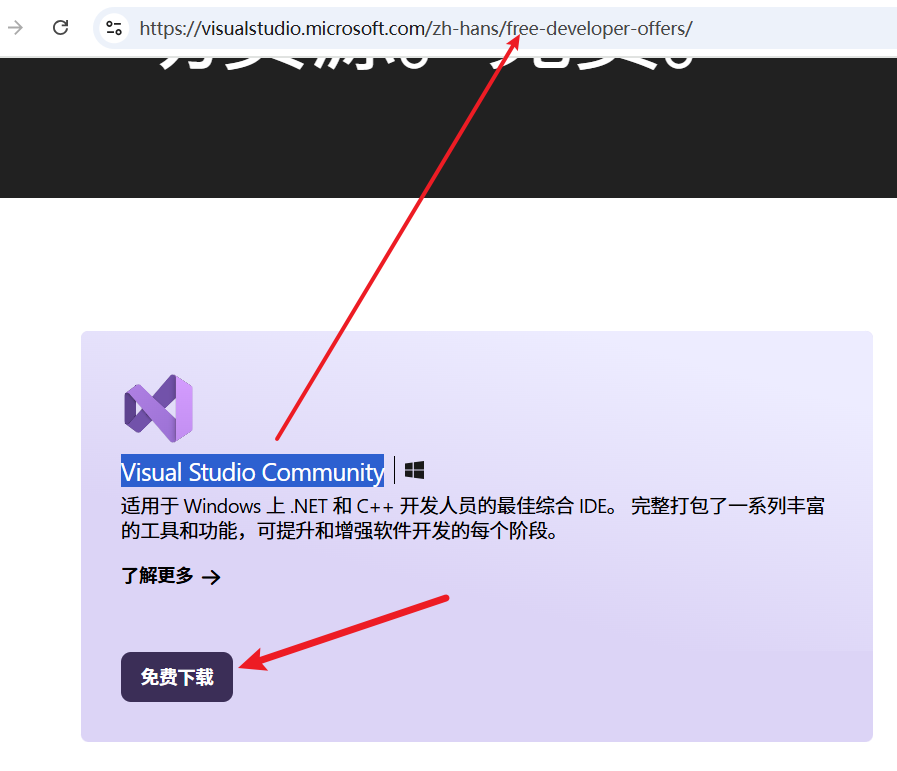
- After the download completes, locate the downloaded
.exefile (usually starting with a name likeVisualStudioSetup), and double-click to run it.
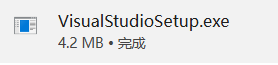
- A small prompt window may appear; click "Continue." The installer will prepare for a moment.
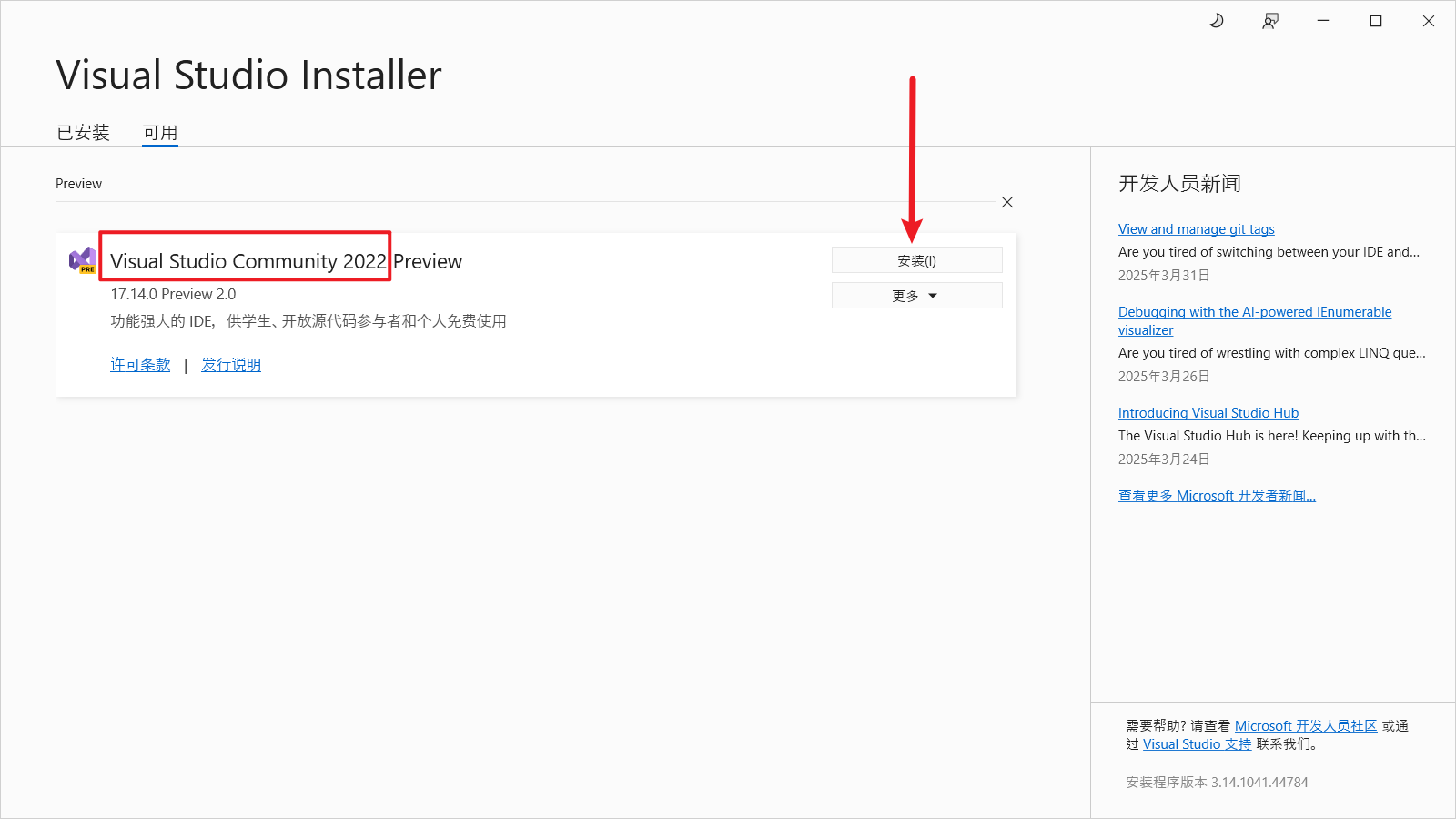
- Next, you'll see the main interface of the Visual Studio Installer. It will show different Visual Studio versions available for installation. Make sure you are on the "Available" tab and find the option labeled
Visual Studio Community(e.g.,Visual Studio Community 2022). This version is completely free; other versions (like Professional or Enterprise) require payment. Select the latest Community version (e.g., 2022 or newer) and click the corresponding "Install" button.
Step 2: Select Components to Install
After clicking "Install," you'll enter a more detailed setup interface where you can choose specific features to install, known as "Workloads."
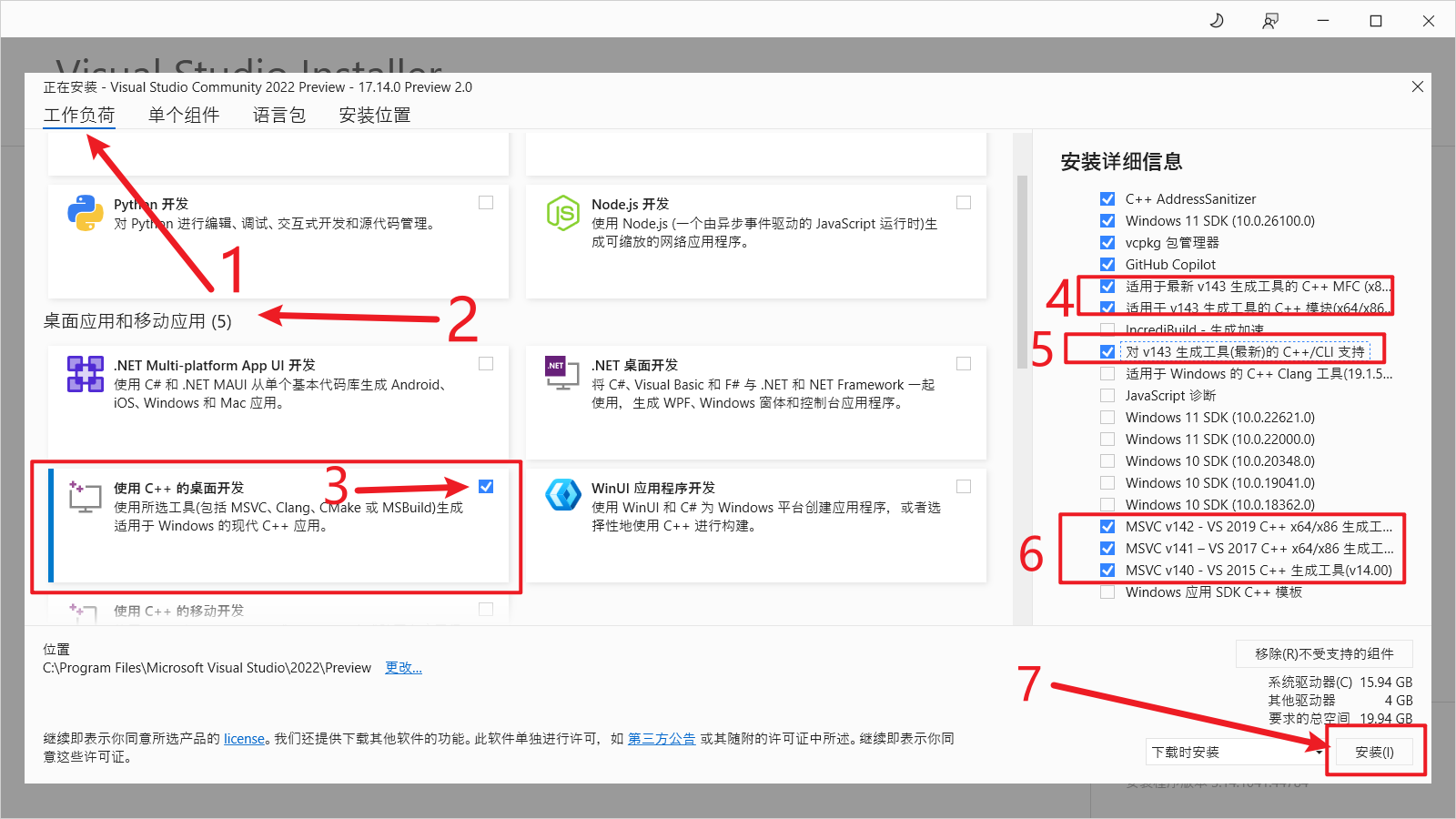
- In this interface, scroll down to find the large category named "Desktop & Mobile."
- Under this category, find and check the item "Desktop development with C++." This is key to installing the MSVC compilation environment.
- After checking "Desktop development with C++," look at the right side of the window. There will be an "Installation details" area listing the specific components to be installed. Most necessary components are already checked by default.
- (Important Recommendation) In the "Installation details" on the right, find and additionally check those options with names containing "Build Tools" and "MSVC v14x ... build tools" (e.g., v140, v141, v142, v143, etc.). They are shown in the red boxes labeled 4, 5, 6 in the image below (the specific numbers and versions may vary slightly; focus on the names).
Also, select at least one Windows 10/11 SDK, choosing 10 or 11 based on your system version.
Why select these extra items? Because some older Python projects might depend on specific versions of the MSVC compiler. To avoid future compilation errors due to a missing version, it's recommended to select the build tools for several major MSVC versions (v142, v143, etc.) here. This will only take up a bit more disk space but can save you a lot of trouble down the line.
- After confirming your selections, click the "Install" button in the lower-right corner of the interface.
Step 3: Wait for Installation to Complete
Now, the installer will begin downloading and installing all the components you selected. This process will take some time, depending on your network speed and computer performance. Please be patient.
Once the installation finishes successfully, the installer will notify you. You can then close the Visual Studio Installer.
Great! Visual Studio Community (and most importantly, the C++ compilation environment) is now successfully installed on your computer! Now, go back to the pip install command that previously failed due to missing MSVC and try running it again. This time, it should pass smoothly!