
Ultimate Troubleshooting Guide for Gemini! "Failed to list models: permission denied" & Region Restrictions
Eagerly opened Google Gemini, only to be met with the cold error Failed to list models: permission denied and a region restriction page?
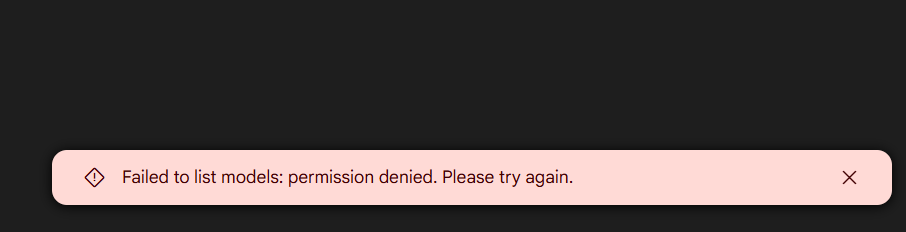
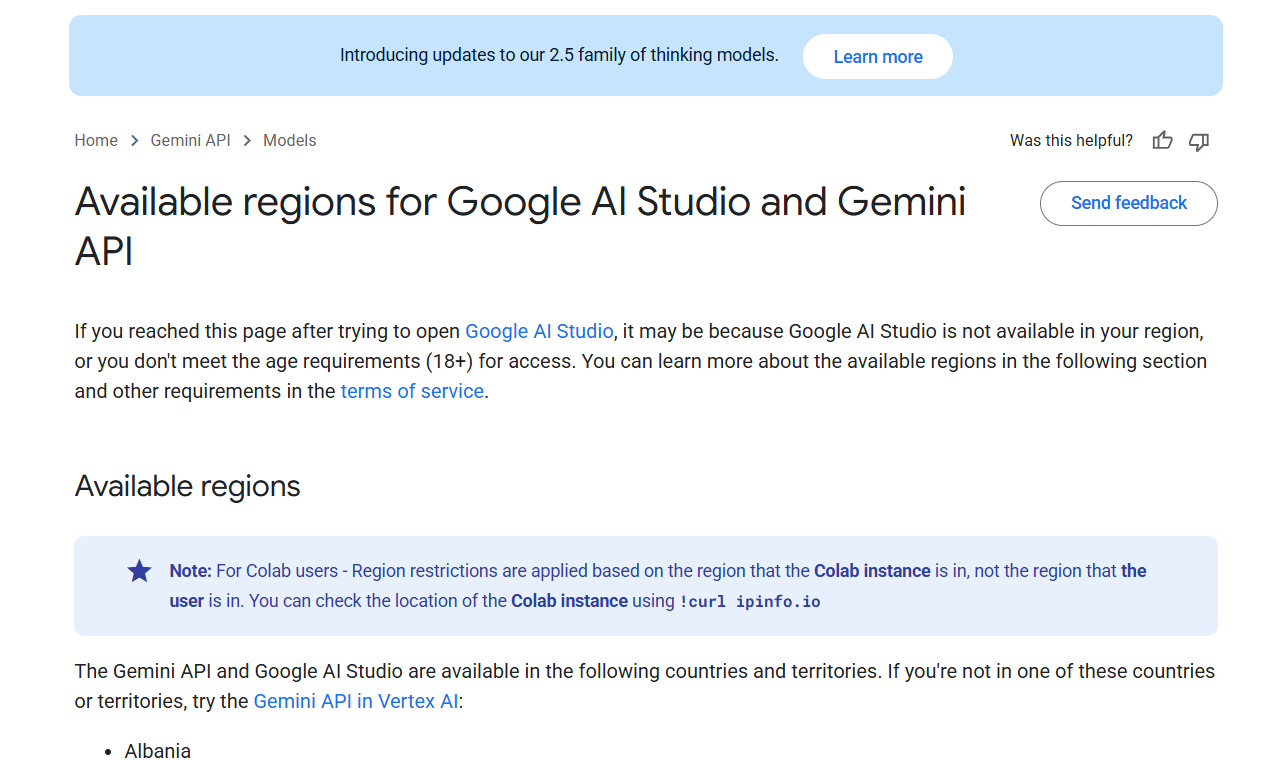
Don't be discouraged, and don't start questioning your life choices just yet. This issue is very common, but the good news is, it's usually not hard to fix. This guide will take you through the most common causes step by step until you successfully use Gemini.
Step 1: Don't Panic, 99.9% of Problems Are with Your "Ladder"
Remember this: When encountering Gemini region restrictions, the first and almost only thing to suspect is your network proxy tool (commonly known as a "ladder" or "airport").
Google enforces region restrictions for its services very strictly. It detects the origin of the IP address you use to access the service. If the proxy IP you're using is shared by many people or comes from a known cloud service provider data center (rather than a real residential network), it's easily identified and blocked by Google. This is what we often call a "contaminated IP" or "unclean IP."
What you need to do is this three-step process:
1. Change Your Node Immediately
This is the fastest and most direct solution. Don't stubbornly stick to one node.
- How to do it: Open your proxy tool and switch to a different node, especially those located in Gemini-supported regions (like the US, UK, Singapore, Japan, Taiwan, etc.).
- Tip: Some proxy services label node types, such as "Residential IP," "Home Broadband," etc. Try these first.
2. Try All Available Nodes One by One
If changing a few doesn't work, be patient. A provider might offer dozens or even hundreds of nodes; the ones that get blocked are usually the popular, heavily abused ones.
- How to do it: Go through all available nodes your provider offers, from start to finish, one by one. After each switch, completely close your browser and reopen the Gemini page to test.
- Belief: "Brute force works wonders." As long as your provider isn't too terrible, there's always a "lucky one" that will let you connect successfully.
3. The Ultimate Solution: Change Your "Airport"
If you've tried every single node and still can't access Gemini, the problem is almost certainly with your proxy provider.
- Reason: Those extremely low-priced providers (e.g., a few dollars per month), to cut costs, typically use low-quality, heavily shared data center IPs. These IPs are basically "regulars" on Google's blacklist.
- Solution: Decisively abandon your current provider and choose one with a better reputation and higher quality.
- How to choose:
- Avoid cheap, "disposable" monthly services.
- Look for providers that offer nodes with "Home Broadband," "Residential IP," or "Native IP." These IPs are closer to real users and have a much lower chance of being blocked.
- While the price might be slightly higher, the stability and availability will make it worth it.
Step 2: If Your Network is Fine, Try These "Niche" but Potentially Effective Methods
Although the network is the main cause, if you are confident your proxy service is very reliable (e.g., self-hosted or high-quality residential broadband), or if the above methods have all failed, you can check these rare scenarios.
1. Google Account Age Verification
AI services often have age restrictions. If your Google account has never undergone age verification, you might face restrictions when accessing certain services.
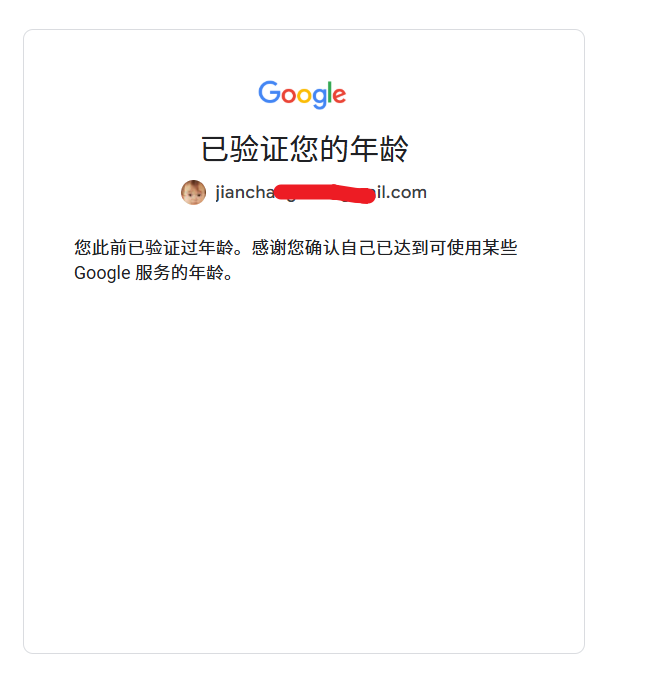
- How to do it: Click the link below, log into your Google account, and follow the prompts to complete age verification. This usually requires providing a photo of an ID document that proves your age.
- Verification Link: https://myaccount.google.com/age-verification?hl=zh_CN
- Note: The review may take some time, but some users report this solves tricky issues.
2. Clear Your Browser's "Battlefield"
Sometimes, old cached data (Cache) and credentials (Cookies) lingering in your browser can cause conflicts, making Google "remember" your previous failed access state.
- How to do it:
- In your browser settings, find the option to "Clear browsing data."
- Choose to clear Cached images and files and Cookies and other site data for All time.
- Completely close the browser, then reopen it and try accessing Gemini again.
- Quick Test: You can also first try accessing Gemini using your browser's "Incognito mode" or "Private window." If it works, it indicates a cache issue, and you should then perform the clearing steps above.
3. Switch Google Accounts
In very rare cases, the problem might be with your current Google account. For example, you might be temporarily restricted due to high usage frequency or frequently triggering certain security policies.
- How to do it: Log out of your current Google account, log in with a different Google account, and see if you can use Gemini normally. If the problem is solved after switching, it means the issue was with the original account.
Core Mindset for Solving Gemini Access Issues
Remember this troubleshooting flow for a clear, straightforward approach:
Network first, everything else second.
- Change the node: The fastest first response.
- Change the provider: Solves fundamental network quality issues.
- Then check other factors: Only consider the low-probability factors like age verification, clearing cache, switching accounts after ensuring your network is reliable.
We hope this guide helps you quickly resolve the permission denied frustration and lets you dive back into the world of AI!