
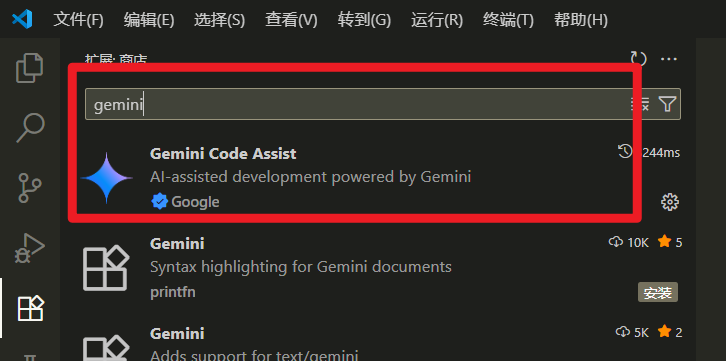
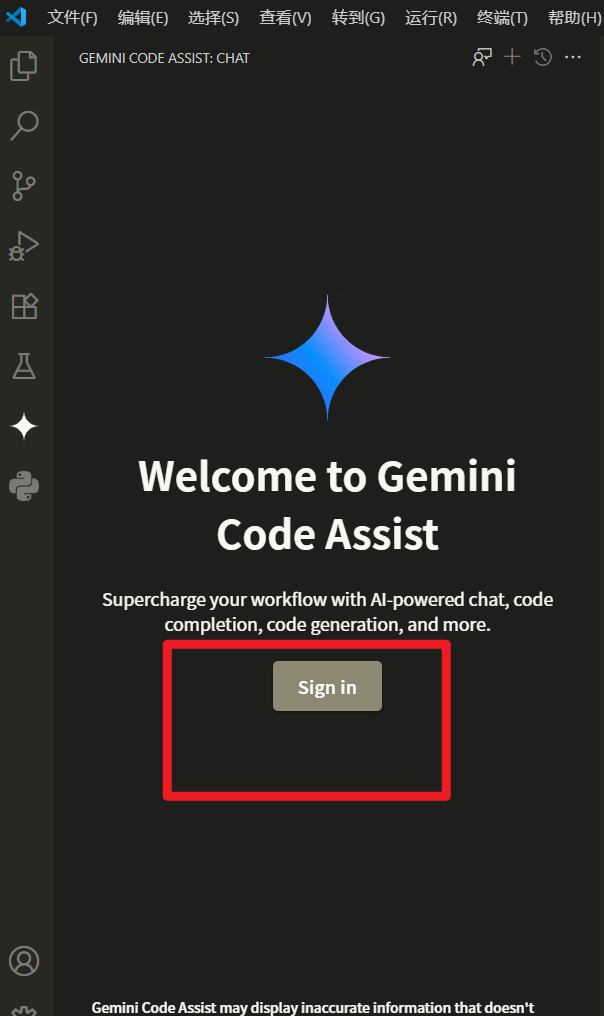
Have you ever eagerly installed Google's AI programming powerhouse—Gemini Code Assist—in VSCode, only to be blocked right at the first step by a frustrating "Login Failed" message? Don't be discouraged; you're not alone. This issue is quite common, but the good news is, it's usually easy to fix.
What is Gemini Code Assist? Why is it Worth Your Time to Solve the Login Issue?
Before we start troubleshooting, let's quickly understand the appeal of Gemini Code Assist. It's not just a simple code completion tool; it's more like a versatile programming partner integrated into VSCode. Powered by Google's most advanced Gemini model, it can provide you with:
- Context-Aware Code Completion: It understands your code intent and suggests entire functions or logic blocks.
- Code Explanation & Generation: Select a piece of code and have it explain its functionality; or describe a requirement in natural language and have it generate the code.
- Error Detection & Fix Suggestions: Detects potential bugs in real-time and offers one-click fixes.
- Test Case Generation: Automatically creates unit tests for your functions, ensuring code quality.
Analyzing the "Culprits" of Login Failure: Three Common Reasons
Login failure is usually not a mystery; it's often caused by the following specific reasons:
- Core Dependency Not Ready: Google Cloud API Not Enabled. This is the most common cause. The extension heavily relies on Google Cloud services, and the relevant API permissions must be manually enabled.
- Network Environment & Proxy Issues: Unstable network connections or enabled VPN/proxy can interfere with the authentication communication with Google servers.
- Software Compatibility Issues: You are using an outdated version of VSCode, which may not be compatible with the latest version of the extension.
Step-by-Step Troubleshooting: Four Steps to Solve the Login Issue
Step 1: Enable the Core Google Cloud API (Crucial!)
This is the most important step, solving over 90% of login issues.
- Visit the Google Cloud API Library: Open your browser and go to the Google Cloud API Library.
- Log in with the Correct Account: Make sure you are logged in with the same Google account you are trying to use for login in VSCode.
- Select or Create a Project:
- If you already have a project, simply select it.
- If not, Google will guide you to create a new one. Just enter an easy-to-remember name (e.g.,
MyGeminiProject) and click Create.
- Search and Enable the API: In the top search bar, type
geminiand search.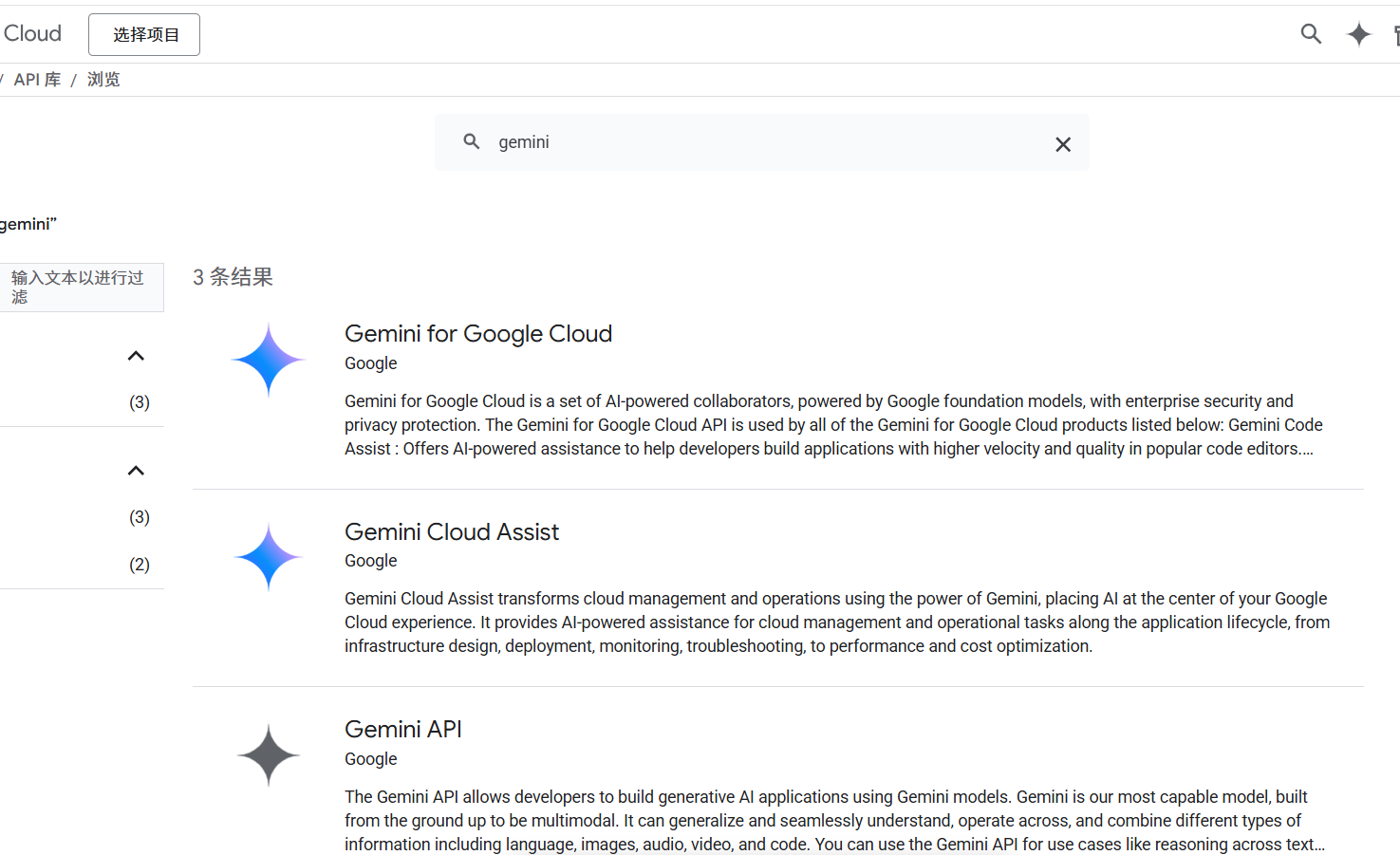
- Click "Enable": In the search results, find the 3 APIs as shown in the image, click into their detail pages, and then click the blue "Enable" button. Wait a few minutes for the backend to complete the configuration.
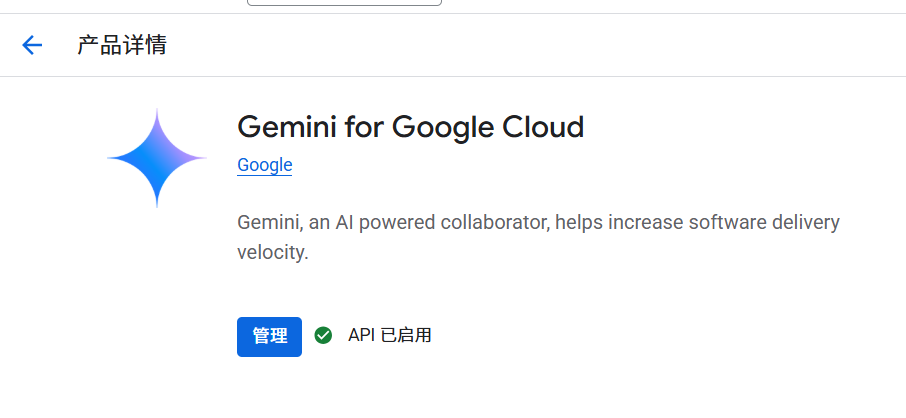
- Return to VSCode: After completing the above steps, go back to VSCode, close and restart the software completely, then try logging in again.
Step 2: Check Network Connection & Proxy Settings
- Ensure Network Stability: Try visiting
google.comorcloud.google.comto check if they load normally. - Proxy/VPN: If you are using VPN software, try configuring the system proxy automatically and then retry.
Step 3: Update Your VSCode
- Check for Updates: In VSCode, click on the menu bar "Help" > "Check for Updates".
- Install and Restart: If a new version is detected, install it immediately. New versions often fix known compatibility bugs and offer better support for extensions.
After Successful Login, Unlock a New Programming Experience
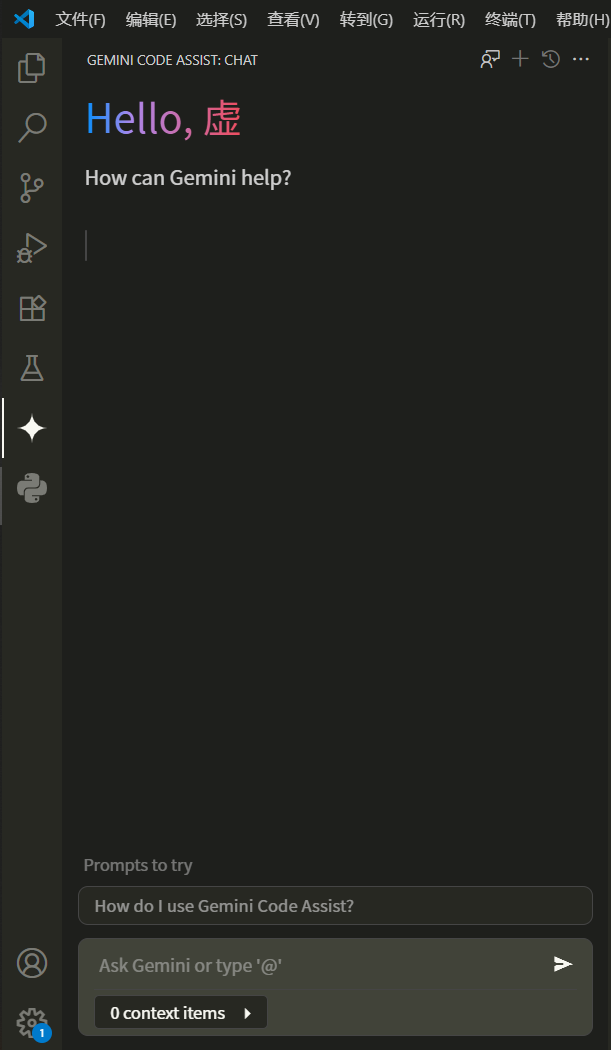
Once you successfully resolve the login issue, the powerful features of Gemini Code Assist will be at your fingertips. Whether it's quickly generating code, understanding complex logic, or writing test cases, it will become an indispensable tool in your programming arsenal. This not only means a leap in development efficiency but also represents a new, smarter way of working.