
You Might Not Know Yet: Gemini 2.5 Adds Multi-Speaker Text-to-Speech (TTS), Free to Use
You might not know yet, but Google's Gemini 2.5 has added a very practical new feature—multi-speaker text-to-speech! It's available for free on Google AI Studio. This feature is powered by the gemini-2.5-flash-preview-tts and gemini-2.5-pro-preview-tts models.
Important Notes:
- Internet Access Capability: To access Google AI services, you need to be able to access the international internet (please resolve network issues on your own). This is the foundation for using foreign AI tools; otherwise, subsequent steps cannot proceed.
- Google Account: You need a free Google account. If you don't have one, you can register on the official Google website, typically using a domestic phone number.
1. Open the Gemini TTS Web Page
You can access Gemini's text-to-speech feature page in any of the following ways:
- Direct Access: Open the link https://aistudio.google.com/generate-speech in your browser.
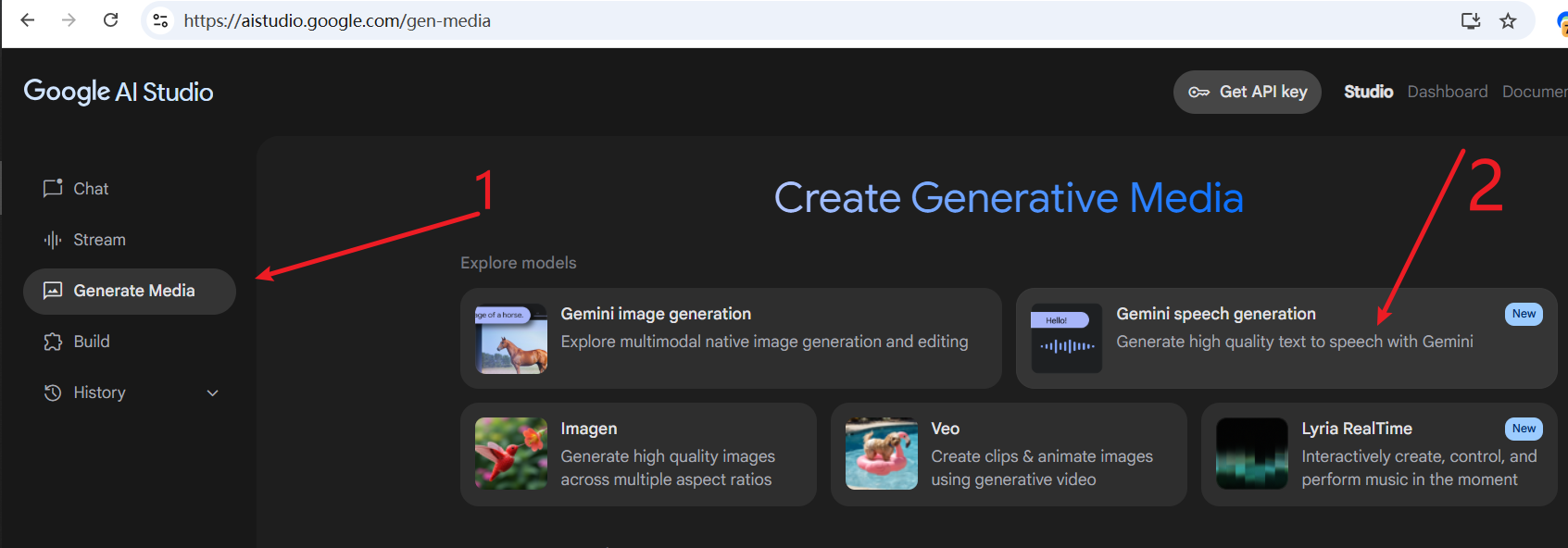
- Access via AI Studio Homepage: If you are already logged into Google AI Studio, you can also find the speech generation entry by following the guide in the image below.
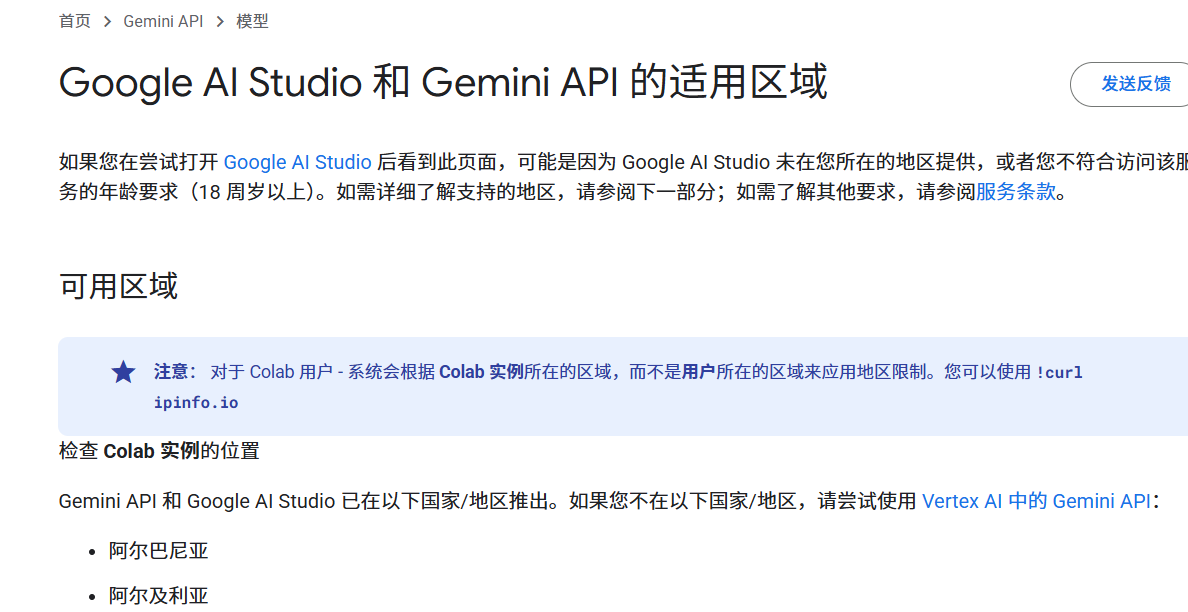
If the page fails to open, or if you see a prompt similar to the image below stating "This region is not supported" (for example, this often occurs when using network nodes in Hong Kong), please try switching your network proxy node to another country or region (such as the United States, Singapore, etc.).
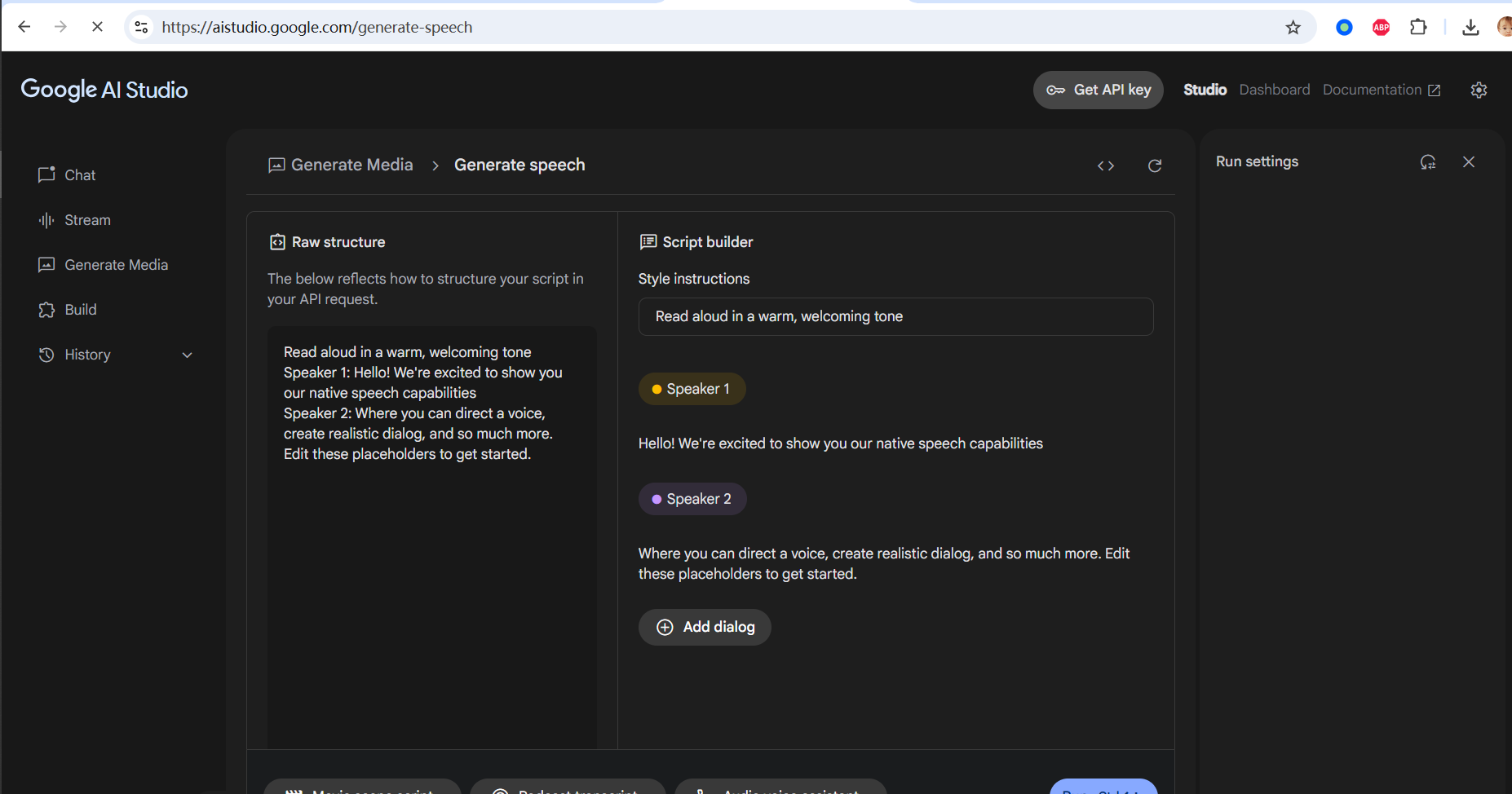
Upon successful opening, you will see the speech generation interface as shown below:
2. Interface Overview and Mode Switching
Don't worry, although the interface is in English, it's very simple to operate. We'll explain step by step below.
Gemini's speech generation tool automatically detects the language of your input text and currently supports up to 24 languages (although Chinese is not listed in the documentation as supported, it actually is).
By default, you will enter the Multi-speaker audio dubbing interface:
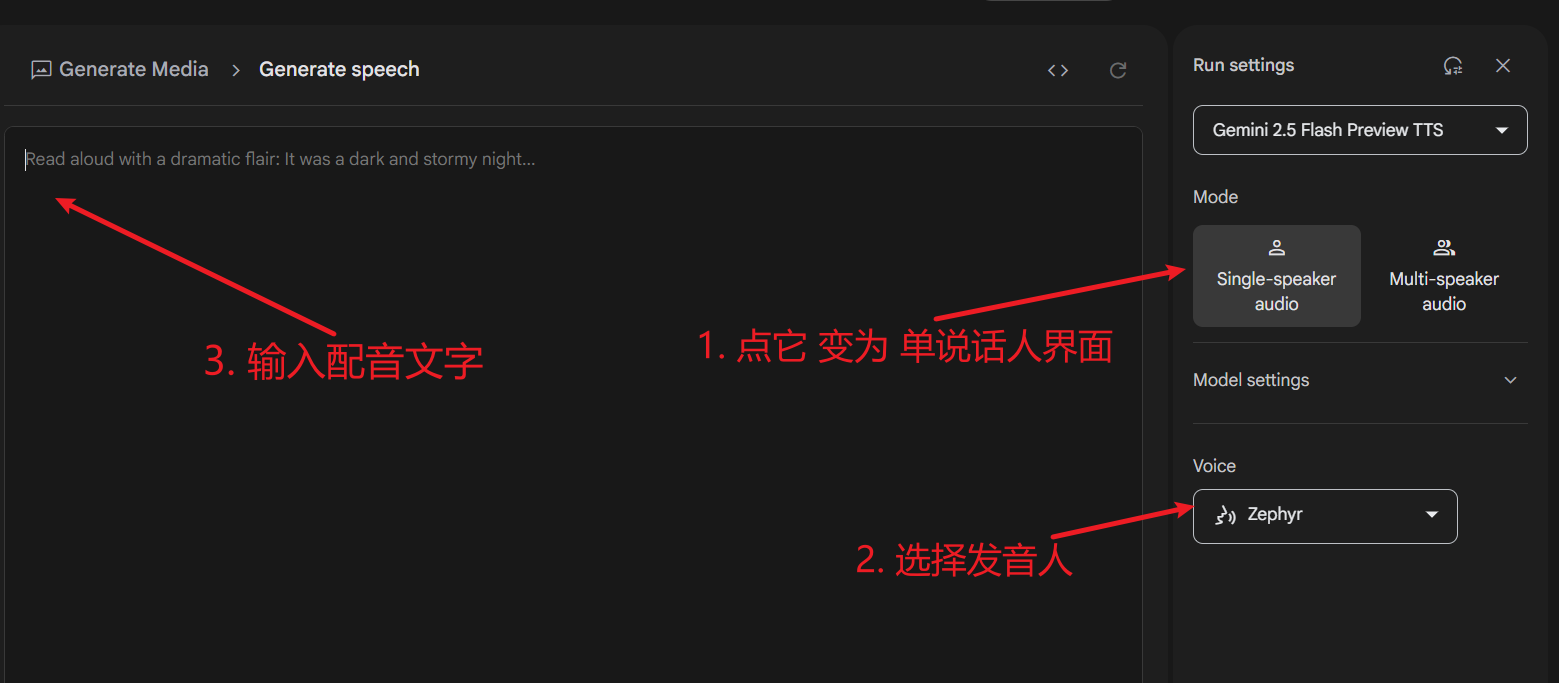
If you only need a single voice for dubbing, you can click Singe-speaker audio on the right side of the interface to switch to Single-speaker audio mode. The single-speaker mode interface is more concise:
3. Practical Steps for Multi-Speaker Dubbing
We will focus on the more feature-rich multi-speaker dubbing, which currently supports only 2 speakers.
1. Prepare and Paste the Dubbing Text
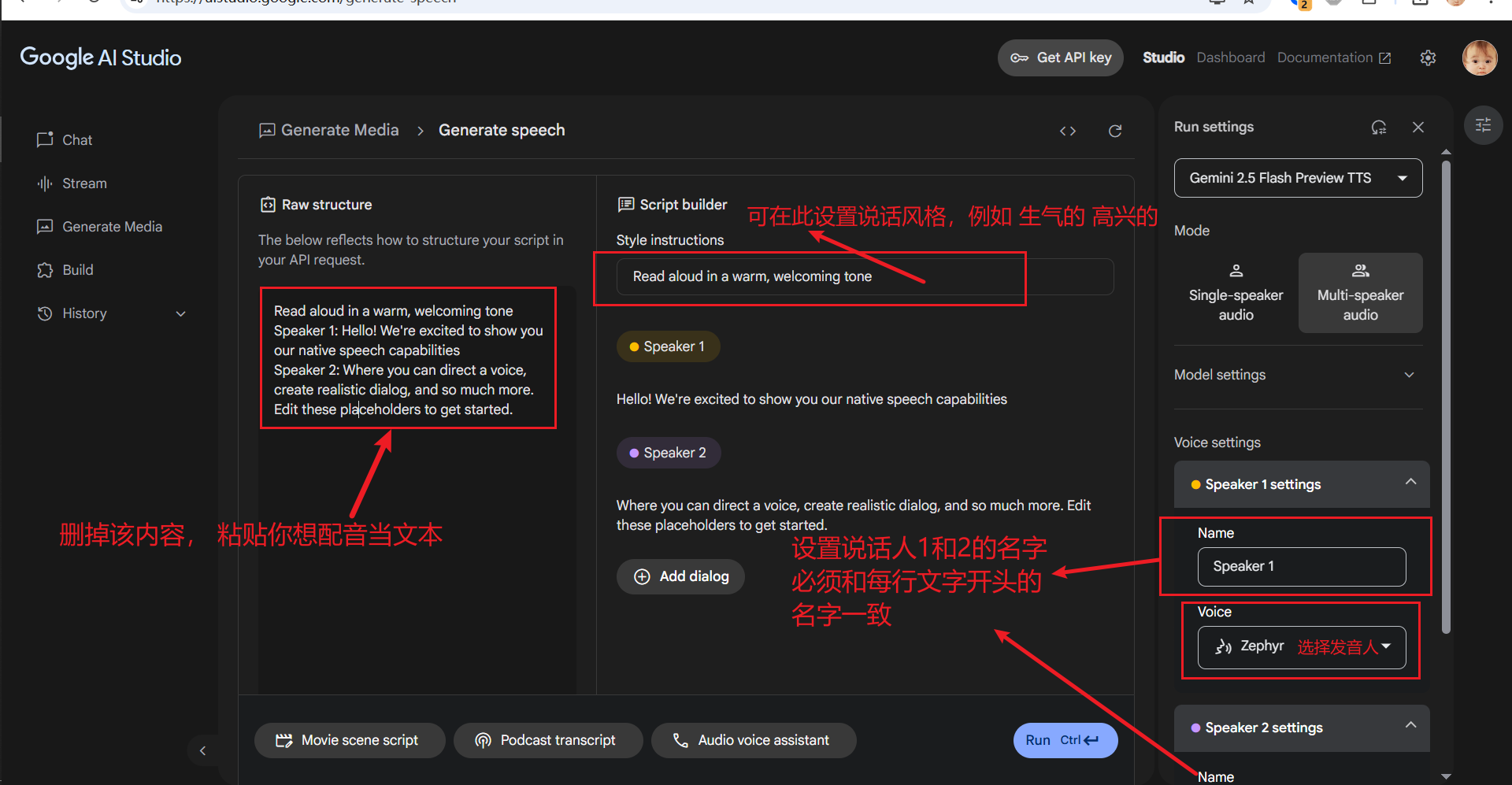
In the Raw structure text box on the left side of the interface, enter or paste the text content you want to dub. Key Points:
- Line Breaks: It is recommended that each line not be too long, ideally separated by natural sentence pauses.
- Specify Speaker: At the beginning of each line, use the format
SpeakerX:(English colon) to specify which character reads that line. For example:Speaker1: Today is a beautiful day, sunny and clear.Speaker2: Yes, how about we go for a walk in the park? - Gemini will assign different voices to lines marked with different speakers. Currently, a maximum of two speakers is supported (e.g., you can define "Speaker1" and "Speaker2").
2. Configure Speaker Roles (Voice settings)
In the Voice settings area on the right side of the interface, you need to configure each speaker:
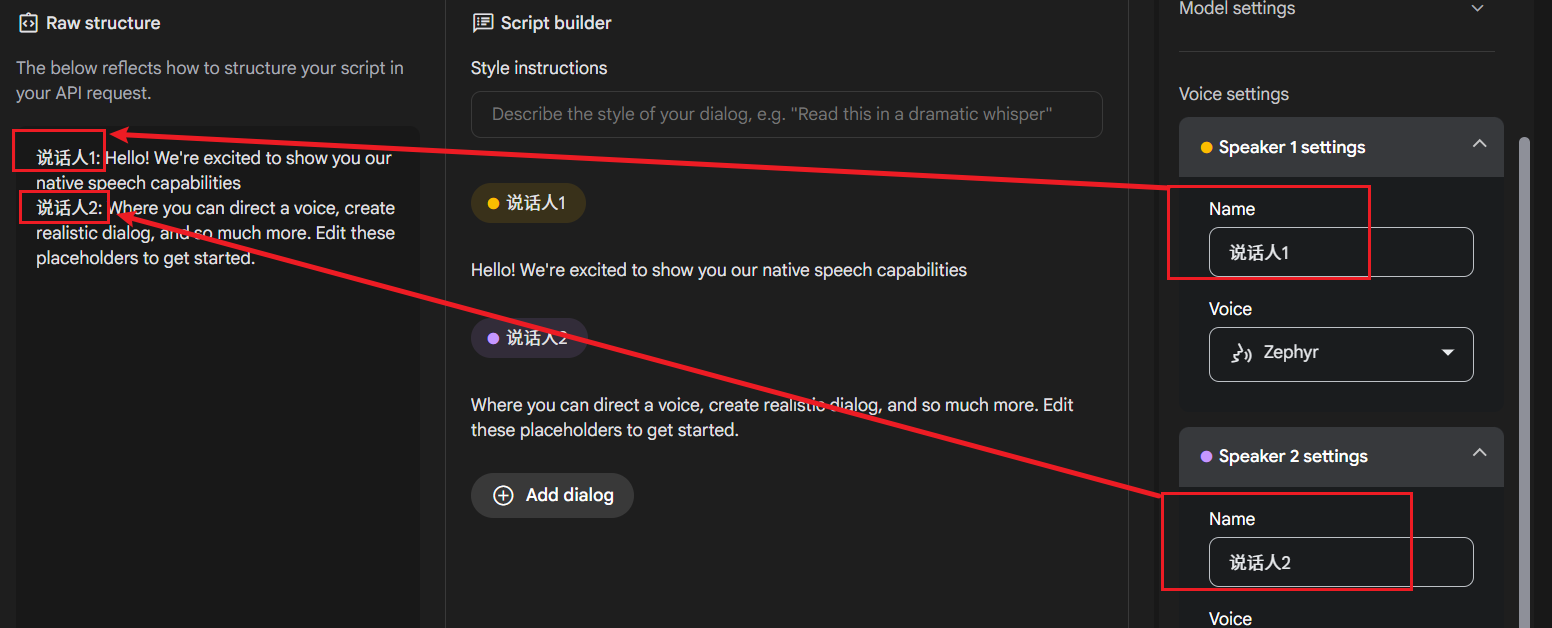
Set Speaker Name: As shown in the image below, the name entered in the Name input box must exactly match the speaker identifier you used at the beginning of each line in the left text box (e.g., "Speaker1", "Speaker2"). Case, numbers, and even spaces must match.
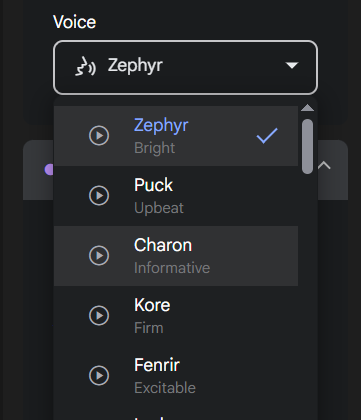
Select Voice: In the Voice dropdown menu below Name, you can choose a specific voice role for the currently selected speaker. Click the play button next to each role to preview its tone and select your favorite voice.
3. (Optional) Set Speech Style (Style instructions)
If you want the dubbing to have a specific emotion or tone (e.g., happy, angry, sad, etc.), you can enter style prompts in the Style instructions text box. After filling them in, these prompts will automatically apply to the entire dubbing project, affecting the overall style of all speakers.
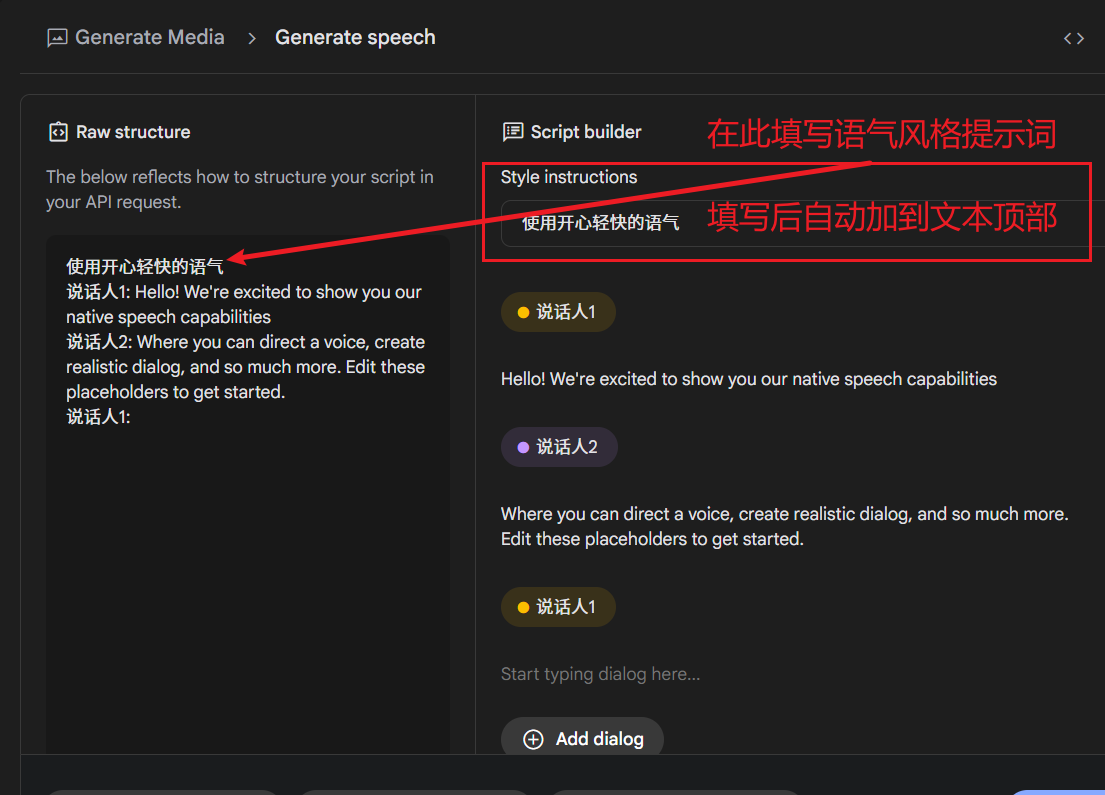
Tip: The text preview area on the right also displays the content from your left editing area in real-time, and you can directly modify, delete, or add lines in this area, which is very convenient.
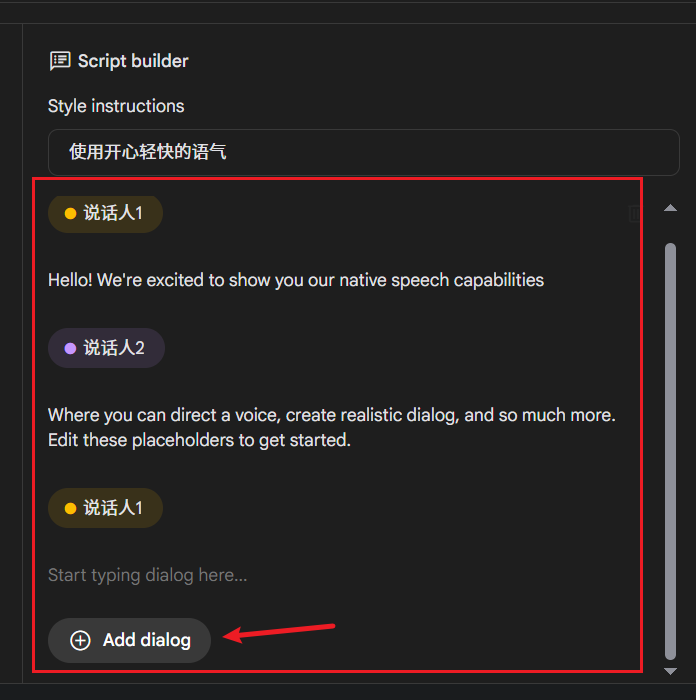
4. Generate and Download the Dubbing
After completing all the above settings, click the blue Run button in the lower right corner of the interface. Gemini will then start processing your text and generate the speech. If everything goes smoothly, after a short wait, the generated audio player will appear below. You can play it online to preview. Once satisfied with the result, click the download button to save it to your computer.

4. Possible Issues and Solutions
Currently, Gemini has relatively strict rate limits on API calls. When processing a large number of text lines, especially in dual-speaker mode, you may encounter generation failures (particularly when the text is in Chinese) and see error messages similar to the image below:
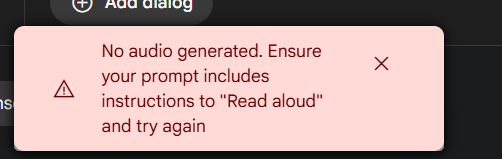
If you encounter this issue, you can try the following methods:
- Switch to Single-Speaker Mode: If multi-speaker is not essential, switching to
Singe-speaker audio(single-speaker) mode usually increases the success rate. - Try Again Later: The simplest method is to wait a few minutes or longer and then try again.