
Everyone knows that Microsoft Edge browser has a powerful Read Aloud feature, supporting dozens of languages, each with different voice roles to choose from, delivering excellent results.
Based on this, developers have created a Python package called edge-tts. This package allows the use of Microsoft's TTS service within programs for dubbing text or subtitles. For example, the video translation software pyVideoTrans integrates edge-tts, allowing users to select it directly in the dubbing channel.
However, regrettably, abuse of Microsoft TTS by domestic users is quite severe, with some even using it for commercial dubbing sales. This has led Microsoft to restrict access from China. If used too frequently, 403 errors may occur, and only switching IPs or connecting to a stable foreign VPN can allow continued use.
So, can we use a foreign server to set up a simple relay service for personal use? Doing so can not only improve stability but also make the interface compatible with OpenAI TTS, allowing direct use within the OpenAI SDK.
The answer is yes. I recently took some time to create a Docker image that can be easily pulled and started on a server.
Once started, this service interface is fully compatible with OpenAI. Simply change the API address to http://[your-server-ip]:7899/v1 to seamlessly replace OpenAI TTS. Additionally, it can be used directly in video translation software.
The following details how to deploy and use it:
Step 1: Purchase and activate a US server
Step 2: Open port 7899 in the firewall
Step 3: Connect to the terminal and log in to the server
Step 4: Install Docker
Step 5: Pull the edge-tts-api image and start the API service
If you already have a server with Docker installed, you can skip directly to Step 5 to pull the image.
Step 1: Purchase and Activate a US Server
It is recommended to choose a server in the US region, as there are fewer or no restrictions. The server OS can be a Linux distribution; the following uses Debian 12 as an example, with my personal choice being YeCaoYun. The reason is simple: it's cheap and relatively stable, sufficient for a dubbing relay.
If you already have a Linux server in Europe or the US, you can skip this section and proceed to the next. If not, please continue reading.

Then, choose any one of the top four configurations; they should all be sufficient.

Personally, I use the 29 RMB/month configuration.
Click the "Buy Now" button to enter the configuration page. Here, select the server OS as Debian 12, set the server password, and keep the rest as default.

After payment, wait a few minutes for the server to be created and started successfully. Next, you need to configure the firewall to open port 7899. Only by opening this port can you connect to the service for dubbing.
Step 2: Open Port 7899 in the Firewall
If you plan to use a domain name and configure Nginx reverse proxy, opening the port is not necessary. If you are not familiar with these, for simplicity, it's recommended to just open the port.
Different servers and control panels have different firewall configuration interfaces. The following uses the YeCaoYun panel I use as an example; other panels can be referenced. If you know how to open a port, you can skip this section and proceed to the next.
First, in "My Products & Services," click on the product you just activated to enter the product information and management page.


On this page, you can find information such as the server's IP address and password.

Find "Firewall" under "Additional Tools" and click to open it.

Then open port 7899, as shown below:

Step 3: Connect to the Terminal and Log In to the Server
If you already know how to connect to a terminal or have other SSH terminals like Xshell, you can skip this step and proceed to the next section.
On the product information page, find Xterm.js Console and click it. Then follow the operations shown in the figures below:


When the above image appears, press Enter a few times.
When Login: is displayed, type root after it, then press Enter. 
Next, Password: will appear. At this point, you need to paste the password you copied (if forgotten, you can find it on the product information page).
Note: Do not use Ctrl+V or right-click to paste, as this may input extra spaces or line breaks, causing password errors.

Hold the Shift key + Insert key to paste the password (to prevent login failure despite a correct password), then press Enter.

After successful login, it will look like the image below.

Step 4: Install Docker
If Docker is already installed on your server or you know how to install it, you can skip this step.
Execute the following 5 commands in order, ensuring each command completes successfully before proceeding to the next. These commands are only suitable for Debian 12 series servers.
After [root@xxxxxx~]#, right-click to paste the following command, then press Enter to execute.

Command 1: sudo apt update && sudo apt install -y apt-transport-https ca-certificates curl gnupg
Command 2: curl -fsSL https://download.docker.com/linux/debian/gpg | sudo gpg --dearmor -o /usr/share/keyrings/docker-archive-keyring.gpg
Command 3: echo "deb [arch=$(dpkg --print-architecture) signed-by=/usr/share/keyrings/docker-archive-keyring.gpg] https://download.docker.com/linux/debian $(lsb_release -cs) stable" | sudo tee /etc/apt/sources.list.d/docker.list > /dev/null
Command 4: sudo apt update && sudo apt install -y docker-ce docker-ce-cli containerd.io docker-buildx-plugin
Command 5: Start Docker service. sudo systemctl start docker && sudo systemctl enable docker && sudo usermod -aG docker $USER

This command can be pasted via right-click, then press Enter.
Step 5: Pull the edge-tts-api Image and Start the API Service
Enter the following command, which will automatically pull the image and start the service. Once started successfully, you can use it in video translation software or other tools that support OpenAI TTS.
docker run -p 7899:7899 jianchang512/edge-tts-api:latest

Pressing Ctrl+C continuously will stop the service.
Note: This command runs in the foreground. If you close the terminal window, the service will stop.
You can use the following command instead to start the service in the background. After execution, you can safely close the terminal.
docker run -d -p 7899:7899 jianchang512/edge-tts-api:latest

If there are no errors, it means the startup was successful. You can verify by opening http://[your-ip]:7899/v1/audio/speech in a browser. If a result similar to the image below appears, the startup was successful.

Using in Video Translation Software
Please upgrade the software to v3.40 to use this feature. Upgrade download address: https://pyvideotrans.com/downpackage
Open the menu, go to TTS Settings -> OpenAI TTS, and change the interface address to http://[your-ip]:7899/v1
SK can be filled in arbitrarily, as long as it's not empty. In the role list, fill in the roles you want to use, separated by English commas.
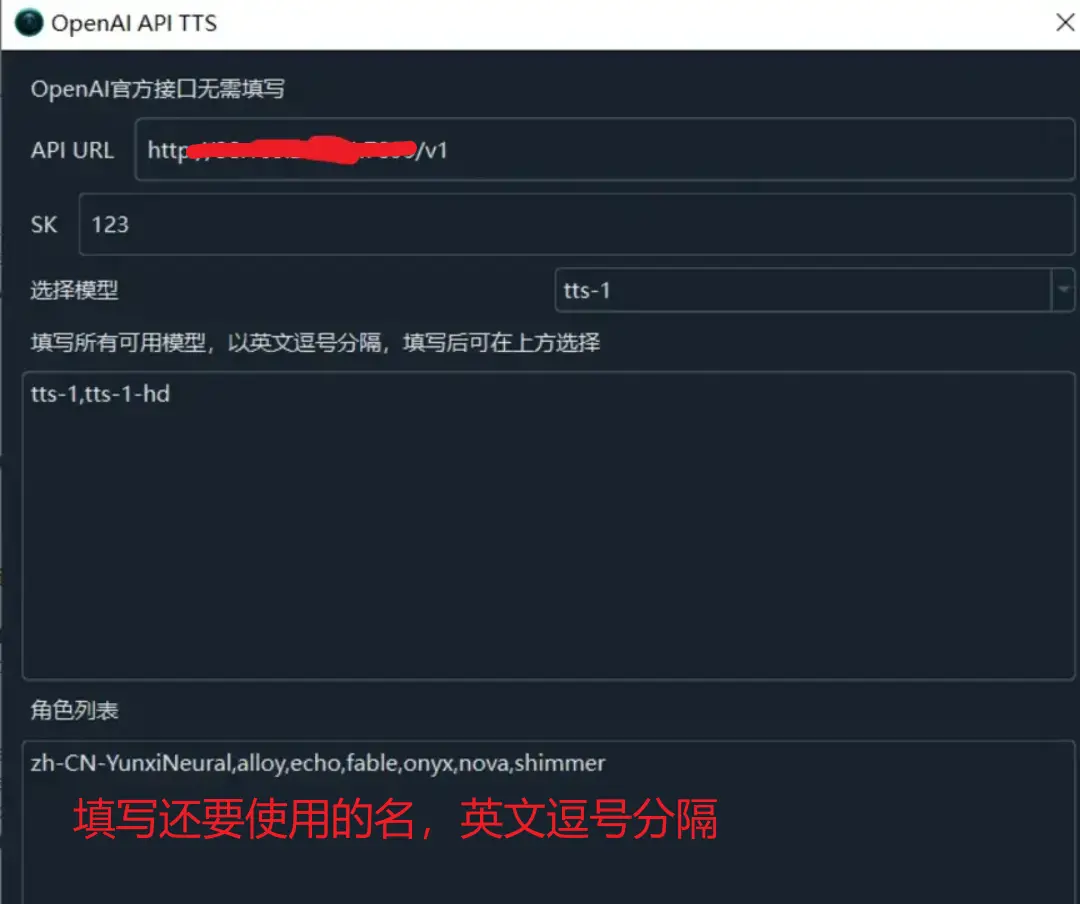
Available Roles
The following is a list of available roles. Please note that the text language and role must match.
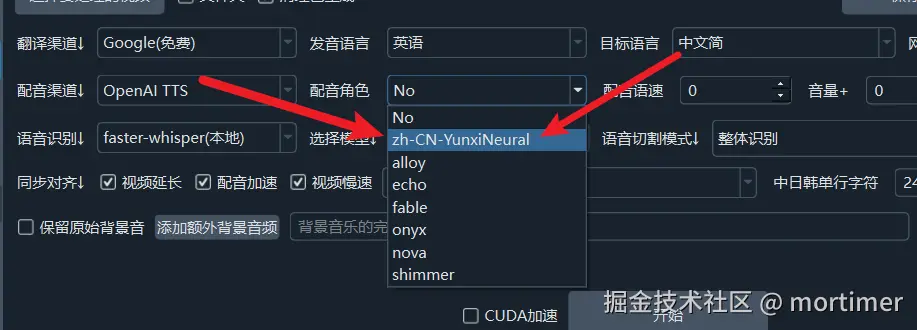
Chinese Pronunciation Roles:
    zh-HK-HiuGaaiNeural
    zh-HK-HiuMaanNeural
    zh-HK-WanLungNeural
    zh-CN-XiaoxiaoNeural
    zh-CN-XiaoyiNeural
    zh-CN-YunjianNeural
    zh-CN-YunxiNeural
    zh-CN-YunxiaNeural
    zh-CN-YunyangNeural
    zh-CN-liaoning-XiaobeiNeural
    zh-TW-HsiaoChenNeural
    zh-TW-YunJheNeural
    zh-TW-HsiaoYuNeural
    zh-CN-shaanxi-XiaoniNeural

English Roles:
    en-AU-NatashaNeural
    en-AU-WilliamNeural
    en-CA-ClaraNeural
    en-CA-LiamNeural
    en-HK-SamNeural
    en-HK-YanNeural
    en-IN-NeerjaExpressiveNeural
    en-IN-NeerjaNeural
    en-IN-PrabhatNeural
    en-IE-ConnorNeural
    en-IE-EmilyNeural
    en-KE-AsiliaNeural
    en-KE-ChilembaNeural
    en-NZ-MitchellNeural
    en-NZ-MollyNeural
    en-NG-AbeoNeural
    en-NG-EzinneNeural
    en-PH-JamesNeural
    en-PH-RosaNeural
    en-SG-LunaNeural
    en-SG-WayneNeural
    en-ZA-LeahNeural
    en-ZA-LukeNeural
    en-TZ-ElimuNeural
    en-TZ-ImaniNeural
    en-GB-LibbyNeural
    en-GB-MaisieNeural
    en-GB-RyanNeural
    en-GB-SoniaNeural
    en-GB-ThomasNeural
    en-US-AvaMultilingualNeural
    en-US-AndrewMultilingualNeural
    en-US-EmmaMultilingualNeural
    en-US-BrianMultilingualNeural
    en-US-AvaNeural
    en-US-AndrewNeural
    en-US-EmmaNeural
    en-US-BrianNeural
    en-US-AnaNeural
    en-US-AriaNeural
    en-US-ChristopherNeural
    en-US-EricNeural
    en-US-GuyNeural
    en-US-JennyNeural
    en-US-MichelleNeural
    en-US-RogerNeural
    en-US-SteffanNeural

Japanese Roles:
    ja-JP-KeitaNeural
    ja-JP-NanamiNeural

Korean Roles:
    ko-KR-HyunsuNeural
    ko-KR-InJoonNeural
    ko-KR-SunHiNeural

French Roles:
    fr-BE-CharlineNeural
    fr-BE-GerardNeural
    fr-CA-ThierryNeural
    fr-CA-AntoineNeural
    fr-CA-JeanNeural
    fr-CA-SylvieNeural
    fr-FR-VivienneMultilingualNeural
    fr-FR-RemyMultilingualNeural
    fr-FR-DeniseNeural
    fr-FR-EloiseNeural
    fr-FR-HenriNeural
    fr-CH-ArianeNeural
    fr-CH-FabriceNeural

German Roles:
    de-AT-IngridNeural
    de-AT-JonasNeural
    de-DE-SeraphinaMultilingualNeural
    de-DE-FlorianMultilingualNeural
    de-DE-AmalaNeural
    de-DE-ConradNeural
    de-DE-KatjaNeural
    de-DE-KillianNeural
    de-CH-JanNeural
    de-CH-LeniNeural

Spanish Roles:
    es-AR-ElenaNeural
    es-AR-TomasNeural
    es-BO-MarceloNeural
    es-BO-SofiaNeural
    es-CL-CatalinaNeural
    es-CL-LorenzoNeural
    es-ES-XimenaNeural
    es-CO-GonzaloNeural
    es-CO-SalomeNeural
    es-CR-JuanNeural
    es-CR-MariaNeural
    es-CU-BelkysNeural
    es-CU-ManuelNeural
    es-DO-EmilioNeural
    es-DO-RamonaNeural
    es-EC-AndreaNeural
    es-EC-LuisNeural
    es-SV-LorenaNeural
    es-SV-RodrigoNeural
    es-GQ-JavierNeural
    es-GQ-TeresaNeural
    es-GT-AndresNeural
    es-GT-MartaNeural
    es-HN-CarlosNeural
    es-HN-KarlaNeural
    es-MX-DaliaNeural
    es-MX-JorgeNeural
    es-NI-FedericoNeural
    es-NI-YolandaNeural
    es-PA-MargaritaNeural
    es-PA-RobertoNeural
    es-PY-MarioNeural
    es-PY-TaniaNeural
    es-PE-AlexNeural
    es-PE-CamilaNeural
    es-PR-KarinaNeural
    es-PR-VictorNeural
    es-ES-AlvaroNeural
    es-ES-ElviraNeural
    es-US-AlonsoNeural
    es-US-PalomaNeural
    es-UY-MateoNeural
    es-UY-ValentinaNeural
    es-VE-PaolaNeural
    es-VE-SebastianNeural

Arabic Roles:
    ar-DZ-AminaNeural
    ar-DZ-IsmaelNeural
    ar-BH-AliNeural
    ar-BH-LailaNeural
    ar-EG-SalmaNeural
    ar-EG-ShakirNeural
    ar-IQ-BasselNeural
    ar-IQ-RanaNeural
    ar-JO-SanaNeural
    ar-JO-TaimNeural
    ar-KW-FahedNeural
    ar-KW-NouraNeural
    ar-LB-LaylaNeural
    ar-LB-RamiNeural
    ar-LY-ImanNeural
    ar-LY-OmarNeural
    ar-MA-JamalNeural
    ar-MA-MounaNeural
    ar-OM-AbdullahNeural
    ar-OM-AyshaNeural
    ar-QA-AmalNeural
    ar-QA-MoazNeural
    ar-SA-HamedNeural
    ar-SA-ZariyahNeural
    ar-SY-AmanyNeural
    ar-SY-LaithNeural
    ar-TN-HediNeural
    ar-TN-ReemNeural
    ar-AE-FatimaNeural
    ar-AE-HamdanNeural
    ar-YE-MaryamNeural
    ar-YE-SalehNeural


Bengali Roles:
    bn-BD-NabanitaNeural
    bn-BD-PradeepNeural
    bn-IN-BashkarNeural
    bn-IN-TanishaaNeural

Czech Roles
    cs-CZ-AntoninNeural
    cs-CZ-VlastaNeural

Dutch Roles:
    nl-BE-ArnaudNeural
    nl-BE-DenaNeural
    nl-NL-ColetteNeural
    nl-NL-FennaNeural
    nl-NL-MaartenNeural

Hebrew Roles:
    he-IL-AvriNeural
    he-IL-HilaNeural

Hindi Roles:
    hi-IN-MadhurNeural
    hi-IN-SwaraNeural

Hungarian Roles:
    hu-HU-NoemiNeural
    hu-HU-TamasNeural

Indonesian Roles:
    id-ID-ArdiNeural
    id-ID-GadisNeural

Italian Roles:
    it-IT-GiuseppeNeural
    it-IT-DiegoNeural
    it-IT-ElsaNeural
    it-IT-IsabellaNeural

Kazakh Roles:
    kk-KZ-AigulNeural
    kk-KZ-DauletNeural

Malay Roles:
    ms-MY-OsmanNeural
    ms-MY-YasminNeural

Polish Roles:
    pl-PL-MarekNeural
    pl-PL-ZofiaNeural

Portuguese Roles:
    pt-BR-ThalitaNeural
    pt-BR-AntonioNeural
    pt-BR-FranciscaNeural
    pt-PT-DuarteNeural
    pt-PT-RaquelNeural

Russian Roles:
    ru-RU-DmitryNeural
    ru-RU-SvetlanaNeural

Swahili Roles:
    sw-KE-RafikiNeural
    sw-KE-ZuriNeural
    sw-TZ-DaudiNeural
    sw-TZ-RehemaNeural

Thai Roles:
    th-TH-NiwatNeural
    th-TH-PremwadeeNeural

Turkish Roles:
    tr-TR-AhmetNeural
    tr-TR-EmelNeural

Ukrainian Roles:
    uk-UA-OstapNeural
    uk-UA-PolinaNeural

Vietnamese Roles:
    vi-VN-HoaiMyNeural
vi-VN-NamMinhNeuralUsing in OpenAI SDK
Need to install the openai library pip install openai
from openai import OpenAI

client = OpenAI(api_key='12314', base_url='http://[your-ip]:7899/v1')
with  client.audio.speech.with_streaming_response.create(
                    model='tts-1',
                    voice='zh-CN-YunxiNeural',
                    input='Hello there, dear friends',
                    speed=1.0
                ) as response:
    with open('./test.mp3', 'wb') as f:
       for chunk in response.iter_bytes():
f.write(chunk)Directly Calling with requests
import requests
res=requests.post('http://[your-ip]:7899/v1',data={"voice":"zh-CN-YunxiNeural",
                    "input":"Hello there, dear friends",
                    speed=1.0 })
with open('./test.mp3', 'wb') as f:
    f.write(res.content)