
Gemini is a powerful AI model capable of processing various types of content including text, images, audio, and video. It can be used for free on the web with almost no limitations, aside from the requirement to use a VPN.
Gemini is very suitable for speech-to-text conversion. It supports a wide range of languages, including some less common ones, and the recognition results are quite good.
If you want Gemini to directly generate an SRT subtitle file, you need to use a specific prompt. Below is a prompt you can directly copy and use to have Gemini transcribe and output SRT subtitles for you.
Speech Transcription Prompt
You are a professional subtitle transcription assistant. Your task is to transcribe the file I provide into text and format the transcription result into an SRT subtitle file that complies with the EBU-STL standard. Specific requirements are as follows:

## Each subtitle block must be output strictly according to the following structure:

[Line Number]
[Time Line]
[Text Line]
[Blank Line]

**Explanation of this structure**
- [Line Number] is the sequence number of the subtitle block, starting from 1 and incrementing, e.g., 1, 2, etc.
- [Time Line] is the timestamp, formatted as HH:MM:SS,FFF --> HH:MM:SS,FFF, indicating the start and end time of the subtitle (FFF represents 3-digit milliseconds, e.g., 000 to 999). If you cannot calculate the time precisely, you can reasonably estimate it based on the audio content, ensuring the time intervals are logically reasonable.
- [Text Line] is the transcribed text content.
- [Blank Line] is the separator between subtitle blocks. Ensure there is a blank line after each subtitle block.

## Restrictions
When outputting, you must strictly adhere to the above format. Do not omit any parts, and do not add extra text or comments.
Try to keep the duration of each subtitle block between 3 and 15 seconds, segmenting naturally based on speech speed and semantics.

Now, please transcribe based on the file I provide and output the subtitle content in the format described above.How to Use
Using Gemini requires you to have a VPN
- Open the Gemini website and log in:
https://aistudio.google.com/app - On the right side, select the model.
Gemini 2.0 Flashis sufficient, although choosing a Thinking model with a reasoning process might yield slightly better results.
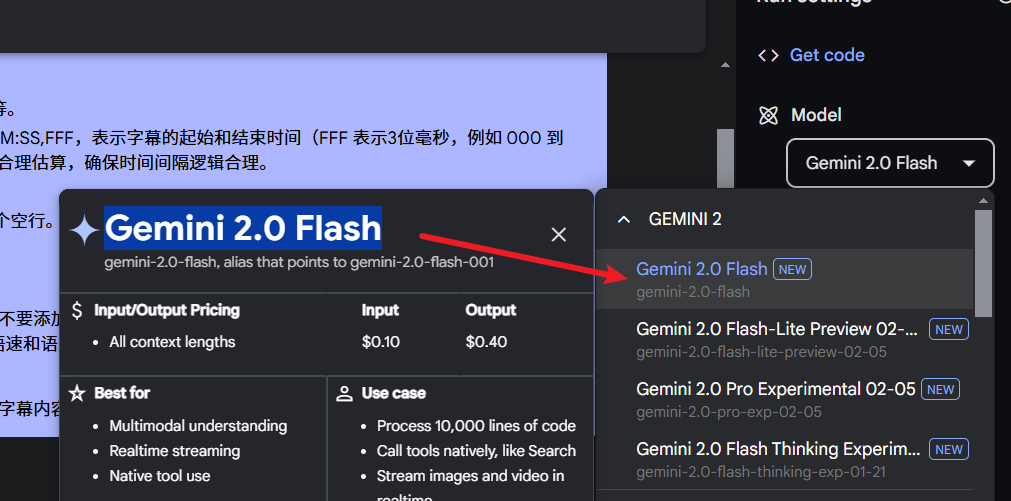
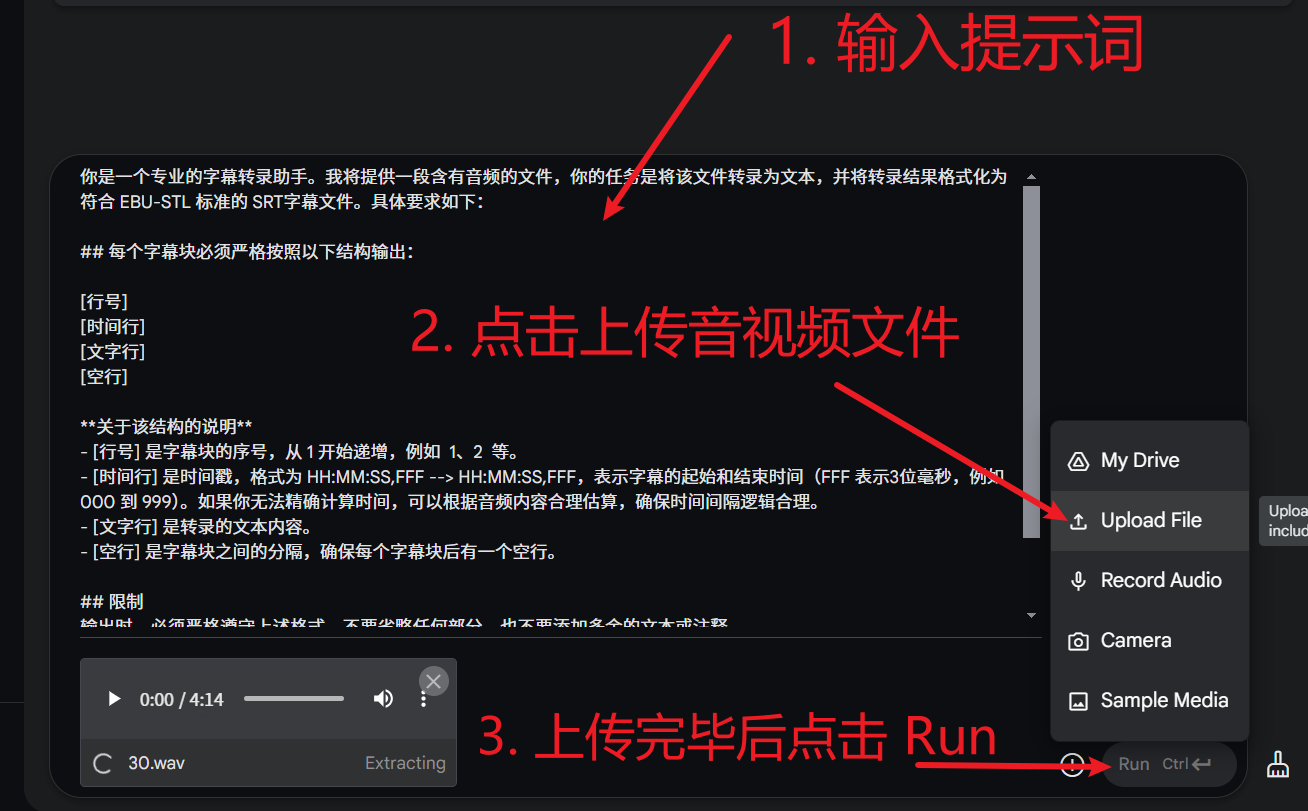
- Enter the prompt and upload the file, as shown in the image below.
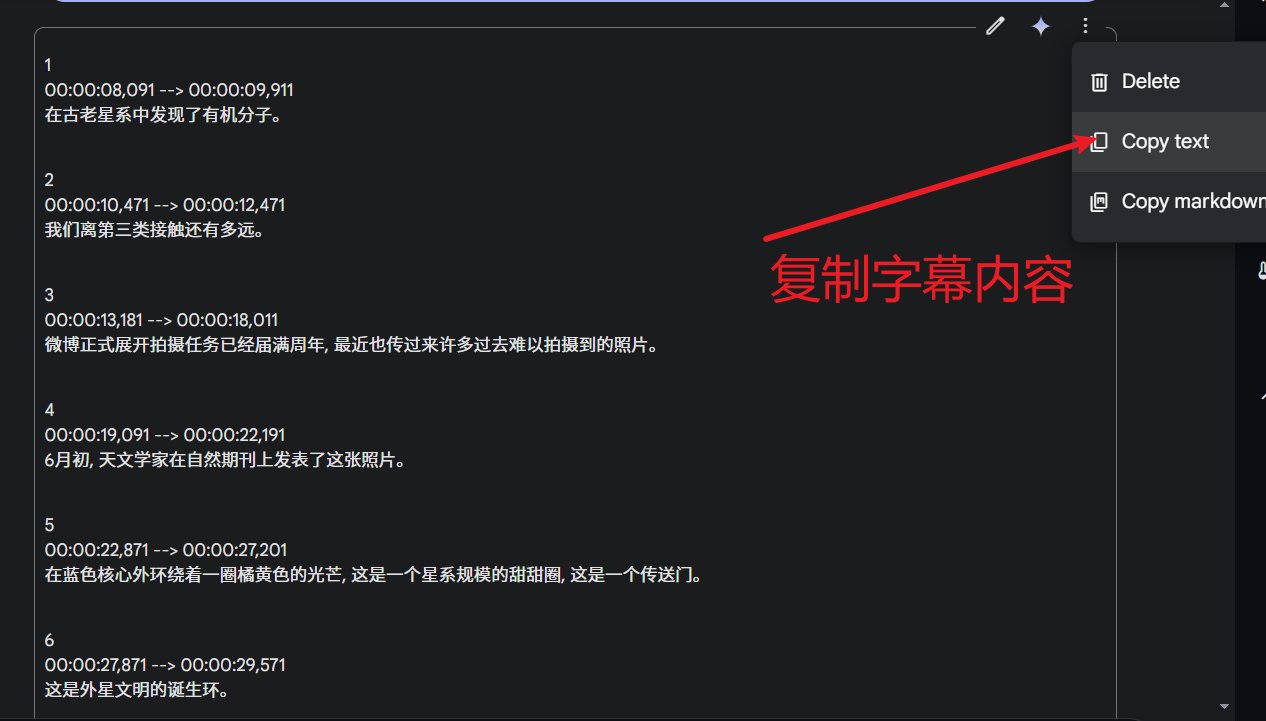
After transcription is complete, the result looks something like this, which appears quite good.
Extensions
If you need to translate the subtitles, you can also instruct it in the prompt to translate the subtitles into a specific language (xx language) or request a bilingual subtitle output with both languages.
Shortcomings
The biggest shortcoming of Gemini is that the timestamps are not very accurate. Perhaps this issue can be resolved with future optimizations in newer versions.
Currently, to solve this problem, you can only use VAD to segment the audio into sentences before transcription, then transcribe each segment individually, and finally reassemble the transcription results into an SRT file. Doing this manually is inefficient.
It is recommended to use the Audio/Video to Subtitle feature in the free tool pyVideoTrans, selecting Gemini AI. This will automate the entire process; you only need to choose the audio or video file to transcribe.
Download address: https://pyvideotans.com