
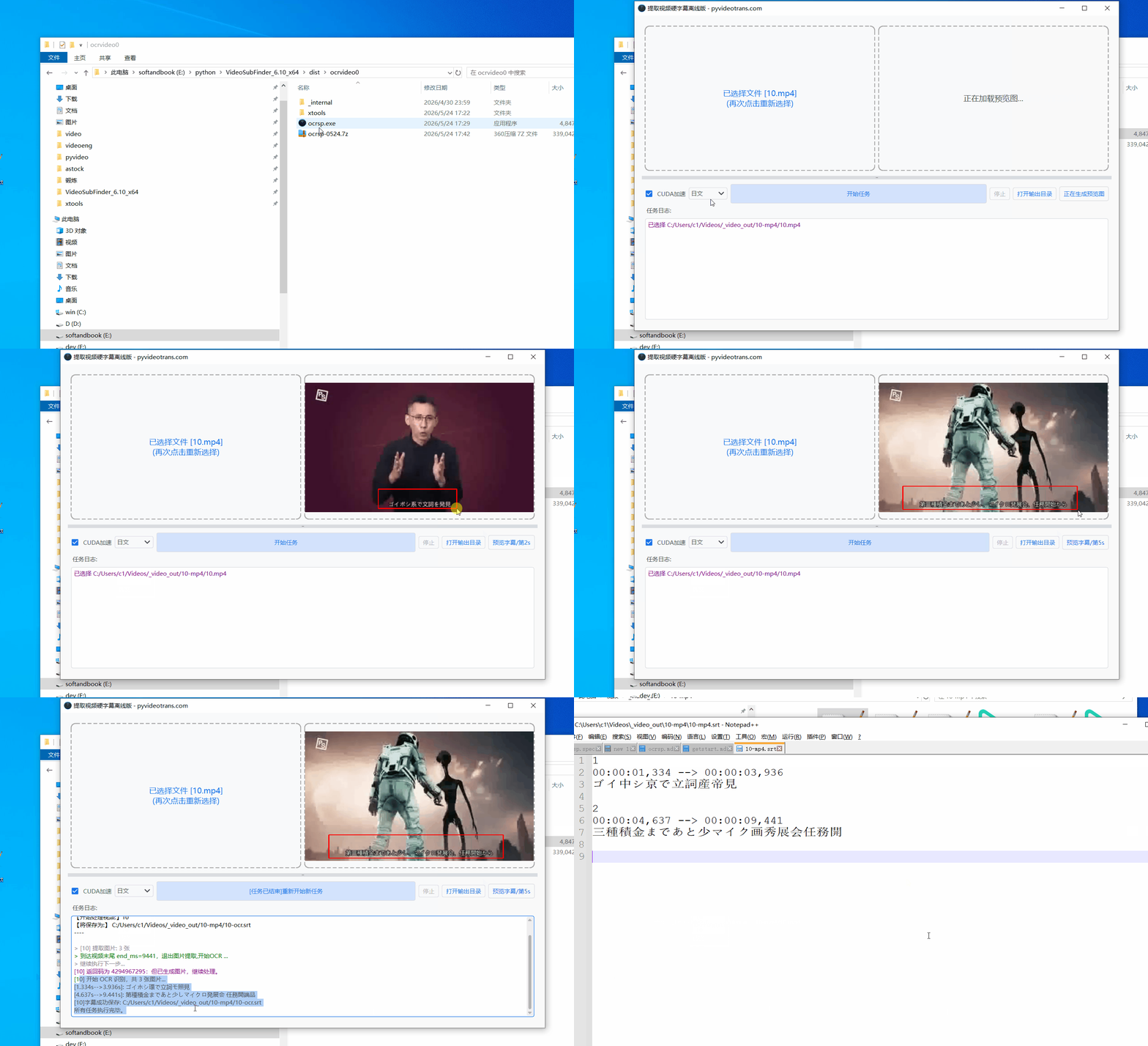
Local Video Hard Subtitle Extraction Tool
In video processing, it's now quite convenient to recognize speech and auto-generate subtitles (e.g., using Whisper models). However, if the video has subtitles "burned" into the image frames (hard subtitles), extracting them is not easy: online OCR interfaces often hit rate limits or errors, while paid services are costly.
To solve this problem, this tool integrates two excellent open-source projects to create a fully local, completely offline video hard subtitle extractor. It directly recognizes text in video frames and automatically generates .srt subtitle files. Currently supports Chinese, English, Japanese, and Korean — 4 languages.
Download: https://pan.baidu.com/s/1FrBVmdXAQBtnTelONv8Wog?pwd=1234
Must be extracted to an English-named folder — Chinese paths may cause errors.
Core Principles:
- VideoSubFinder: Quickly locates frames in the video where hard subtitles appear and captures screenshots.
- PaddleOCR-json (based on Baidu PaddleOCR): Recognizes text in these screenshots and converts it to text.
Features
- Visual area selection: After importing video, use the mouse to drag-select the subtitle region in the preview window, avoiding interference from other on-screen text (logos, watermarks, etc.).
- CUDA GPU acceleration: Improves text recognition performance.
- Multi-language recognition: Supports Chinese, English, Japanese, and Korean hard subtitle extraction.
- Environment: Currently supports Windows 10 and Windows 11 only.
Usage
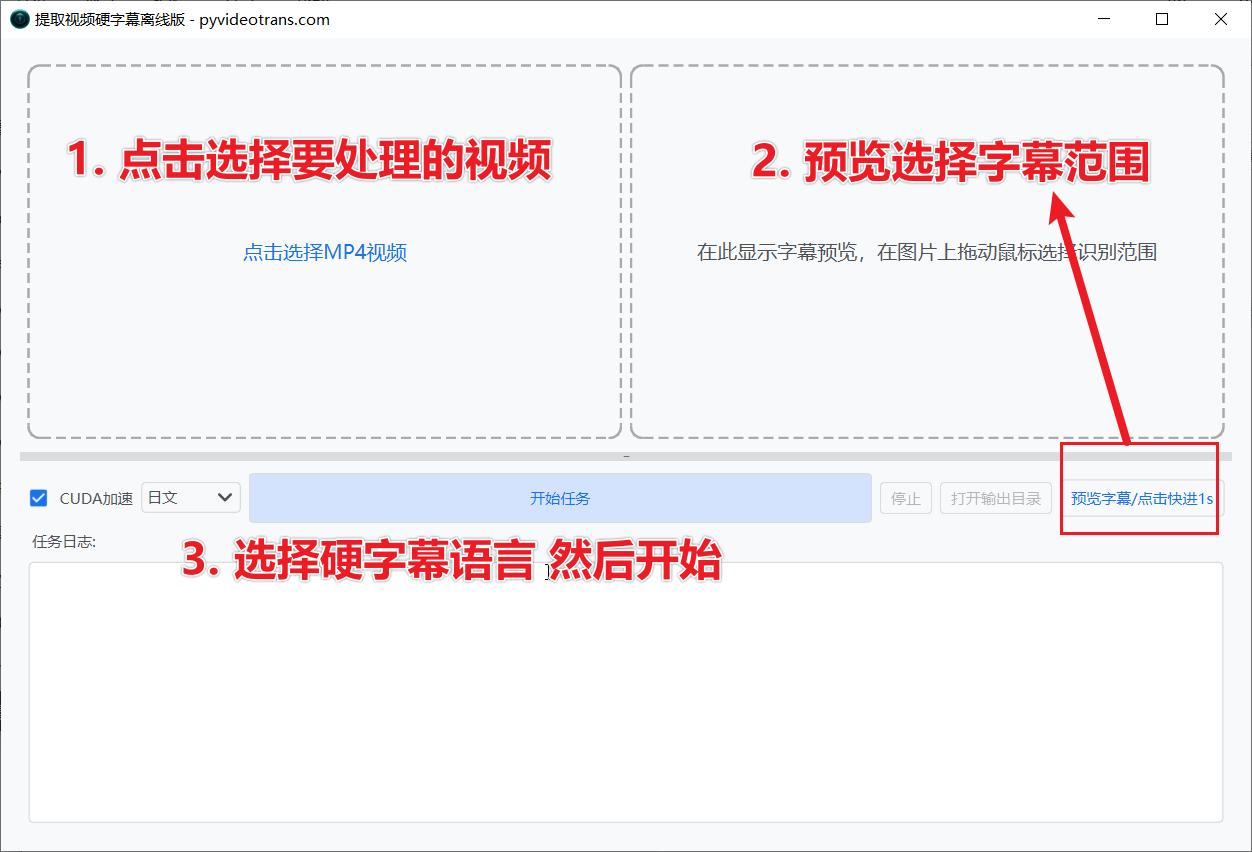
Step 1: Launch
Download and extract the package, then double-click ocrsp.exe in the extracted folder. 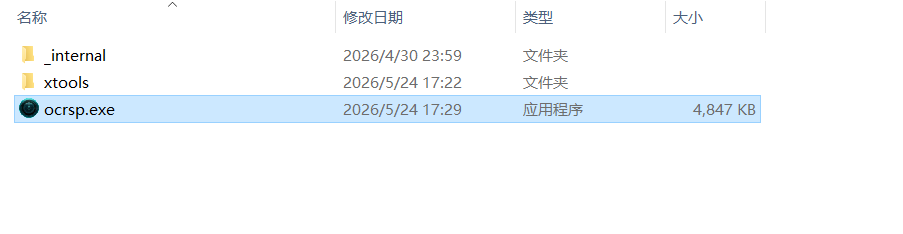
Step 2: Import Video
On the left side of the interface, click to select the video file to process (ensure the video contains hard subtitles to extract).
Step 3: Select Subtitle Region
- In the video preview area on the right, hold the left mouse button and drag to select the subtitle region.
- For precise selection, use the "Step" button below the preview window to fine-tune the frame. Check different time points to ensure subtitles are fully contained within the selection.
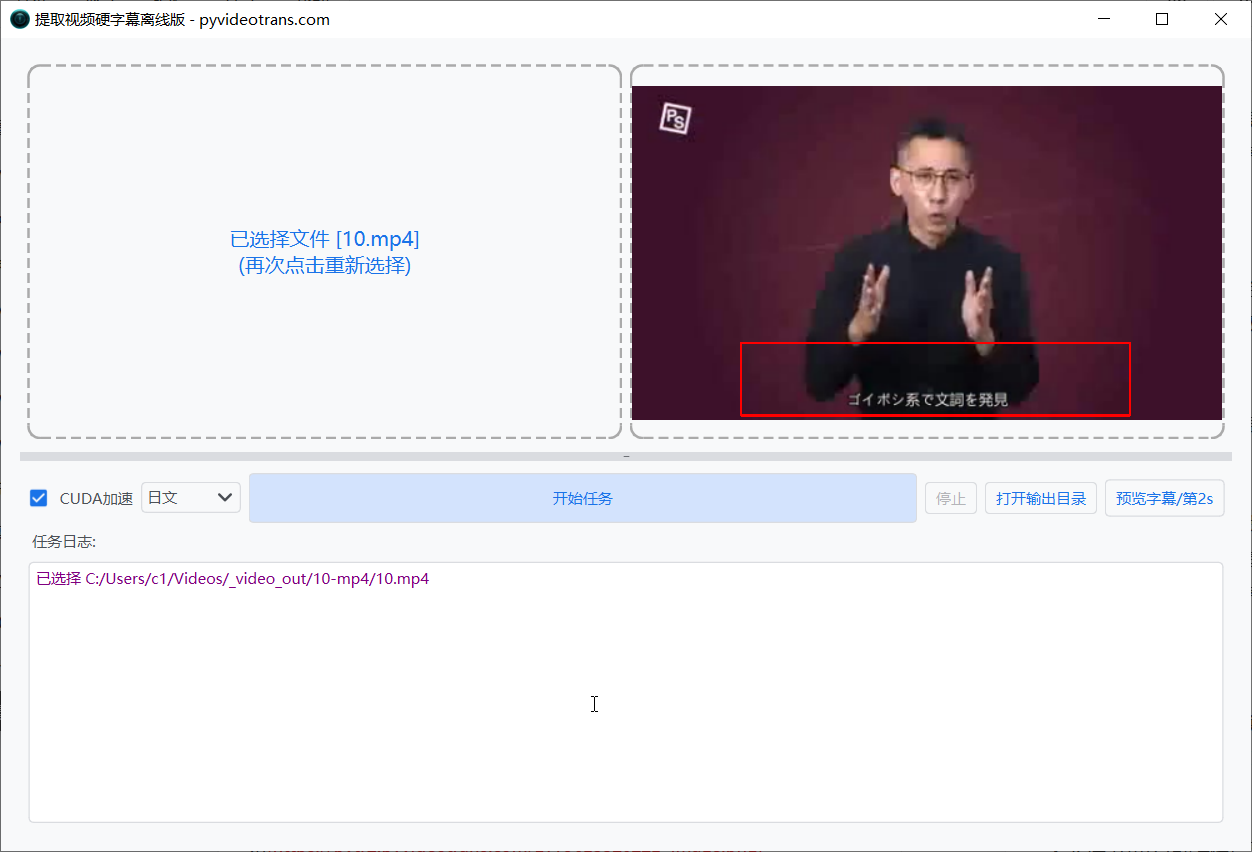
Step 4: Start Extraction
Click the "Start" button. The log window at the bottom shows real-time progress. Wait for completion.
Step 5: Get Subtitles
After extraction, the generated subtitle file is automatically saved to the video's folder, named [original_video_name]-ocr.srt.
Hard Subtitle Removal Tools
- Another hard subtitle extractor: video-subtitle-extractor
- For removing hard subtitles, recommended open-source project: video-subtitle-remover
Acknowledgments
This tool would not be possible without the following open-source projects: