
Video translation and dubbing now supports API calls. Leveraging this API, we have launched an online tool for video translation and dubbing. No registration or login is required. Simply visit (https://tts.pyvideotrans.com) in your browser to experience the full service.
It features four core functions: Speech Recognition, Text-to-Speech Synthesis, Subtitle File Translation, and Video Translation. The following detailed steps and explanations will help every new user get started easily.
1. Text-to-Speech Synthesis
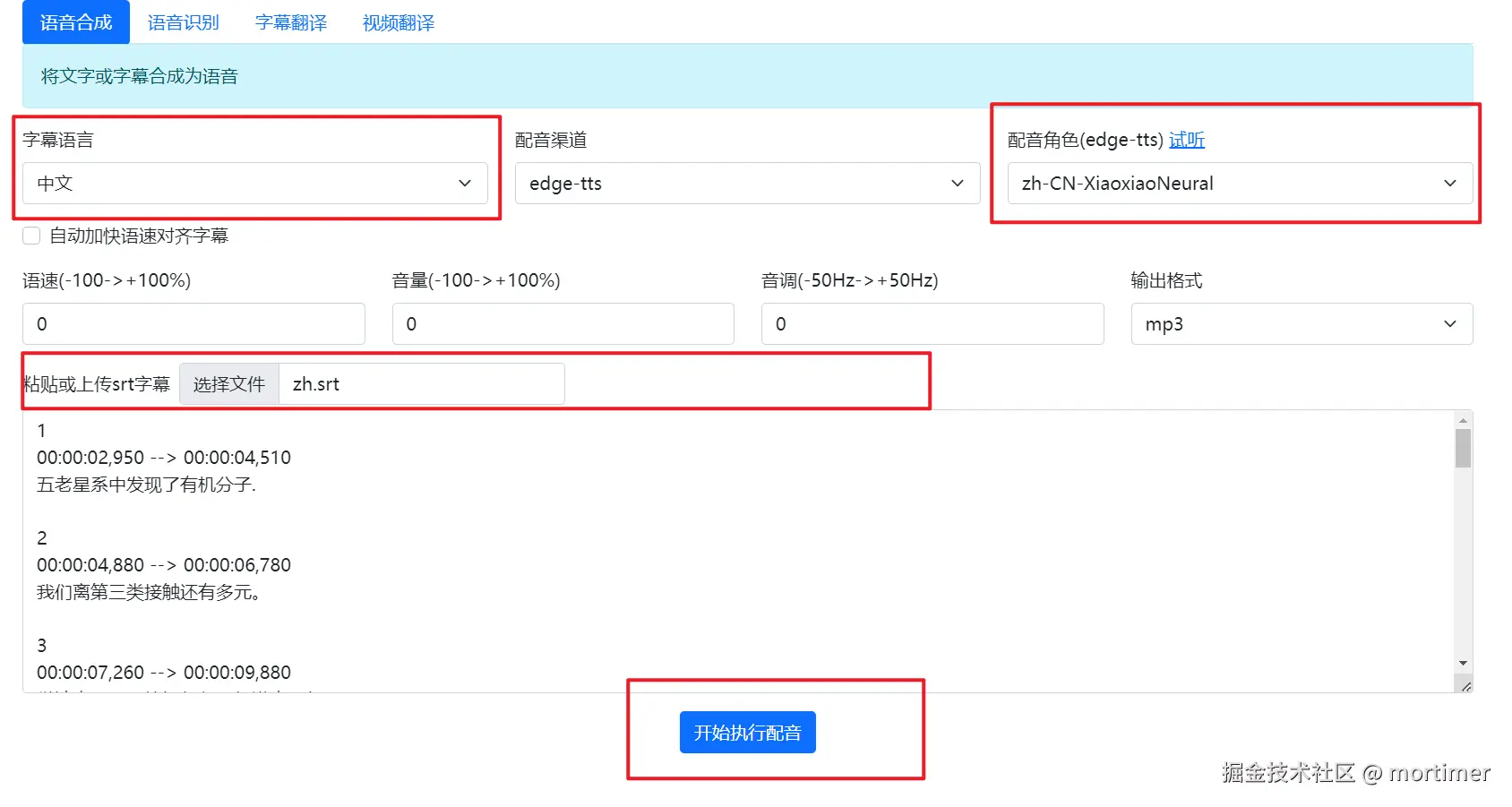
Description: This function converts text or SRT subtitle files into dubbed audio. You can select a voice role, adjust the speech rate, and generate the corresponding audio file, which can be previewed online or downloaded.
Steps:
- Open the Text-to-Speech Synthesis page.
- Select the Subtitle Language, which is the language of the text to be dubbed.
- Choose a Voice Role; each role has a different vocal style.
- Optionally adjust the Speech Rate and Volume below.
- Select the output Audio Format. If you choose MP3, you can preview it online after generation; other formats require downloading to play.
- Paste or upload an SRT format subtitle file, or directly input the text you want to dub.
- Click the "Start Dubbing" button. Wait a moment, and the result will be generated and displayed.
The full-featured video translation software supports over ten dubbing channels including
edge-tts/ChatTTS/GPT-SoVITS/CosyVoice/openai-tts/azure-tts/elevenlabs.io/fishTTS/gtts. The online version only supports edge-tts, which is free, saves server resources, and has no usage limits.
2. Speech Recognition
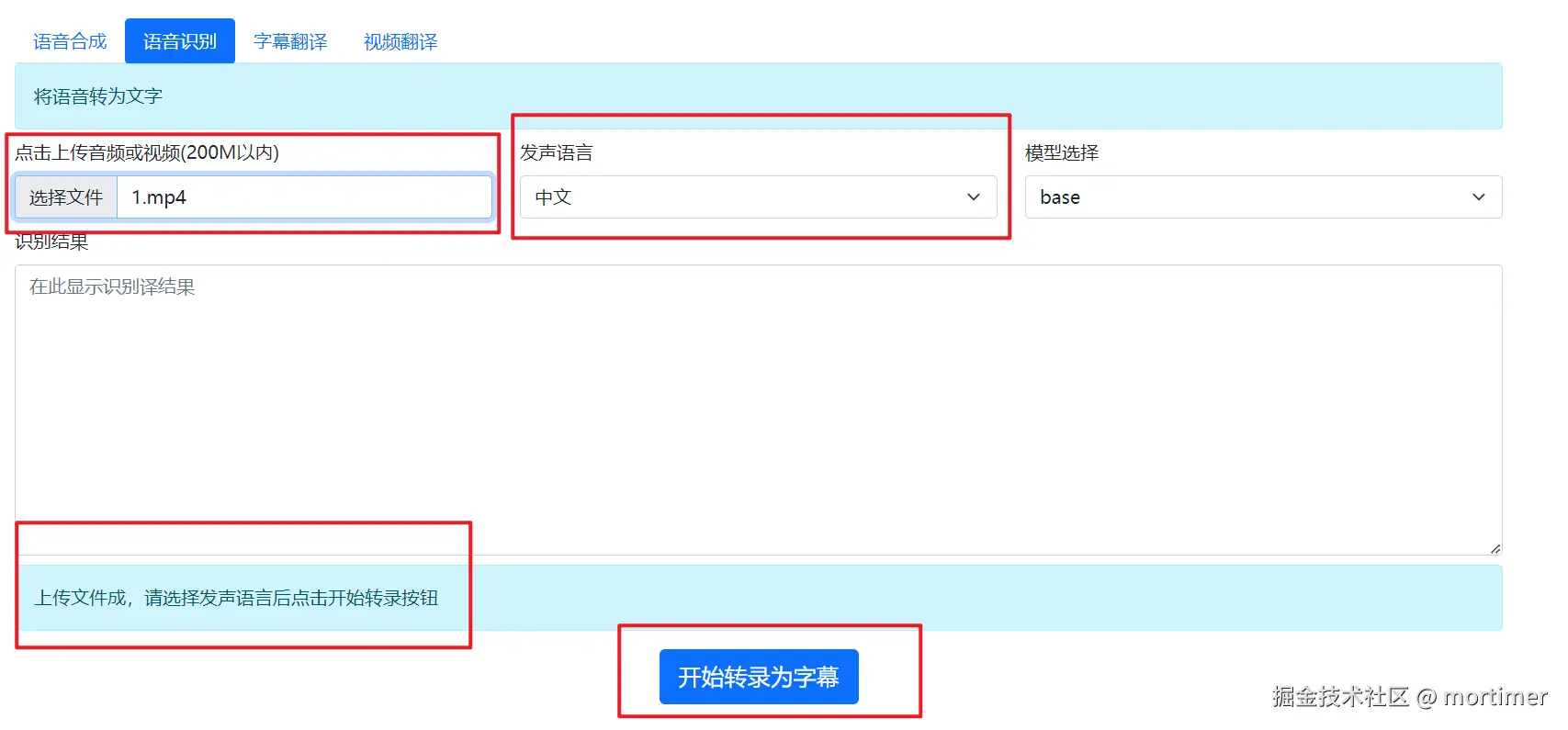
Description: Transcribes human speech from a video or audio file into text and displays it on the page.
Steps:
- Open the Speech Recognition page.
- Select the Source Language, i.e., the language spoken in the audio or video.
- Click to upload a local audio or video file (supports common video and audio formats).
- Click the "Start Recognition" button. Wait a moment, and the system will automatically process and generate the transcribed text.
- The recognition result will appear in the text box. You can copy this text or directly click the Download button to save it.
3. Subtitle File Translation
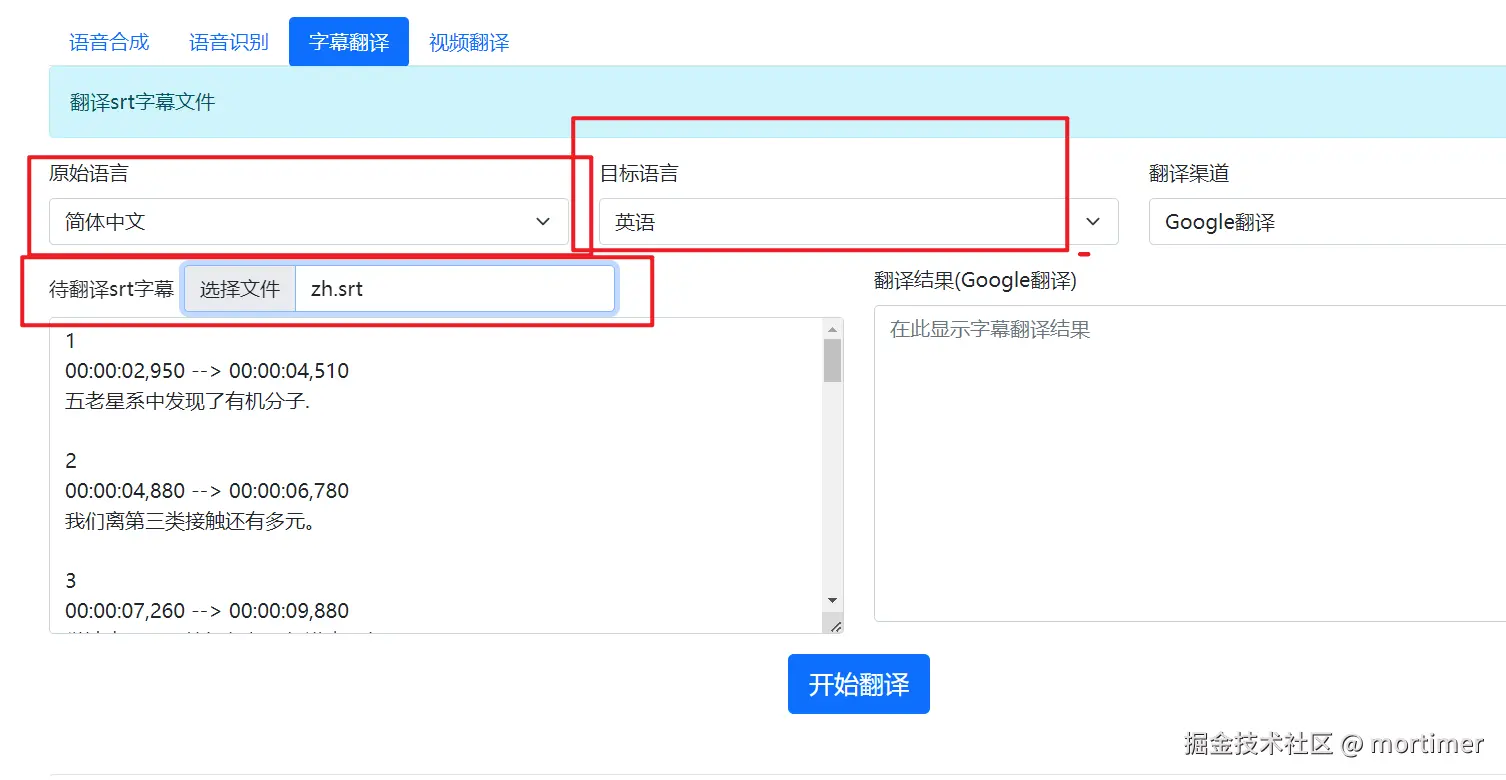
Description: This function translates SRT format subtitle files into a target language while preserving the original subtitle format.
Steps:
- Open the Subtitle File Translation page.
- Select the Source Language, i.e., the language of the subtitle you want to translate.
- Select the Target Language, i.e., the language you want to translate into.
- Upload an SRT format subtitle file.
- Click the "Start Translation" button. The system will process the translation and display the result in the right-hand text box.
- You can copy the translation result or directly click the Download button to save the translated subtitle file.
4. Video Translation
Description: Translates the original speech in a video into a target language's pronunciation, automatically generates corresponding subtitles, and supports embedding subtitles into the video. For example, if you download an English video from YouTube, you can use this function to translate it into a Chinese video, where the speech becomes Chinese and the subtitles also become Chinese.
Steps:
- Open the Video Translation page.
- Select the Original Source Language, i.e., the language spoken in the video.
- Select the Target Language, i.e., the language for the translated video's speech.
- Choose a Voice Role.
- If you need synchronized subtitles, you can select "Align Subtitles", which will keep the video's subtitles consistent with the new dubbing.
- Upload a local video file.
- Click the "Start Video Translation" button. Wait a moment, and the system will automatically process and generate the translated video.
- The result will be displayed at the bottom of the page. You can watch the translated video online directly or download other materials, such as SRT subtitles, the original video's audio, or the dubbed audio.
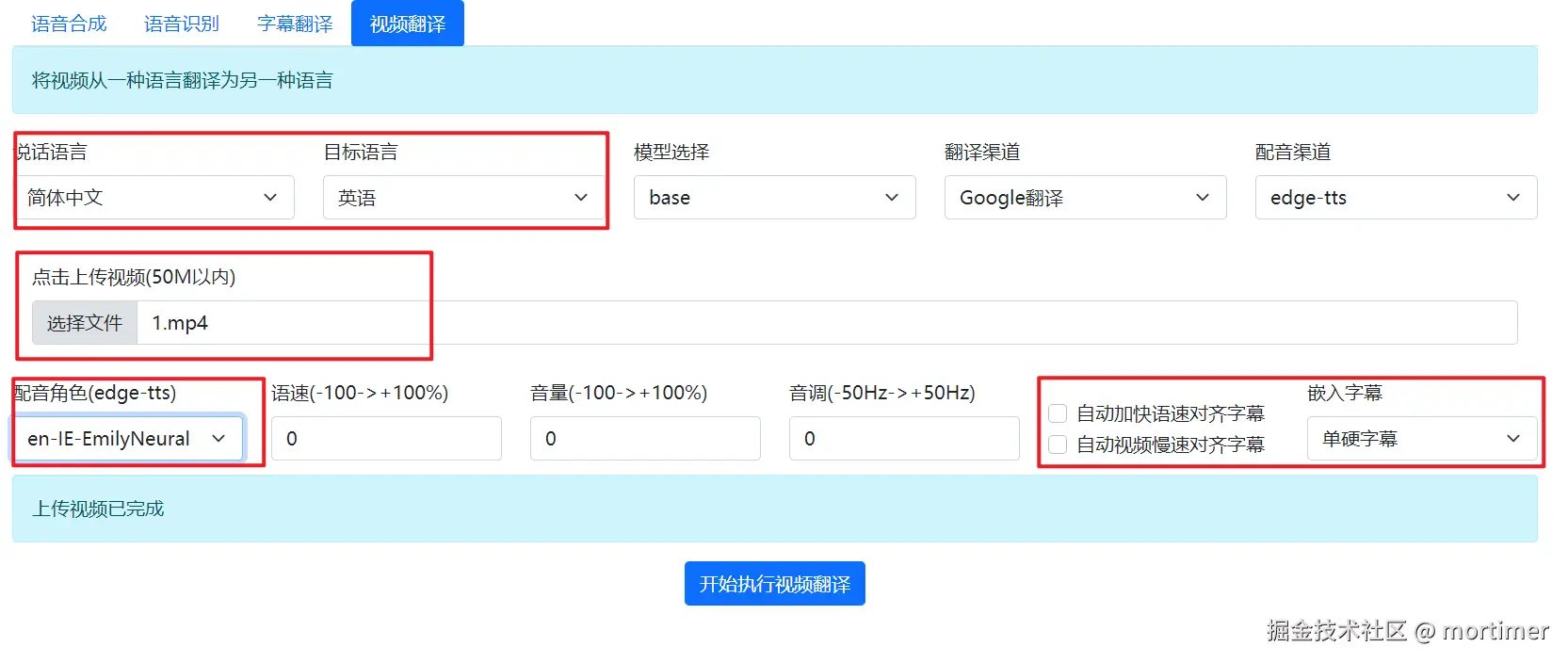
Note: To display subtitles directly in the web page, choose the "Hard Subtitles" embedding method. If you choose "Soft Subtitles", you need to download the video to your local computer and watch it with a player that supports subtitle display.
Of course, for a more complete and better translation experience, we recommend downloading the software for local use. Download address: https://pyvideotrans.com
By following the steps above, you will quickly become familiar with and be able to use our video translation and dubbing service. If you have any questions or feedback, please feel free to contact our support team.