
Why Do Audio, Subtitles, and Video Fall Out of Sync?
After translation between different types of languages, sentence length changes, and pronunciation duration generally changes as well. For example, translating from Chinese to English will certainly result in different sentence lengths, and the time taken to speak the Chinese sentence versus the English sentence is usually different.
Chinese: 有多远滚多远
English: Get out of here as far as you can!
Chinese: 滚远点
Japanese: ここから出て行け。
The original Chinese audio in the video takes 2 seconds. After translation into English and dubbing, the duration might become 4 seconds, inevitably causing a lack of synchronization.
How to Synchronize Them (Focusing Only on Sync, Not Quality)
As mentioned above, the original duration is 2s, and the translated duration is 4s. If the only requirement is synchronization, regardless of speech speed or video playback speed, you can simply speed up the audio by 2x. This reduces the 4s duration to 2s, achieving synchronization. Alternatively, slowing down the video to extend the original 2s segment to 4s can also achieve alignment.
Specific Steps for Synchronization via Audio Speed-Up:
- In the software interface, select "Auto Audio Speed-Up" and deselect "Auto Video Slow Down".

- Open the menu Tools > Options, and set the maximum audio speed-up multiplier to
100.
This achieves synchronization, but the drawback is obvious: speech speed becomes erratic.
Specific Steps for Synchronization via Video Slow Down:
- Deselect "Auto Audio Speed-Up" in the software interface and select "Auto Video Slow Down".

- Open the menu Tools > Options, and set the maximum video slow-down multiplier to 20.
This also achieves synchronization. The speech speed remains unchanged, but the video slows down, resulting in similarly erratic video playback.
If you only want basic synchronization without regard for quality, you can use these two methods.
Better, More Acceptable Synchronization Methods
Clearly, the synchronization methods above are not practical. Audio that is too fast or video that is too slow is difficult to accept and provides a poor experience. For better results, you can enable both "Auto Audio Speed-Up" and "Auto Video Slow Down" simultaneously.
Specific Steps:
When selecting the faster or openai mode, try to use a medium or larger model and choose "Whole Recognition".

In the software interface, select both "Auto Audio Speed-Up" and "Auto Video Slow Down", and set a small overall speed-up value, such as 10%.

Open the menu Tools > Options, and set the maximum audio speed-up multiplier to 1.8 (i.e., maximum speech speed is 1.8 times normal). You can manually change this to 2, 1.5, or any value greater than 1.
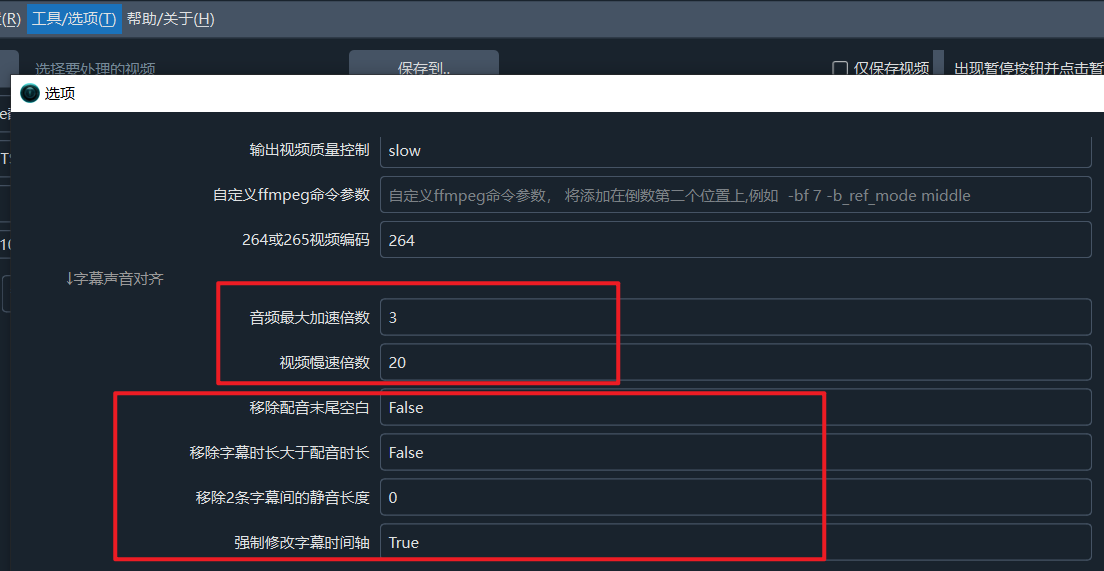
Open the menu Tools > Options, and set the maximum video speed-up multiplier to 2 (i.e., slow down to 0.05 times normal speed). You can change this to 3, 5, or any value greater than 1.
After steps 1-3, synchronization might still not be perfect because maximum limits are set. When the limit is reached before perfect sync, the process may skip and continue. You can further adjust the subtitle and video-related options in the menu Tools > Options.
Is There a Perfect Synchronization Method?
Apart from manual intervention—such as refining translations or adding transitional scenes—no programmatically automated perfect method has been found yet.
Achieving the following goals simultaneously through automated programs for videos of varying lengths and any language translation/dubbing seems currently impossible:
- Acceptable range for audio speed-up.
- Acceptable range for video slow-down.
- Precise alignment between mouth movements (opening/closing) and speech start/end times.
Apart from manual adjustment, there is no perfect method.