Using Hugging Face Models in the Software: A Detailed Guide
Hugging Face (huggingface.co) is a popular machine learning model hub containing a vast number of available speech recognition models. When the built-in Faster-Whisper model lacks sufficient support for low-resource languages, or when you need a specifically optimized model, Hugging Face is the ideal platform to find a solution.
This feature is available for software version v3.71 and above and only supports models converted by ctranslate2.
Step 1: Confirm Model Compatibility
Before using a Hugging Face model, you must confirm that the model has been converted by ctranslate2. If the model has not been converted by ctranslate2, it cannot be used in the software.
Here are several ways to check:
1. Explicit Label on the Page
If the model page explicitly displays "Converted from ctranslate2" or similar wording, the model is compatible.
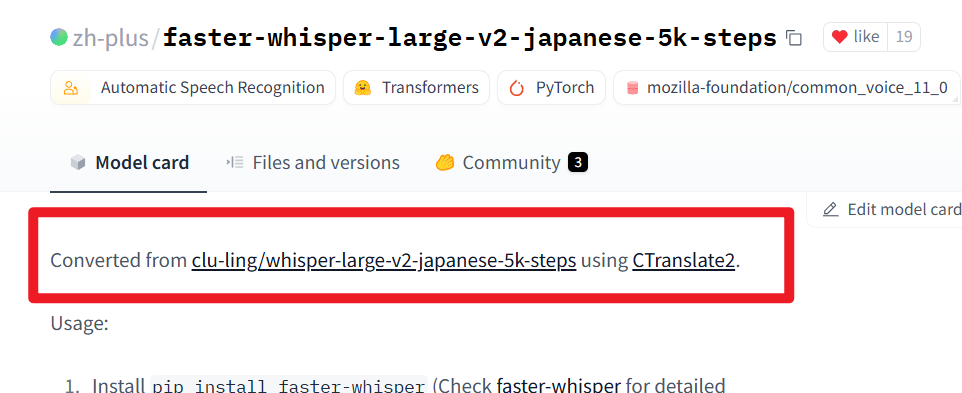 As shown in the image, if the page explicitly states it was converted using
 ctranslate2, then the model is usable.
2. Check Code References
Even if the page doesn't explicitly state it, you can check if the model page contains code snippets related to from faster_whisper. Typically, such models are also compatible. 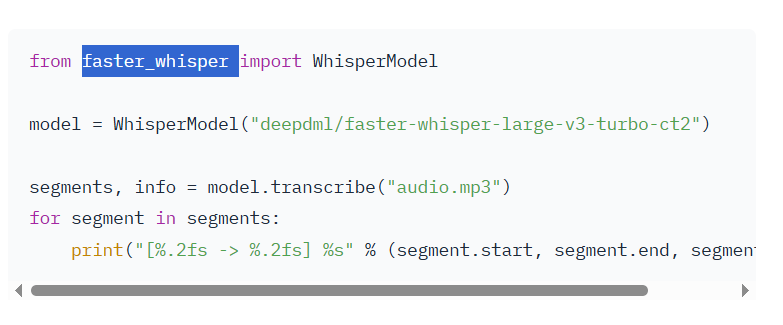
3. Examine the config.json File Structure
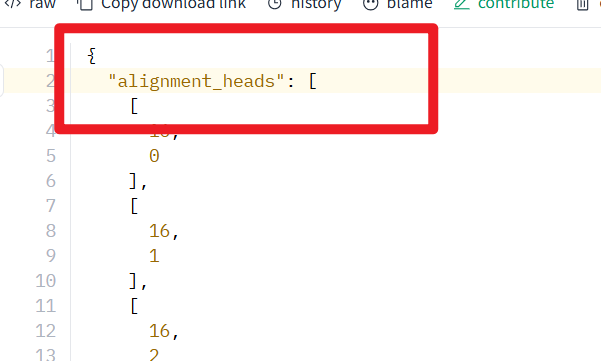
If the above two methods are inconclusive, you can click the Files and versions tab on the model page, then find and click the config.json file.
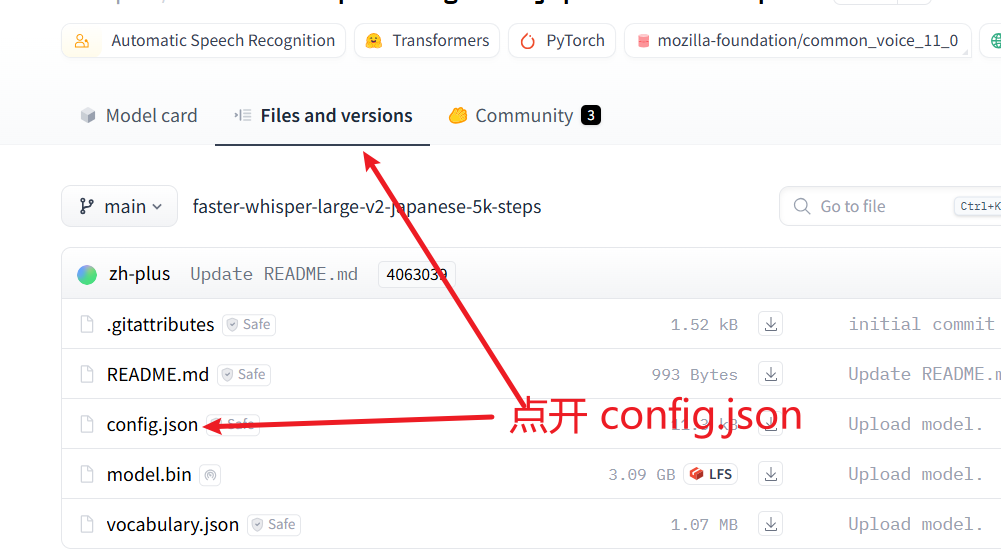
If the structure of the config.json file resembles the image below, for example, if the file begins with alignment_heads and contains fields like lang_ids in the middle, then the model is usually compatible.
Step 2: Obtain and Configure the Model ID
Once you confirm the model is compatible, you can add it to the software for use.
1. Obtain the Model ID
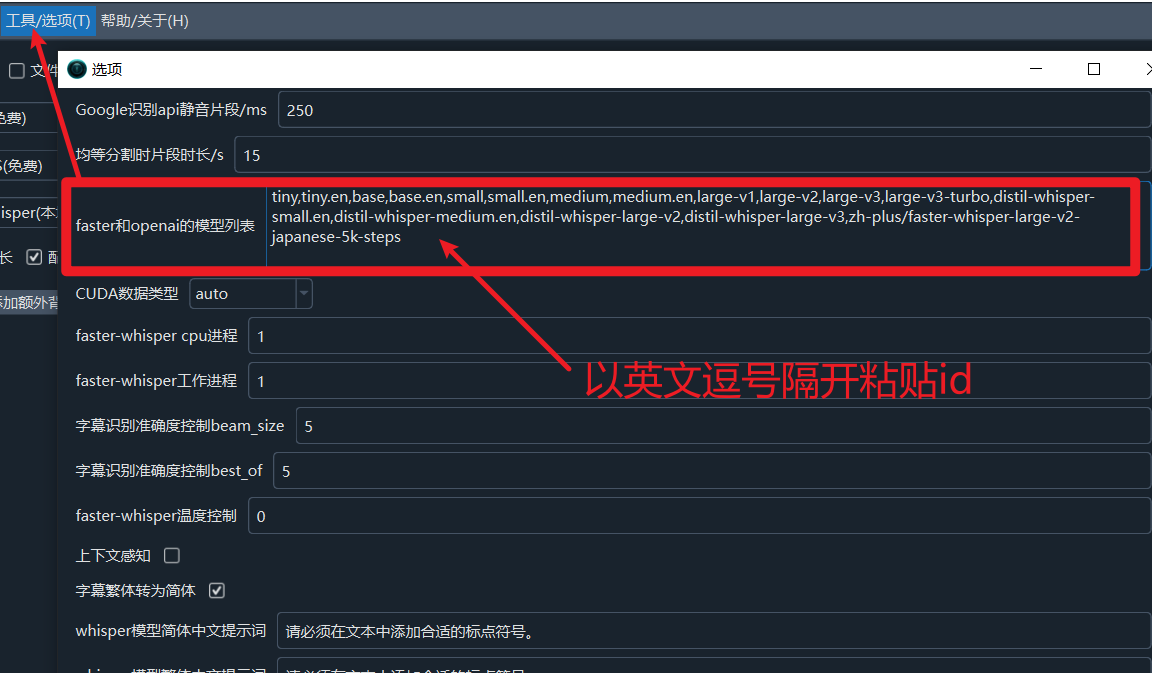
The Model ID consists of two parts separated by /: username/model_name. For example: zh-plus/faster-whisper-large-v2-japanese-5k-steps.
You can find and click the copy button on the model details page to directly obtain the Model ID, as shown in the image below:

2. Add the Model ID to the Software
- Open the software, click
Menu->Tools->Advanced Options. - At the end of the
Faster and OpenAI Model Listtext box, paste the Model ID you copied after the existing content, using an English comma,as a separator. - Click
Saveto apply the changes.
Step 3: Use and Automatically Download the Model
- Return to the software's main interface.
- Select
faster-whisper (local)from theSpeech Recognitiondropdown list. - In the
Modeldropdown list on the right, select the Model ID you just added.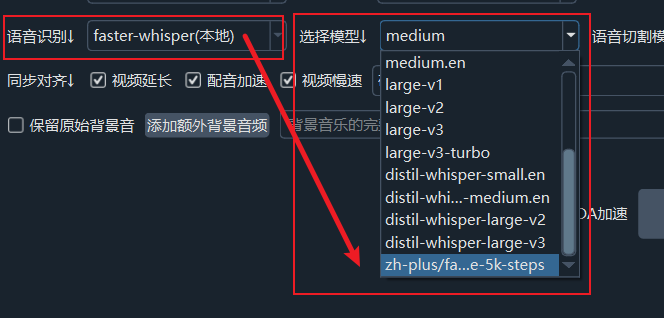 The software will automatically download the model from the domestic mirror site
 https://hf-mirror.com, no VPN required.
Important Notes
1. Model Availability Limitation
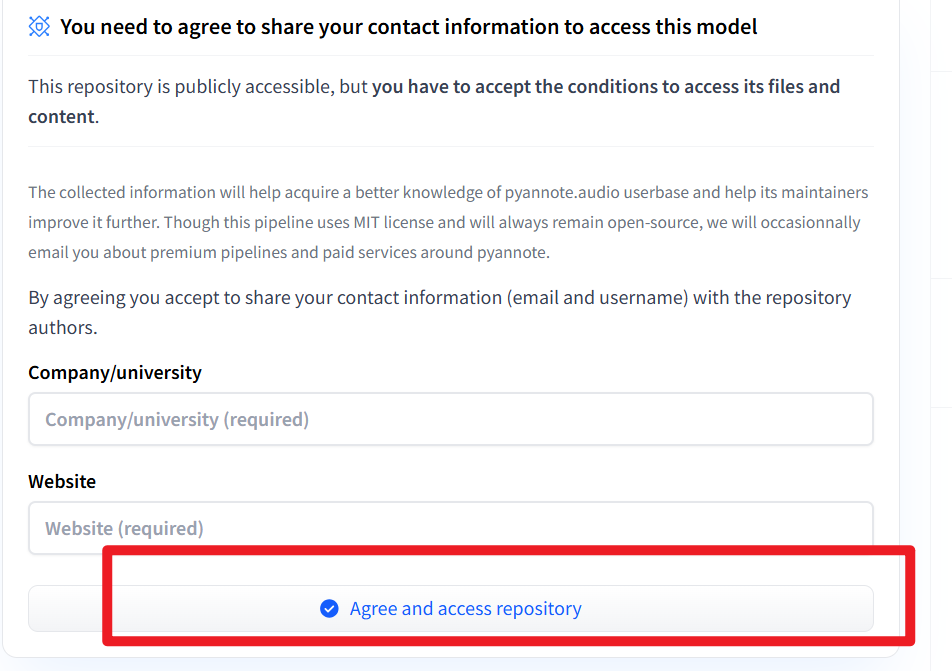
The software only supports downloading publicly available models on Hugging Face. It cannot download or use models that require your agreement to terms (such as accepting a license agreement) to download (as shown in the image below) or private models.
2. Use of Domestic Mirror Site
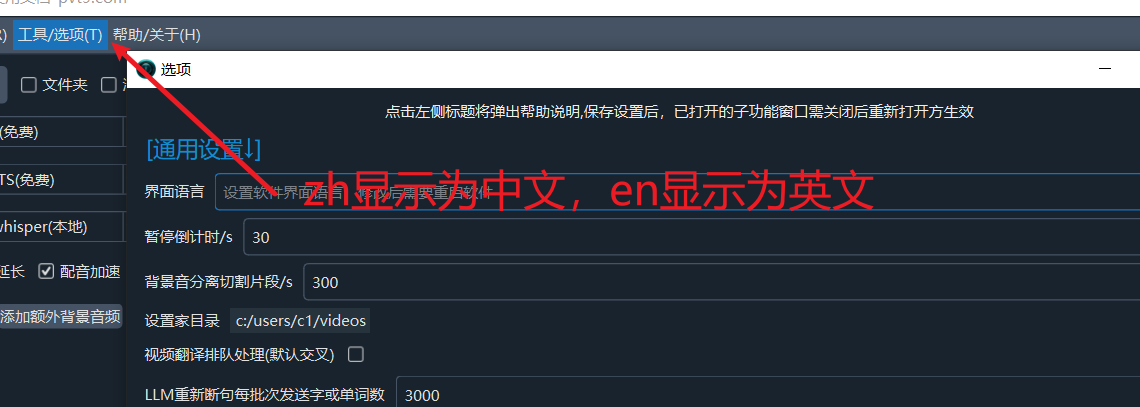
- When the software interface language is set to Chinese, the software will automatically use the domestic mirror site
https://hf-mirror.comfor model downloads, avoiding VPN issues. - If the software interface is in English, it will still attempt to download from the official Hugging Face website, which may require a VPN.
- You can click
Menu->Tools->Advanced Options->Interface Language, enterzhand save, then restart the software to change the interface to Chinese.