
Microsoft's recently released VibeVoice-ASR speech recognition model delivers stunning performance, with built-in speaker recognition. However, the official version demands extremely high hardware (requires 20G+ VRAM, basically RTX 3090/4090 to run) and has complex setup procedures, deterring many enthusiasts.
To make it more accessible, we've made some simple modifications to run on low-VRAM devices!
- Ultra-Low Barrier: VRAM usage reduced by 70%, runs on common 12G/14G VRAM.
- Free Cloud Usage: Underpowered PC? No problem! Includes a Google Colab script to run for free in the cloud.
- Integrated into pyVideoTrans: Video translation & dubbing software v3.95+ natively supports it.
Step 1: Preparation
- Update Software: Ensure your
pyVideoTransis updated to v3.95 or higher. If it already is, it's still recommended to download and overwrite with the patch package again. (This is mandatory; older versions won't work). - Get Model Running Address: You can choose Cloud (recommended, free, no PC setup needed) or Local (recommended for macOS or Linux; Windows not tested).
Step 2: Launch VibeVoice Model
Option A: Run via Google Colab (Cloud)
Recommended if you can access Google, saves your PC's resources.
Open Run Script: Here is the notebook link: 👉 VibeVoice Colab One-Click Run Script (
https://colab.research.google.com/drive/1FnsoTQsH9iTWpuJVY_T-0ZO-E91C74it?usp=sharing)Change Runtime Type (Crucial Step):
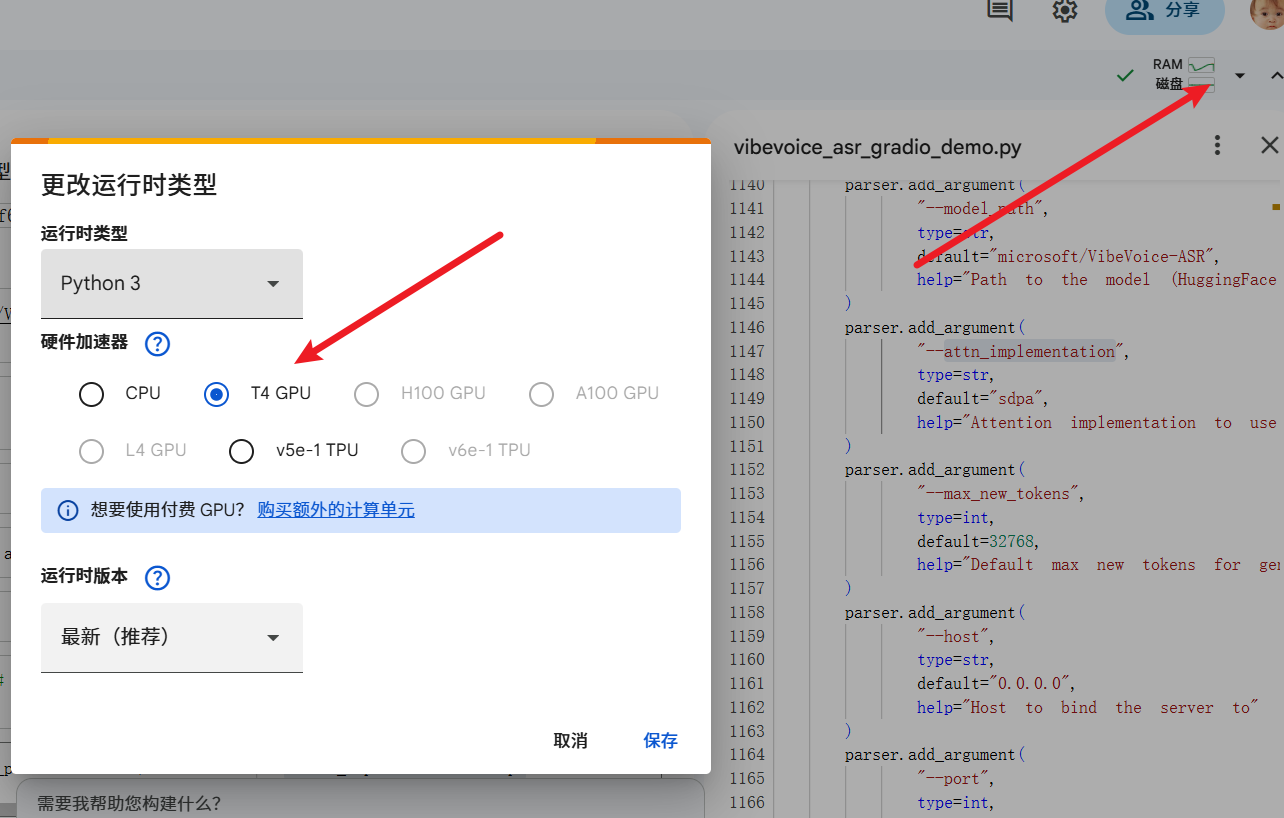
- Click the small triangle next to the "Connect" button in the top right.
- Select "Change runtime type".
- In the hardware accelerator, choose
T4 GPU, then click Save.
- One-Click Run:
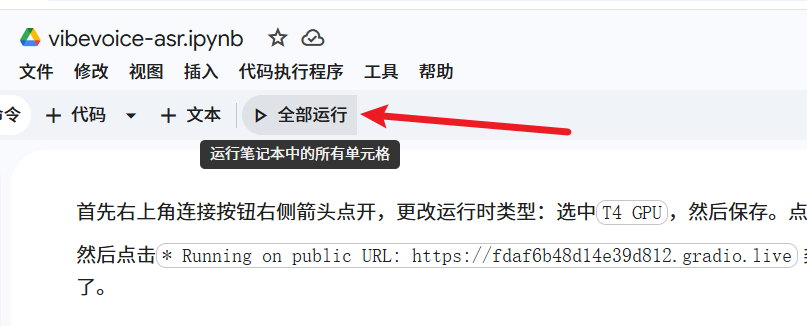
- Click the "Run all" button below the menu bar (or press
Ctrl+F9). - The script will automatically install dependencies and download the model. Please wait a few minutes.
- Click the "Run all" button below the menu bar (or press
- Get API Address:
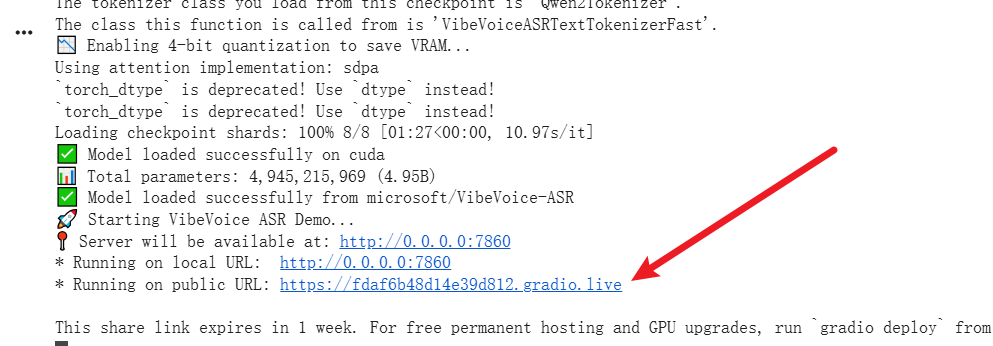
- When the bottom of the page shows
Running on public URL: https://xxxx.gradio.live, it means startup is successful. - Copy this URL ending with
.gradio.live. This is the address you need to enter in the software.
- When the bottom of the page shows
Option B: Local Deployment (For Linux/Mac Experts)
If you are a Linux/Mac user with 10G+ VRAM, you can refer to https://github.com/jianchang512/VibeVoice/blob/main/docs/vibevoice-asr.md for self-deployment. The start command is: python demo/vibevoice_asr_gradio_demo.py --model_path microsoft/VibeVoice-ASR --attn_implementation sdpa --share
The default address after startup is usually http://127.0.0.1:7860.
Win10/11 should theoretically work, but was not tested due to insufficient VRAM.
Step 3: Configure in pyVideoTrans
Once you have the API address, go back to the translation software for simple setup.
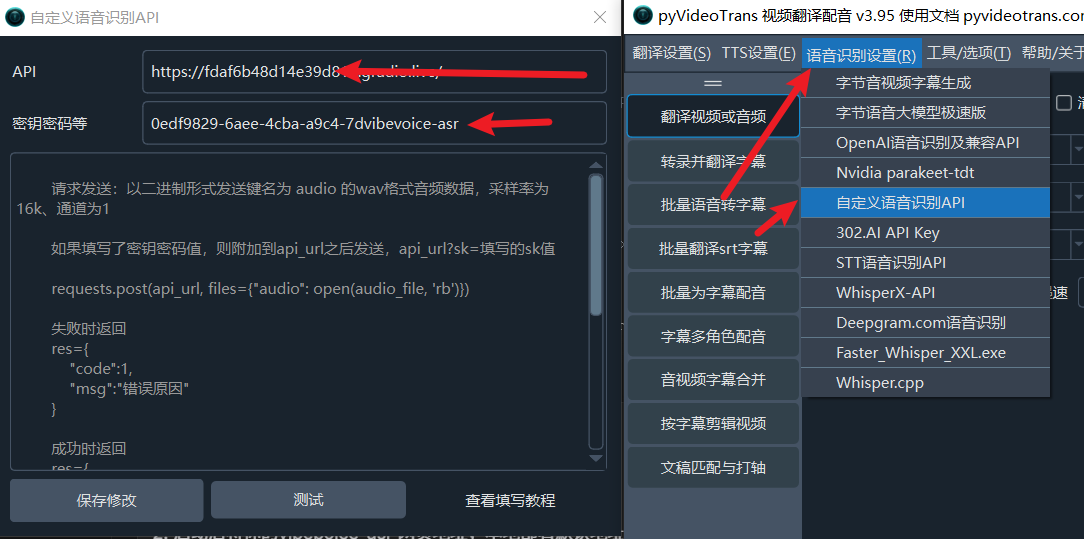
- Open the
pyVideoTranssoftware. - In the top menu bar, find "Speech Recognition Settings (R)" -> Select "Custom Speech Recognition API".
- Fill in configuration info (follow the image):
- API Address: Paste the
https://xxxx.gradio.liveaddress you copied from Colab (or the localhttp://127.0.0.1:7860). - Secret Key/Password: There's a special trick here! You can enter any random characters, but it must include
vibevoice-asr.- Correct example:
my-vibevoice-asr-keyortest-vibevoice-asr - Wrong example:
123456(the software won't recognize it as a VibeVoice API)
- Correct example:
- API Address: Paste the
- Click the "Test" button. If "Connection successful" is shown or test data is returned, click "Save Changes".
Step 4: Start Using
Now you have access to one of the best speech recognition capabilities!
- On the main software interface, import the video or audio you want to process.
- In the "Select Speech Recognition Model" dropdown menu, choose "Custom Speech Recognition API".
- Click start running. The software will automatically use the cloud-based VibeVoice model to generate accurate subtitles!
Frequently Asked Questions (Q&A)
Q: What if the Colab run shows an error or disconnects? A: Colab's free GPU has usage time limits. If disconnected, please refresh the webpage, repeat the "Run all" steps, and get the new .gradio.live link to fill in the software.
Q: Is the recognition speed fast? A: VibeVoice is very fast, and with our quantization optimization, it achieves near real-time transcription even on a T4 GPU. However, the software sends and transcribes the entire audio file, then displays the result all at once, without streaming.
Q: Why does it show an error when I test? A: Please check two things: 1. Make sure there are no extra spaces at the end of the API address; 2. Ensure the key contains the keyword vibevoice-asr.
Modified version repository: https://github.com/jianchang512/VibeVoice