How to Use the Original Voice Timbre for Dubbing
In dubbing operations, we typically select a fixed voice timbre, such as "yunxi," "xiaoyi," or "解说小帅," and use only that timbre throughout the entire dubbing session. However, for scenarios involving multiple speakers, using a single voice timbre may not be ideal. A better approach is to assign a specific voice timbre to each speaker, ideally matching the timbre of the speaker in the original video. For example, if Bajie is speaking in the original video, the English translation should still retain Bajie's voice timbre. This requires the use of the original voice cloning feature.
Currently, the software supports three dubbing channels for original voice cloning: clone-voice, CosyVoice, and F5-TTS.
Principle: When dubbing a specific segment (e.g., 00:00:03 --> 00:00:08), the original audio for that segment is first extracted to obtain the corresponding original text content and the translated target text. This data is then sent to the dubbing channel, which generates the dubbing for the target text by referencing the voice timbre of the original audio.
Using the clone-voice Dubbing Channel
You need to install the https://github.com/jianchang512/clone-voice project. After opening the project homepage, carefully read the instructions. You can deploy the clone-voice project using the source code. For Windows systems, you can also find Releases (https://github.com/jianchang512/clone-voice/releases) in the middle-right section, download the integrated package directly, extract it after downloading, and double-click app.exe to start it.
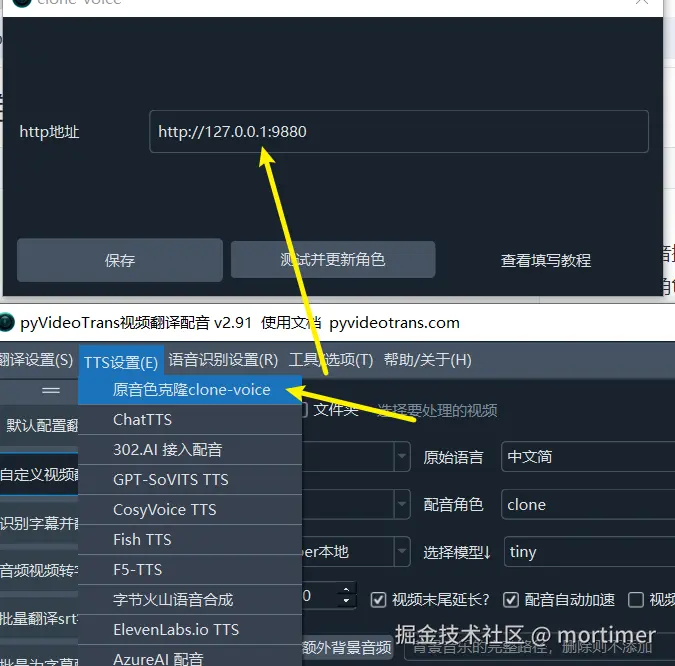
Once it shows a successful startup, enter the default API address http://127.0.0.1:9988 into the HTTP address field in the video translation software under Menu > TTS Settings > Original Voice Cloning clone-voice. After testing without issues, you can start using it.
Using the CosyVoice Dubbing Channel
Similarly, you need to install the CosyVoice project. For installation instructions, please refer to https://pyvideotrans.com/cosyvoice.html
Of course, you can also use third-party integrated packages, but these do not support voice cloning; they only allow specifying a fixed audio.
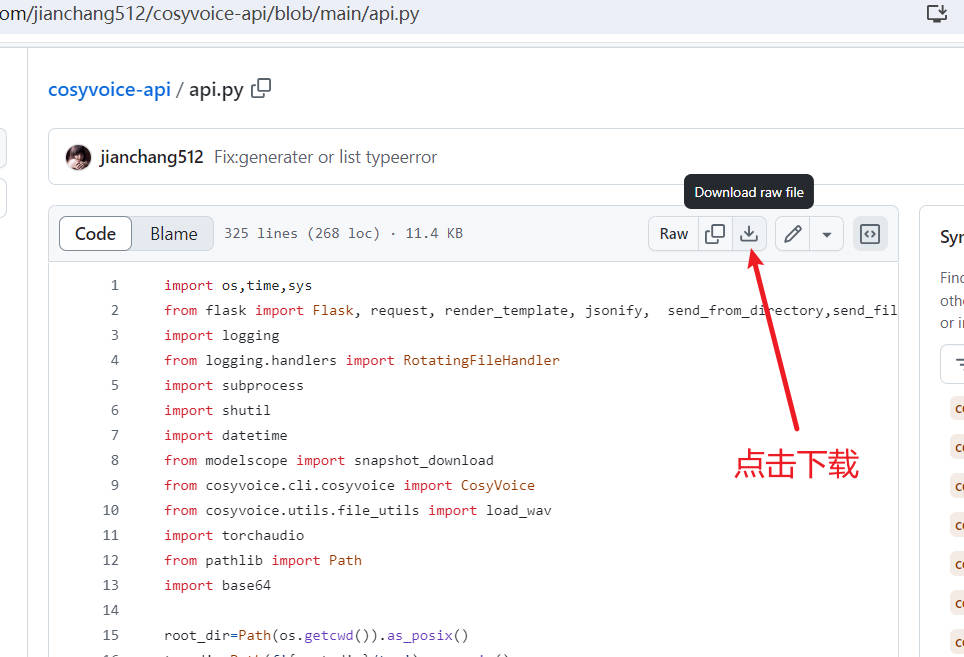
After installation according to the tutorial, go to https://github.com/jianchang512/cosyvoice-api/blob/main/api.py to download the api.py file and place it in the CosyVoice project directory, in the same location as the webui.py file.
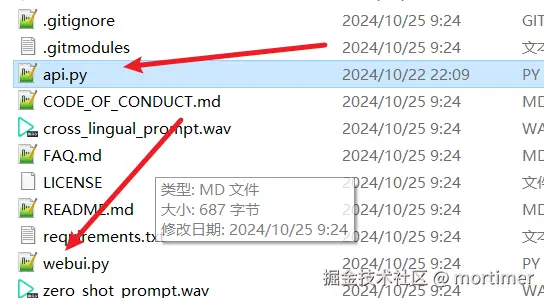
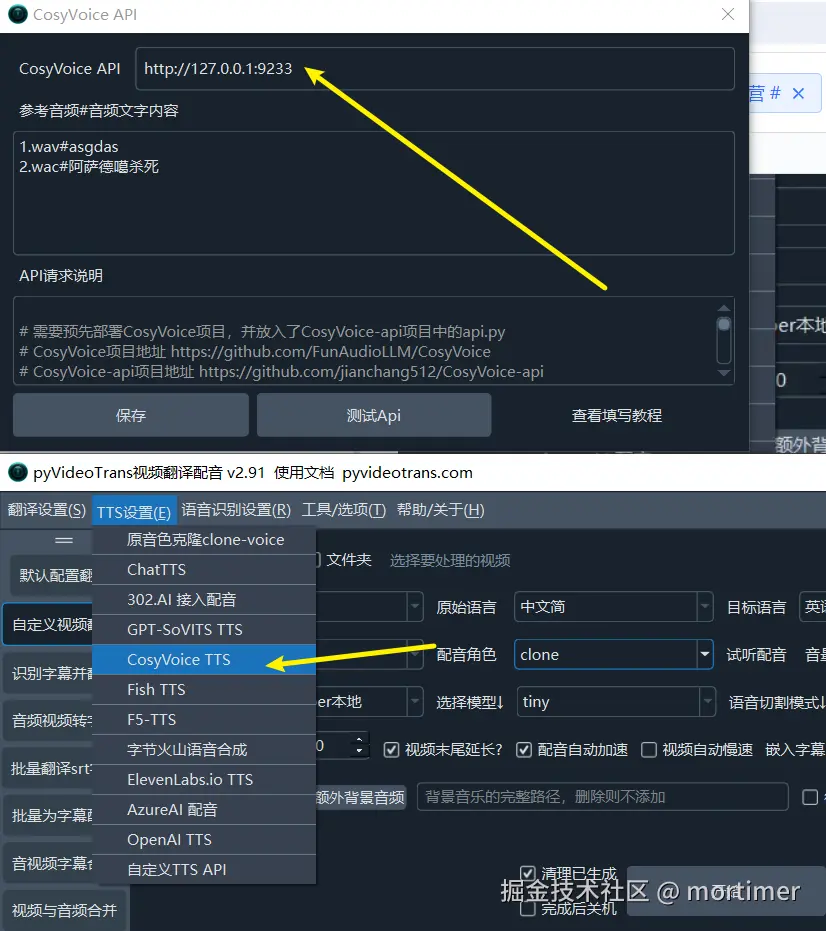
Then start api.py and enter the API address into the API address field in the video translation software under Menu > TTS Settings > CosyVoice. The default address is http://127.0.0.1:9233.
Using the F5-TTS Dubbing Channel
You need to install the F5-TTS project. For detailed installation instructions, please refer to https://pyvideotrans.com/f5tts.html
You can install it via source code, or use an integrated package for Windows. After installation, double-click run-api.bat to start the API service. Then, enter the default address http://127.0.0.1:5010 into the video translation software under Menu > TTS Settings > F5-TTS API address.
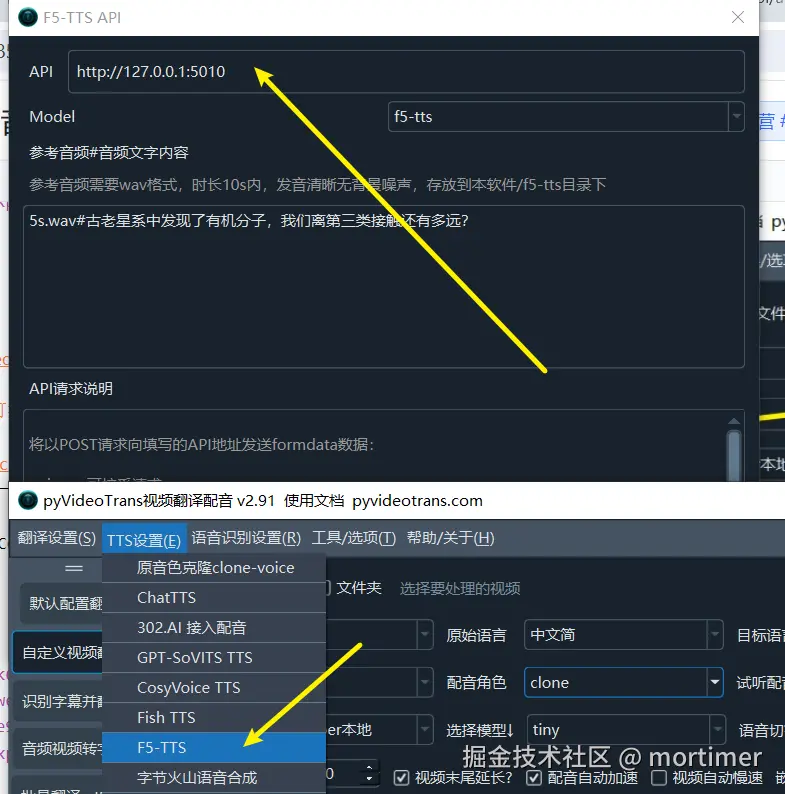
Select "clone" as the role in the main interface to perform voice cloning dubbing.
Note: Apart from clone-voice, which supports over ten languages, F5-TTS and CosyVoice only support Chinese and English voice cloning.
Multi-Role Dubbing
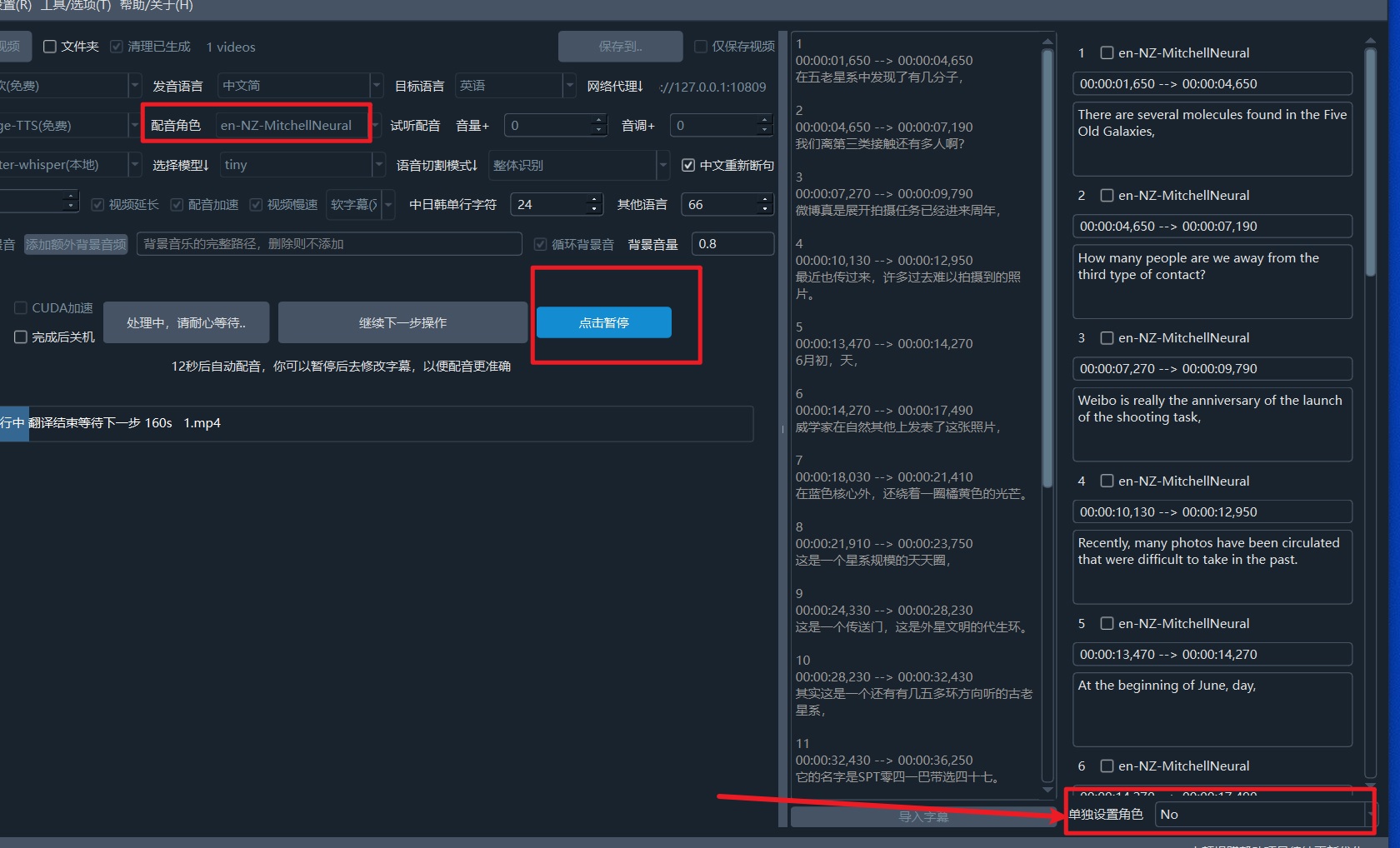
When translating only one video at a time, after the subtitle translation is completed and the pause button appears, click pause. In the subtitle area on the right, you can individually set a dubbing role for each subtitle line, thereby achieving multi-role dubbing.
In the main interface's dubbing role selection, you need to choose a default dubbing role. If no individual settings are made, all lines will use this default role.