
Batch Subtitle Dubbing / Speech Synthesis
Supported subtitle/text formats:
srt / txt
If you have many subtitle or text files and want to batch-create dubbing audio, this is the feature for you.
Submit your SRT files or plain text and batch-synthesize them into dubbing audio files (e.g., WAV or MP3) using your chosen TTS engine. Supports fine-grained control of speed, volume, and pitch.
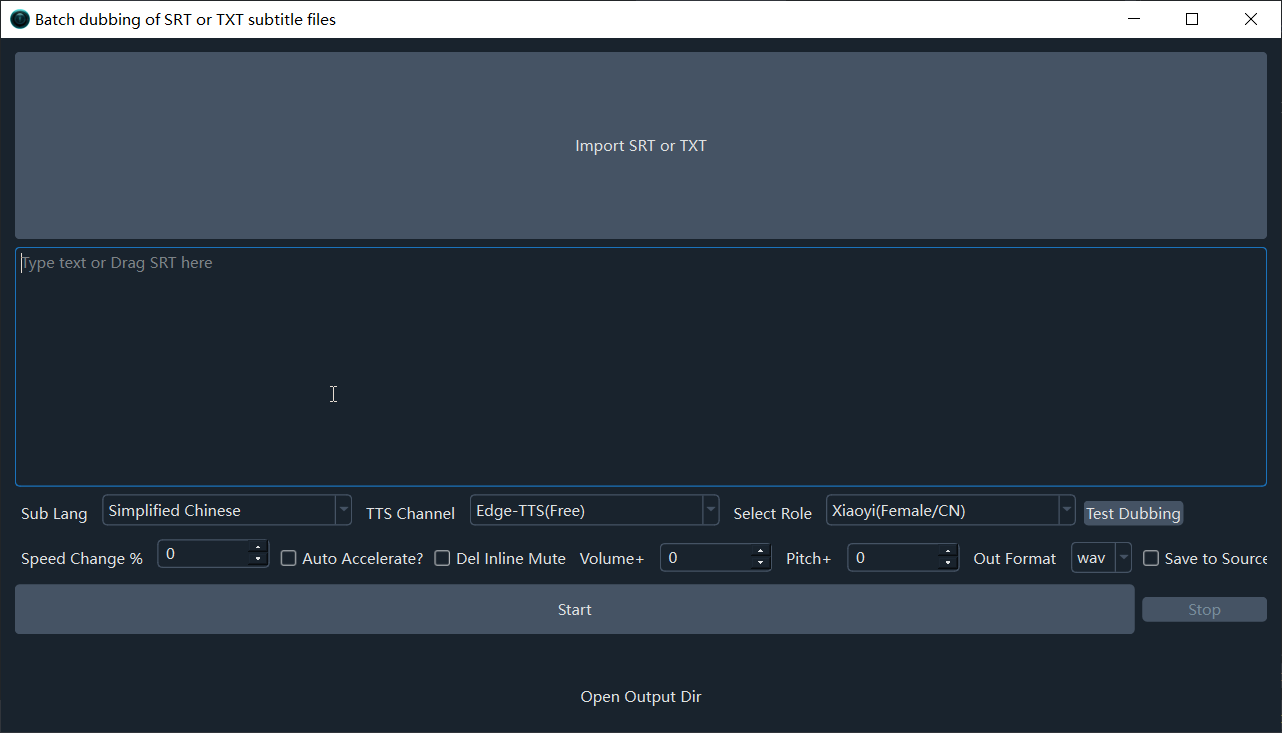
Interface Guide
- Top large button: Drag-and-drop or click to import one or more srt/txt files.
- Bottom text box: Enter text directly for dubbing. Paste a long passage here if needed; for srt files, use the top button instead.
- Subtitle Language: The language of your subtitles; this determines which voices are available.
- Dubbing Channel: Defaults to EdgeTTS (Microsoft free dubbing, all languages). Other channels include paid online APIs and free open-source local options. Some channels require you to enter a secret key in Menu > TTS Settings(E). Full dubbing channel overview.
- Select Voice: After choosing a subtitle language and dubbing channel, select the voice you want to use here.
- Preview Dubbing: After selecting a voice, a preview button appears. Click to listen to a sample.
- Speed Change %: Defaults to 0. Positive values speed up by that percentage (e.g.,
10means 10% faster); negative values slow down (e.g.,-10means 10% slower). - Auto Speedup: Different languages and voices have different natural speeds, so dubbing duration won't always match the subtitle duration. Check this box to automatically speed up dubbing that exceeds the subtitle time range.
- Remove Silence Between Subtitles: Subtitles typically have gaps between them. Check this to remove gaps so the audio flows continuously. Only effective when "Auto Speedup" is unchecked.
- Volume+: Similar to "Speed Change %". Values above 0 increase volume by that percentage; values below 0 decrease it.
- Pitch+: Defaults to 0. Range:
-50to50. Shifts pitch from lower to higher. - Output Format: Defaults to WAV. MP3 and M4A are also available.
- Save to Source Location: When checked, generated audio files are saved alongside the original srt files.
- Open Output Folder: Opens the folder containing the generated audio files.
Available TTS Channels
pyVideoTrans includes many built-in TTS channels. Here are the most common ones:
| Type | Channel | Notes |
|---|---|---|
| Free | Edge-TTS | Microsoft free API, all languages, natural-sounding |
| Local Built-in | Qwen3-TTS | Alibaba open-source model, supports Chinese, English, Japanese, Korean, etc. |
| Local Built-in | ChatterBox | 20+ languages, excellent quality |
| Local Built-in | MOSS-TTS-Nano | Multi-language support |
| Local Built-in | Piper | Lightweight local TTS |
| Local Deploy | GPT-SoVITS | Voice cloning support |
| Local Deploy | F5-TTS | Voice cloning support |
| Online API | OpenAI TTS | Requires API key |
| Online API | Azure TTS | Requires Azure account |
See Dubbing Channel Overview for more channels.
FAQ
Q: Dubbing duration doesn't match the subtitle duration. What should I do?
Enable the "Auto Speedup" option. The software will automatically accelerate overly long dubbing to fit the subtitle duration.
Q: How do I use voice cloning?
Select a channel that supports cloning (e.g., F5-TTS, GPT-SoVITS) in the dubbing channel list, then choose clone from the voice list. See Voice Cloning and Multi-Role Dubbing for details.
Q: The dubbing sounds noisy or robotic?
Try lowering the speed change percentage or switching to a different voice. If using voice cloning, make sure the reference audio is high quality (5-10 seconds, clear, no background noise).