
GPT-SoVITS API Usage Guide
First, update the video translation and dubbing tool to the latest version, then open the Settings menu -> GPT-SoVITS API.
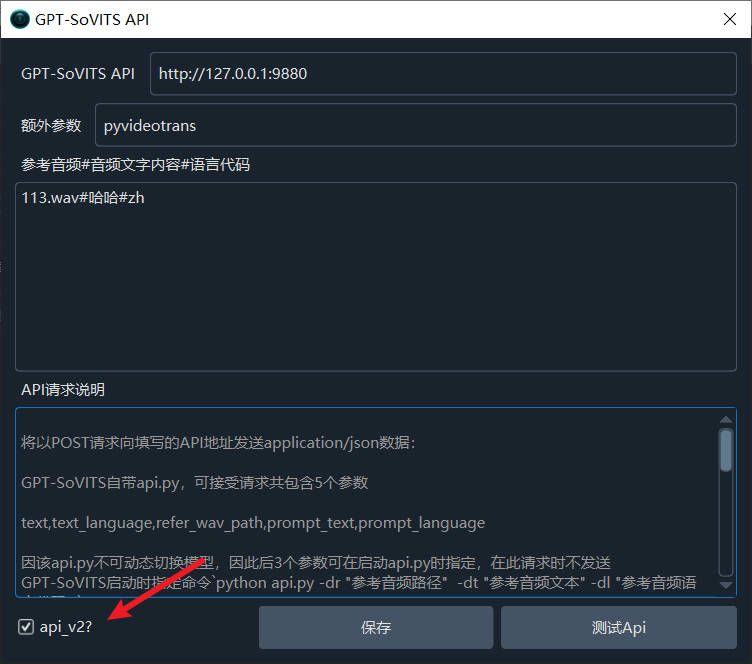
Fill in the corresponding content in the following text boxes.
GPT-SoVITS API: Enter the API address and port for GPT-SoVITS here. The default address for the built-in api.py is http://127.0.0.1:9880. If you are not deploying locally, modify the IP accordingly and allow access from other machines. If you changed the interface, it needs to be modified here as well.
Extra Parameters: Currently not in use. It's mainly reserved for redundancy, for users who might want to provide additional information, such as which software is making the call. The default value is pyvideotrans.
Reference Audio#Audio Text Content#Language Code: This is the most important parameter, used to determine which voice to synthesize.
api_v2?: You must check this option if you intend to use the api_v2 interface.
If you already specified the default "Reference Audio, Audio Text Content, Language Code" when starting GPT-SoVITS's api.py, then you don't need to specify it here. For example, if you executed a command similar to the following:
python api.py -dr 1.wav -dt "Hello there, my dear friends, I hope every day is wonderful and pleasant for you" -dl zhThen you don't need to specify it here; it will directly use the voice from the 1.wav audio for cloning.
If you did not specify it, or if you are using api_v2.py, you must specify the reference audio.
Next, let's focus on how to fill in the reference audio.
Reference Audio Format
Each line is divided into 3 parts by the symbol "#": Reference Audio Path#Reference Audio Text Content#Language Code.
Part 1 is the path of the reference audio relative to the GPT-SoVITS directory. For example, if you directly placed the reference audio 1.wav in the root directory of the GPT-SoVITS software (i.e., the same directory as api.py), then fill in 1.wav. If you placed it in the audio directory under the root, then fill in audio/1.wav.
Note: The reference audio is placed in the GPT-SoVITS software directory, not in the video translation software.
Part 2 is the text content of the audio, i.e., what the person inside is saying. Fill in the text in the second part.
Part 3 is the language code, i.e., what language the speaker is using. Currently, only Chinese, Japanese, and English are supported. The code can only be one of zh, en, or ja.
For example, if the content of my audio 1.wav is "Hello there, my dear friends, I hope every day is wonderful and pleasant", then after filling it in, it would look like:
1.wav#Hello there, my dear friends, I hope every day is wonderful and pleasant#zh
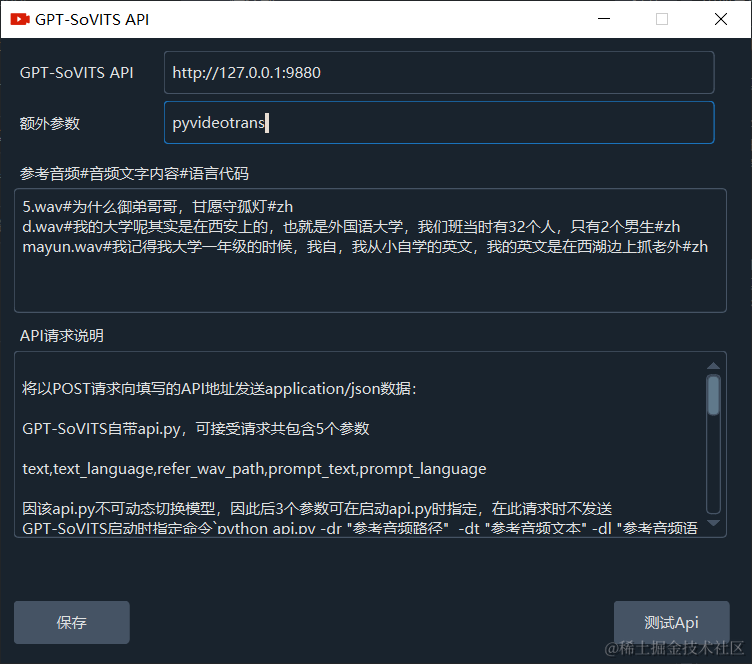
You can fill in multiple lines, one per line, as shown in the example below:
5.wav#Why, dear brother, are you willing to guard the lonely lamp#zh

d.wav#Actually, my university was in Xi'an, that is, the University of Foreign Studies. Our class had 32 people at that time, with only 2 boys#zh

mayun.wav#I remember when I was a freshman in college, I taught myself English since I was young. My English was learned by catching foreigners by West Lake#zhThe overall effect after filling it in is as shown in the image.
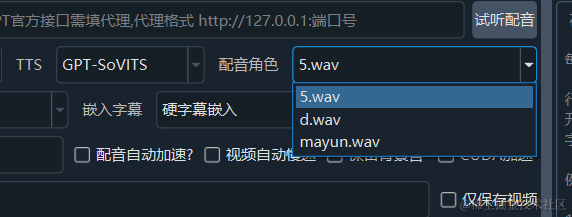
After filling it in, you can test if it works. If there are no issues, go to the main interface, select "GPT-SoVITS" in the TTS type, and choose the audio you filled in from the character list.
Of course, the prerequisite is that the GPT-SoVITS API service must be started correctly.
Starting the GPT-SoVITS API Service
Starting api.py
If you are using the pre-packaged Windows version, navigate to the GPT-SoVITS root directory, type cmd in the address bar and press Enter, then execute the command .\runtime\python api.py in the pop-up window and wait for the success prompt.
Starting api_v2.py
python api_v2.py -a 127.0.0.1 -p 9880 -c GPT_SoVITS/configs/tts_infer.yaml
When using
api_v2.py, you must check theapi_v2checkbox at the bottom.