
For AI beginners, deploying an AI application from source code can be challenging. An all-in-one package, which only requires downloading, extracting, and double-clicking to use, significantly lowers the barrier to entry. However, sometimes a ready-made package might not be available, or existing packages aren't updated promptly. In such cases, you can try creating your own package and sharing it with others.
Since AI project models are typically very large, and with GPU support, even when compressed into a 7z file, the size can far exceed 5GB, making it difficult to upload to cloud storage or store. Therefore, I will no longer be creating these packages. If you're interested, you can follow this tutorial to create your own package and share it.
This tutorial uses F5-TTS as an example to create an all-in-one package on Windows 10 using Python 3.10. The main steps are:
- Download the Python 3.10 embed version (not the exe installer, but a zip archive).
- Install pip and configure the dependency search path for the project.
- Download the F5-TTS source code.
- Install F5-TTS's dependency modules.
- Create a one-click launch script and set the model directory to be within the project folder.
- Configure a proxy to download models.
- Perform a cloning task once to complete the download of other models like Whisper.
- Compress into an all-in-one package.
- Create packages for other AI projects
Preparation Before Starting:
First, create an empty folder. To avoid errors, it's recommended to create an English-named folder on a non-system drive, for example, D:\f5win. This article uses D:\f5win as an example. Then, create another empty folder runtime inside it to store the Python 3.10 embed version files you'll download later.
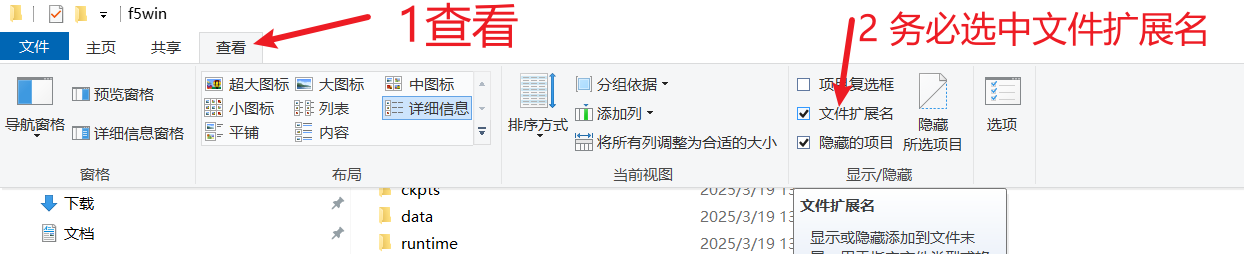
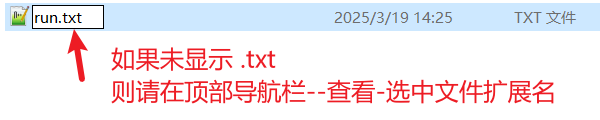
Before starting, be sure to click "View" in the folder navigation bar and check "File name extensions". Otherwise, subsequent operations may easily go wrong, especially for those unfamiliar with extensions.
1. Download the Python 3.10 Embed Version
Important Note: Here we download the embed version, not the exe installer. This version does not depend on your local Python environment. Even if you already have Python installed, you still need to download this version.
Download URL: https://www.python.org/downloads/release/python-31011/
Open the webpage, scroll to the bottom, and click
Windows embeddable package (64-bit)to download. You'll get a zip archive.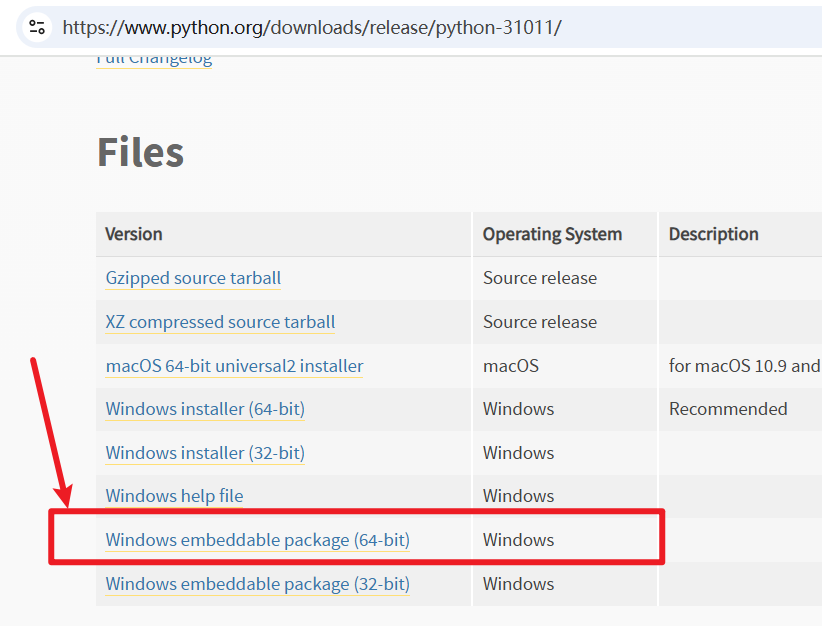
Be sure to download this version, don't get it wrong!
After downloading, extract the zip archive and copy all the files inside to the
runtimefolder you created earlier. It should look like this: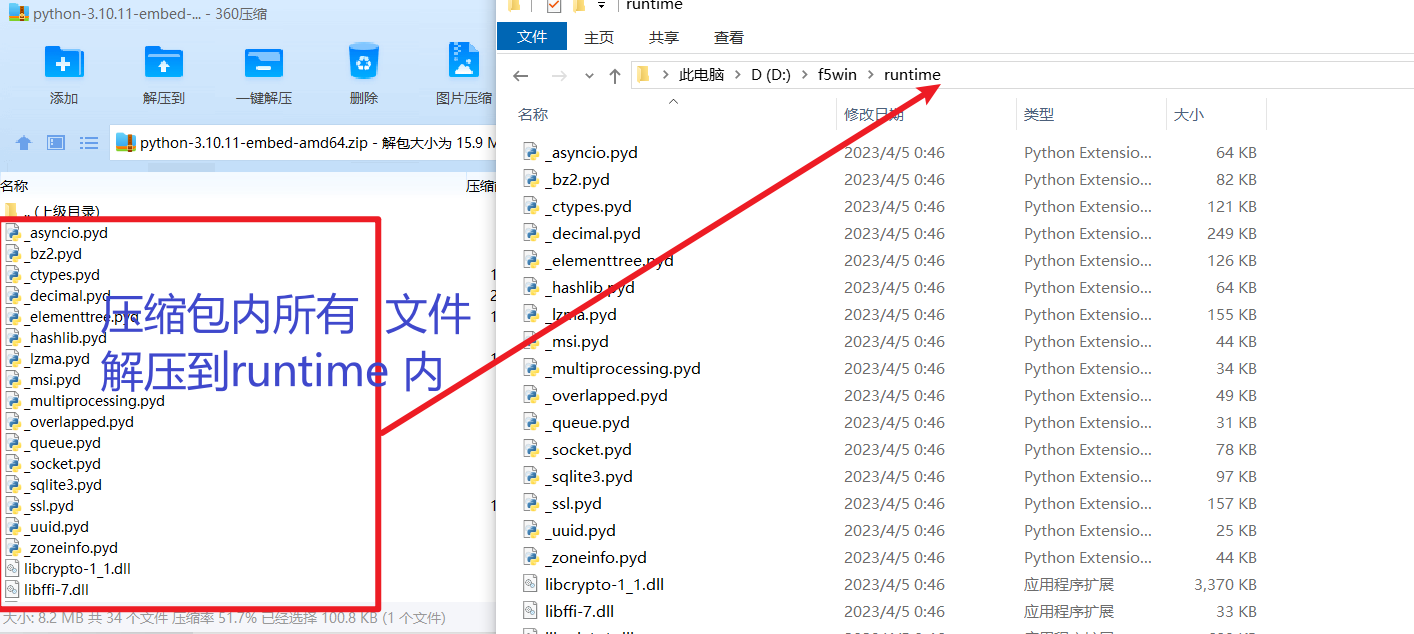
2. Install pip and Modify the Package Search Path
The embed version of Python does not include the pip module, so it needs to be installed manually.
Install pip:
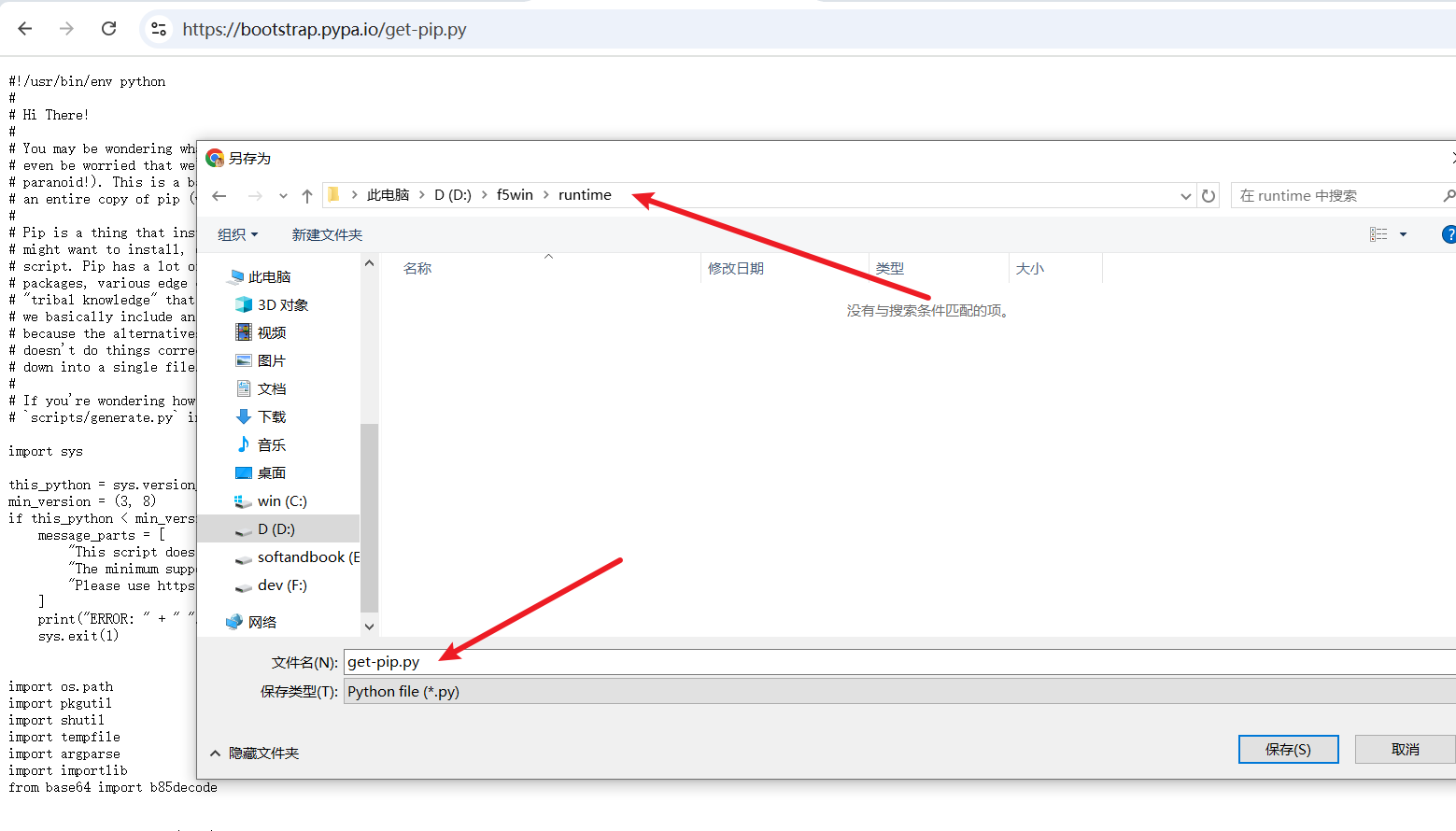
Open this URL: https://bootstrap.pypa.io/get-pip.py
Right-click and "Save As" to save the file to the
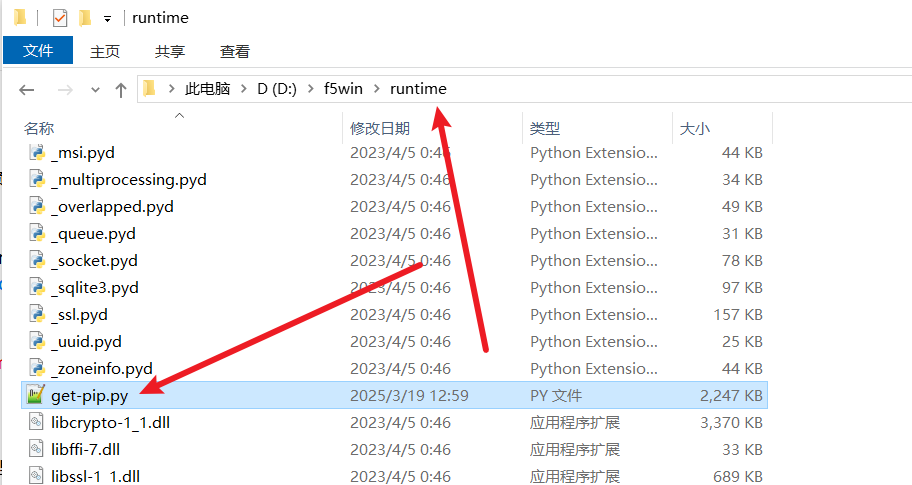
runtimedirectory. After saving, there should be a file namedget-pip.pyin theruntimefolder.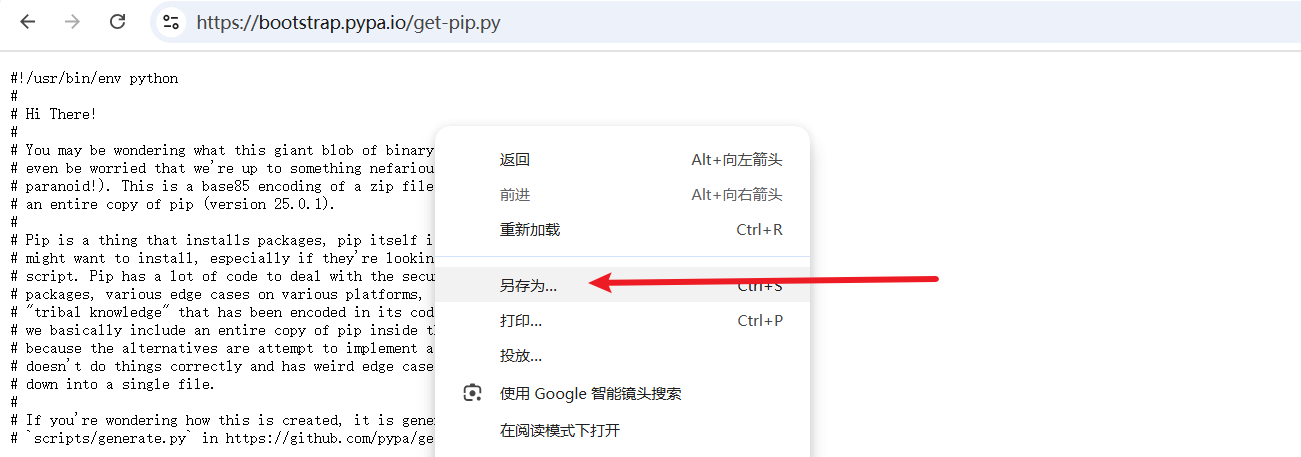
In the address bar of the
runtimefolder, typecmdand press Enter to open a terminal window (black window).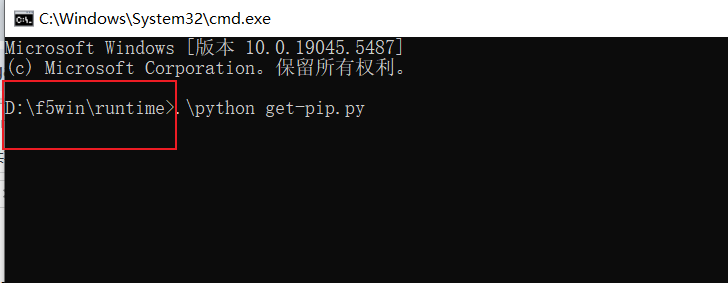
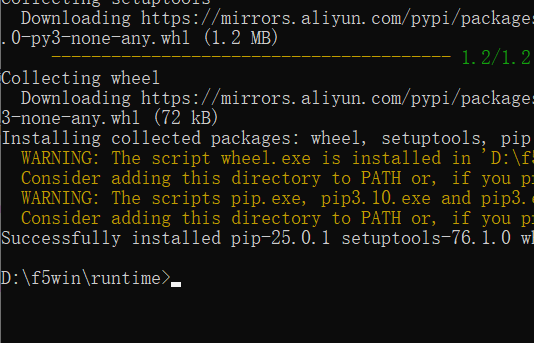
In the terminal window, type the command
.\python get-pip.pyand press Enter. Be sure to check that the current folder address shown in the command line is inside theruntimefolder, otherwise an error will occur.Wait for the installation to complete...
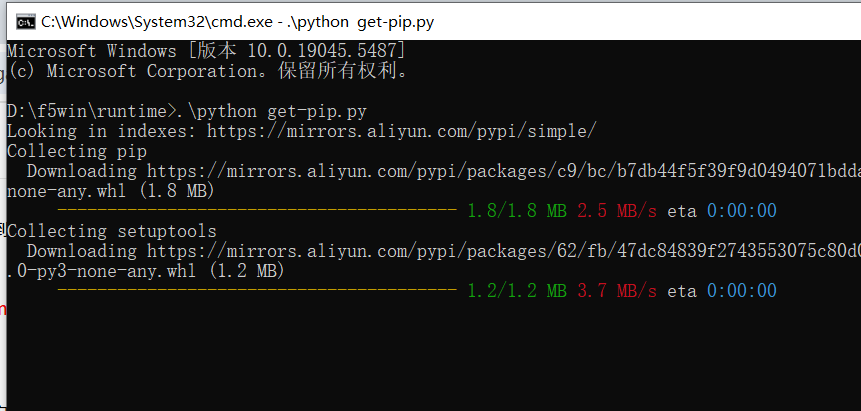
The pip module is successfully installed!
Modify the
python310._pthfile:In the
runtimefolder, find the file namedpython310._pth, right-click and open it with Notepad.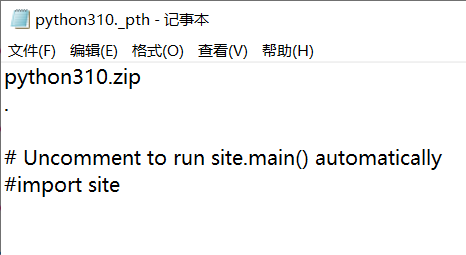
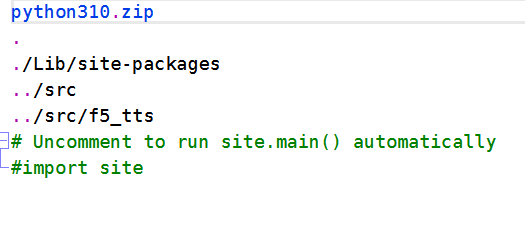
On the line below the dot
.in the second line, add the following three lines:./Lib/site-packages ../src ../src/f5_ttsSave the file. The modified file content should look like this. Please check carefully to ensure it's correct:
3. Download F5-TTS Source Code
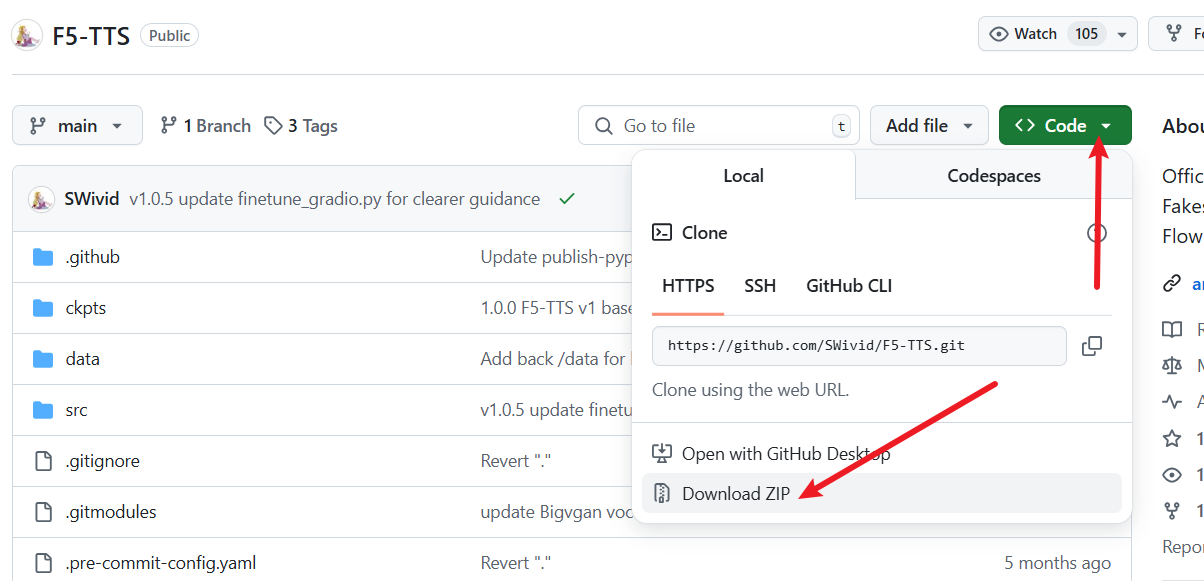
Open the F5-TTS project's GitHub repository: https://github.com/SWivid/F5-TTS
Download the source code zip archive.
Extract the downloaded zip file. Copy all files from inside the
F5-TTS-mainfolder to theD:\f5winfolder. Note: Copy the files inside, not the entireF5-TTS-mainfolder.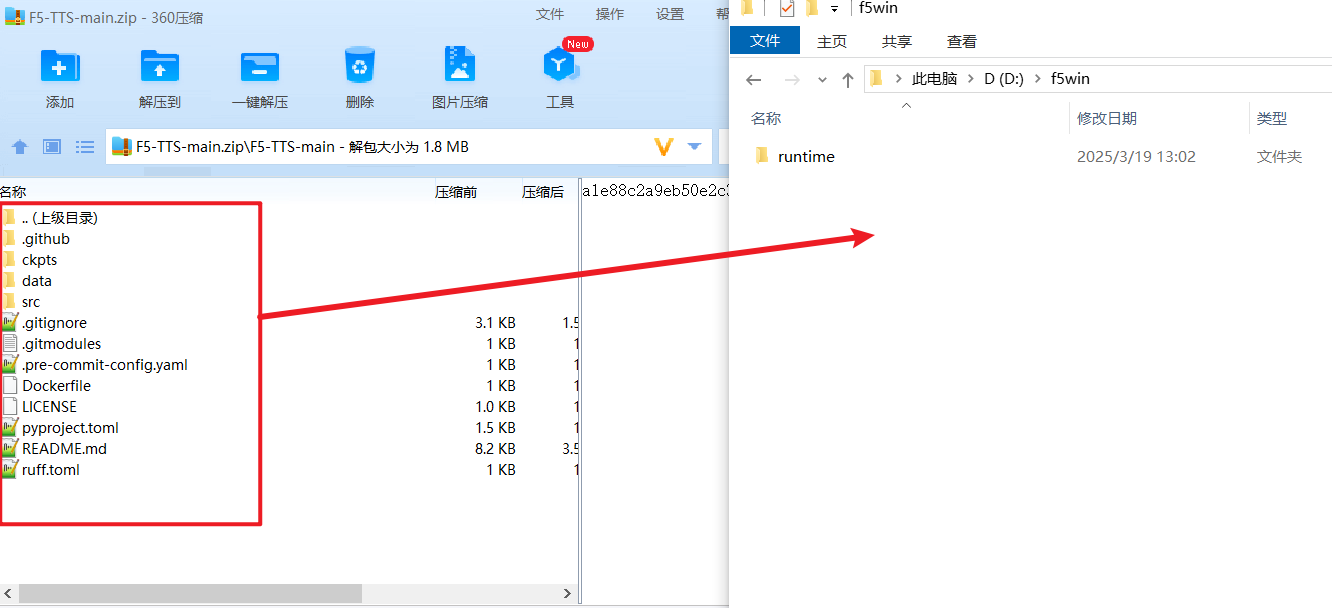
After extraction, the contents of the
D:\f5winfolder should look like this: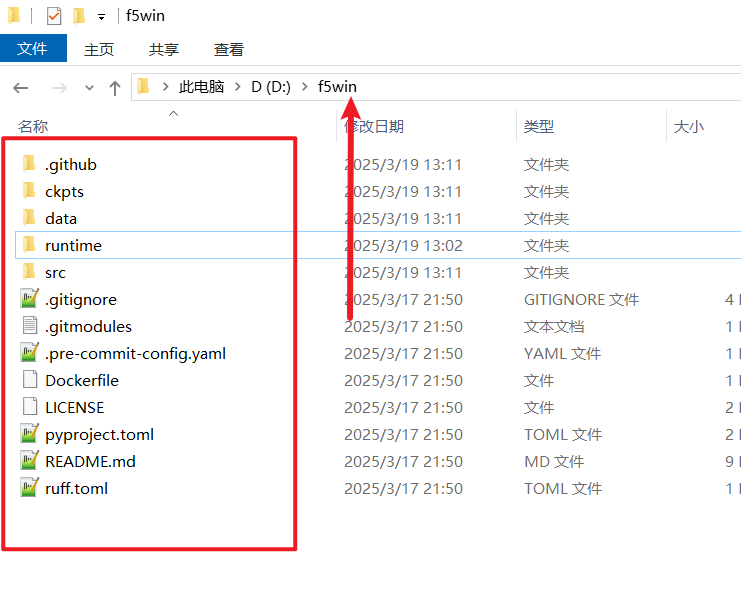
Return to the Previous CMD Window
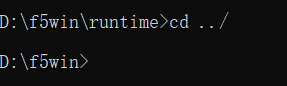
In the same terminal window, execute the
cd ../command to ensure the address before the command prompt no longer includesruntime, changing to the following. Subsequent operations should be performed in theD:/f5windirectory.
4. Install Dependency Modules
Return to the cmd terminal window and confirm again that the current path shown is
D:\f5win(withoutruntime).Execute the following command to install dependencies (note spaces and the dot):
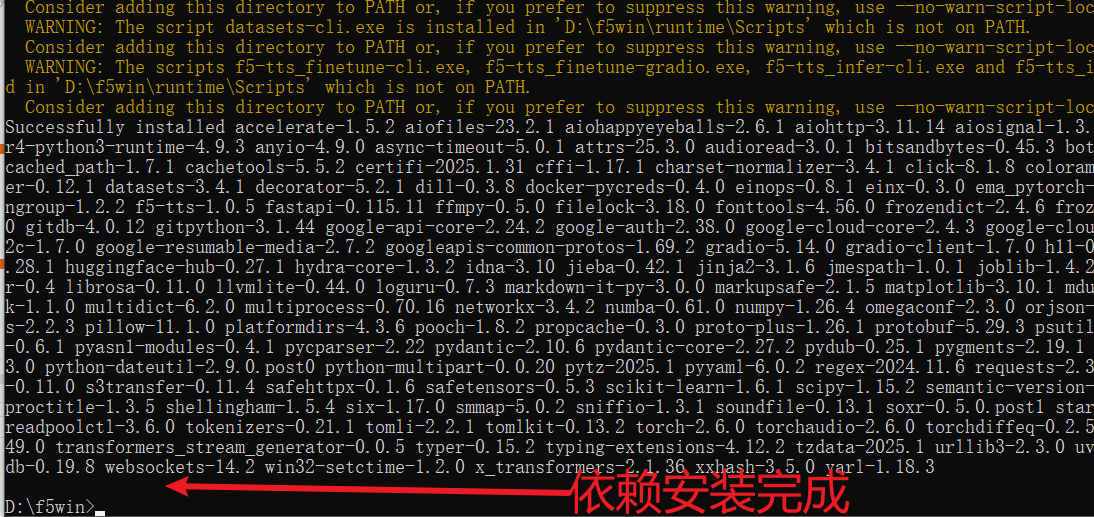
.\runtime\python -m pip install -e .
Wait for the installation to complete...
- If you want the package to support NVIDIA GPUs (Optional): Continue by executing the following command to install the CUDA version of PyTorch and torchaudio (note spaces and the dot, the command should not be line-wrapped):
.\runtime\python -m pip install torch==2.4.0+cu124 torchaudio==2.4.0+cu124 --extra-index-url https://download.pytorch.org/whl/cu124
5. Create a One-Click Launch Script
By default, models are saved to the user directory on the C drive. For packaging convenience, we need to download models inside the package.
- In the
D:\f5winfolder, right-click -> New -> Text Document to create arun.txtfile. Open it with Notepad and enter the following code:
    @echo off

    chcp 65001 > nul

    set "HF_HOME=%~dp0models"
    set "MODELSCOPE_CACHE=%~dp0models"

    echo HF_HOME: %HF_HOME%
    echo MODELSCOPE_CACHE: %MODELSCOPE_CACHE%

    "%~dp0runtime\python" -m f5_tts.infer.infer_gradio  --inbrowser

pauseThe above script means: save models to the
modelsfolder in the current directory, then launch the web interface and automatically open it in the browser.
After saving the file, rename
run.txttorun.bat. A warning will pop up; select "Yes". If no warning pops up, it means you modified it incorrectly. Please check if file extensions are displayed.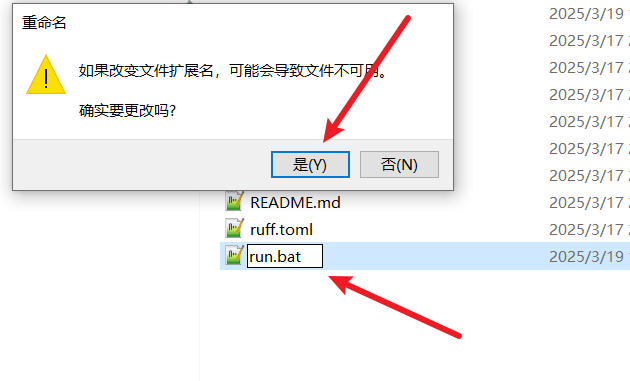
6. Configure Proxy Environment
Due to network restrictions in some regions, direct access to Hugging Face (huggingface.co), where F5-TTS models are hosted, is not possible. Therefore, you need to configure a proxy environment and set it as the system proxy.
For example, if using a tool like v2ray, you can set it up like this:
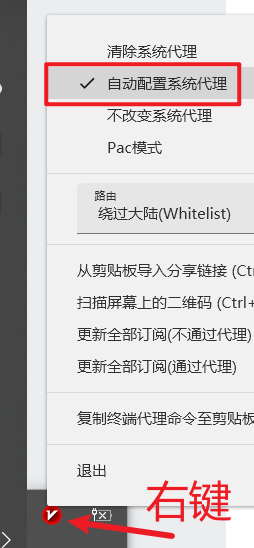
After configuration, double-click the run.bat file you just created.
If double-clicking opens the file directly in Notepad, it means renaming the extension failed. Please go back to the preparation section at the top and follow the instructions to enable file extensions.
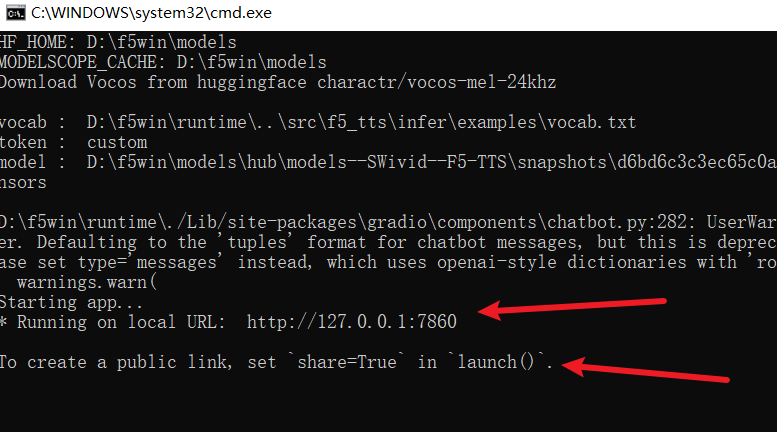
If double-clicking opens a black window, it will start downloading models to the
D:\f5win\modelsfolder.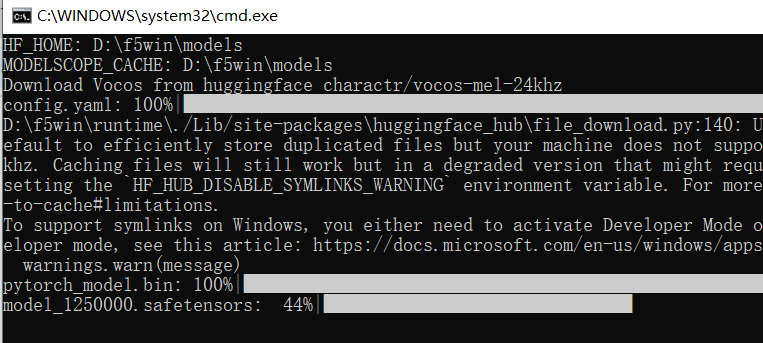
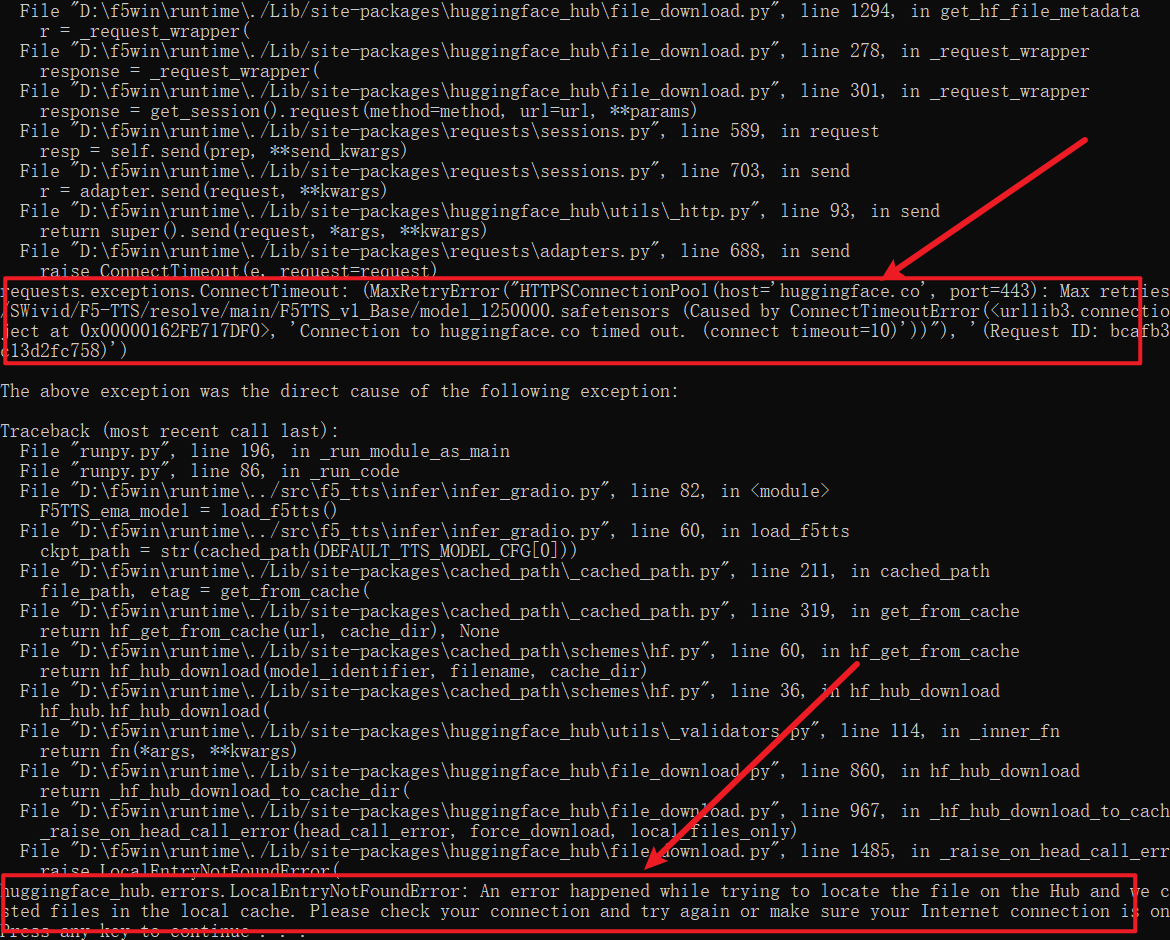
If you encounter an error similar to the one below, it means your proxy environment is not configured correctly, or the system proxy is not set properly, preventing connection to Hugging Face to download models.
Sometimes the download fails halfway. The most common reason is an unstable proxy node. Please switch to a more stable proxy or node.
After the models finish downloading, a browser window will automatically open.
7. Perform a Cloning Task to Download the Whisper Model
When performing voice cloning, if the text corresponding to the reference audio is not provided, F5-TTS will automatically download the Whisper model from Hugging Face. To make the package complete, we need to download it in advance.
In the automatically opened web window, select a clean 5-10 second reference audio, input the text you want to synthesize (e.g., "Hello friend"), and click "Synthesize".
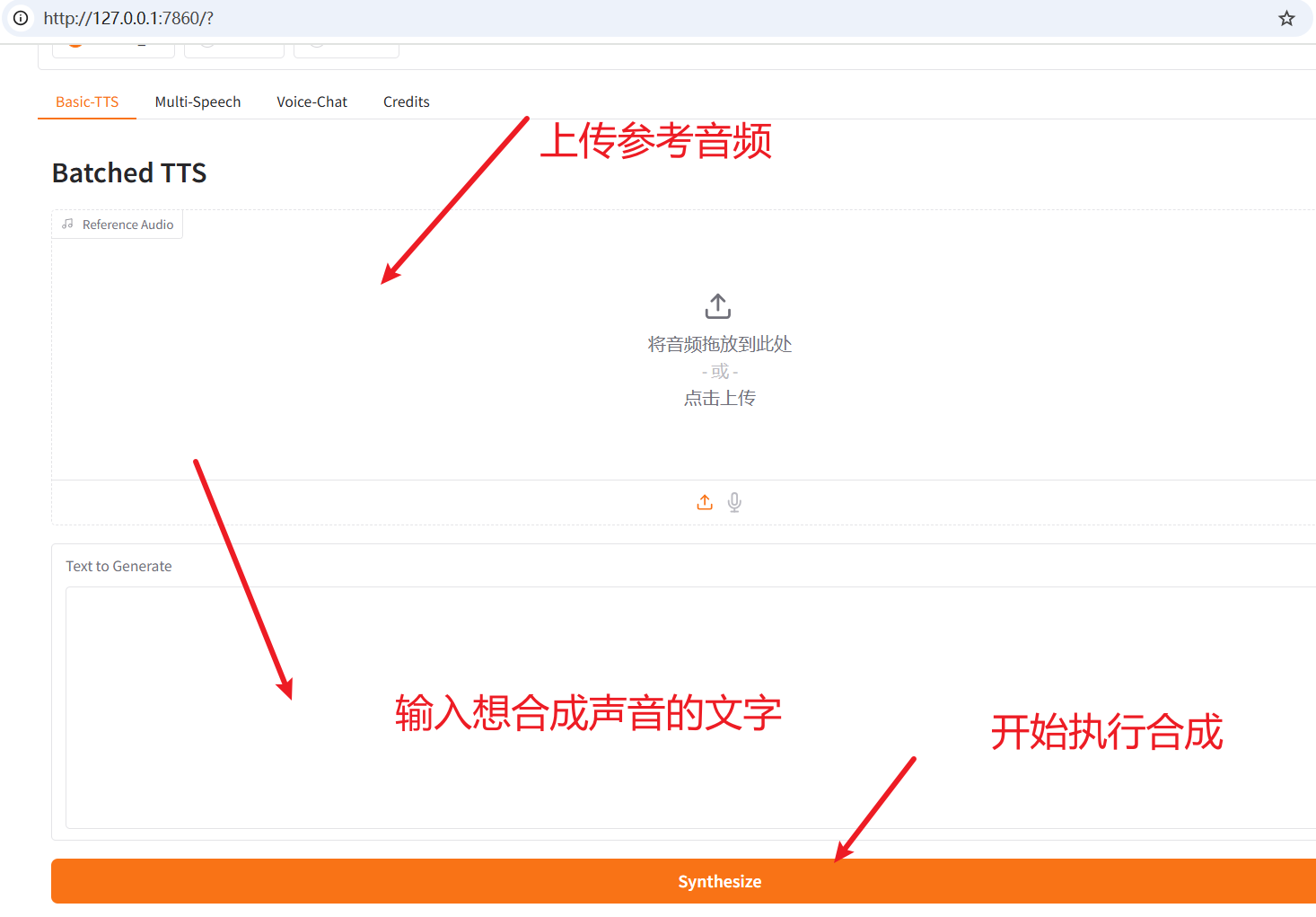
This will start downloading the Whisper model.
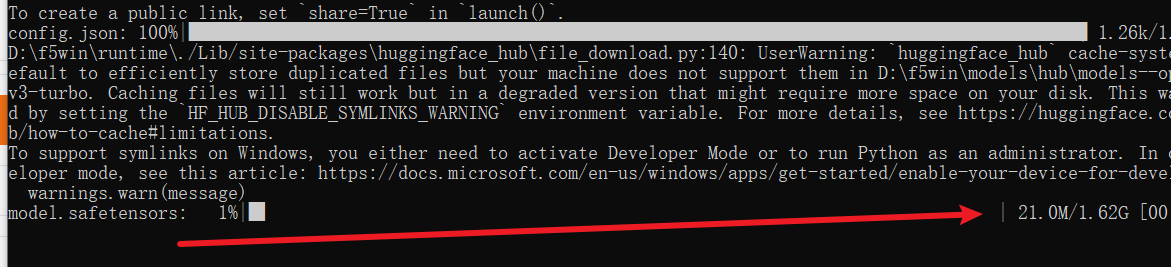
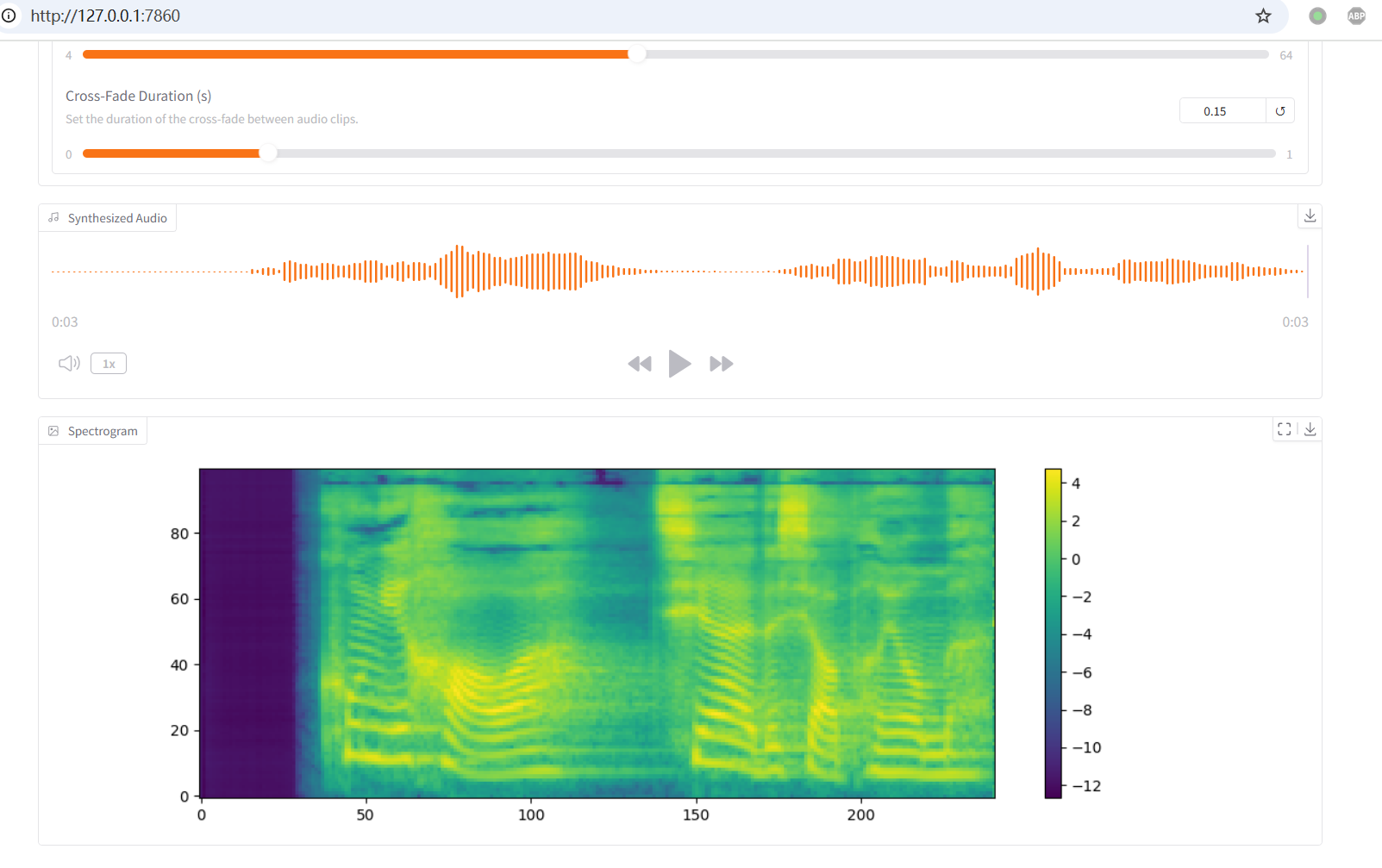
When synthesis succeeds without errors, you can start packaging the project into an all-in-one package.
8. Compress into an All-in-One Package
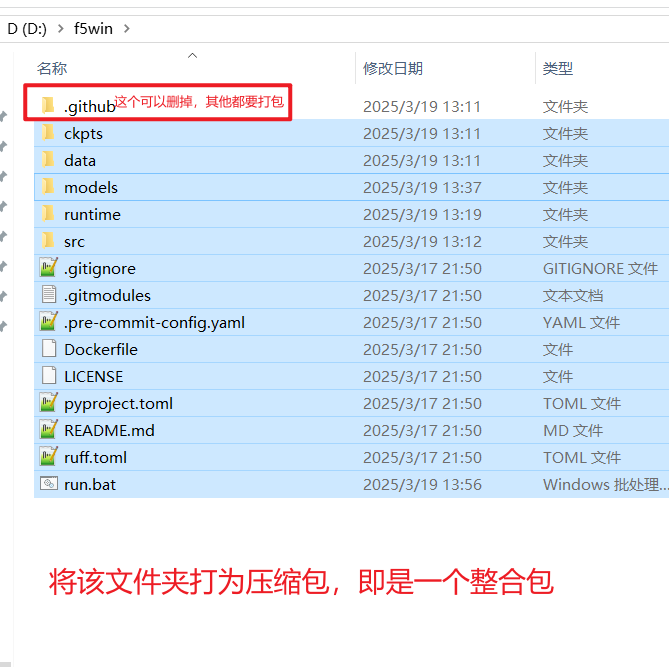
- Before compressing, you can rename
run.batto something likeLaunch Me.batto make it easier for novice users to understand. - Compress the entire
D:\f5winfolder into a zip file, or a more space-efficient 7z file. - Share the compressed package with others. After they extract it, they can double-click
run.bat(orLaunch Me.bat) to use it.
9. How to Create Packages for Other AI Projects
Most open-source Python-based projects on GitHub can be packaged using a similar method. The main differences lie in the following three points:
Python Version: Python 3.10 is the most universal version, suitable for most projects. If a project has specific requirements (e.g., 3.11 or 3.12), you can find the corresponding version's
Windows embeddable package (64-bit)on this page: https://www.python.org/downloads/windows/. Be sure not to download the exe installer.Content of the
python310._pthfile:./Lib/site-packagesis still mandatory.- Add other paths based on the actual project structure.
- If the project has a code directory named
cfg, add a line../cfg. - If the project has a
srcdirectory with other folders inside, continue adding../src/folder_name.
The launch command in the
run.batscript:- Only this line needs to be modified:
"%~dp0runtime\python" -m f5_tts.infer.infer_gradio --inbrowser - The
"%~dp0runtime\python"part remains unchanged. The part after it should be changed to the corresponding project's launch command (excludingpython). - If in doubt, you can provide the content of
run.batand the target project's launch command to an AI assistant, asking it to generate a new launch script following the pattern ofrun.bat. Remember to tell the AI to use the Python interpreter from withinrun.bat.
- Only this line needs to be modified: