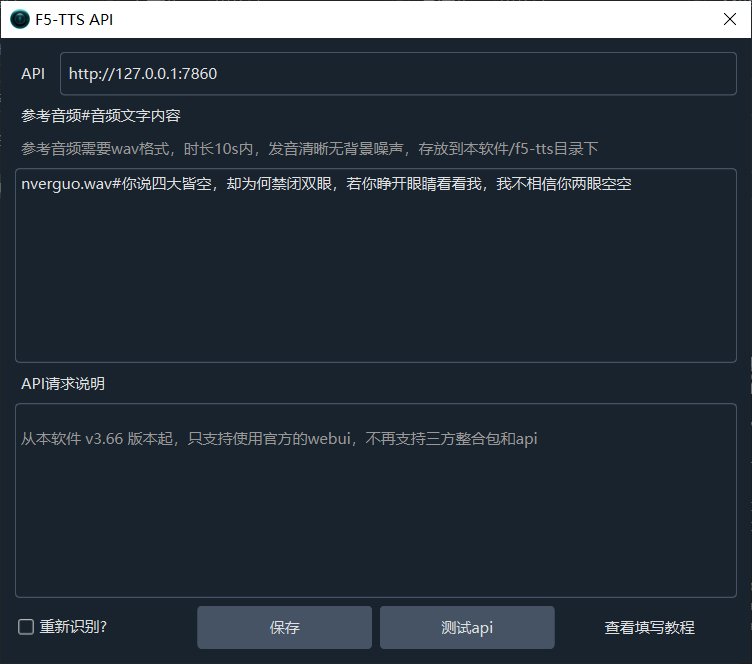
Spark-TTS is a recently high-profile open-source voice cloning project, jointly developed by multiple universities including the Hong Kong University of Science and Technology, Northwestern Polytechnical University, and Shanghai Jiao Tong University. Based on local testing, its performance is on par with F5-TTS.
Spark-TTS supports Chinese and English voice cloning, and its installation and deployment process is not complicated. This article details how to install and deploy it, and how to modify it to be compatible with the F5-TTS API interface, enabling direct use in the F5-TTS dubbing channel of the pyVideoTrans software.
Prerequisites: Ensure Python 3.10, 3.11, or 3.12 is installed.
1. Download Spark-TTS Source Code
First, create a folder on a non-system drive (e.g., D:/spark) using only English letters or numbers. The requirement for English/numeric names and a non-system drive is to minimize potential errors related to Chinese characters, permissions, etc.
Then, visit the official Spark-TTS code repository: https://github.com/SparkAudio/Spark-TTS
As shown below, click to download the source code ZIP file:
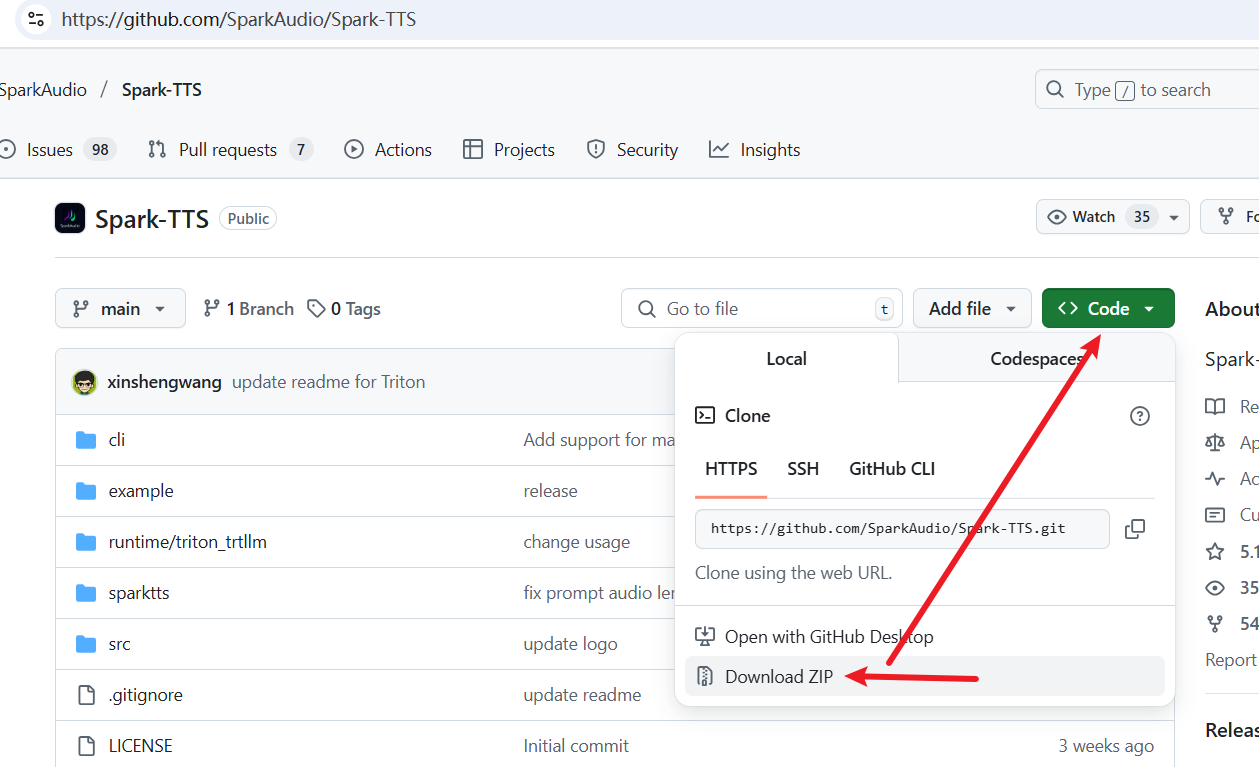
After downloading, extract the contents and copy all files and folders into the D:/spark folder. The directory structure after copying should look like this:
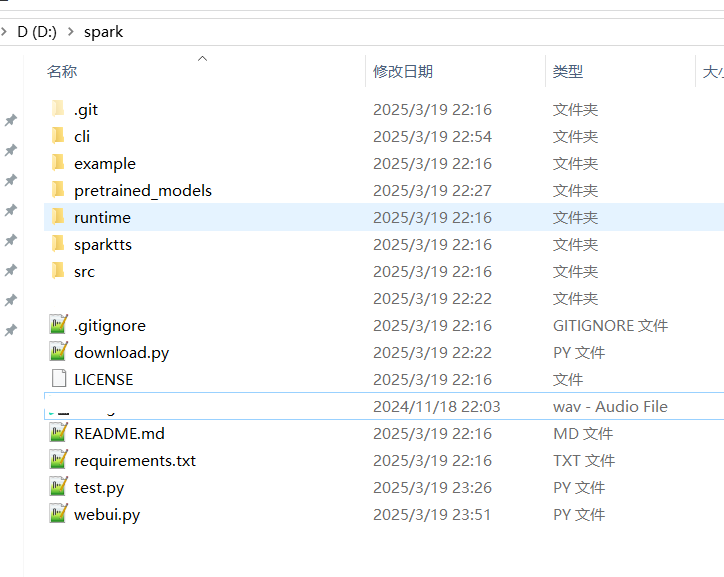
2. Create a Virtual Environment and Install Dependencies
- Create a Virtual Environment
In the address bar of this folder, type cmd and press Enter. In the opened black terminal window, execute the following command:
python -m venv venvAs shown:
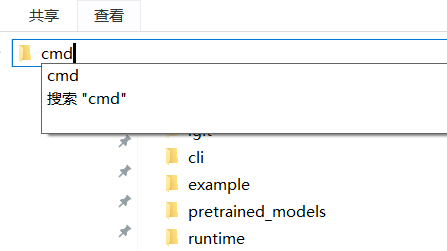
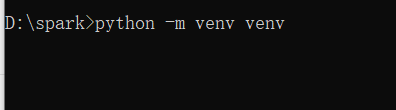
After execution, a venv folder will appear in the D:/spark directory:
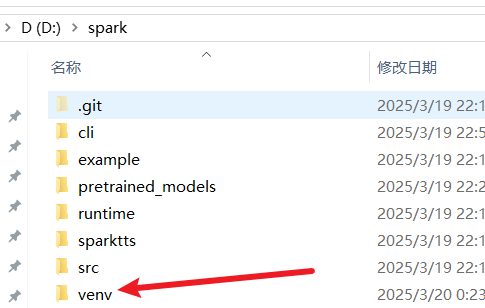
Note: If you see an error like
'python' is not recognized as an internal or external command, it means Python is not installed or not added to the system environment variables. Please refer to relevant articles to install Python.
Next, execute venv\scripts\activate to activate the virtual environment. Upon successful activation, you will see (venv) at the beginning of the terminal prompt. All subsequent commands must be executed within this activated environment. Always check that it's activated before running commands.
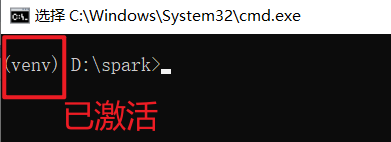
- Install Dependencies
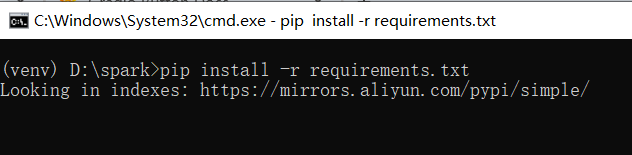
In the activated virtual environment, continue in the terminal and execute the following command to install all dependencies:
pip install -r requirements.txtThe installation may take a while, please be patient.
3. Download Models
Models required for open-source AI projects are often hosted on Hugging Face (huggingface.co). Since this website is blocked in some regions, you need proper internet access to download the models. Please ensure your internet environment is configured correctly and system proxy is set if needed.
In the current directory D:/spark, create a text file named down.txt. Copy and paste the following code into the file and save it:
from huggingface_hub import snapshot_download
snapshot_download("SparkAudio/Spark-TTS-0.5B", local_dir="pretrained_models/Spark-TTS-0.5B")
print('Download complete')Then, in the terminal window with the virtual environment activated, execute the following command:
python down.txtPay attention to check if (venv) exists at the beginning of the command line:

Wait for the terminal to indicate the download is complete.
If the output shows information similar to the following, it indicates a network connection error, likely due to incorrect internet environment configuration:
Returning existing local_dir `pretrained_models\Spark-TTS-0.5B` as remote repo cannot be accessed in `snapshot_download` ((MaxRetryError("HTTPSConnectionPool(host='huggingface.co', port=443): Max retries exceeded with url: /api/models/SparkAudio/Spark-TTS-0.5B/revision/main (Caused by ConnectTimeoutError(<urllib3.connection.HTTPSConnection object at 0x000001BC4C8A4430>, 'Connection to huggingface.co timed out. (connect timeout=None)'))"), '(Request ID: aa61d1fb-ffc7-4479-9a99-2258c1bc0aee)')).
4. Launch the Web Interface
Once the model download is complete, you can launch and open the Web interface.
In the terminal with the virtual environment activated, execute the following command:
python webui.py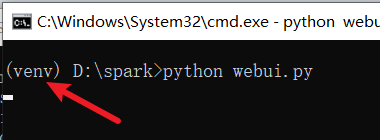
Wait until you see information like the following, indicating a successful launch:
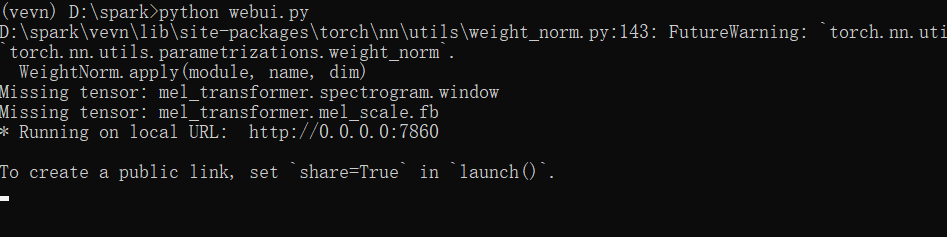
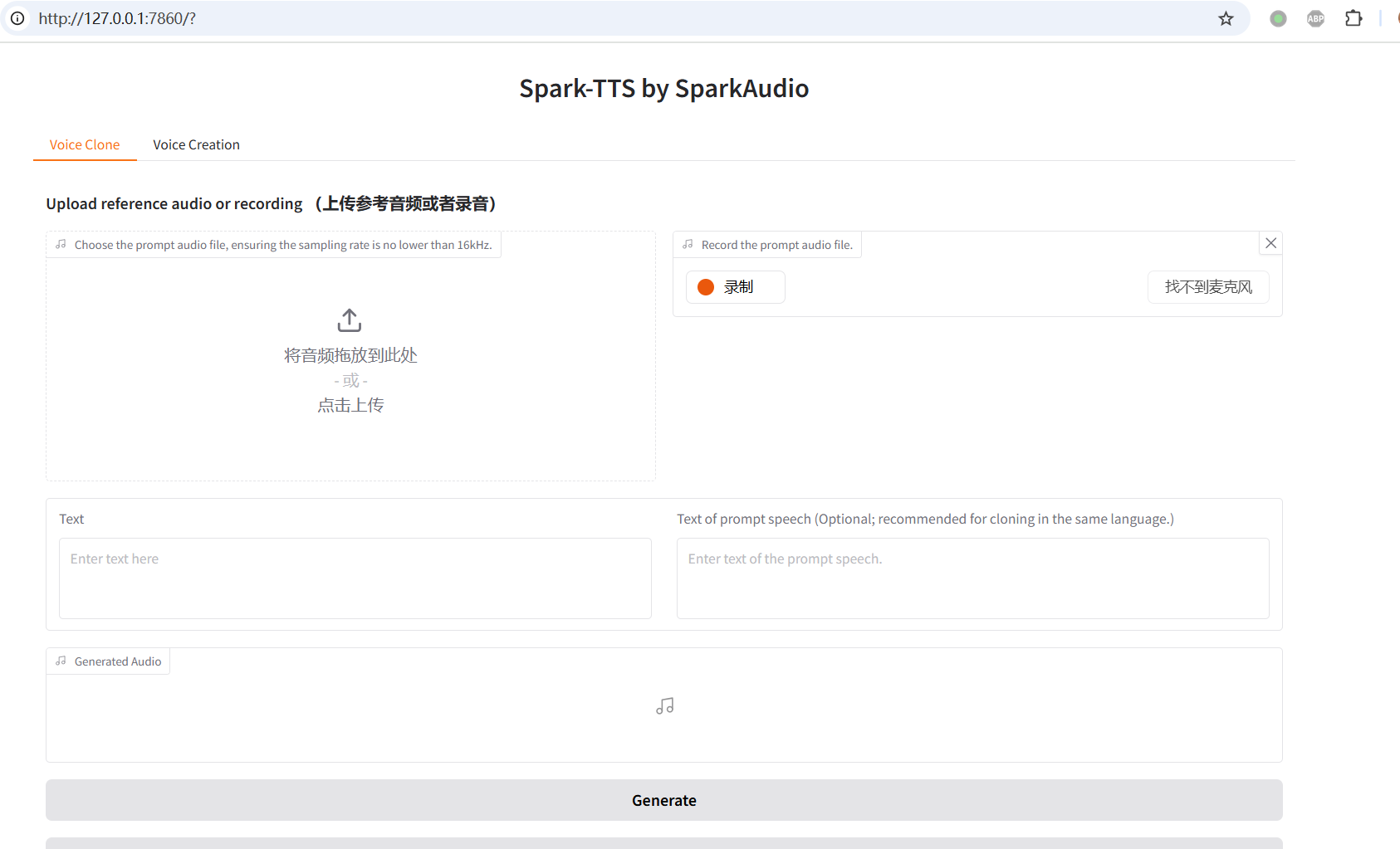
Now, you can open the address http://127.0.0.1:7860 in your browser. The Web interface looks like this:
5. Voice Cloning Test
As shown below, select an audio file (3-10 seconds long, clear pronunciation, clean background) whose voice you want to clone.
Then, enter the corresponding text of that audio in the Text of prompt speech field on the right. Enter the text you want the generated speech to say on the left. Finally, click the Generate button at the bottom to start.
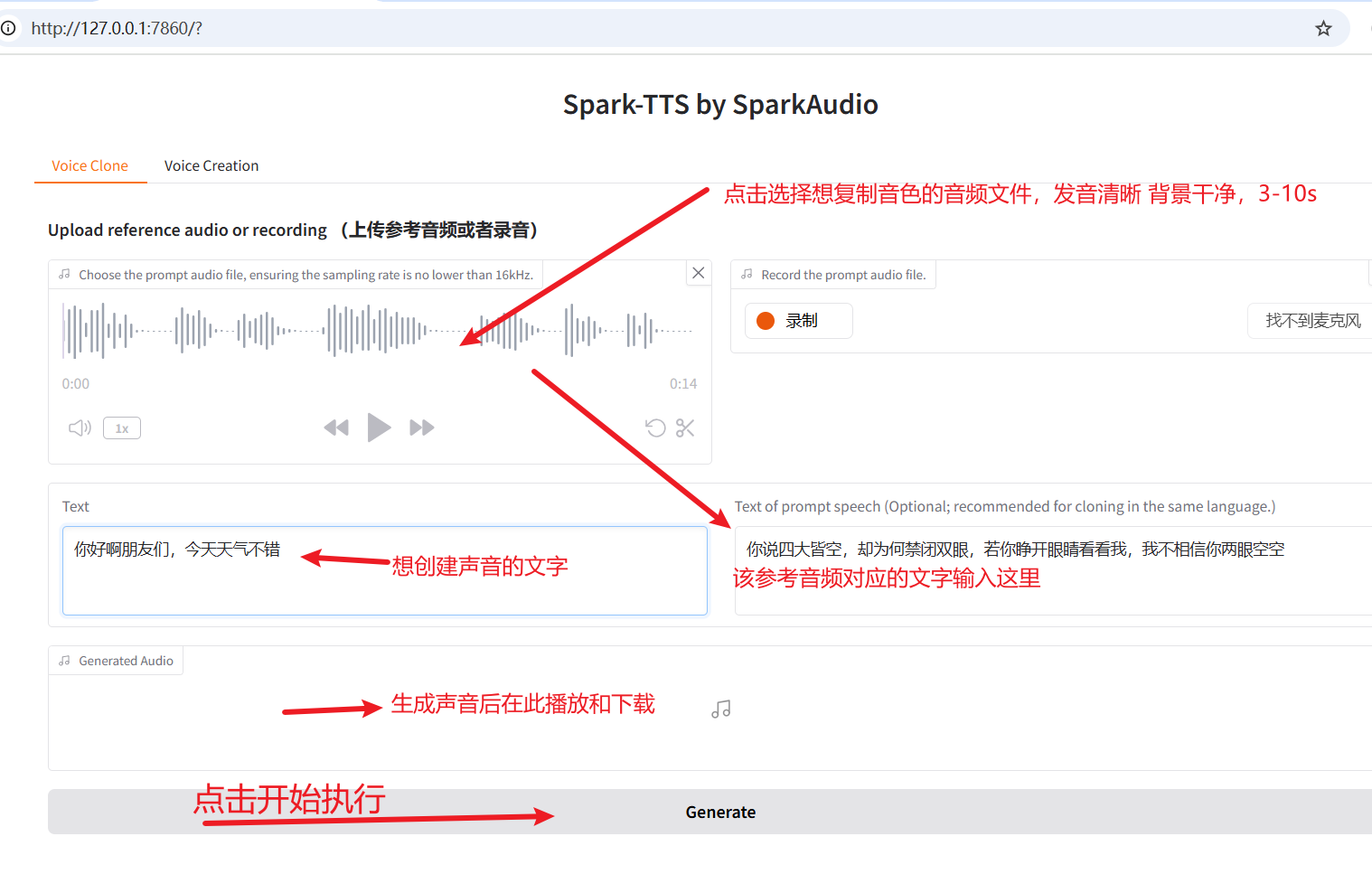
After execution completes, it will look like the image below.
6. Using in pyVideotrans Software
Spark-TTS is very similar to F5-TTS. With a simple modification, it can be used directly in the F5-TTS dubbing channel of pyVideotrans. If you don't know how to modify it, you can directly download the modified version and overwrite the
webui.pyfile. Download link: https://pvt9.com/spark-use-f5-webui.zip
- Open the
webui.pyfile. Around line 135, paste the following code above:
    def basic_tts(gen_text_input, ref_text_input, ref_audio_input,remove_silence=None,speed_slider=None):
        """
        Gradio callback to clone voice using text and optional prompt speech.
        - text: The input text to be synthesised.
        - prompt_text: Additional textual info for the prompt (optional).
        - prompt_wav_upload/prompt_wav_record: Audio files used as reference.
        """
        prompt_speech = ref_audio_input
        prompt_text_clean = None if len(ref_text_input) < 2 else ref_text_input

        audio_output_path = run_tts(
            gen_text_input,
            model,
            prompt_text=prompt_text_clean,
            prompt_speech=prompt_speech
        )
        return audio_output_path,prompt_text_clean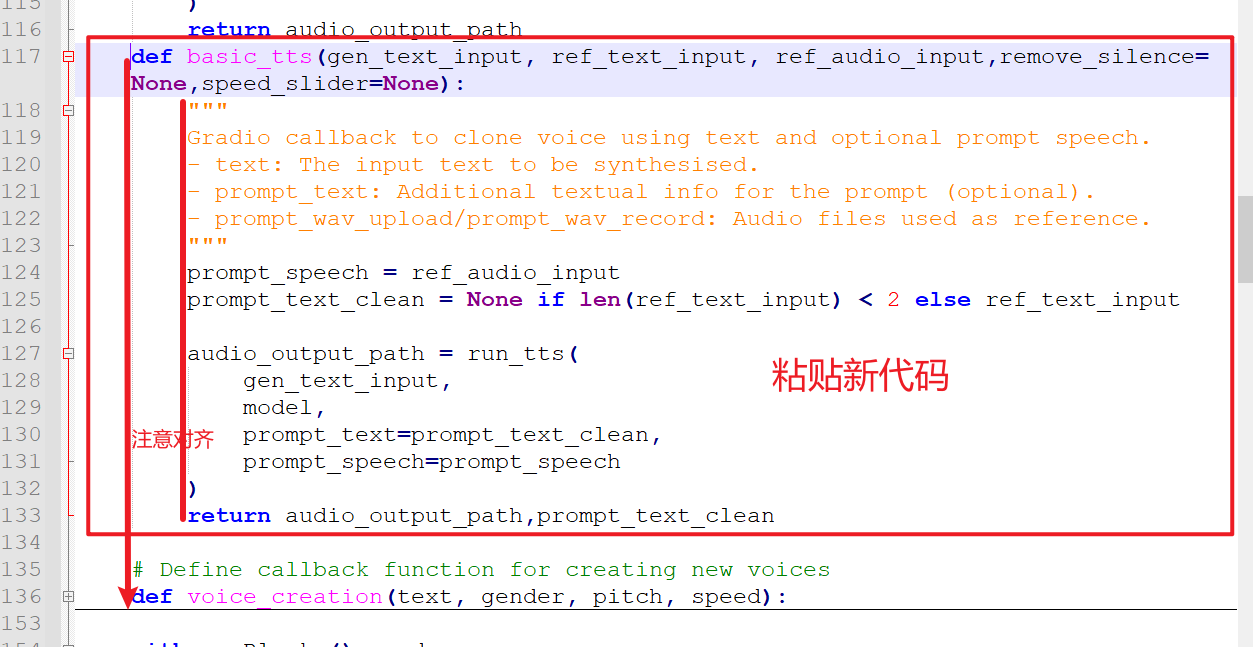
Special Note: Python code uses spaces for indentation and alignment; otherwise, the code will error. To avoid mistakes, it is recommended not to open webui.py with Notepad. Use a professional code editor instead, such as free tools like Notepad++ or VSCode.
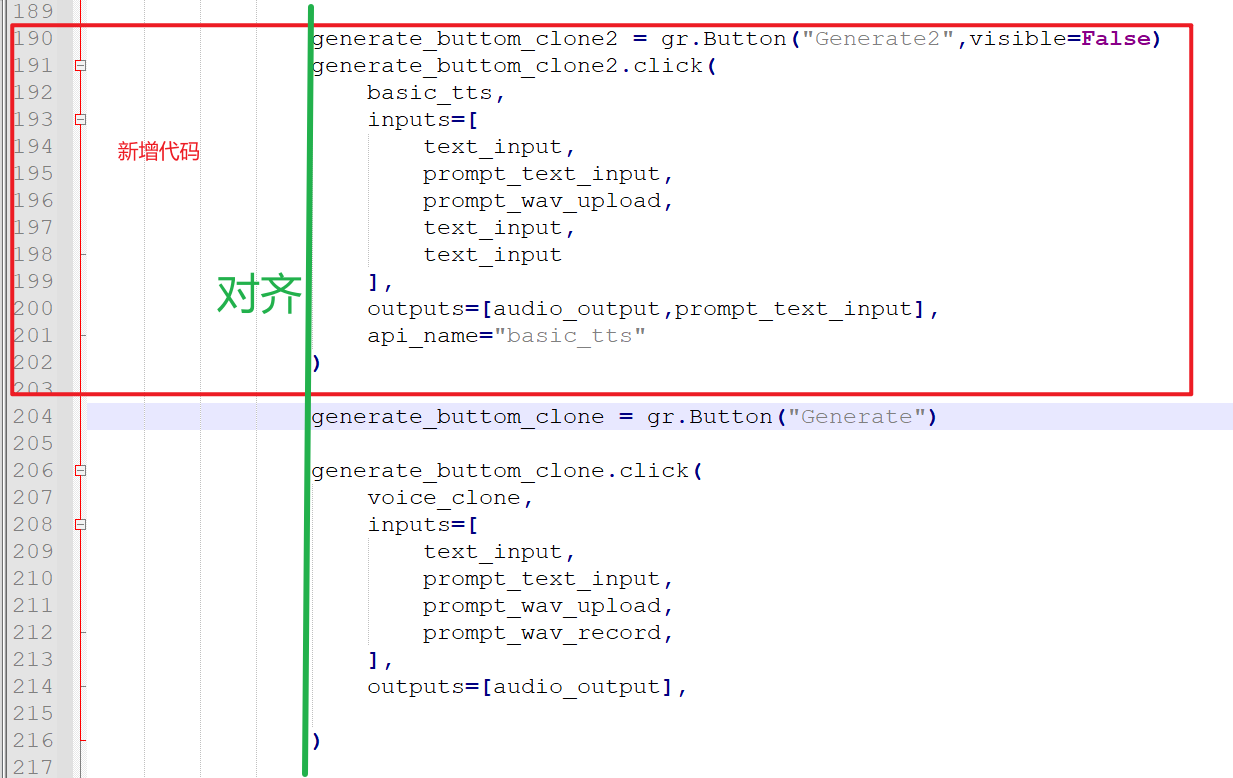
- Then, find the code
generate_buttom_clone = gr.Button("Generate")around line 190. Paste the following code above it, again paying close attention to alignment:
generate_buttom_clone2 = gr.Button("Generate2",visible=False)
generate_buttom_clone2.click(
       basic_tts,
       inputs=[
          text_input,
          prompt_text_input,
          prompt_wav_upload,
          text_input,
          text_input
       ],
       outputs=[audio_output,prompt_text_input],
       api_name="basic_tts"
 )
- Save the file, then restart
webui.py:
python webui.py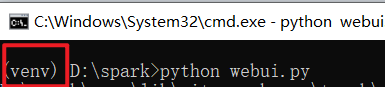
- Enter the address
http://127.0.0.1:7860into the API address field for "F5-TTS" in the pyVideotrans software under "Menu" -> "TTS Settings". You can then start using it. The location and method for filling in the reference audio are consistent with how F5-TTS is used.