
From Zero to One: Building a Chatterbox-TTS API Service
Recently, I've been researching the Chatterbox-TTS project. Not only does it produce excellent results, but it also supports Voice Cloning, opening up possibilities for personalized speech synthesis. The only downside is that it currently only supports English.
To make it easier to use in various projects, I decided to wrap it into a stable, efficient, and easy-to-integrate API service. This article documents the entire process of building this service from scratch—from initial technology selection and API design, to encountering and overcoming pitfalls, and finally forming a robust system usable by many.
What Kind of TTS Service Did I Want?
Before writing the first line of code, having clear goals was crucial. I wanted this service to be more than just a runnable script; I aimed for a project with "near-production-grade" quality. My core requirements were as follows:
- Powerful Features:
- Basic TTS: Provide standard text-to-speech functionality.
- Voice Cloning: Support uploading reference audio to generate speech with the same vocal characteristics.
- Friendly Interfaces:
- Compatibility: Provide an interface fully compatible with the OpenAI TTS API, allowing any application supporting the OpenAI SDK to migrate seamlessly.
- Dedicated Interface: Provide a more comprehensive dedicated interface for voice cloning.
- Ease of Use:
- Web UI: An intuitive front-end interface for non-developers to quickly get started and experiment.
- One-Click Deployment: Especially for Windows users, provide an out-of-the-box solution.
- Stable and Efficient:
- Decent Performance Server: Use
waitressinstead of Flask's built-in development server to support multi-threaded concurrency. - Robustness: Must handle environment dependencies (like
ffmpeg), file I/O, cross-platform compatibility, and other issues properly. - Performance: Support GPU acceleration and provide a convenient upgrade path.
- Decent Performance Server: Use
Technology Selection and Architecture Design
Based on the above goals, I determined the project's tech stack and basic architecture:
- Backend Framework: Flask. Lightweight, flexible, and perfect for quickly building API services.
- WSGI Server: Waitress. A production-grade server implemented in pure Python, cross-platform and easy to deploy.
- Core TTS Engine: Chatterbox TTS.
- Frontend: Vanilla JS/HTML/CSS. To keep the project lightweight and dependency-free, I decided against introducing any frontend frameworks.
- Core Dependencies:
ffmpegfor audio format conversion,torchandtorchaudioas the underlying support for the TTS model.
API Interface Design
POST /v1/audio/speech: OpenAI Compatible Interface. Receives JSON data, with the core field beinginput(text). To enhance compatibility, I decided to use thespeedandinstructionsparameters (which are less commonly used by OpenAI) to passcfg_weightandexaggeration.POST /v2/audio/speech_with_prompt: Voice Cloning Interface. Receivesmultipart/form-data, containing fields likeinput(text) andaudio_prompt(reference audio file).
Core Implementation and Pitfall Chronicles
The build process wasn't smooth sailing. Below are the key issues I encountered, along with my thought process and final solutions.
1. Pitfall One: File Locking PermissionError on Windows
This was the first and most troublesome problem I encountered during development.
Reproducing the Issue: In the voice cloning interface, I needed to receive the user's uploaded audio file, save it as a temporary file, and then pass it to the Chatterbox model. My initial code looked like this:
# Initial problematic code
with tempfile.NamedTemporaryFile(suffix=".mp3") as temp_audio:
    # Received file object audio_file (werkzeug.FileStorage)
    audio_file.save(temp_audio.name) # <--- First attempt, fails on Windows
    # ...
model.generate(text, audio_prompt_path=temp_audio.name) # <--- Second attempt, also failsOn Windows, this code would directly throw PermissionError: [Errno 13] Permission denied.
Root Cause Analysis: The root of this problem lies in Windows' file locking mechanism. tempfile.NamedTemporaryFile keeps the file handle open within the with statement block. Both audio_file.save() and librosa.load() (called internally by model.generate) attempt to re-open this already locked file in write or read mode, causing the permission error. Linux and macOS have more relaxed file locking, so this issue isn't as apparent on those platforms.
Solution: Abandon operating within the with block. I had to adopt a "manual management" pattern for temporary files, ensuring one operation (like saving or reading) completed and the file closed before proceeding to the next.
Final Code:
import tempfile
import uuid
import os

# ... Inside the API route function ...
temp_upload_path = None
temp_wav_path = None
try:
    # 1. Generate a unique temporary file path (file not created yet)
    temp_dir = tempfile.gettempdir()
    temp_upload_path = os.path.join(temp_dir, f"{uuid.uuid4()}.mp3")

    # 2. Call .save(). This method opens, writes, and then automatically closes the file, releasing the lock.
    audio_file.save(temp_upload_path)

    # 3. Convert the uploaded file to WAV format required by the model
    temp_wav_path = os.path.join(temp_dir, f"{uuid.uuid4()}.wav")
    convert_to_wav(temp_upload_path, temp_wav_path) # Custom conversion function

    # 4. At this point, temp_wav_path is a closed file and can be safely passed to the model
    wav_tensor = model.generate(text, audio_prompt_path=temp_wav_path)
    # ...
finally:
    # 5. Ensure cleanup of all temporary files, regardless of success or failure
    if temp_upload_path and os.path.exists(temp_upload_path):
        os.remove(temp_upload_path)
    if temp_wav_path and os.path.exists(temp_wav_path):
os.remove(temp_wav_path)This try...finally structure ensures code robustness and timely resource release, making it the best practice for handling such issues.
2. Pitfall Two: subprocess Encoding Hell UnicodeDecodeError on Windows
I encountered another Windows-specific issue while implementing the ffmpeg audio conversion function.
Reproducing the Issue: My initial ffmpeg calling function looked like this:
# Code causing encoding errors
subprocess.run(
    command,
    check=True,
    capture_output=True,
    text=True  # <--- The root cause
)On Chinese Windows systems, this line would randomly throw UnicodeDecodeError: 'gbk' codec can't decode byte ....
Root Cause Analysis: text=True tells subprocess to use the system's default encoding (gbk on Chinese Windows) to decode ffmpeg's stderr output stream. However, ffmpeg's progress bar and some log messages contain special bytes that are illegal in the gbk encoding, causing the decode to fail.
Solution: Tell subprocess explicitly which encoding we want to use. This is the most direct and elegant solution.
Final Code:
subprocess.run(
    command,
    check=True,
    capture_output=True,
    text=True,            # Keep the convenience of text=True
    encoding='utf-8',     # Explicitly specify UTF-8 decoding
    errors='replace'      # Replace decoding errors with '�' instead of crashing
)By adding encoding='utf-8' and errors='replace', I forced the use of the universal UTF-8 encoding and added error tolerance. This allows the function to run stably in any language environment.
3. Pitfall Three: The Choice Between Binary and Text Streams
When converting the generated wav_tensor to MP3, I needed to pass the WAV byte stream to ffmpeg via a pipe and receive the MP3 byte stream output by ffmpeg.
Root Cause Analysis: The key here is that standard input (stdin) and standard output (stdout) are binary data, while standard error (stderr) is text information. If text=True is incorrectly used in subprocess.run, Python will try to decode the MP3's binary data, leading to data corruption or program crashes.
Solution: When handling such mixed streams, don't use text=True. Let subprocess return raw bytes objects. Then, in the except block, we only manually decode the e.stderr byte string for debugging output.
Final Code:
def convert_wav_to_mp3(wav_tensor, sample_rate):
    # ...
    try:
        result = subprocess.run(
            command,
            input=wav_data_bytes, # input receives byte data
            capture_output=True,  # stdout and stderr are both bytes
            check=True
        )
        return io.BytesIO(result.stdout) # result.stdout is MP3 binary data
    except subprocess.CalledProcessError as e:
        # Only decode stderr when we need to display the error
        stderr_output = e.stderr.decode('utf-8', errors='ignore')
# ...How to Use My Service?
After some polishing, this TTS service is now very easy to use.
1. Web Interface
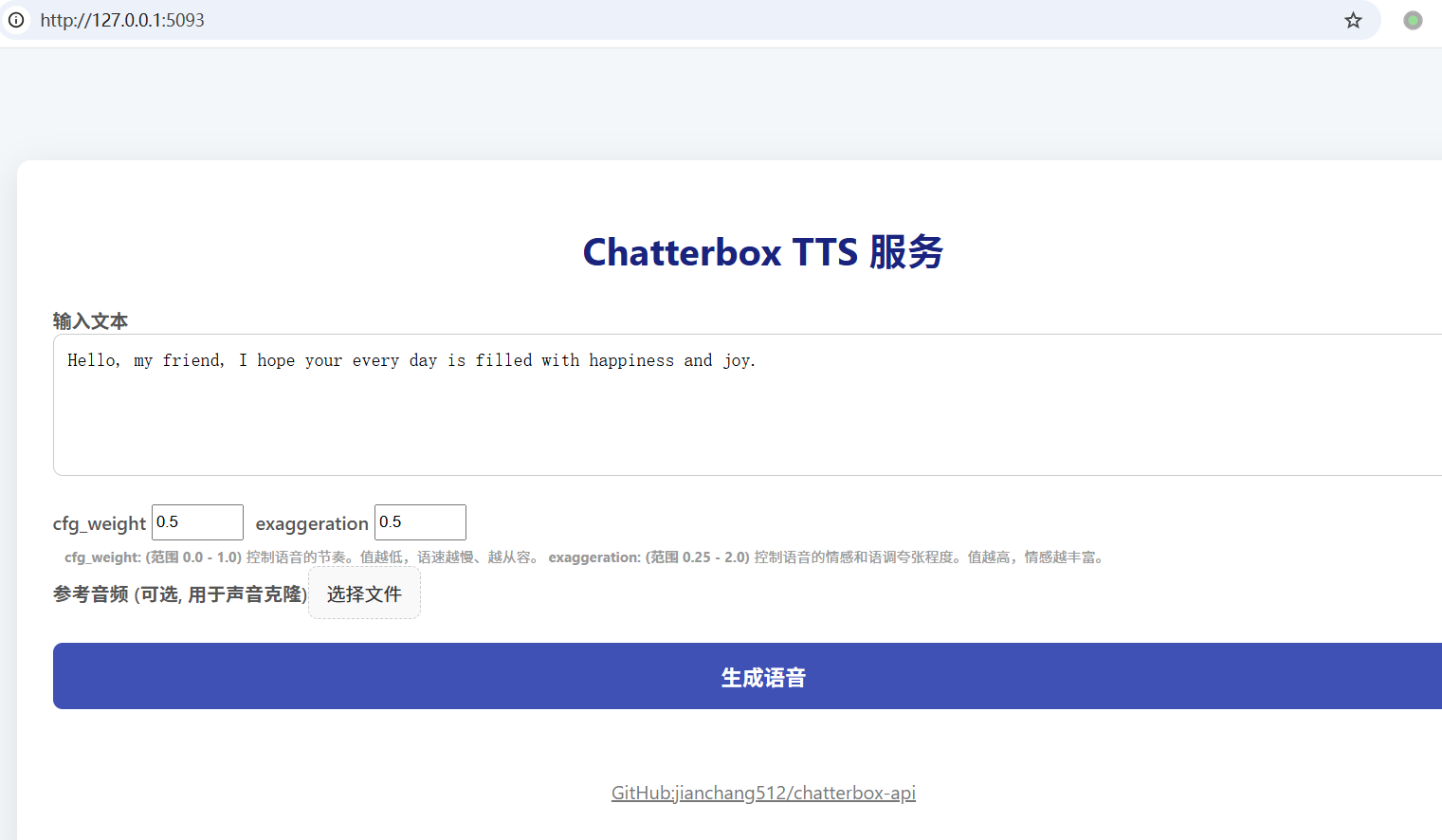
The simplest way. Start the service and open http://127.0.0.1:5093 in your browser. Enter text, (optionally) upload a sample of your voice as a reference audio, click generate, and you can hear the cloned voice.
2. API Calls (for Developers)
Without Reference Audio (OpenAI SDK):
pythonfrom openai import OpenAI client = OpenAI(base_url="http://127.0.0.1:5093/v1", api_key="any") response = client.audio.speech.create( model="chatterbox", input="Hello, this is a test.", response_format="mp3" ) response.stream_to_file("output.mp3")Voice Cloning with Reference Audio (requests):
pythonimport requests with open("my_voice.wav", "rb") as f: response = requests.post( "http://127.0.0.1:5093/v2/audio/speech_with_prompt", data={'input': 'This voice sounds like me!'}, files={'audio_prompt': f} ) with open("cloned_output.mp3", "wb") as f: f.write(response.content)
3. Integration with pyVideoTrans:
For video creators, this service can also integrate seamlessly with pyVideoTrans to provide high-quality English voiceovers for videos. Simply enter this service's API address in the pyVideoTrans settings.
From a simple idea to a fully-featured, well-documented, and deployment-friendly open-source project, this journey was full of challenges and brought immense satisfaction. By solving tricky issues like Windows file locking and cross-platform encoding, I not only deepened my understanding of Python's underlying I/O and process management but also created a tool that is truly "usable" and "user-friendly."
Open Source Project Address: https://github.com/jianchang512/chatterbox-api