
From CMD to PowerShell, Solving the Issue of Unable to Run .ps1 Scripts (Scripts Activate.ps1)
For many Python developers on Windows, CMD (Command Prompt) is like a loyal old friend—simple, reliable, and almost never fails. However, as we pursue greater efficiency and functionality, we increasingly turn to PowerShell.
Yet, when you eagerly type a familiar command in PowerShell, you might encounter a harsh red error, as if the new world is telling you "no":
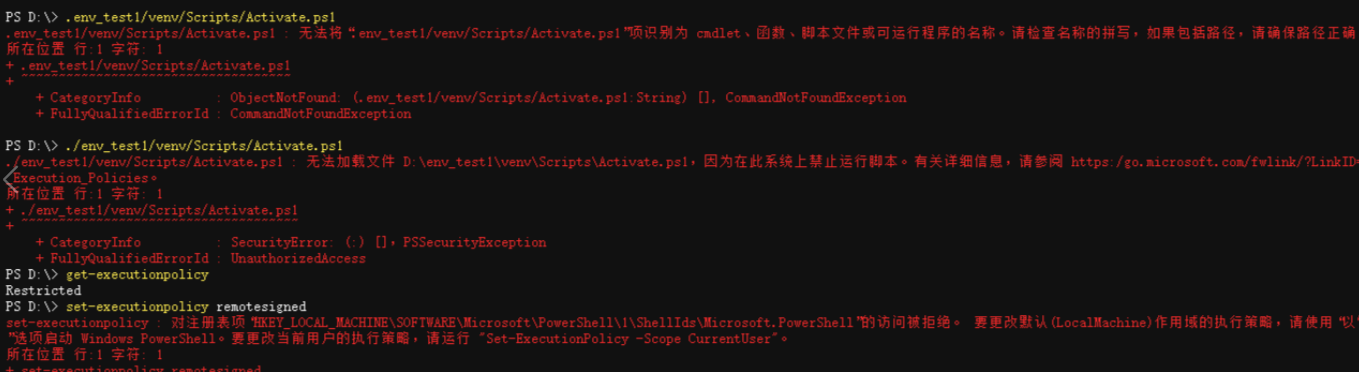
PS C:\my_project> .\venv\Scripts\activate
.\venv\Scripts\activate : File activate.ps1 cannot be loaded ... because running scripts is disabled on this system.
+ ~~~~~~~~~~~~~~~~~~~~~~~~~~~~~~~~~~~~~
    + CategoryInfo          : SecurityError: (:) [], PSSecurityException
+ FullyQualifiedErrorId : UnauthorizedAccessWhy does this happen? Keep reading.
The Comfort Zone of CMD: Why Does It "Almost Never Fail"?
Let's first recall the good old days in CMD. The command to activate a virtual environment typically looks like this:
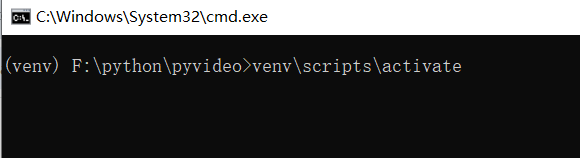
C:\my_project> venv\Scripts\activate
(venv) C:\my_project>Why is it so simple? Because you are actually running a batch file named activate.bat. CMD is designed to execute batch commands, and its security model is very permissive, allowing .bat files to run by default. It's simple, reliable, but also relatively basic in functionality.
Why Switch to PowerShell?
If CMD is so worry-free, why "trouble ourselves"? Because the efficiency gains from PowerShell are significant:
- Intelligent Tab Completion: Much more powerful than CMD's, suggesting commands, parameters, paths, etc.
- Linux-like Command Aliases: You can directly use familiar commands like
ls,clear,cp,mv, seamlessly switching development environments. - Powerful Pipelining and Object Manipulation: You can pass the output of one command (as structured objects) to another for complex processing, which CMD cannot match.
- Excellent Terminal Experience: In Windows Terminal, PowerShell supports multiple panes, tabs, rich colors, and custom configurations, combining aesthetics and functionality.
Conclusion: Absolutely worth it! The initial minor configuration hassle will pay off with long-term development efficiency gains.
PowerShell's "Test": Understanding Execution Policy
When you switch from CMD to PowerShell, the command to activate a virtual environment also changes. You are no longer running a .bat file, but a script specifically prepared for PowerShell: activate.ps1.
This is the core of the problem.
PowerShell treats all .ps1 files as scripts and introduces an important security mechanism—Execution Policy. It acts like a "security guard." By default, its policy is Restricted, meaning it prohibits running any scripts to prevent you from accidentally executing malicious code.
So, when you run .\venv\Scripts\activate, you are essentially asking the "guard" to allow the activate.ps1 script. The guard sees it and says: "No, my rule is to block all scripts," thus denying you and showing that red error message.
One-Time Fix: Giving Your PowerShell the "Green Light"
The opening problem is solved here. The core is adjusting the policy to RemoteSigned.
To fix this, we just need to adjust the "guard's" rule, telling him: "Scripts I write locally are safe, please allow them to run." We recommend using the RemoteSigned policy, which strikes a perfect balance between security and convenience.
The RemoteSigned policy means:
- Allows running all scripts you create locally (like
activate.ps1). - Scripts downloaded from the internet must be digitally signed to run.
Steps (Once and for All)
Changing the system-wide execution policy requires administrator privileges.
1. Open PowerShell as Administrator
- Search for
powershellin the Start Menu. - Right-click "Windows PowerShell" and select "Run as administrator".
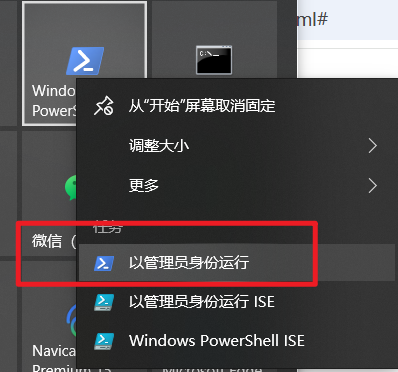
2. Execute the Modification Command In the popped-up administrator window, type the following command and press Enter:
Set-ExecutionPolicy RemoteSigned
3. Confirm the Change The system will ask if you are sure you want to change the policy. Type Y and press Enter.
Execution Policy Change
...
[Y] Yes  [A] Yes to All  [N] No  [L] No to All  [S] Suspend  [?] Help (default is "N"): Y
If there are no errors, you have succeeded! You can now close this administrator window.
Alternative (If You Don't Have Administrator Privileges)
If you don't have administrator rights, you can also change the policy only for the current user. Execute this in a regular PowerShell window:
Set-ExecutionPolicy -Scope CurrentUser RemoteSignedSimilarly, type Y to confirm.
Embrace the New Workflow: Smooth Operations in PowerShell
Now, your PowerShell is ready. Let's experience the new, efficient Python virtual environment workflow.
- Create a Python Virtual Environment (after
cdto your project directory):powershellpython -m venv venv - Activate the Environment:powershellLook! The
.\venv\Scripts\activate(venv)appears before the command prompt. Success!powershell(venv) PS C:\my_project> - Deactivate the Environment:powershell
(venv) PS C:\my_project> deactivate
Quick Reference: CMD vs. PowerShell Similarities and Differences
The transition from CMD to PowerShell might hit a small bump due to the execution policy, but it's more like a "rite of passage." Once you complete this one-time configuration, you open a door to a more efficient and enjoyable development experience.
| Operation | CMD (Old Friend) | PowerShell (New Partner) |
|---|---|---|
| Activation Command | venv\Scripts\activate | .\venv\Scripts\activate |
| File Executed | activate.bat (Batch) | activate.ps1 (Script) |
| First Hurdle | Almost never | Common, due to execution policy |
| Solution | None needed | Run Set-ExecutionPolicy RemoteSigned as Administrator |
Welcome to the world of PowerShell. Enjoy the power and convenience it brings!