
Building an Out-of-the-Box Windows Package for Index-TTS: From Environment Isolation to Solving Dependency Challenges
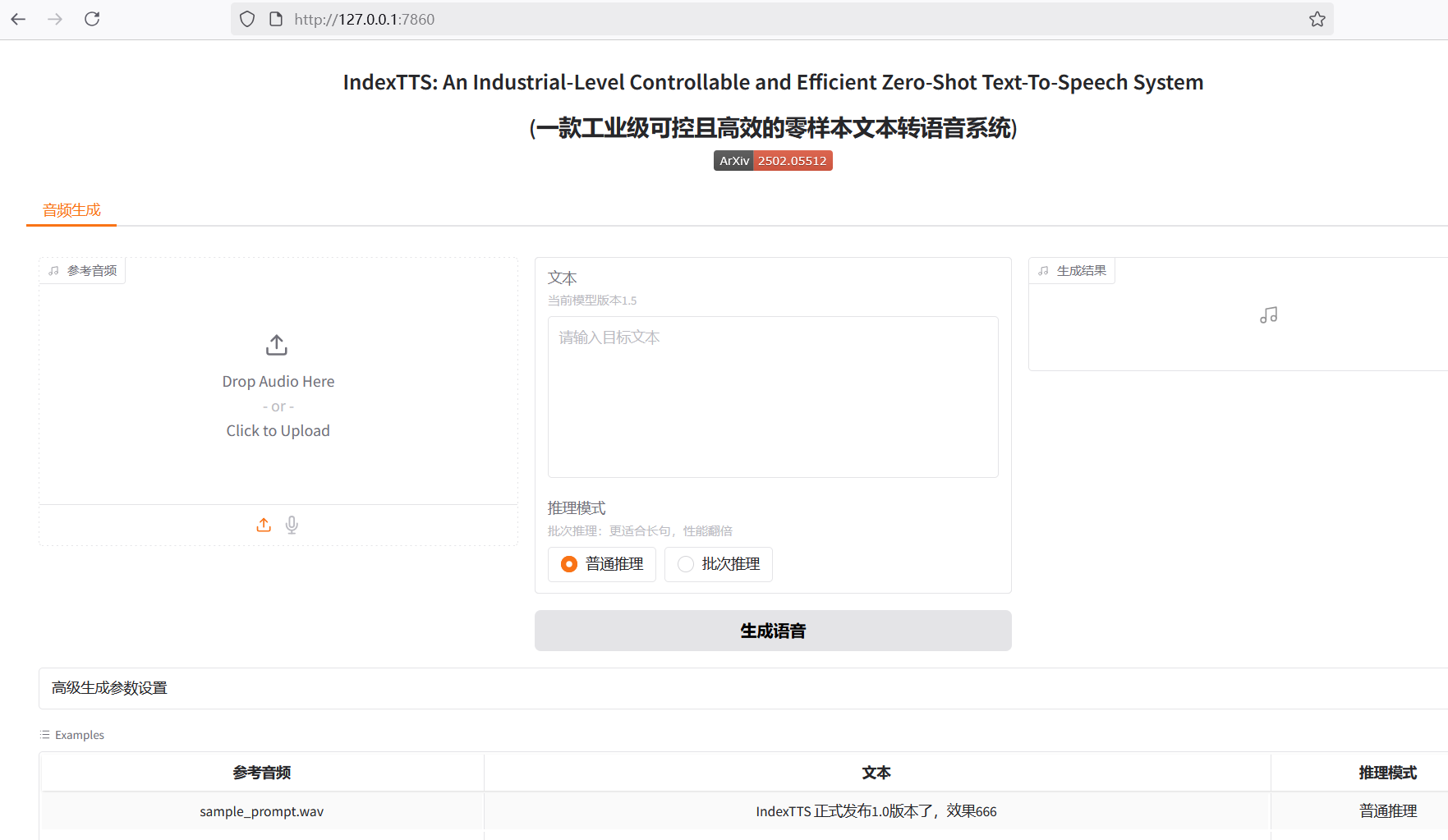
Index-TTS is an excellent open-source zero-shot text-to-speech (TTS) project, particularly outstanding in Chinese processing. It can effectively correct the pronunciation of polyphonic characters, and its audio quality and voice similarity are both excellent. For users who want to integrate high-quality speech capabilities into their own applications, or simply want to experience cutting-edge AI technology, Index-TTS is undoubtedly a treasure.
However, for many Windows users unfamiliar with Python and complex compilation environments, running such a project is not easy. Every step, from environment configuration and installing numerous dependencies to handling special libraries that are difficult to install directly on Windows, can become a discouraging hurdle. To allow more people to easily experience the charm of Index-TTS, I decided to create a "one-click launch" package. This article documents the challenges encountered during the creation process, the problem-solving approaches, and some noteworthy details, hoping to provide a reference for friends with similar needs.
Foundation: Choosing a Portable Python Environment
The primary goal of creating the package is "out-of-the-box," meaning it should not require users to pre-install a specific version of Python or configure complex environment variables. It needs to be independent and portable.
The key to achieving this lies in using the Windows embeddable package provided by Python officially.
Unlike the standard Python installer, the embeddable package is a minimal ZIP archive. After extraction, it contains a minimal Python runtime environment without complex package management tools and documentation. Its advantages are obvious:
- Environment Isolation: It does not conflict with other Python versions that may exist on the user's system.
- No Installation Required: No administrator privileges are needed; it can be used immediately after extraction and placed in any directory, even on a USB drive.
- Easy Distribution: The entire application and its Python environment can be packaged together and easily distributed to others.
Download link for embedded python3.10: https://www.python.org/downloads/release/python-31011/ > Select this version
Windows embeddable package (64-bit)
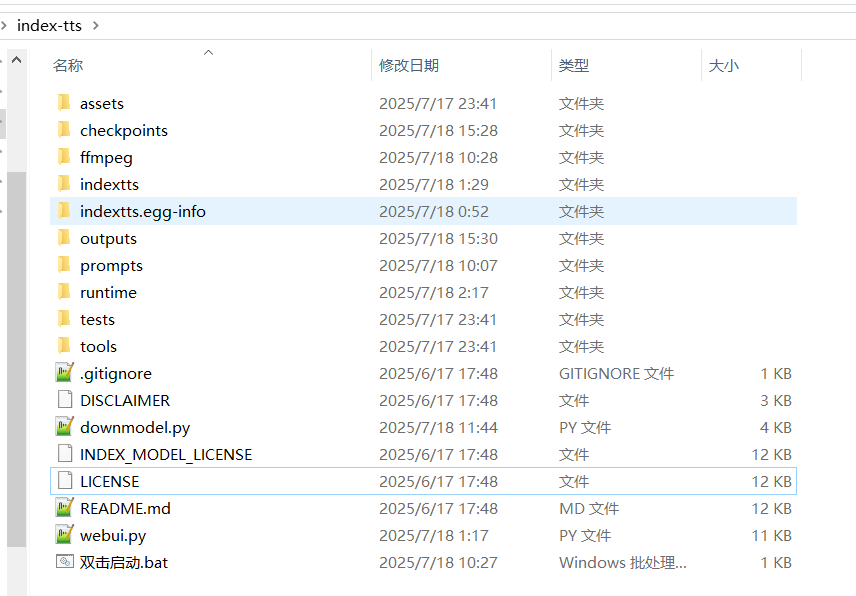
For this project, I chose the 64-bit embeddable package for Python 3.10.11, ensuring compatibility with the dependency library versions required by the Index-TTS project. I extracted it to the runtime folder within the project root directory, for example, D:/index-tts/runtime.
Obtaining this embeddable package is just the first step; it doesn't even include pip by default. We need to manually "enable" package management capabilities for it. First, download the get-pip.py script, then enter the runtime folder, paste get-pip.py there, open a command prompt window, and execute python.exe get-pip.py. This installs the pip module into the runtime\Lib\site-packages directory.
Download
get-pip.pyfrom this address: https://bootstrap.pypa.io/get-pip.py
The next crucial step is to modify the runtime\python310._pth file. This file is the path configuration file for the embedded environment, telling the Python interpreter where to find modules. By default, its content is very limited, preventing it from recognizing newly installed libraries. To correctly load the site-packages directory and recognize project source code, its path needs to be added. Open the file with Notepad, delete the default content, and replace it with the following:
python310.zip
.
./Lib/site-packages
./Scripts
../
../indexttsAfter these steps, an independent, portable, and fully functional Python environment located at D:/index-tts/runtime is ready.
Core Challenge: Overcoming the Installation Difficulties of pynini and WeTextProcessing
While preparing to install Index-TTS dependencies, we encountered the biggest obstacle in the entire packaging process: the libraries pynini and WeTextProcessing.
pynini is a powerful tool for compiling, optimizing, and applying grammatical rules, built on OpenFst. In speech and language processing, it is often used for underlying tasks like text normalization and grammar parsing. WeTextProcessing is a toolkit focused on Chinese text normalization and inverse normalization, which also heavily relies on pynini.
The official pynini documentation also clearly states that pynini is not designed or tested for Windows. Directly trying pip install pynini often triggers a lengthy compilation process and ultimately fails.
The reason for failure is typical: such libraries contain a large amount of C++ source code that needs to be compiled locally into dynamic link libraries (.pyd files) that Python can call. This process depends on a specific C++ compiler environment and a series of complex library files (like OpenFst). For ordinary users' computers, these conditions are usually not met, leading to compilation errors like the following:
error: subprocess-exited-with-error

× Building wheel for pynini (pyproject.toml) did not run successfully.
│ exit code: 1
╰─> [104 lines of output]
    ...
    error: command 'C:\\Program Files\\Microsoft Visual Studio\\...\\cl.exe' failed with exit code 2
    [end of output]

note: This error originates from a subprocess, and is likely not a problem with pip.
ERROR: Failed building wheel for pyniniEven after installing Visual Studio and build tools including
cl.exe, this error may still occur.
The workaround idea is: "Pre-compile" them on a system already configured with a compilation environment, then directly copy the compiled final files into our package.
Miniconda became the perfect tool to achieve this goal. It can easily create isolated environments on Windows and install pynini through its powerful package management capabilities because it directly downloads pre-compiled binaries provided by the conda-forge channel, rather than compiling from source locally.
Specific steps are as follows:
- Create a Conda Environment: Create an independent conda environment and specify Python version 3.10 to match our embedded package.bash
conda create -n index-tts python=3.10 conda activate index-tts - Install in Conda: Install
pyniniusing the conda-forge channel, then installWeTextProcessingwith pip.bashconda install -c conda-forge pynini==2.1.6 pip install WeTextProcessing --no-deps - Transfer Files: This step is the core of the entire solution. We need to find all relevant files for these two libraries in the conda environment, then copy them to the corresponding locations in our portable Python environment. Pay special attention to paths to avoid confusion.
- Library Files: Navigate to the conda environment's
envs\index-tts\Lib\site-packagesdirectory. Copy the folderspynini,WeTextProcessing-1.0.4.1.dist-info,tn,pywrapfst, and the two key compiled products_pynini.cp310-win_amd64.pydand_pywrapfst.cp310-win_amd64.pydto our package'sD:/index-tts/runtime/Lib/site-packagesdirectory. - Dynamic Link Libraries (DLLs): The underlying OpenFst library that
pyninidepends on exists as DLL files. These files are located in the conda environment's\envs\index-tts\Library\bindirectory. Copy all DLL files starting withfstto the root directory of our package,D:/index-tts/runtime, so the Python interpreter can find them at startup.
- Library Files: Navigate to the conda environment's
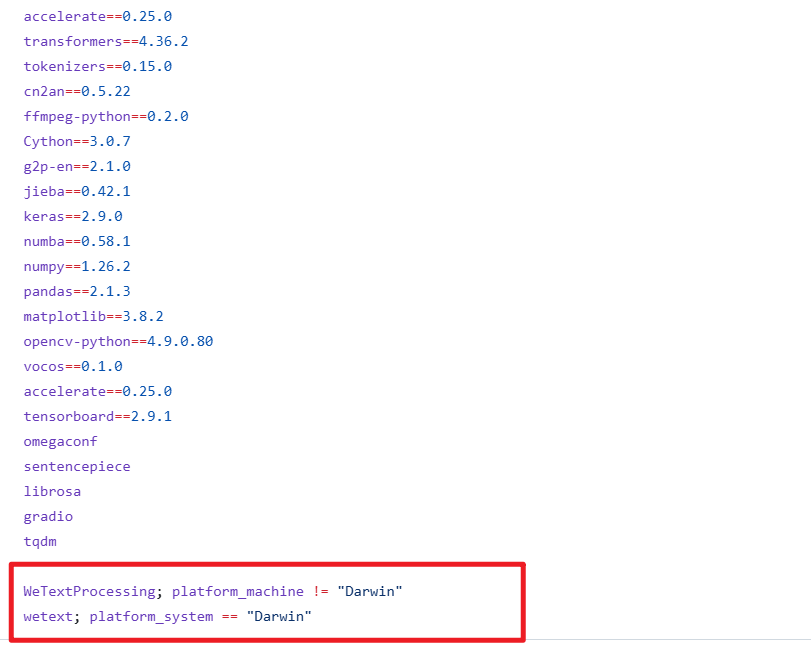
After completing this "transfer" work, we successfully bypassed the challenge of compiling on the end-user's machine. Meanwhile, to prevent pip from attempting to compile them again during subsequent installation of other dependencies, we must open the requirements.txt file located at D:/index-tts and delete the two lines related to WeTextProcessing.
Automation and User Experience: The Ingenious Use of Scripts
After solving the environment and core dependency issues, the remaining work is how to allow users to start the program in the simplest way and how to handle model file downloads.
Model Download Script downmodel.py
Index-TTS model files are quite large. If all model files are directly packaged into the bundle, it would result in a huge software package size, which is not conducive to distribution. A better way is to let the program automatically download models on first launch. For this purpose, I wrote the downmodel.py script, which has several clear benefits:
- Reduces Package Size: Users download a lightweight launcher, and models are downloaded on demand.
- Solves Network Access Issues: As is well known, direct access to Hugging Face Hub may encounter network difficulties in some regions. By setting the environment variable
HF_ENDPOINT=https://hf-mirror.comin the script, the download address is redirected to a mirror site, greatly improving download stability and speed. - Intelligent Checking: The script checks whether model files already exist in the local
checkpointsdirectory. If files exist, it skips the download to avoid duplication. After downloading, it also verifies that files exist and are not zero-sized, ensuring model integrity.
A Hidden Trap: Outdated config.yaml
During debugging, I discovered a subtle but critical issue. The Index-TTS GitHub source repository might contain a default config.yaml file inside the checkpoints folder. This configuration file might be incompatible with the latest model version (e.g., version 1.5). If this old file is retained and the download script skips downloading a new config.yaml because it detects the file exists, the program will report an error due to model layer dimension mismatch when starting the WebUI.
To avoid this problem, the download logic of the downmodel.py script needs to be more refined. I added a check: even if config.yaml exists, if core model files like bigvgan_discriminator.pth do not exist (meaning it's the first download), then config.yaml still needs to be forcibly re-downloaded and overwritten to ensure configuration matches the model version.
Here is the complete code for downmodel.py, which implements the above logic:
import json
import os
import sys
import time
from pathlib import Path
from huggingface_hub import hf_hub_download

def download_model_files():
    """
    Download files required for the IndexTTS-1.5 model from Hugging Face Hub.
    """
    repo_id = "IndexTeam/IndexTTS-1.5"
    local_dir = "checkpoints"

    # Ensure local directory exists
    if not os.path.exists(local_dir):
        print(f"Creating directory: {local_dir}")
        os.makedirs(local_dir)

    # List of files to download
    files_to_download = [
        "config.yaml",
        "bigvgan_discriminator.pth",
        "bigvgan_generator.pth",
        "bpe.model",
        "dvae.pth",
        "gpt.pth",
        "unigram_12000.vocab"
    ]

    is_bigvgan_discriminator=Path(f'./{local_dir}/bigvgan_discriminator.pth').exists()
    for filename in files_to_download:
        # Check if the file already exists, skip download if it does
        is_exists = Path(f'{local_dir}/{filename}').exists()
        if is_exists:
            if filename !='config.yaml' or is_bigvgan_discriminator:
                # If config.yaml exists but bigvgan_discriminator.pth does not, then config.yaml needs to be re-downloaded
                # Otherwise, skip
                print(f"File {filename} already exists, skipping download.")
                continue

        print(f"Downloading {filename} to {local_dir}...")
        try:
            # Use hf_hub_download to download the file
            hf_hub_download(
                repo_id=repo_id,
                filename=filename,
                local_dir=local_dir,
                # resume_download=True  # Enable if needed for resumable downloads
            )
            print(f"Download of {filename} completed.")
        except Exception as e:
            print(f"Failed to download {filename}: {e}")
            # You can decide here whether to continue downloading other files or abort
            # return False # Uncomment this line if you want to abort on download failure

    for filename in files_to_download:
        # Check if the file already exists, skip download if it does
        local_file_path = Path(f'./{local_dir}/{filename}')
        if not local_file_path.exists() or local_file_path.stat().st_size==0:
            print(f"File {filename} does not exist or has zero size. Please ensure network connection is normal, then delete the file and restart the download.")
            return False

    print("All model file download checks completed!\n")
    return True

os.environ['HF_HUB_DISABLE_SYMLINKS_WARNING'] = 'true'
os.environ['HF_ENDPOINT']='https://hf-mirror.com'


print("\n----Checking if IndexTTS-1.5 model has been downloaded...")
download_success = download_model_files()

if not download_success:
    print("\n\n############Model file download failed. Please check network connection or download manually. Program will exit.\n")
    time.sleep(5)
    sys.exit()

# After download completes, proceed to launch WebUI
print("\nModel files ready, launching WebUI...")
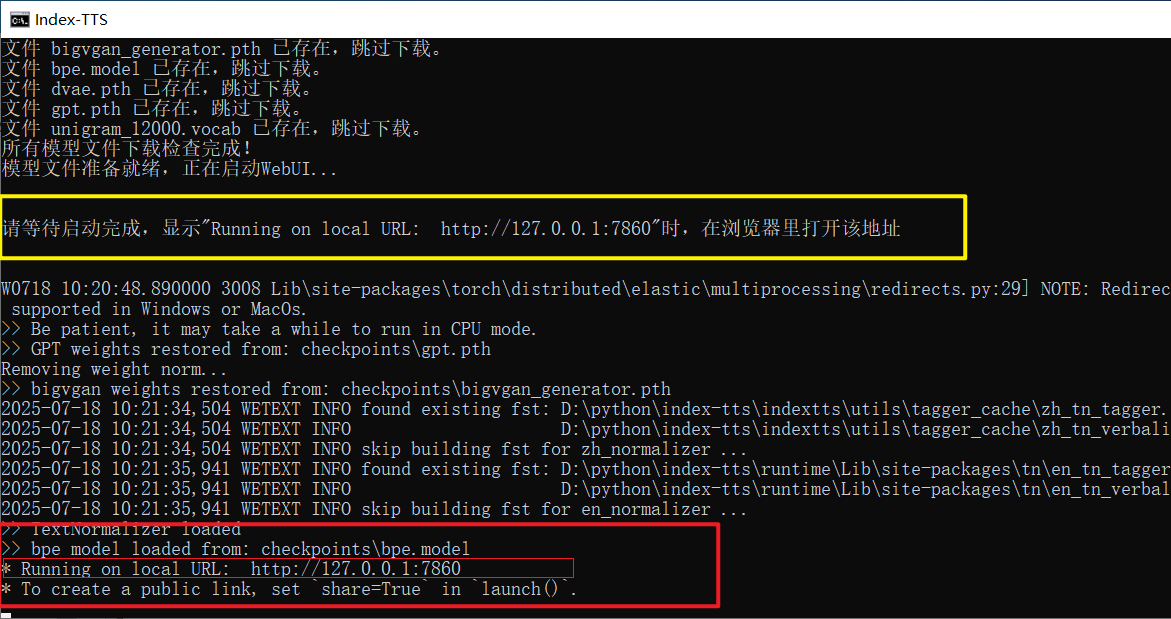
print("\n\n********Please wait for startup to complete. When \" Running on local URL: http://127.0.0.1:7860 \" is displayed, open this address in your browser********\n\n")One-Click Launch Script 双击启动.bat (Double-click to launch.bat)
 Finally, to achieve true "double-click to use," a simple batch script is essential. The content of
 双击启动.bat is brief but completes all preparations:
@echo off
rem Set the current code page to UTF-8 to correctly display Chinese characters.
chcp 65001 > nul

TITLE Index-TTS Windows Package  Made by pvt9.com

set HF_HUB_DISABLE_SYMLINKS_WARNING=true
set HF_ENDPOINT=https://hf-mirror.com
set ROOT_DIR=%~dp0
set ROOT_DIR=%ROOT_DIR:~0,-1%
set PATH=%ROOT_DIR%;%ROOT_DIR%\ffmpeg;%PATH%

call %cd%/runtime/python downmodel.py

call %cd%/runtime/python webui.py

pauseIt first sets the window title and UTF-8 code page to correctly display Chinese. Then, it sets necessary environment variables (like the mirror address) and temporarily adds the path to the ffmpeg tool to PATH. Next, it sequentially calls downmodel.py to check and download models, and finally executes webui.py to launch the Gradio interface. When everything is ready, the user will see the familiar Running on local URL: http://127.0.0.1:7860 prompt in the command window. Opening this address in a browser allows them to start the experience.
Through this series of operations, a Python project that originally required cumbersome configuration is ultimately packaged into a user-friendly bundle for ordinary Windows users.
Just double-click to enjoy the convenience brought by AI technology.