
Farewell to CUDA Configuration Nightmares: Starting with a Classic "Version Mismatch" Issue
For every friend who uses or develops AI tools, configuring NVIDIA CUDA is almost an unavoidable first hurdle. It is powerful, but sometimes also appears "delicate." A small oversight can lead to hours of troubleshooting.
Today, we will delve into one of the most common "traps" through a very real installation failure case—NVIDIA driver version mismatch with the CUDA toolkit version—and use this as an opportunity to comprehensively review key considerations in CUDA configuration.
Case Analysis: When nvcc and nvidia-smi "Tell Different Stories"
Let's look at a typical "accident scene" screenshot:
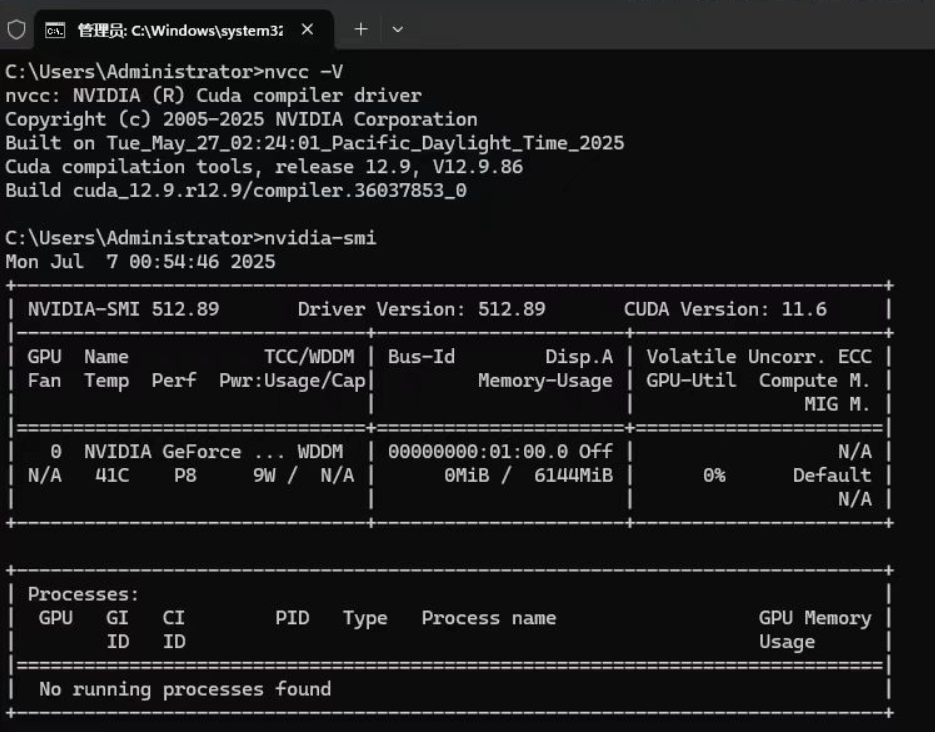
The user executed two key commands in the terminal but got seemingly contradictory results:
Output of the
nvcc -VcommandC:\Users\Administrator>nvcc -V nvcc: NVIDIA (R) Cuda compiler driver ... Cuda compilation tools, release 12.9, V12.9.86 ...This command tells us that the CUDA Toolkit version installed in the user's system is 12.9. The CUDA Toolkit contains the compiler (nvcc), development libraries (cuBLAS, cuFFT, etc.), and APIs. It is the "toolbox" we use to compile and develop CUDA programs.
Output of the
nvidia-smicommand+-----------------------------------------------------------------------------+ | NVIDIA-SMI 512.89 Driver Version: 512.89 CUDA Version: 11.6 | +-----------------------------------------------------------------------------+This command displays information at the graphics driver level. There are two key pieces of information here:
Driver Version: 512.89: The current system's NVIDIA graphics driver version is 512.89.CUDA Version: 11.6: This is the most confusing part! The CUDA version here does not refer to the toolkit version you installed, but rather the highest CUDA Runtime version that your current driver (512.89) can support.
The Core of the Problem: The "Generation Gap" Between Driver and Toolkit
Now, piecing the two clues together, the problem becomes clear:
You are trying to use a new toolkit requiring CUDA 12.9 runtime on an old driver environment that only supports up to CUDA 11.6 runtime.
An analogy: It's like using the latest Blu-ray player software (CUDA Toolkit 12.9) to play a Blu-ray disc, but your computer has an old optical drive driver that only recognizes DVD discs (NVIDIA Driver for 11.6). When you click "play," the system will naturally tell you: "Sorry, I don't recognize this new format."
In practice, this means any program you compile with the CUDA 12.9 toolkit will fail at runtime due to a lack of matching driver support, typically throwing a fatal error like CUDA driver version is insufficient for CUDA runtime version.
Solutions: Two Paths, One Preferred Choice
Solution 1: Upgrade the NVIDIA Driver (Highly Recommended)
This is the most direct, correct, and permanent solution. Keeping your driver updated allows you to enjoy the latest performance optimizations, bug fixes, and support for new hardware/software.
- Visit the Official Website: Go to the NVIDIA Official Driver Download Page.
- Select Your Model: Accurately select your graphics card model (e.g., GeForce RTX 4090), operating system (e.g., Windows 11), and driver type (usually either Game Ready Driver or Studio Driver is fine).
- Download and Install: Download the latest driver. During installation, it is recommended to choose "Custom installation" and check the "Perform a clean installation" option. This removes old driver files to avoid potential conflicts.
- Verify the Result: After installation, restart your computer. Open the command line again and enter
nvidia-smi. You will find that theDriver Versionhas been updated, and theCUDA Versionin the top right has also been upgraded to 12.x or higher. Problem solved!
(Typically, driver versions supporting CUDA 12.x need to be 525.xx or higher.)
Solution 2: Downgrade the CUDA Toolkit (Alternative Solution)
Consider this solution only in special cases, such as when your project strictly requires a specific old CUDA version, or your hardware is no longer supported by new drivers.
- Uninstall the Current Toolkit: In the system's "Add or Remove Programs," uninstall all components related to CUDA 12.9.
- Download an Older Version: Visit the NVIDIA CUDA Toolkit Archive and find a version compatible with your driver (based on
nvidia-smi, you can choose 11.6 or lower). - Reinstall: Install the downloaded older version of the CUDA toolkit.
Learn from This: The Golden Rules of CUDA Configuration
To avoid falling into similar traps in the future, remember these golden rules:
- Driver First, Toolkit Later: Installation order is crucial. Always install or update your NVIDIA graphics driver first, then install the CUDA toolkit.
- Understand the Two "CUDA Versions":
CUDA Versioninnvidia-smi: This is the highest CUDA runtime version that the driver can support, representing the "capability ceiling."Cuda versioninnvcc -V: This is the version of the CUDA toolkit you installed, representing the "current requirement."- Rule: The version number of the former must be greater than or equal to the version number of the latter.
- Check Compatibility: Before installation, consult the CUDA toolkit's Release Notes, which clearly state the minimum required driver version.
- Configure Environment Variables Properly: After installing the CUDA toolkit, ensure the system environment variables
CUDA_HOMEandPathare correctly set. The installer usually handles this automatically, but sometimes manual checking and modification are needed to ensure the system can find commands likenvcc. - Verify the Installation: After installation, besides running
nvidia-smiandnvcc -V, the best way to verify is to compile and run the CUDA Samples. Navigate to the CUDA toolkit installation directory (e.g.,C:\Program Files\NVIDIA GPU Computing Toolkit\CUDA\v12.x\extras\demo_suite) and rundeviceQuery.exeandbandwidthTest.exe. If both run successfully and showResult = PASS, then congratulations, your CUDA environment is ready!