
Easily Understand and Fix the cudaErrorNoKernelImageForDevice Error
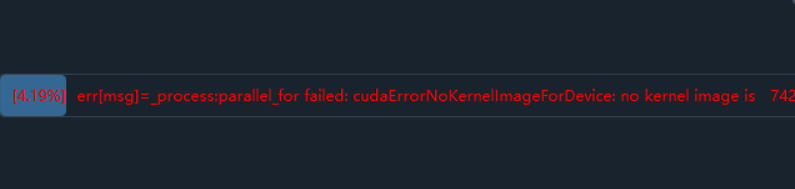
If you encounter a long, headache-inducing error message like the one below while running the pyVideoTrans program:
Traceback (most recent call last):
File "videotrans\task\_only_one.py", line 43, in run
File "videotrans\task\trans_create.py", line 371, in recogn
File "videotrans\recognition\__init__.py", line 236, in run
File "videotrans\recognition\_base.py", line 75, in run
File "videotrans\recognition\_overall.py", line 155, in _exec
RuntimeError: err[msg]=_process:parallel_for failed: cudaErrorNoKernelImageForDevice: no kernel image is available for execution on the deviceDon't worry, this usually isn't a major issue. The key error message is: cudaErrorNoKernelImageForDevice: no kernel image is available for execution on the device
Root Cause: The PyTorch library embedded in the software you are currently using is incompatible with your computer's graphics card environment (NVIDIA driver or CUDA version). It's like trying to use an old key for a new lock—they can't work together.
Solution: Address the Specific Cause
Please choose one of the following two solutions based on your specific situation.
Scenario 1: If You Upgraded the Software Using a "Small Patch"
Full pyVideoTrans Download Address: https://pyvideotrans.com/downpackage
If you upgraded from a version below v3.76 by downloading and overwriting with a smaller patch file (e.g., around 360MB in size), you likely encountered this problem.
Cause Analysis: To reduce the size of the upgrade package, the small patch might not include the latest AI computation core libraries that are fully compatible with newer drivers.
Solution: Please visit the official website or download page, download the latest full installation package (approx. 2.5GB), and perform a fresh overwrite installation. The full package contains all necessary components to ensure the software perfectly matches your graphics card environment.

Scenario 2: If You Already Use the Full Package, or the Error Persists on First Installation
If you are sure you are already using the latest full package but the problem persists, it's most likely that your computer's graphics card environment needs an update.
Step 1: Check Your Graphics Card Environment
- Press the
Win+Rkeys on your keyboard to open the "Run" dialog box. - Type
cmdand press Enter to open the Command Prompt window. - In the window, type the following command and press Enter:bashThis command shows the highest CUDA version supported by your NVIDIA graphics driver. Pay attention to the
nvidia-smiCUDA Versionin the top-right corner of the output.
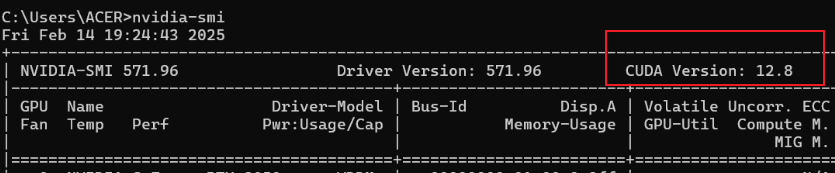
- If you have installed the CUDA Toolkit, you can also check its version with the
nvcc --versioncommand. However, for solving this issue, the information fromnvidia-smiis more critical.
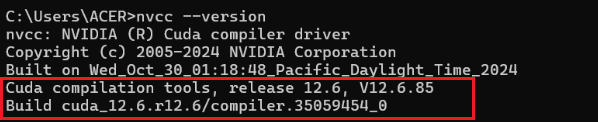 (Example output of
 nvcc --version)
Step 2: Upgrade Your Graphics Card Environment
If the nvidia-smi command shows your CUDA Version is lower than 12.0 or if nvcc --version shows the current CUDA version is lower than 12.0, then you need to upgrade.
- Solution:
- Update the NVIDIA Graphics Driver: Go to the NVIDIA official website, download and install the latest driver for your specific graphics card model. This is the most important step.
- Install Matching CUDA and cuDNN: The software's normal operation depends on the correct CUDA Toolkit and cuDNN libraries.
To ensure you can complete the installation successfully, please be sure to follow the step-by-step tutorial with images at the link below:
Detailed GPU Environment Installation Tutorial
The cudaErrorNoKernelImageForDevice error is a signal of "version mismatch".
- First, check the software: Did you use a small patch for the upgrade? If yes, switch to the full package.
- Then, check the computer: Is the software fine? Then upgrade your graphics driver and related components.