
Completely Solve the Classic Gradio Client Error: Could not fetch config from http://127.0.0.1:7860
When using pyVideoTrans software or code to call a Gradio application, do you often face a cold red line of error?
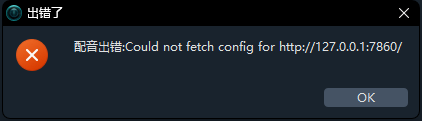
gradio_client.exceptions.ConnectionError: Could not fetch config from http://127.0.0.1:7860.
Don't worry, you're not alone. This is one of the most common "roadblocks" when using gradio_client. This guide will take you from basic troubleshooting to uncovering the "culprit behind the scenes," helping you completely conquer this error.
The Core of the Error: What is it Saying?
The literal meaning of this error message is: "Could not fetch configuration information from http://127.0.0.1:7860."
Simply put, your client program acts like a messenger. It first needs to go to the server's address to get a "menu" (i.e., the application's configuration information, such as what APIs are available, what the inputs and outputs are), and then it can start ordering (submitting data). This error means your messenger couldn't even get through the server's door, let alone get the menu.
The root of the problem is 99% not with gradio_client itself, but rather that network communication between the client and server is being blocked.
Part 1: Basic Troubleshooting Checklist (Solves 80% of Problems)
Before diving deeper, let's go through a set of standard checks. This will solve the vast majority of cases.
Step 1: Is Your Gradio Server Actually Running?
This is the most common and easily overlooked reason.
How to Check:
- Check the Terminal: Look at the terminal window where you started the Gradio application (e.g., by running
python app.py). Is it still running? Did it crash with an error? A normally running server will display:Running on local URL: http://127.0.0.1:7860

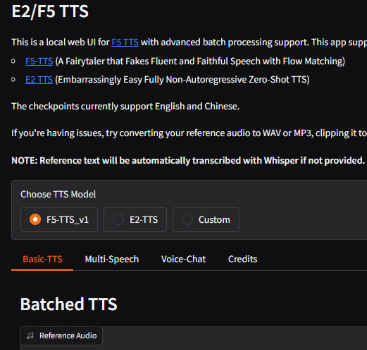
- Test with a Browser: This is the most crucial test! Directly open the address shown by the server,
http://127.0.0.1:7860, in your browser.- If you can see the Gradio interface: Congratulations, the server is healthy! The problem lies elsewhere, please continue reading.
- If the browser shows "Unable to connect" or "Connection refused": This means the server didn't start successfully at all. Go fix your server code first to make it run properly.
- Check the Terminal: Look at the terminal window where you started the Gradio application (e.g., by running
Step 2: Do the Address and Port Match Exactly?
Make sure your messenger isn't going to the wrong address.
How to Check:
- Server Side: Check the parameters of your
app.launch(). If you wroteapp.launch(server_port=8000), then the address ishttp://127.0.0.1:8000. - Client Side: Ensure the URL in
Client()is exactly the same as the URL displayed when the server starts.
python# Server is on port 7860 # app.launch() # Client must connect to 7860 from gradio_client import Client client = Client("http://127.0.0.1:7860/") # Correct # client = Client("http://localhost:7860/") # Also correct # client = Client("http://127.0.0.1:5010/") # Wrong!- Server Side: Check the parameters of your
Step 3 (Special Case): Are You Using Docker or a Virtual Machine?
Running a Gradio server inside a Docker container is a common pitfall.
- Principle: A Docker container has its own network.
127.0.0.1inside the container refers to the container itself, not your computer. - Solution:
- Server Side: Must listen on
0.0.0.0to accept connections from outside the container.pythonapp.launch(server_name="0.0.0.0", server_port=7860) - When Starting the Container: Must use the
-pparameter to map the container port to the computer port.bash# Map your computer's port 7860 to the container's port 7860 docker run -p 7860:7860 your_gradio_image - Client Side: Connect to your computer's address
http://127.0.0.1:7860.
- Server Side: Must listen on
The same principle applies to virtual machines.
Part 2: Uncovering the "Culprit Behind the Scenes" – The Network Proxy (VPN Software) You Didn't Think Of
If you've completed all the checks above and the problem persists, you've likely encountered the same "culprit" I did.
The final discovery: The problem was with running VPN or network proxy software (like Clash, V2Ray, etc.)!
Why Would Proxy Software Interfere with Local Connections?
When you enable the "System Proxy" or "Global Mode" in your proxy software, it takes over all network requests from your computer, including those sent to 127.0.0.1 (localhost).
The journey of this request should have been: [Your client script] -> [Your operating system] -> [Your Gradio server script] (Instant completion)
But with the system proxy enabled, it becomes: [Your client script] -> [Your operating system] -> [**Proxy software**] -> ???
When the proxy software receives a request destined for the local machine, it might get "confused." Its main task is to forward traffic to remote servers, so it might mishandle this local request, causing it to be dropped or lost, never reaching the Gradio server listening on the local machine.
This is why you can open it in your browser, but gradio_client fails! The browser might have its own proxy rules or plugins that bypass local addresses, while Python's network requests are solidly intercepted by the proxy software.
Part 3: Best Practice: Solve the Problem Elegantly Without Turning Off the Proxy
Turning off the proxy software every time is too troublesome. Fortunately, we have better methods.
Solution 1: Set Proxy Rules to Bypass Local Addresses (Highly Recommended)
This is the "set it and forget it" method. You need to tell your proxy software: "Please let all traffic accessing the local machine pass through directly."
In your proxy software's configuration file (e.g., Clash's config.yaml), find the rules section, add direct (DIRECT) rules for local addresses, and ensure they are near the top of the rule list.
For example, add to Clash's config.yaml:
rules:
  # ... other rules ...
  - DOMAIN,localhost,DIRECT
  - IP-CIDR,127.0.0.0/8,DIRECT
# ... other rules ...After saving and reloading the configuration, the problem is solved. Your proxy software will intelligently let local traffic pass while continuing to proxy other network requests.
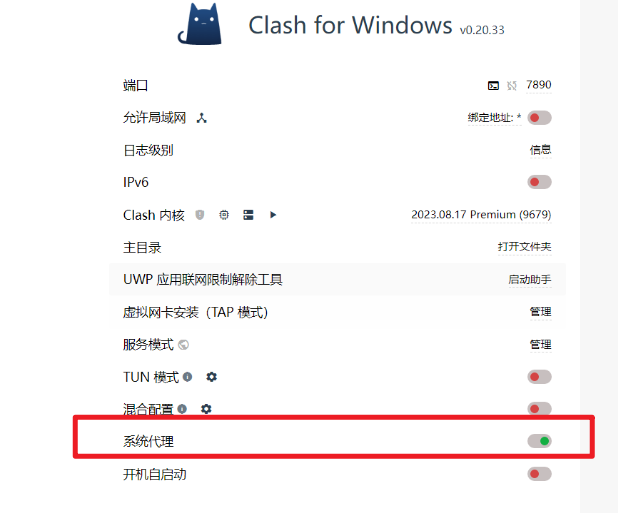
Solution 2: Disable the System Proxy Option in the Proxy Software
As shown in the image, disable it in Clash.
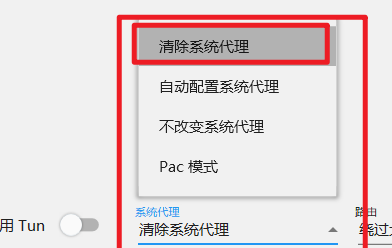
Clear the system proxy in v2ray.
Solution 3: Use the NO_PROXY Environment Variable (Temporary Solution)
If you just want to run the script temporarily, you can set an environment variable to tell the program for this run not to use the proxy.
- Linux / macOS:bash
export NO_PROXY="localhost,127.0.0.1" python your_client_script.py - Windows (CMD):cmd
set NO_PROXY=localhost,127.0.0.1 python your_client_script.py - Windows (PowerShell):powershell
$env:NO_PROXY="localhost,127.0.0.1"
python your_client_script.py
Summary: Ultimate Troubleshooting Checklist
When you encounter Could not fetch config again, please check in the following order for maximum efficiency:
- ✅ 【Primary Check】 Have I enabled System Proxy Mode for any VPN or network proxy? Try turning it off or setting up direct rules for local addresses.
- ✅ 【Browser Test】 Can I open
http://127.0.0.1:7860in a browser? (Confirm if the server is alive) - ✅ 【Verify Address】 Is the URL in
Client()exactly the same as the URL displayed when the server starts? - ✅ 【Check Environment】 If using Docker, have you configured
server_name="0.0.0.0"and port mapping-p? - ✅ 【Check Firewall】 Is the system firewall or antivirus software blocking Python's network connections?
We hope this detailed guide helps you clear the obstacles and makes your journey with gradio_client smooth sailing from now on!