
Understanding FFmpeg's "Temperament" Through a Mysterious Crash Code
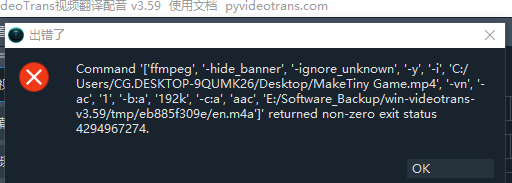
When you're working with video and suddenly encounter an error like Command [...] returned non-zero exit status 4294967274, your first reaction might be confusion and bewilderment. This huge number seems random, as if caused by cosmic rays. However, in the world of computers, true randomness is rare. This number is actually the key clue to solving the puzzle.
Decoding the Mysterious Error 4294967274
First, we need to correctly "translate" this error code. 4294967274 is a number presented as an unsigned 32-bit integer. But a program's exit code (especially for low-level tools like FFmpeg written in C/C++) is usually interpreted as a signed integer, used to distinguish success (typically 0) from various failures (typically negative numbers).
When we interpret 4294967274 (hexadecimal 0xFFFFFFE2) as a signed 32-bit integer (two's complement), its true meaning is -22.
According to the POSIX standard and many operating systems, the error code -22 corresponds to a very specific system error: EINVAL, which stands for Invalid Argument.
This means that ffmpeg.exe received a parameter it couldn't understand or process during execution, so it refused to continue and reported an EINVAL error.
So, which "invalid argument" is it? Let's look at the command the software tried to execute:
ffmpeg ... -i '.../MakeTiny Game.mp4' -vn -ac '1' ... -c:a 'aac' '.../en.m4a'The core task of this command is:
-i '.../MakeTiny Game.mp4': Read the input video file (this is one of the parameters).-vn: Ignore the video stream (No Video).-c:a 'aac': Encode the audio stream to AAC format.'.../en.m4a': Output a pure audio file.
The entire command's intent is: Extract and transcode audio from the video.
Through investigation, we have confirmed:
- The FFmpeg program itself is intact and processes other video files normally.
- The AAC encoder exists.
- External factors like file paths and permissions are not the issue.
All clues point to the same "suspect": the MakeTiny Game.mp4 file itself as the input parameter. FFmpeg considers this file problematic, treating it as an "invalid argument."
Pinpointing the Culprit: Corrupted or Non-Standard Input File
Why would an existing video file be considered an "invalid argument"? The reason lies in its internal structure.
Most Common Cause: Damaged or Abnormally Encoded Audio Stream The file may contain an audio track, but the audio data itself could be corrupted somewhere, encoded non-standardly, or contain special metadata that the current version of FFmpeg's AAC encoder cannot handle. When FFmpeg reads this abnormal data and tries to transcode it, its internal processing logic fails, ultimately causing the
EINVALcrash. It's like a chef receiving an ingredient listed as "potato" but opening the box to find a rock; they can only refuse to cook.Secondary Possibility: Damaged Video File Container Structure An MP4 file is like a container holding video and audio streams. If the structural information of this "container" (e.g., the
moov atom) is damaged or incomplete, FFmpeg cannot correctly locate or parse the audio/video streams inside, also deeming it an invalid input source.Rare Possibility: The Video Has No Audio Stream at All Although less common in this case, if the video file itself is "mute" (contains no audio track), and a specific version of FFmpeg has a bug when handling this "extract empty audio" request, it could also lead to an
EINVALerror instead of the more common "Stream not found" warning.
In summary, some form of damage or incompatibility in the audio stream itself is the root cause of this error.
Solutions:
- Diagnose the Source File: Use the
ffprobetool to "examine" the file and view its detailed stream information, which may reveal warnings or errors.bashffprobe -v error -show_streams "problematic_input.mp4" - "Clean" the File: Perform a lossless remuxing of the file. This often fixes container-level structural issues. This process doesn't re-encode and is very fast, like taking items out of an old box and putting them into a brand new, standard box.bashUsing this "cleaned"
ffmpeg -i "problematic_input.mp4" -c copy "clean_output.mp4"clean_output.mp4for audio extraction often succeeds.
Prevention: The Three Golden Rules for FFmpeg
The case above teaches us that the root of the problem often lies not in the tool itself, but in the "raw materials" we feed it. To avoid repeating the same mistakes, let's establish a set of "cleanliness" standards for handling video files.
Rule 1: Tame Your Filenames and Paths
Computers, especially command-line tools, prefer simplicity and clarity. Complex filenames and paths are breeding grounds for many strange problems.
What to Avoid:
- Spaces:
My Awesome Video.mp4. While many modern systems support spaces, in scripts and some programs, they might be incorrectly parsed as separate arguments, breaking the command. - Special Characters:
&, !, @, #, $, %, ^, (, ), ', etc. These have special meanings in the command line and require complex escaping to use correctly. For example, the&inVideo & Audio.mp4might make the shell think you want to run a command in the background. - Non-ASCII Characters:
我的视频.mp4. Although UTF-8 encoding is widespread, on some older or misconfigured systems/terminals, characters like Chinese, Japanese, or Korean can still cause encoding recognition errors. - Excessively Long Paths: Windows has a default path length limit of about 260 characters. Placing files deep within nested folders, especially in directories like
DesktoporDownloadswith long usernames, can easily hit this limit.
Best Practices:
- Naming Convention: Use English letters, numbers, underscores
_, and hyphens-. It's recommended to usesnake_case(e.g.,my_awesome_video.mp4) orkebab-case(e.g.,my-awesome-video.mp4). - Simplify Paths: Create a simple, dedicated working directory for your project, e.g.,
D:\projects\video_editing\. Place all files to be processed and already processed here. This not only avoids path issues but also makes your workflow more organized.
Rule 2: Respect Source Files, "Inspect Before Surgery"
"Garbage In, Garbage Out" is a fundamental truth in programming, and it applies equally to video processing. A seemingly normal video file may hide secrets internally.
Common "Invisible Killers":
- Variable Frame Rate (VFR): Common in videos recorded by phones. The frame rate changes dynamically, which can cause nightmarish "audio-video desync" issues during editing, audio synchronization, or adding effects.
- Non-Standard Encoding: Although the file extension is
.mp4, it might be encapsulated with some uncommon codec format internally, leading to compatibility issues. - File Corruption: Interrupted downloads, disk bad sectors, etc., can cause incomplete file endings or corrupted data in the middle.
- Missing Streams: Lacking necessary audio or video streams.
Best Practices:
- Use
ffprobefor Inspection:ffprobeis a diagnostic tool in the FFmpeg suite. Before processing any file, take a look with it:bashThis command will clearly list the file's container format, duration, bitrate, and most importantly—what streams it contains. You'll see information blocks likeffprobe -v error -show_format -show_streams "your_video.mp4"codec_type=videoandcodec_type=audio, giving you a clear overview of the file structure. - Standardize to an "Intermediate Format": For important projects, a professional workflow is to first convert all source materials of varying origins into a stable, easy-to-edit format. For example, convert all VFR videos to Constant Frame Rate (CFR):bashThis is like washing and prepping all ingredients before cooking a big meal, ensuring the subsequent "cooking" process goes smoothly.
ffmpeg -i "input_vfr.mp4" -r 30 -c:a copy "output_cfr_30fps.mp4"
Rule 3: Learn to Listen to FFmpeg's "Voice"
When an error occurs, FFmpeg's default output can be brief. But in reality, it's a very "talkative" program, if you're willing to listen.
Best Practices:
- Enable Verbose Logging: When encountering problems, avoid using parameters like
-hide_banneror-loglevel quiet. Instead, use-loglevel debugor-loglevel verboseto get the most detailed runtime logs.bashThese logs will tell you which data packet FFmpeg is analyzing, which filter it's applying, and what warnings it encounters. 90% of problems can find clues in this detailed information, turning a "mysterious crash" into a "well-documented" diagnosis.ffmpeg -loglevel debug -i "problem_video.mp4" ...
Starting from a perplexing error code 4294967274, we not only pinpointed the culprit—internal damage or incompatibility in the input video file—through layered reasoning, but more importantly, we distilled a way of thinking and a workflow that can be applied to other situations.
Next time you face FFmpeg or any video tool, remember these three golden rules:
- Keep filenames and paths simple and clean.
- Before processing, use
ffprobeto check the file's "health" and useffmpeg -c copyto "clean" it. - When encountering difficulties, enable verbose logging and let the tool tell you what it's experiencing.
By following these principles, you'll find that FFmpeg is no longer an elusive monster, but a logical, powerful, and trustworthy partner.