
Taming FFmpeg Cross-Platform Hardware Acceleration: My Auto-Selection Scheme and Pitfall Log (With Python Code)
When it comes to video processing, FFmpeg is an indispensable tool. But as you use it more, performance becomes the new bottleneck. Want to speed things up? Hardware-accelerated encoding (like using a GPU for H.264/H.265) is the natural first choice. But then comes a major headache: cross-platform compatibility.
Think about it:
- Operating systems: Windows, Linux, macOS.
- Graphics cards: NVIDIA, AMD, Intel, and Apple's own M-series chips.
- The hardware acceleration technologies they support are diverse: NVENC, QSV, AMF, VAAPI, VideoToolbox...
- And the corresponding FFmpeg parameters (
-c:v xxx_yyy) are all different.
Writing a separate configuration for each environment? Too cumbersome and error-prone. My goal was clear: write a Python function that lets the program automatically "sniff out" which hardware encoder is usable in the current environment, and it must be the "best choice". If the hardware acceleration path is blocked, it must also be able to automatically and gracefully fall back to CPU software encoding (like the familiar libx264, libx265), ensuring the program doesn't crash.
My Approach: Bold Trial and Error + Graceful Fallback
Guessing won't work. The safest way is—let FFmpeg try itself! The basic logic I figured out is this:
- First, figure out which OS the program is running on and what encoding format the user wants (H.264 or H.265?).
- Write a core "probe" function: use specific hardware acceleration parameters (
-c:v xxx_yyy) to try encoding a very short video clip. - Based on the OS, call this "probe" function in order of "empirical priority" (e.g., NVIDIA usually first) to try each possible hardware accelerator.
- Whichever one succeeds, use it! If all fail, then honestly use the default CPU software encoding.
The Robust Test Function test_encoder_internal
The following internal function is the "heart" of the entire auto-selection mechanism. It's responsible for actually calling the ffmpeg command, can withstand various failures, and can dig out information from them:
    # --- Internal Core Test Function (Battle-Tested Version) ---
    def test_encoder_internal(encoder_to_test: str, timeout: int = 20) -> bool:
        """
        Try running a short task with the specified encoder.
        Returns True on success, False on failure or timeout.
        """
        timestamp = int(time.time() * 1000)
        # Note: temp_dir and test_input_file are passed in from outside
        output_file = temp_dir / f"test_{encoder_to_test}_{timestamp}.mp4"

        # Build the ffmpeg command, short and to the point
        command = [
            "ffmpeg",
            "-y",                # Overwrite output files without asking
            "-hide_banner",      # Be quiet, don't print version info
            "-loglevel", "error", # Only care about errors, ignore the rest
            "-t", "1",           # Encode only 1 second! It's a test, be fast.
            "-i", str(test_input_file), # Use this test video file as input
            "-c:v", encoder_to_test,    # !!! Key: Specify the encoder to test !!!
            "-f", "mp4",         # Output mp4 format is fine
            str(output_file)     # Temporary output file, delete after test
        ]
        # ... (Code for setting creationflags to hide the console window on Windows is omitted here) ...

        config.logger.info(f"Starting probe for encoder: {encoder_to_test}...")
        success = False
        try:
            # Use subprocess.run to execute the command, set timeout and error capture
            process = subprocess.run(
                command,
                check=True,          # Raise exception if ffmpeg returns non-zero exit code
                capture_output=True, # Capture ffmpeg's output (stdout/stderr)
                text=True,           # Treat output as text
                encoding='utf-8',    # Decode with utf-8
                errors='ignore',     # Ignore decode errors, don't crash
                creationflags=creationflags, # (Windows) Hide console window
                timeout=timeout      # !!! Set a timeout to prevent hanging !!!
            )
            # Getting here means the command executed successfully with exit code 0
            config.logger.info(f"Good news: Encoder '{encoder_to_test}' test passed! Usable!")
            success = True
        except FileNotFoundError:
            # Can't even find the 'ffmpeg' command in the system PATH
            config.logger.error(f"Fatal error: While testing {encoder_to_test}, 'ffmpeg' command not found. Please check the environment.")
        except subprocess.CalledProcessError as e:
            # ffmpeg executed but errored (e.g., encoder not supported, wrong parameters)
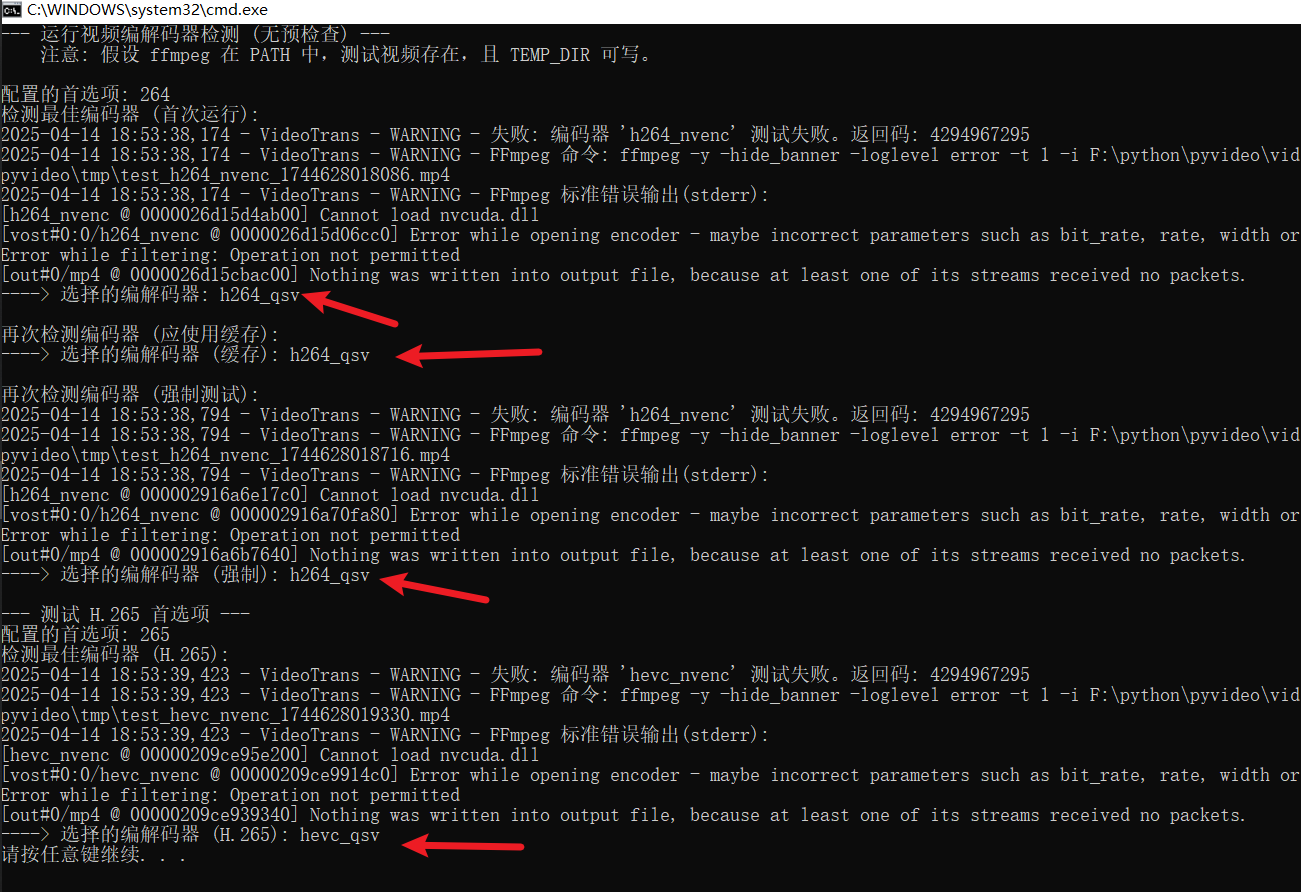
            config.logger.warning(f"Bad news: Encoder '{encoder_to_test}' test failed. FFmpeg return code: {e.returncode}")
            # !!! This is the golden key for troubleshooting: print ffmpeg's stderr output !!!
            if e.stderr:
                # Log the error message, very important!
                config.logger.warning(f"FFmpeg says:\n{e.stderr.strip()}")
            else:
                config.logger.warning("FFmpeg didn't leave any error message this time (stderr is empty)")
        except subprocess.TimeoutExpired:
            # Didn't finish within the time limit, might be stuck or too slow
            config.logger.warning(f"Timeout warning: Testing encoder '{encoder_to_test}' exceeded {timeout} seconds, marking as failed.")
        except PermissionError:
            # Permission issue, e.g., no write permission for temp file
             config.logger.error(f"Permission error: Encountered permission issue while testing {encoder_to_test}, please check temp directory permissions.")
        except Exception as e:
             # Catch-all for other unexpected errors
             config.logger.error(f"Unexpected error: Unknown exception occurred while testing {encoder_to_test}: {e}", exc_info=True)
        finally:
            # Regardless of success or failure, clean up: delete the temp file
            # (Python 3.8+ makes it easy with missing_ok=True)
            try:
                output_file.unlink(missing_ok=True)
            except OSError as e:
                # Deleting the file might also fail, just log it, don't affect main flow
                config.logger.warning(f"Minor error while cleaning up temp file {output_file}: {e}")
            # Return the test result (success/failure)
return successThis "probe" function has been refined over time. Key points are:
-t 1and-loglevel error: Make the test as fast and clean as possible.subprocess.runwith its parameters:check=Truecatches error exit codes,capture_output=Truecaptures output,timeoutprevents infinite waiting.- Most important: In the
CalledProcessErrorexception, always print or loge.stderr! This usually contains the direct reason for FFmpeg's failure (e.g., "Encoder not found", "Cannot init device"), which is crucial for debugging. finallyblock: Ensure we try to clean up temp files no matter what, avoiding clutter.unlink(missing_ok=True)makes the code cleaner, not worrying if the file never existed.
Platform Strategy: Adapt to Local Conditions, Set Priorities
With the core test function ready, the main function uses platform.system() to determine the OS type and decide in what order to try which encoders:
    # --- Platform detection and trial logic in the main function ---
    config.logger.info(f"Current system: {plat}. Starting search for the best partner for '{h_prefix}' encoding...") # h_prefix is 'h264' or 'h265'
    try:
        # macOS is simplest: Usually only videotoolbox
        if plat == 'Darwin':
            encoder_name = f"{h_prefix}_videotoolbox"
            if test_encoder_internal(encoder_name):
                config.logger.info("macOS environment, VideoToolbox test passed!")
                selected_codec = encoder_name

        # Windows and Linux are more complex, we need to prioritize
        elif plat in ['Windows', 'Linux']:
            nvenc_found_and_working = False # Set a flag first

            # First priority: Try NVIDIA's NVENC (if the machine has an N card)
            # (Optional logic can be added here, like checking torch.cuda.is_available(), but for simplicity, just try directly)
            encoder_name = f"{h_prefix}_nvenc"
            config.logger.info("Prioritizing NVIDIA NVENC...")
            if test_encoder_internal(encoder_name):
                 config.logger.info("NVIDIA NVENC test passed! Using it!")
                 selected_codec = encoder_name
                 nvenc_found_and_working = True # Mark success!
            else:
                 config.logger.info("NVIDIA NVENC test failed or unavailable in current environment.")

            # If NVENC doesn't work, look for backups based on the specific OS
            if not nvenc_found_and_working:
                if plat == 'Linux':
                    # Linux backup 1: Try the universal VAAPI for Intel/AMD
                    config.logger.info("NVENC no good, trying VAAPI on Linux...")
                    encoder_name = f"{h_prefix}_vaapi"
                    if test_encoder_internal(encoder_name):
                        config.logger.info("VAAPI test passed! Usable!")
                        selected_codec = encoder_name
                    else:
                        config.logger.info("VAAPI test failed or unavailable.")
                        # Linux backup 2: (Optional, lower priority) Try AMD's AMF
                        # if selected_codec == default_codec: # Only try if the first two didn't work
                        #    config.logger.info("VAAPI also failed, finally trying AMD AMF...")
                        #    # ... Add code to test amf here ...

                elif plat == 'Windows':
                    # Windows backup 1: Try Intel's QSV (Quick Sync Video)
                    config.logger.info("NVENC no good, trying Intel QSV on Windows...")
                    encoder_name = f"{h_prefix}_qsv"
                    if test_encoder_internal(encoder_name):
                        config.logger.info("Intel QSV test passed! Usable!")
                        selected_codec = encoder_name
                    else:
                        config.logger.info("Intel QSV test failed or unavailable.")
                        # Windows backup 2: Try AMD's AMF
                        # if selected_codec == default_codec:
                        #    config.logger.info("QSV also failed, trying AMD AMF...")
                        #    # ... Add code to test amf here ...
        else:
             # Other weird systems, give up treatment
             config.logger.info(f"Oops, unsupported platform: {plat}. Forced to use CPU software encoding {default_codec}.")

    except Exception as e:
        # If any unexpected error occurs during the entire testing process, e.g., permission issues, disk full
        # To ensure program robustness, directly fall back to safe software encoding
        config.logger.error(f"Unexpected error occurred during encoder detection: {e}. Will force software encoding.", exc_info=True)
        selected_codec = default_codec # For safety, revert to default

    # --- Final Decision ---
    if selected_codec == default_codec:
        # If after all rounds it's still the default value, no suitable hardware encoder was found
        config.logger.info(f"After all attempts, no suitable hardware encoder found. Final decision: using CPU software encoding: {selected_codec}")
    else:
        # Successfully found a hardware accelerator!
        config.logger.info(f"Great! Selected hardware encoder: {selected_codec}")

    # Cache the result so we don't have to test again next time
    _codec_cache[cache_key] = selected_codec
return selected_codec # Return the chosen encoder nameThis logic reflects several decision points:
- macOS handled separately: It has its own
videotoolbox, simpler. - Windows and Linux prioritize NVIDIA: Because Nvidia's
nvencusually has better compatibility. If the user has an N card, use it first. - Backup strategy: If
nvencfails, Linux next tries the universalvaapi(may be supported by Intel/AMD), while Windows tries Intel'sqsv. AMD'samfcan be given even lower priority (adjust based on your target users and experience). - Safe fallback: If any test step succeeds,
selected_codecis updated to that hardware accelerator's name. If all attempts fail, or any mishap occurs in between, it remains (or is reset to) the initial default value (likelibx264), ensuring there's always a usable encoder. - Caching is a must: Finally, store the hard-won test result in the cache. Next time this function is called (as long as the platform and encoding format haven't changed), retrieve it directly from the cache, avoiding repeated time-consuming tests.
Don't Forget Caching! The Key to Performance Optimization
Running ffmpeg tests repeatedly is slow, so a caching mechanism is essential:
    # --- Check cache at the start of the function ---
    _codec_cache = config.codec_cache # Assume your config has a global cache dict
    cache_key = (plat, video_codec_pref) # Use platform and desired encoding format as key

    # If not forcing a re-test and the result is in cache, return directly!
    if not force_test and cache_key in _codec_cache:
        cached_codec = _codec_cache[cache_key]
        config.logger.info(f"Cache hit! For platform {plat} and '{video_codec_pref}' encoding, directly using previous result: {cached_codec}")
        return cached_codec

    # --- If cache miss, or forced test ---
    # ... (Execute the platform detection and testing logic above) ...

    # --- At the end of the function, store the result in cache ---
    # ... (After all the hassle, finally determined selected_codec) ...
    _codec_cache[cache_key] = selected_codec # Remember it! For next time.
    config.logger.info(f"Cached the selection result {selected_codec} for key {cache_key}.")
return selected_codecCheck the cache at the function start, store the result at the end. Simple logic, great effect.
Friendly Reminders for Linux and macOS Users
Although the code is cross-platform, whether hardware acceleration can be successfully used still depends on the environment itself:
- macOS:
videotoolboxis generally hassle-free, as long as yourffmpeg(e.g., installed via Homebrew) was compiled with support enabled. - Linux: Here there are more pitfalls. Users must ensure:
- Are the correct graphics drivers installed? NVIDIA's proprietary driver, Intel's Media Driver, AMD's Mesa/AMDGPU-PRO...
- Are the relevant libraries installed? e.g.,
libva-utils(for vaapi),nv-codec-headers(for nvenc)... - Is your
ffmpegversion correct? Was it compiled without support for the hardware acceleration you want? (Commands likeffmpeg -encoders | grep nvenccan check) - Do you have sufficient permissions? The user running the program might need to be added to the
videoorrendergroup to access hardware devices.
Wrapping Up
To make FFmpeg automatically use hardware acceleration across different platforms, the core is don't fear failure, embrace testing: be bold to try, but be prepared to catch various errors (especially grabbing the lifeline that is stderr), and always have a reliable fallback (reverting to CPU software encoding). Paired with caching as an accelerator, you get a smart and efficient solution.
Even though the final function is long and ugly, it works! I hope the pitfalls I've navigated and the code ideas I've organized can help you avoid detours and more smoothly harness FFmpeg's hardware acceleration!