
Parakeet-API: Build a Faster, More Accurate, and Fully Private English Speech Transcription Service Than Whisper
In today's AI applications, speech-to-text (STT) has become a fundamental capability. OpenAI's Whisper model is renowned for its multilingual support and high accuracy, but are there better choices for specific scenarios? The answer is yes.
If you need a solution that is faster and more accurate for English recognition and can be fully deployed privately, then NVIDIA's Parakeet model is your best choice.
This article details how to use the Parakeet-TDT-0.6B model to build a high-performance service compatible with the OpenAI API. All code is open-source for easy deployment and use.
Open-source Project Address: https://github.com/jianchang512/parakeet-api
Why Choose Parakeet Over Whisper?
Choosing the right technology requires weighing pros and cons. Parakeet is not meant to replace Whisper but offers a better solution in a specific niche.
Advantages: Faster Speed and Higher English Accuracy
- Focus and Optimization: The Parakeet model is deeply optimized for English speech recognition. Compared to Whisper's large multilingual model, Parakeet's architecture is lighter and focused on a single language, often outperforming Whisper in both word error rate and processing speed when handling English audio.
- Excellent Timestamps: The model can generate very precise word-level and segment-level timestamps, which is crucial for producing high-quality SRT subtitles or subsequent audio analysis.
Disadvantage: English-Only Support
Currently, the core parakeet-tdt-0.6b-v2 model of this project only supports recognition of English pronunciation. If your business needs to handle multiple languages, Whisper remains the more suitable choice.
Project Architecture and Tech Stack
The local service configuration uses the following toolchain to achieve an efficient and stable transcription pipeline:
- Core Model: NVIDIA
parakeet-tdt-0.6b-v2 - Web Framework: Flask
- Production Server: Waitress (multi-threaded)
- Format Conversion: FFmpeg
- API Specification: OpenAI
v1/audio/transcriptionscompatible
Quick Start: Installation and Environment Setup
Before diving into the code, let's set up the runtime environment.
Step 1: Install System Dependencies (FFmpeg)
FFmpeg is key for audio/video format conversion. Ensure it's installed on your system.
- Ubuntu/Debian:
sudo apt update && sudo apt install ffmpeg - macOS (Homebrew):
brew install ffmpeg - Windows: Download from the official website and add the
bindirectory to your system PATH.
Step 2: Configure Python Environment and Install Dependencies
Using a virtual environment is recommended.
# Create and activate a virtual environment
python3 -m venv venv
source venv/bin/activate # (Linux/macOS)
# venv\Scripts\activate # (Windows)

# Install all necessary libraries
pip install numpy waitress flask typing_extensions torch nemo_toolkit["asr"]Step 3: Key Performance Optimization - Configure CUDA
To maximize model performance, it's strongly recommended to run on an environment with an NVIDIA GPU and configure CUDA correctly.
If CUDA is not configured, you might see logs like this when starting the service for the first time:
 The warning
 [NeMo W] ... Cuda graphs with while loops are disabled... Reason: CUDA is not available means: NeMo failed to find an available GPU and has automatically fallen back to CPU mode.
- Impact: The service can run, but transcription speed will be very slow.
- Solution:
- Ensure NVIDIA graphics drivers are installed.
- Install the CUDA Toolkit compatible with your drivers.
- Install a PyTorch version with CUDA support. This is the step most prone to errors. Visit the PyTorch website to get the correct installation command for your CUDA version, for example:bash
# Example: For CUDA 12.1
pip uninstall -y torch
pip install torch --index-url https://download.pytorch.org/whl/cu124
After correct configuration, this warning will disappear, and you will experience the performance boost of several times or even tens of times provided by the GPU.
Ready-to-Use Web Interface
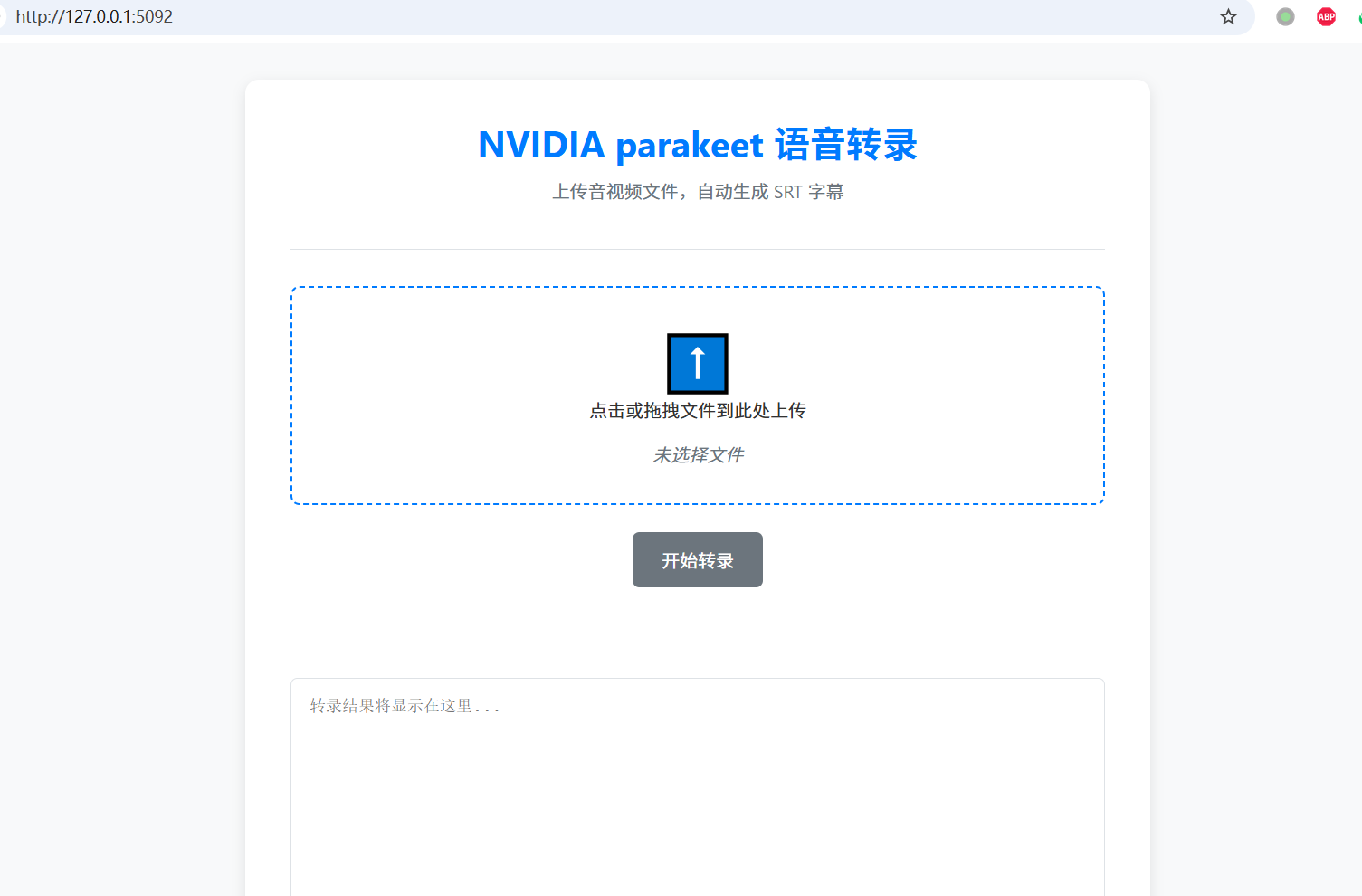
For quick and easy testing, a clean and aesthetically pleasing front-end page is built-in. Simply access the service address (e.g., http://127.0.0.1:5092) via your browser to use all features:
- Drag-and-Drop Upload: Supports dragging or clicking to select audio/video files.
- Real-time Status: Clearly displays upload, processing, completion, or error status.
- Result Preview: The transcribed SRT subtitles are displayed directly in the text box.
- One-Click Download: Download the generated SRT subtitle file locally.
This interface is implemented using native JS and CSS with no external library dependencies, ensuring fast loading and a smooth experience.
Core Implementation: Compatibility and Performance
- Model Preloading: The NeMo model is loaded into memory when the service starts, avoiding the significant latency caused by reloading the model for each request.
- Seamless OpenAI SDK Switching: By pointing the OpenAI client's
base_urlto our local service, any existing program using the OpenAI SDK can switch to our private API with almost zero cost.
Client Call Example client_test.py:
from openai import OpenAI

client = OpenAI(
    base_url="http://localhost:5090/v1", # Point to local service
    api_key="your-dummy-key"             # Any dummy key
)

with open("my_english_audio.mp3", "rb") as audio_file:
    srt_content = client.audio.transcriptions.create(
        model="parakeet",
        file=audio_file,
        response_format="srt"
    )
    print(srt_content)