
Decrypting the Pip Installation Journey: A Complete Troubleshooting Guide from ParseException to SSLError to C++ Compilation Errors
If you're reading this, you've probably just confidently typed pip install -r requirements.txt into your command line, only to be doused with a bucket of cold water by a screen full of glaring red error messages. Don't be discouraged; you are not alone. Setting up Python project environments, especially when dealing with complex dependencies (like open-source AI projects), often involves encountering various errors.
This article will walk you through a real troubleshooting case, guiding you step-by-step to overcome three of the most common "roadblocks" during pip installation. Let's start with the first failure.
Level 1: The Syntax Trap - ParseException: Expected string_end, found '['
Symptoms:
When you run pip install, the terminal immediately throws an error like this:
ERROR: Exception:
Traceback (most recent call last):
  ...
pip._vendor.pyparsing.exceptions.ParseException: Expected string_end, found '[' (at char 11), (line:1, col:12)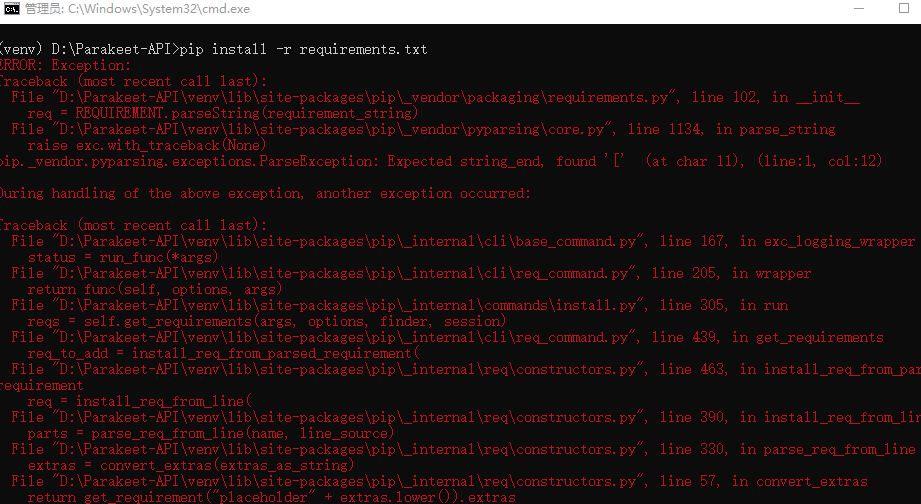
Diagnosis:
The core of this error is ParseException, meaning "parsing exception." It tells us that pip encountered syntax it couldn't understand while reading your requirements.txt file. The error message Expected string_end, found '[' means pip expected a line to end but unexpectedly encountered a left square bracket [.
Let's examine the requirements.txt file:
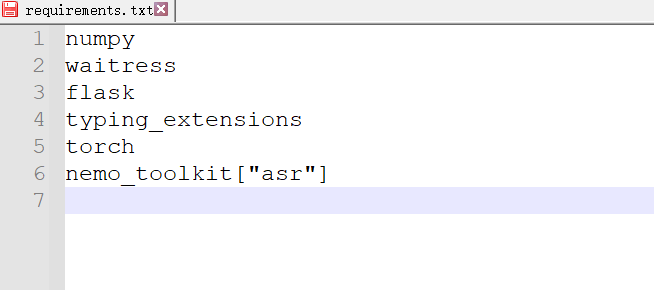 The problem lies in the last line. In a
 requirements.txt file, when specifying "extras" for a package, you should not use quotes around the package name and the brackets. pip cannot correctly parse this quoted format.
Treatment Plan:
Edit your requirements.txt file and remove the extra quotes.
Before:
nemo_toolkit["asr"]After:
nemo_toolkit[asr]Save the file, and let's try again. Great, the first problem is solved!
Level 2: The Network Wall - SSLError and Connection Timeouts
Symptoms:
After fixing the syntax issue, you run the install command again, but the terminal starts showing numerous WARNINGs and ERRORs, ultimately failing:
WARNING: Retrying (...) after connection broken by 'SSLError(SSLError(8, 'EOF occurred in violation of protocol ...'))'
...
Could not fetch URL https://pypi.org/simple/numpy/: There was a problem confirming the ssl certificate...
...
ERROR: Could not find a version that satisfies the requirement numpy (from versions: none)
ERROR: No matching distribution found for numpy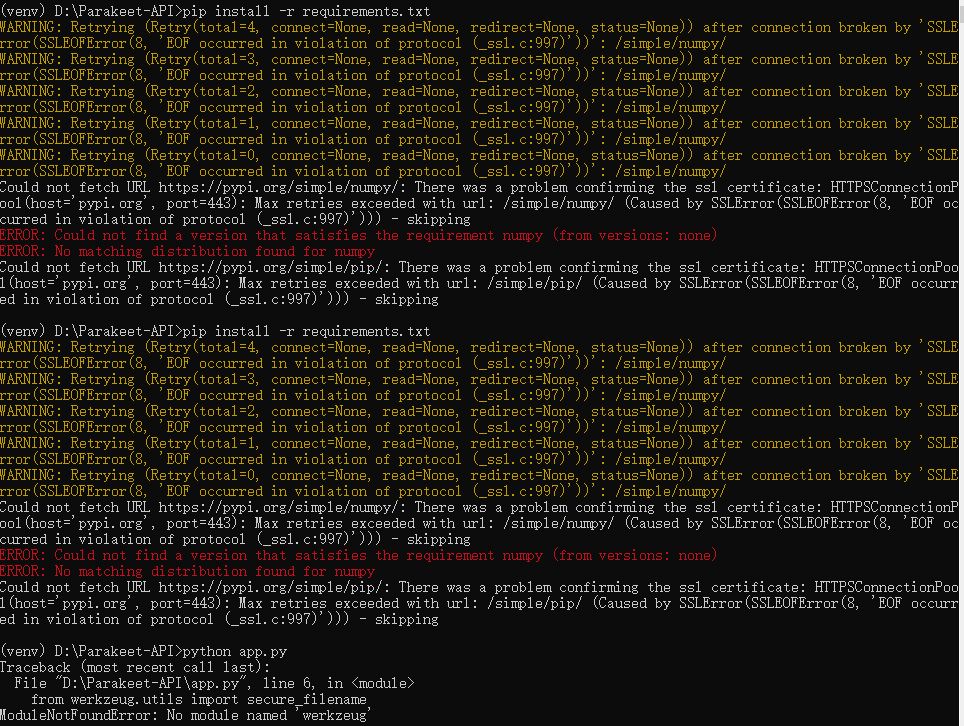
Diagnosis:
This time, the enemy is the network. SSLError and connection broken indicate that your computer is having trouble establishing a secure connection (HTTPS) with pip's official package server, pypi.org. This is usually due to two main reasons:
- Network Restrictions: Especially in mainland China, accessing foreign servers (like
pypi.org) can be unstable or interfered with, causing connection interruptions. - Proxy Issues: If you are using proxy software, it might replace the website's SSL certificate. If this certificate is not trusted by your system,
pipwill refuse the connection for security reasons.
Because the connection fails, pip cannot fetch the package version list at all, so it reports from versions: none, ultimately leading to no matching distribution being found.
Treatment Plan:
Take a two-pronged approach to solve the network problem.
- (If using a proxy) Disable the proxy: The most direct method is to temporarily disable your proxy software to eliminate its interference with SSL certificates.
- Switch to a domestic mirror source: This is the ultimate solution for access speed and stability. Add the
-iparameter to thepipcommand to specify a domestic mirror server.
Now, let's execute the command with a "combo":
# The -i parameter specifies using the Tsinghua University mirror source
pip install -r requirements.txt -i https://pypi.tuna.tsinghua.edu.cn/simpleSome commonly used domestic mirror sources:
- Tsinghua University:
https://pypi.tuna.tsinghua.edu.cn/simple - Alibaba Cloud:
https://mirrors.aliyun.com/pypi/simple/ - University of Science and Technology of China:
https://pypi.mirrors.ustc.edu.cn/simple/
After execution, you'll notice the download speed is blazing fast, and the SSLError disappears. Success seems imminent, but...
Level 3: The Compilation Puzzle - Microsoft Visual C++ 14.0 is required
Symptoms:
The installation process goes smoothly for a while, but when installing a specific package (like texterrors in this example), a new error pops up:
  Running setup.py install for texterrors ... error
  ...
  building 'texterrors_align' extension
  error: Microsoft Visual C++ 14.0 or greater is required. Get it with "Microsoft C++ Build Tools": https://visualstudio.microsoft.com/visual-cpp-build-tools/
  ...
error: legacy-install-failureDiagnosis:
This error is very clear: Your system lacks a C++ compilation environment.
The core parts of many high-performance Python libraries (especially scientific computing libraries) are written in C or C++ for ultimate execution speed. When pip installs these libraries, it first tries to download a pre-compiled version for your system (called a Wheel file, .whl). But if it cannot find a pre-compiled version suitable for your system (e.g., Windows + Python 3.10), pip will download the source code and attempt to compile it locally on your computer.
To compile C++ code on Windows, you must install Microsoft's official C++ build tools. Since your system doesn't have them, the compilation fails.
Treatment Plan:
Follow the error prompt and install the required build tools.
- Visit and Download: Open the link in the error message: Microsoft C++ Build Tools, and download the installer.
- Select Installation Components: Run the downloaded
vs_buildtools.exe. On the "Workloads" tab, be sure to check "Desktop development with C++". - Install: Click install and wait patiently. This will download several gigabytes of files.
- Restart: After installation is complete, it's best to restart your computer, or at least close all command-line windows and reopen them to ensure the environment takes effect.
The Final Assault:
Now, your system is fully prepared. Reopen a command-line window, activate your virtual environment, and execute our final, perfect installation command:
pip install -r requirements.txt -i https://pypi.tuna.tsinghua.edu.cn/simpleThis time, when pip needs to compile texterrors again, it will successfully find the C++ compiler and complete the task. Moments later, you will see the long-awaited Successfully installed ....
This journey teaches us that while pip error messages may look complex, they are often honest guides. Learning to read them carefully and understand their underlying meaning can transform you from a passive receiver of errors into an active problem solver.
We hope this guide clears some obstacles for your future Python journeys. Happy coding!