
Gemini API is Compatible with OpenAI Interface: How to Configure and Use It for Free in Compatible Applications
The Gemini series of large language models might be underestimated. Whether in terms of model capability, free quota, or service stability, it is in no way inferior to other mainstream models. Especially its developer backend, Google AI Studio, is not only user-friendly and easy to operate but also provides a very generous free usage quota. For these reasons, Gemini has become my primary large language model for now.
It's worth mentioning that Gemini is also compatible with OpenAI's API interface specification. This means you can seamlessly switch to Gemini in many applications that support the OpenAI API with simple configuration changes. This point might be unknown to many friends.
Below, I will use the tool pyVideoTrans as an example to demonstrate how to configure it to use the Gemini API.
Register a Free Google Account and Obtain a Gemini API KEY
- First, you need a Google account. If you don't have one yet, you can register for free using a mobile phone number. The entire process is free of charge, but please note that you need a scientific internet access environment to access the related services.
- After registering and logging into your Google account, please visit Google AI Studio: https://aistudio.google.com/
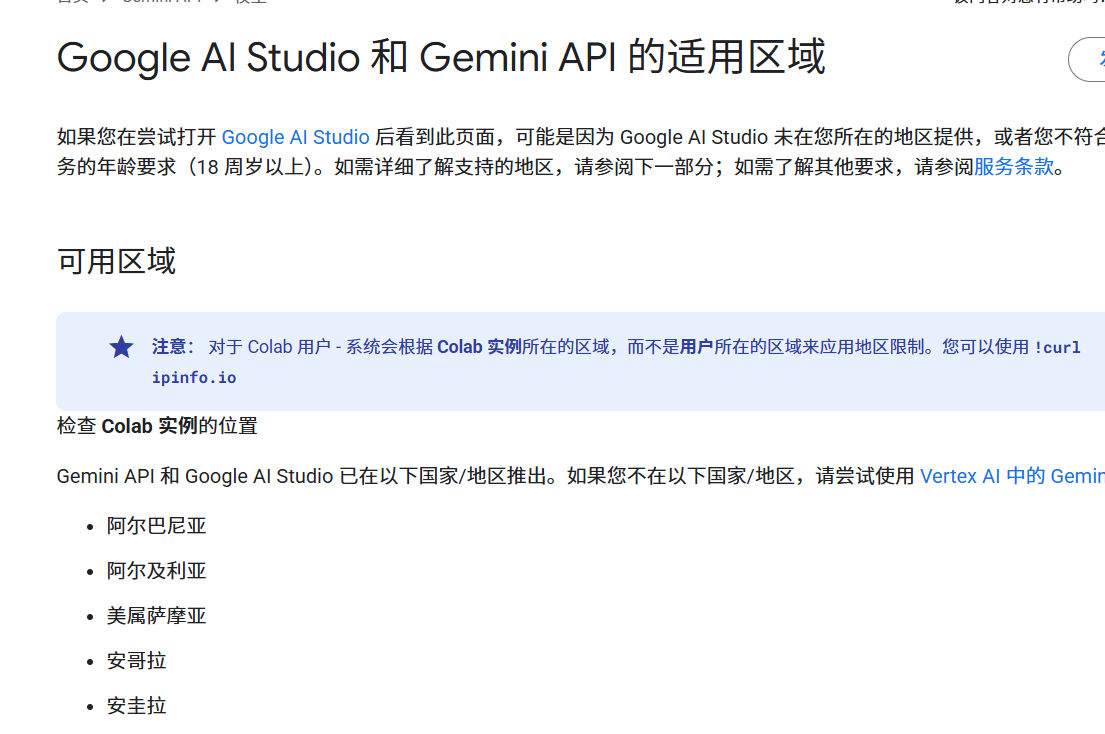
- Google AI Studio has access restrictions for some countries/regions. If you see a prompt page like the one below, it means the region of your current "proxy" node is restricted. Please try switching to nodes in other countries/regions until you can access it normally.
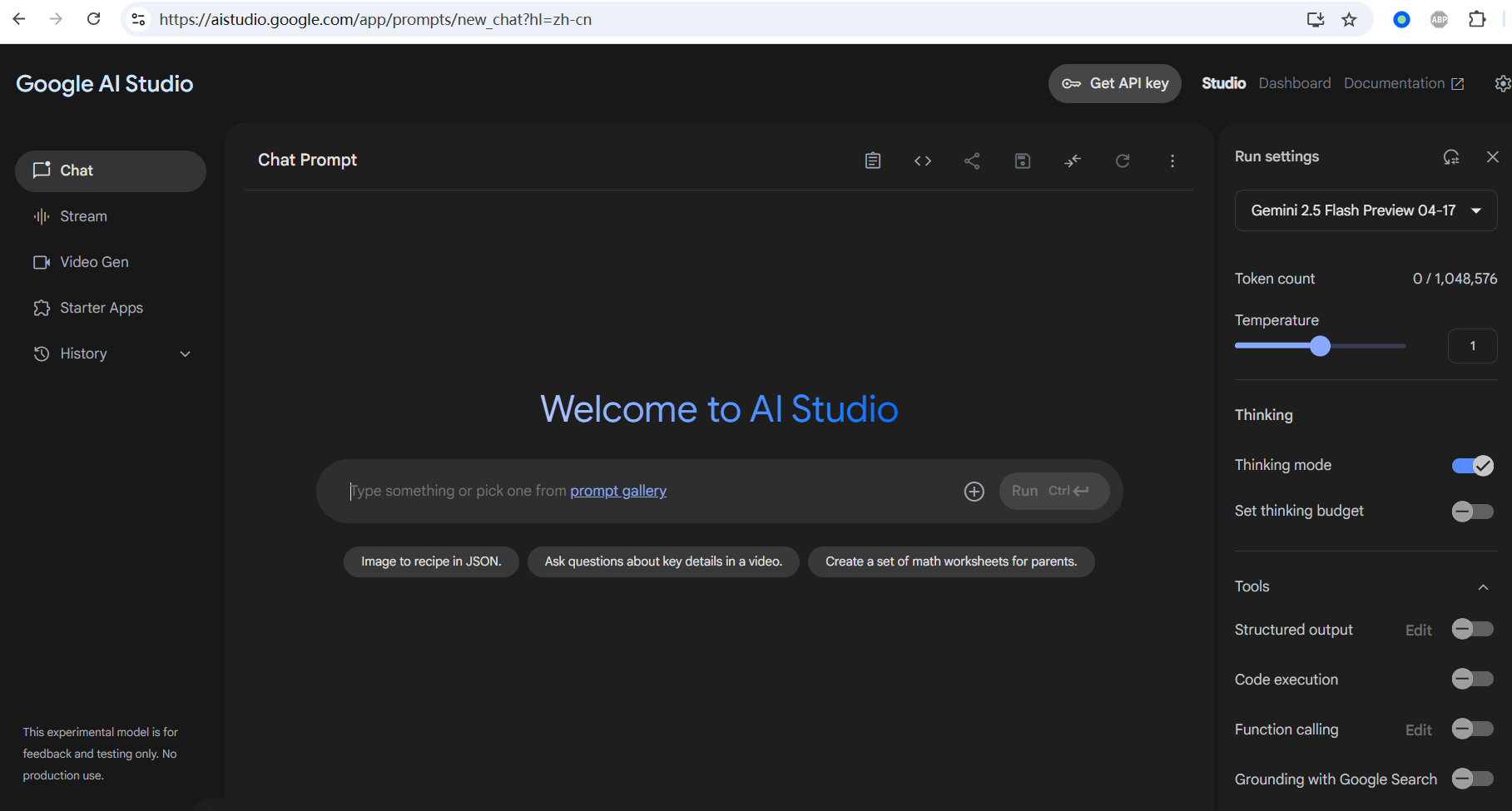
- After successful access, you will see an interface similar to the image below, indicating you can start using Google AI Studio.
- Next, we need to obtain an API Key. As shown in the image below, click the
Get API keybutton in the upper right corner of the page. If you haven't created one before, the system might guide you to create a project first and then generate an API Key. Please follow the prompts.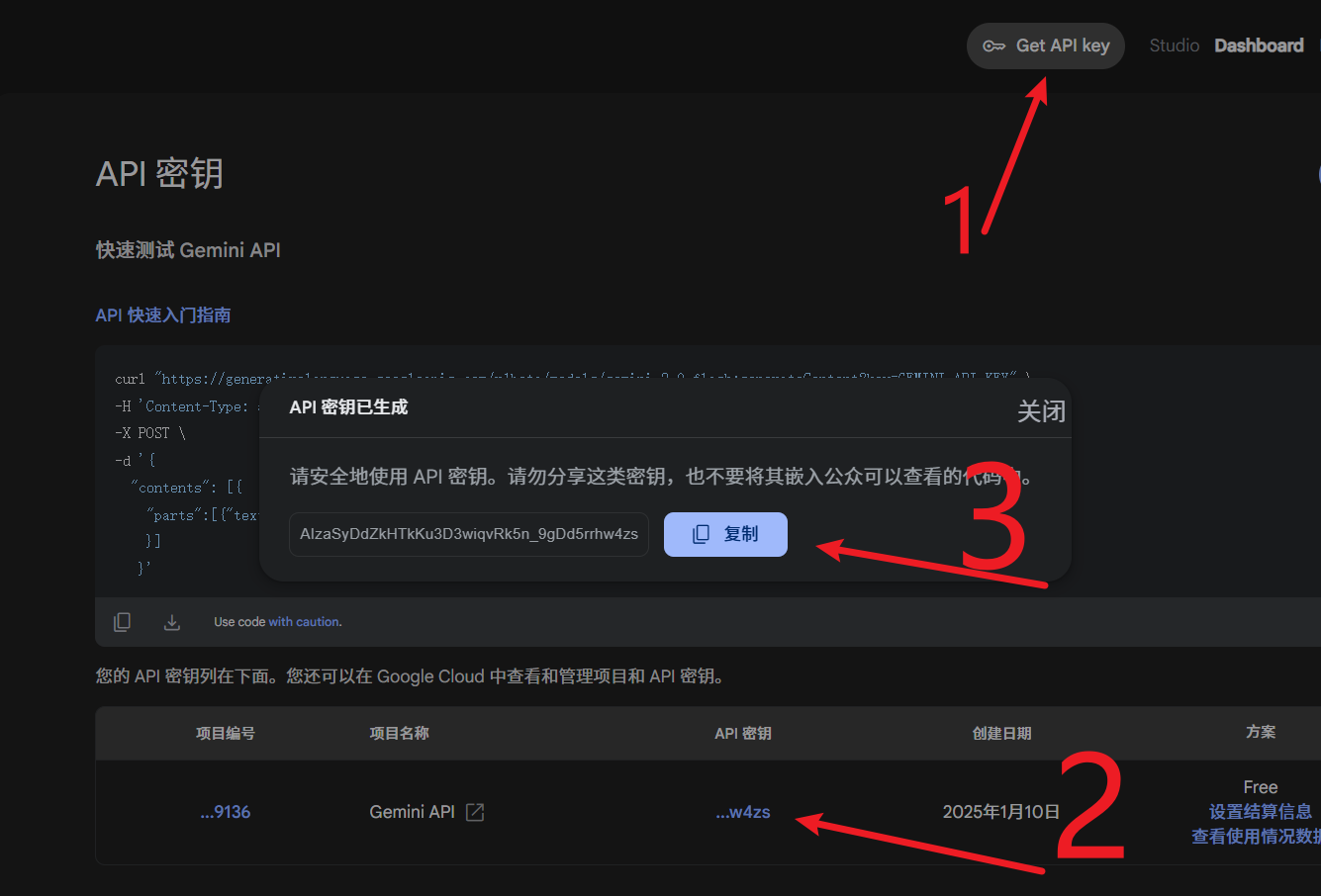
Fill the Information into pyVideoTrans's OpenAI API and Compatible AI Settings
- Open pyVideoTrans, find the configuration section for Menu -> Translation Settings -> OpenAI API and Compatible AI.
- Enter Gemini's OpenAI-compatible API address
https://generativelanguage.googleapis.com/v1beta/openai/into theAPI URLinput box. - Paste the Gemini API KEY copied in the previous step into the
SKinput box. - In the
Fill in all available modelstext box below, enter the Gemini model name(s) you wish to use. You can find these model names from the Google AI Studio interface (e.g.,gemini-2.5-flash-preview-04-17,gemini-2.5-pro-preview-05-06,gemini-2.0-flash). If you need to add multiple models, separate them with English commas,.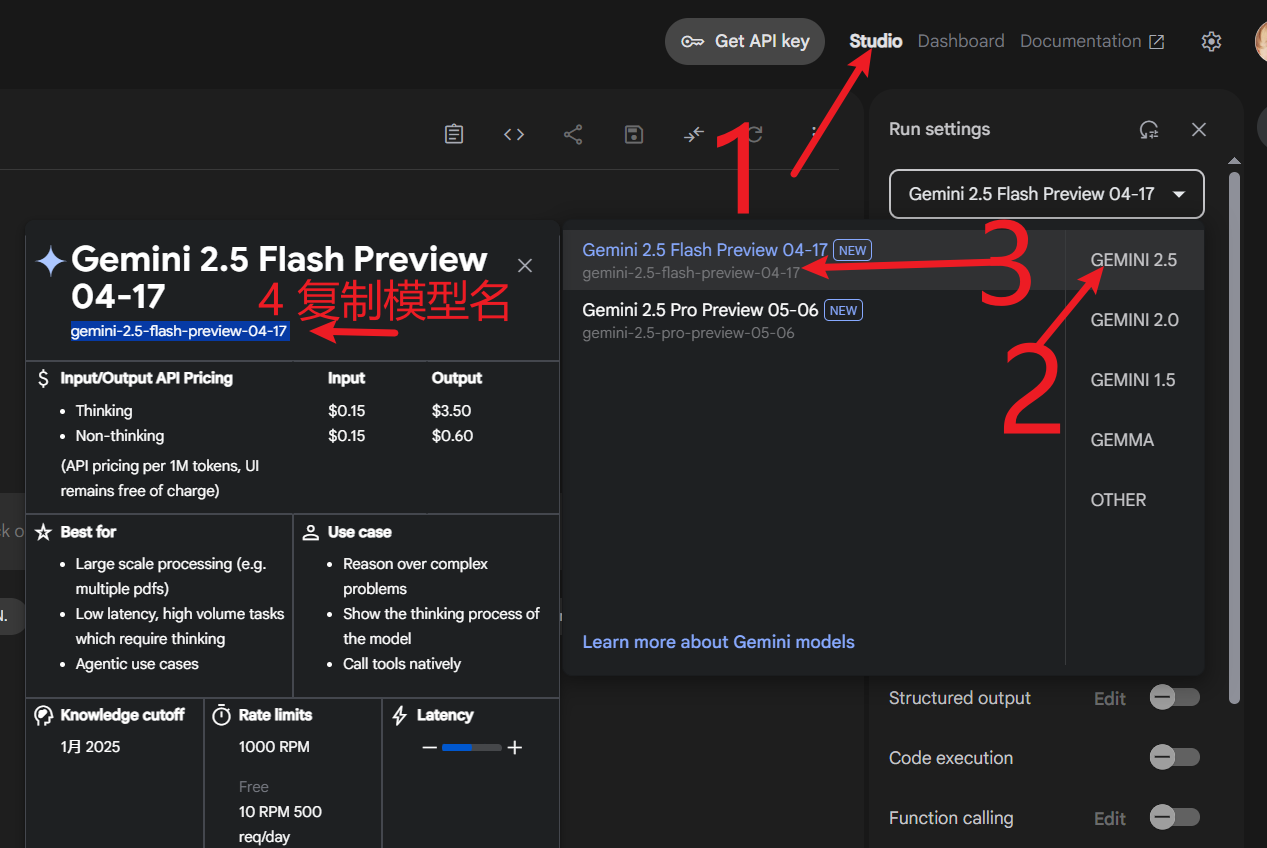
- Then, select the specific Gemini model you want to use currently from the model list.
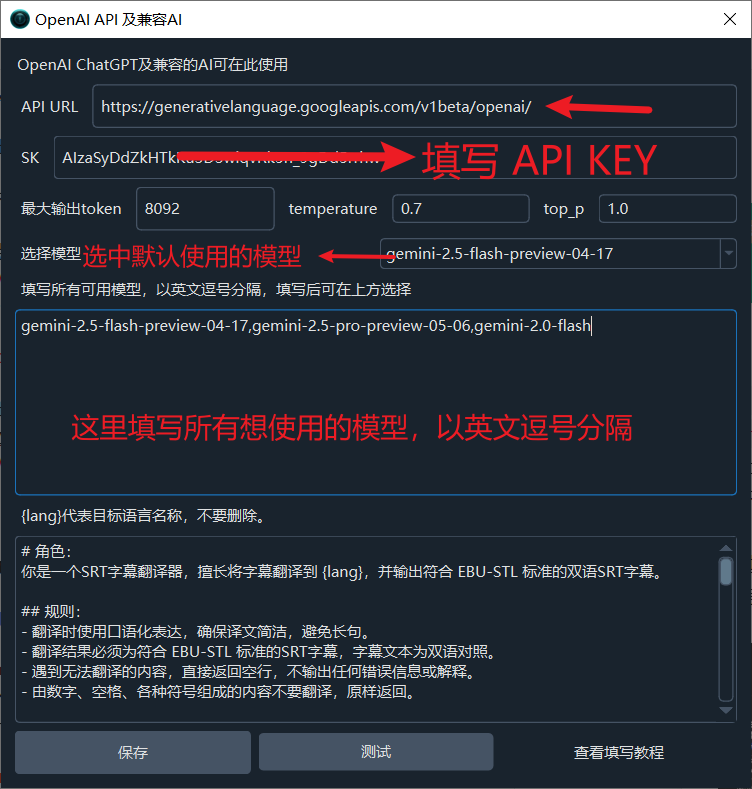
- After completing the above entries, click the "Save" button.
- Test Connection: If you have already set up a valid network proxy on pyVideoTrans's main interface, or if your computer is already configured with a global proxy (system proxy), you can now click the "Test" button. If the test passes without errors, the configuration is successful, and the Gemini API can now be used normally in pyVideoTrans.
What to Do If a Network Connection Error Appears?
If you get a network connection-related error message after clicking "Test", the issue is likely with the network proxy configuration.
- First, ensure the configuration is saved.
- Then, check the scientific internet access tool you are using:
- Is "Auto-configure system proxy" or "Global proxy" mode enabled? If not, try enabling it and test again.
- Manual Proxy Configuration: If you don't want to or cannot enable a global proxy, you can find the local HTTP proxy address and port number provided by your scientific internet access tool. The format is usually
http://IP_address:port. Enter this complete address into the "Network Proxy" text box on pyVideoTrans's main interface. For example, the default local proxy address for some tools might behttp://127.0.0.1:10808.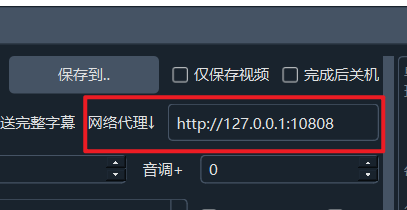
Most scientific internet access tools provide a local proxy IP address and port number. The IP address is usually
127.0.0.1(representing the local machine). You need to find the specific port number corresponding to that tool. Then enter the completehttp://127.0.0.1:port_numberinto pyVideoTrans's network proxy settings.
Here are some examples of common port numbers for scientific tools:
If your tool's default port is
10808, the proxy address ishttp://127.0.0.1:10808.
If your tool's default port is
7890, the proxy address ishttp://127.0.0.1:7890.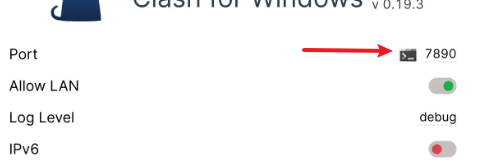
After correctly configuring the proxy, test the connection again, and you should be able to successfully use the Gemini API.