
F5-TTS is an open-source voice cloning tool from Shanghai Jiao Tong University with excellent performance. The initial version only supported Chinese and English cloning, but the latest version v1 has been expanded to support multiple languages including French, Italian, Hindi, Japanese, Russian, Spanish, Finnish, and more.
This article mainly introduces how to install and start F5-TTS using the official source code, and how to integrate it with the pyVideotrans project. Additionally, it covers how to modify the source code to enable calls within a local area network (LAN).
Also, due to limited time and energy, I will no longer maintain my previous personal integration packages and API interfaces. Instead, I will uniformly use the official interface to integrate with the pyVideotrans project. The limitation of the official interface is that it can only be called locally, not within a LAN. For the solution, please refer to the LAN usage section of this article.
Prerequisites
Your system must have Python 3.10 installed. While versions 3.11/3.12 might theoretically work, they have not been practically tested, so version 3.10 is recommended.
If Python is not installed yet:
Windows Installation Tutorial: https://pvt512.com/20250313/pythoninstall
Mac Installation: If not installed, visit the Python official website to download the pkg installer https://www.python.org/downloads/macos, and select version
3.10.11.
Check if Python is already installed:
- Windows System: Press Win+R, type
cmdin the pop-up window and press Enter. In the opened black window, typepython --version. If it shows3.10.xx, it's installed. If it prompts "'python' is not recognized as an internal or external command", it means Python is not installed or not added to the Path environment variable, requiring reinstallation. - Mac System: In the terminal, directly execute
python3 --version. If the output is3.10.x, it's installed; otherwise, installation is needed.
Download F5-TTS Source Code
First, create an empty folder in a suitable location. It is recommended to choose a non-system drive location that doesn't require special permissions, such as the D drive. Avoid placing it in directories like C:/Program Files (it's suggested that the location and all folder names consist of pure numbers or letters) to prevent potential issues. For example, D:/f5/v1 is a good location, while D:/开源 f5/f5 v1 with spaces and Chinese characters is not recommended.
This article uses installing F5-TTS in the D:/python/f5ttsnew folder on a Windows10 system as an example.
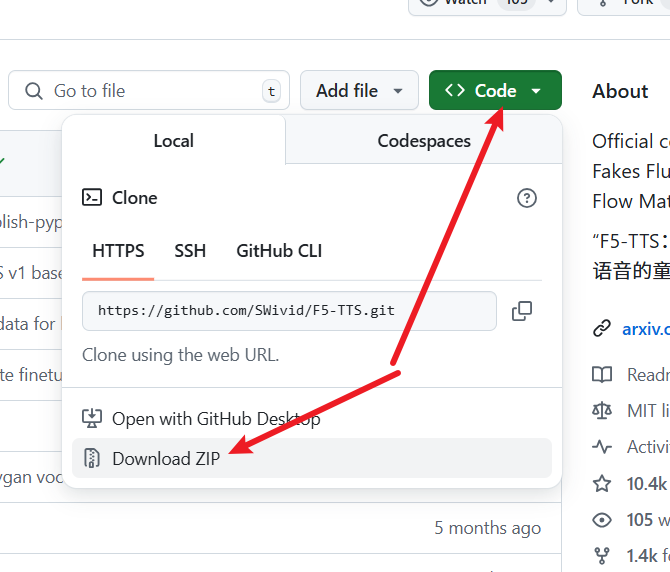
Open the URL: https://github.com/SWivid/F5-TTS
As shown in the figure below, click to download the source code:
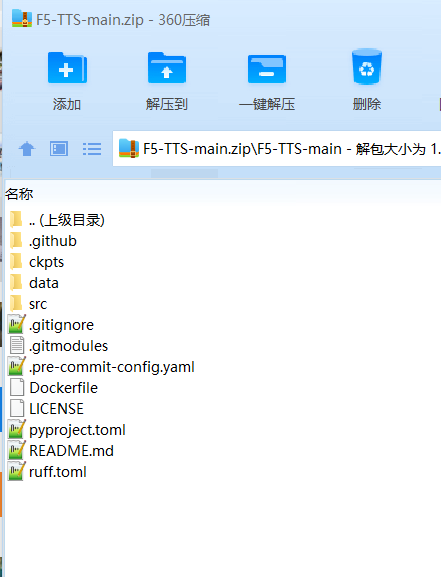
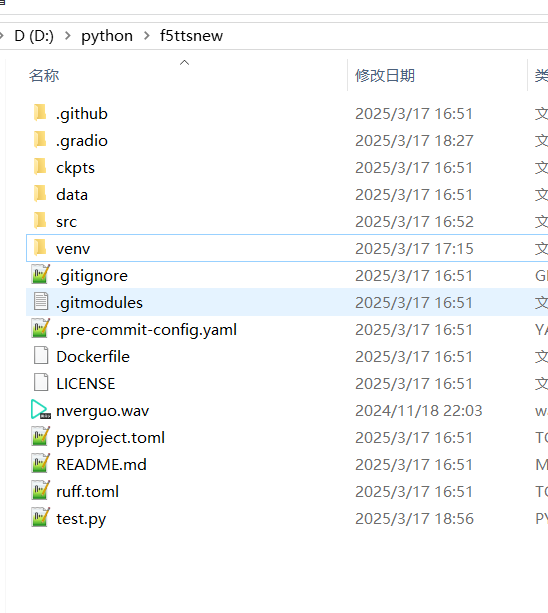
After downloading, extract the zip file. Copy all files from the F5-TTS-main folder into the D:/python/f5ttsnew folder, as shown below:
Create a Virtual Environment
It is highly recommended to create a virtual environment unless your computer has no other Python or AI projects. A virtual environment can effectively avoid many potential errors.
In the address bar of the newly created folder D:/python/f5ttsnew, type cmd and press Enter (Mac users, please use the terminal to navigate to this folder).
Execute the following command to create a virtual environment: python -m venv venv. After execution, a new folder named venv will appear inside.
Next, activate the virtual environment (pay attention to spaces and dots):
- Windows System:
.\venv\scripts\activate - Mac System:
source ./venv/bin/activate
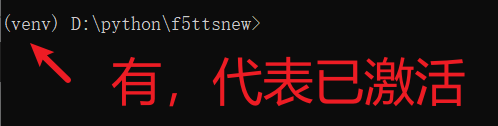
After the virtual environment is activated, the command prompt will be prefixed with (venv). Ensure all subsequent operations are performed within this virtual environment. Before each operation, check if the command prompt starts with (venv).
Install Dependencies
In the terminal with the virtual environment activated, continue by entering the following command (pay attention to spaces and dots):
pip install -e .
Wait for the installation to complete. If CUDA acceleration is needed, continue with the following command (this is a single command, do not break the line):
# Install pytorch with your CUDA version, e.g.
pip install torch==2.4.0+cu124 torchaudio==2.4.0+cu124 --extra-index-url https://download.pytorch.org/whl/cu124Configure Proxy for Internet Access
Important Note: F5-TTS needs to download models online from the huggingface.co website. Since this website is blocked in China and cannot be accessed directly, you must configure a proxy (VPN) and enable global or system proxy before starting.
If your VPN tool provides an HTTP port (as shown below):
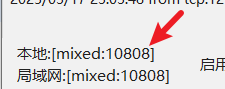
Please set the proxy in the terminal with the following command:
- Windows System:
set https_proxy=http://127.0.0.1:10808(Replace the port number with the one you actually use) - Mac System:
export https_proxy=http://127.0.0.1:10808(Replace the port number with the one you actually use)
You can also directly modify the code to set the proxy, avoiding the need to enter it manually in the terminal each time. Open the file F5-TTS root directory/src/f5_tts/infer/infer_gradio.py, and add the following code at the top of the file:
import os
os.environ['https_proxy']='http://127.0.0.1:10808' # Fill in your actual proxy addressStart the WebUI Interface
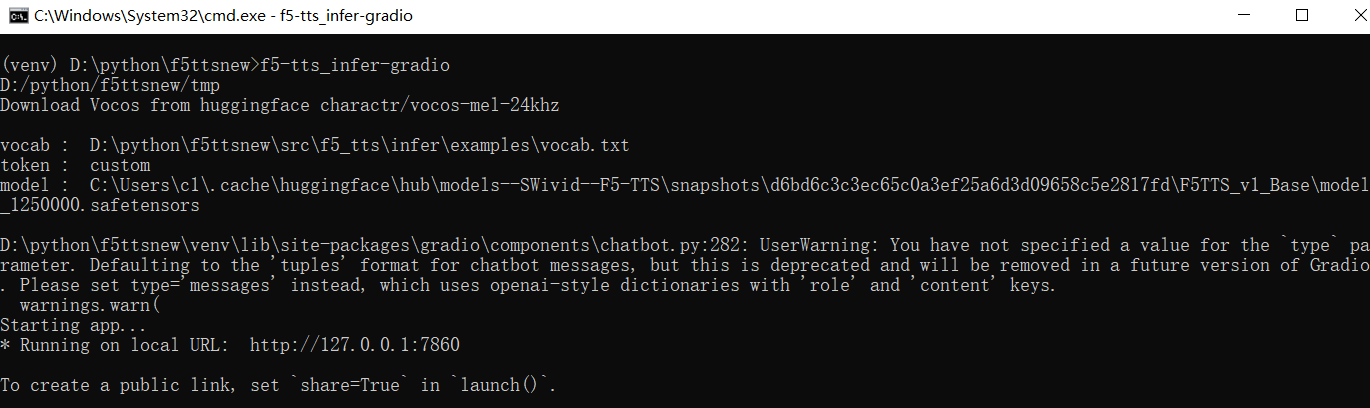
After configuring the proxy, enter the following command in the terminal to start the WebUI:
f5-tts_infer-gradio
The first time you start, the program will automatically download the model, which may be slow. Please be patient. For subsequent starts, the program may still connect to huggingface.co for checks. It is recommended to keep the proxy enabled to avoid errors.
Upon successful startup, the terminal will display the IP address and port number, as shown below:
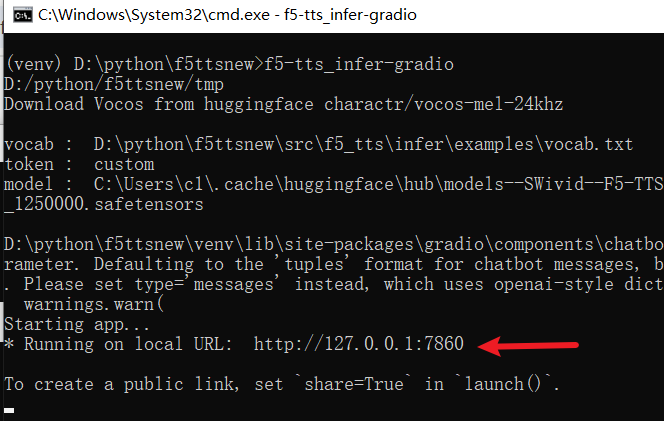
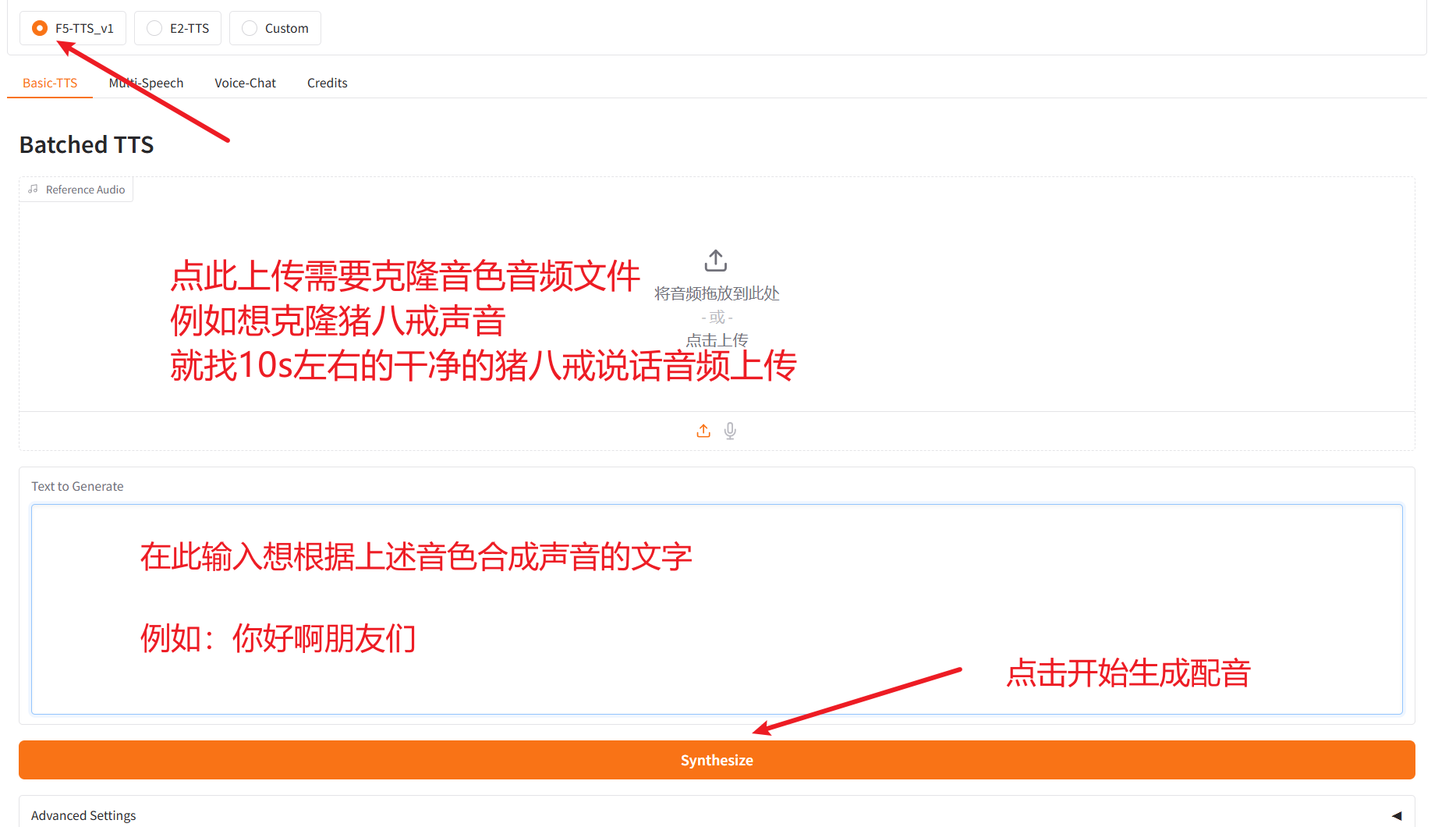
Open the displayed address in your browser, default is http://127.0.0.1:7860.
Adding Other Languages
If you need to use models for other languages, you also need to modify the F5-TTS project directory/src/f5_tts/infer/infer_gradio.py file.
Find the code around line 59:
DEFAULT_TTS_MODEL_CFG = [
    "hf://SWivid/F5-TTS/F5TTS_v1_Base/model_1250000.safetensors",
    "hf://SWivid/F5-TTS/F5TTS_v1_Base/vocab.txt",
    json.dumps(dict(dim=1024, depth=22, heads=16, ff_mult=2, text_dim=512, conv_layers=4)),
]Code location diagram:
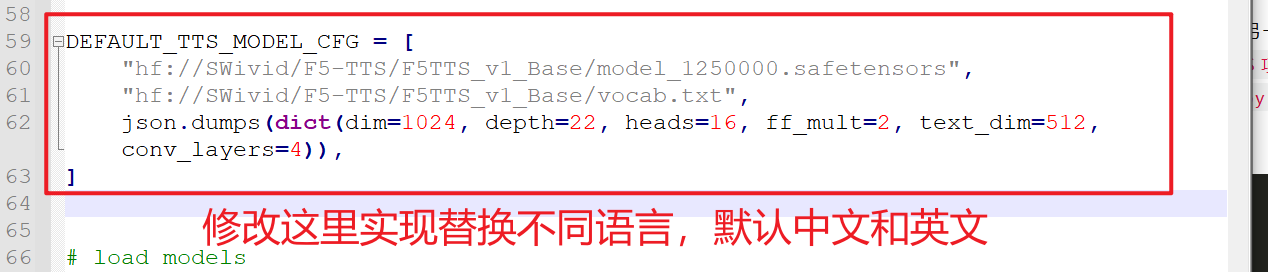
By default, this configures the official Chinese and English model. If you need to use models for other languages, please modify it according to the instructions below. After modification, you need to restart F5-TTS and ensure the proxy is configured so the program can download the new language model online. After successful download, first test cloning a voice through the WebUI, then use it via pyVideoTrans.
Important: Before use, ensure the dubbing text language in pyVideoTrans matches the model language selected in F5-TTS.
Here are the configuration details for each language model:
French:
pythonDEFAULT_TTS_MODEL_CFG = [ "hf://RASPIAUDIO/F5-French-MixedSpeakers-reduced/model_last_reduced.pt", "hf://RASPIAUDIO/F5-French-MixedSpeakers-reduced/vocab.txt", json.dumps({"dim": 1024, "depth": 22, "heads": 16, "ff_mult": 2, "text_dim": 512, "text_mask_padding": False, "conv_layers": 4, "pe_attn_head": 1}), ]Hindi:
pythonDEFAULT_TTS_MODEL_CFG = [ "hf://SPRINGLab/F5-Hindi-24KHz/model_2500000.safetensors", "hf://SPRINGLab/F5-Hindi-24KHz/vocab.txt", json.dumps({"dim": 768, "depth": 18, "heads": 12, "ff_mult": 2, "text_dim": 512, "text_mask_padding": False, "conv_layers": 4, "pe_attn_head": 1}) ]Italian:
pythonDEFAULT_TTS_MODEL_CFG = [ "hf://alien79/F5-TTS-italian/model_159600.safetensors", "hf://alien79/F5-TTS-italian/vocab.txt", json.dumps({"dim": 1024, "depth": 22, "heads": 16, "ff_mult": 2, "text_dim": 512, "text_mask_padding": False, "conv_layers": 4, "pe_attn_head": 1}) ]Japanese:
pythonDEFAULT_TTS_MODEL_CFG = [ "hf://Jmica/F5TTS/JA_25498980/model_25498980.pt", "hf://Jmica/F5TTS/JA_25498980/vocab_updated.txt", json.dumps({"dim": 1024, "depth": 22, "heads": 16, "ff_mult": 2, "text_dim": 512, "text_mask_padding": False, "conv_layers": 4, "pe_attn_head": 1}) ]Russian:
pythonDEFAULT_TTS_MODEL_CFG = [ "hf://hotstone228/F5-TTS-Russian/model_last.safetensors", "hf://hotstone228/F5-TTS-Russian/vocab.txt", json.dumps({"dim": 1024, "depth": 22, "heads": 16, "ff_mult": 2, "text_dim": 512, "text_mask_padding": False, "conv_layers": 4, "pe_attn_head": 1}) ]Spanish:
pythonDEFAULT_TTS_MODEL_CFG = [ "hf://jpgallegoar/F5-Spanish/model_last.safetensors", "hf://jpgallegoar/F5-Spanish/vocab.txt", json.dumps({"dim": 1024, "depth": 22, "heads": 16, "ff_mult": 2, "text_dim": 512, "conv_layers": 4}) ]Finnish:
pythonDEFAULT_TTS_MODEL_CFG = [ "hf://AsmoKoskinen/F5-TTS_Finnish_Model/model_common_voice_fi_vox_populi_fi_20241206.safetensors", "hf://AsmoKoskinen/F5-TTS_Finnish_Model/vocab.txt", json.dumps({"dim": 1024, "depth": 22, "heads": 16, "ff_mult": 2, "text_dim": 512, "text_mask_padding": False, "conv_layers": 4, "pe_attn_head": 1})]
You can follow official updates. Other languages can be added in a similar way. Address: https://github.com/SWivid/F5-TTS/blob/main/src/f5_tts/infer/SHARED.md
Common Errors and Notes
During API usage, you can close the WebUI interface in the browser, but you cannot close the terminal window that started F5-TTS.
Can models in F5-TTS be dynamically switched? No. You need to manually modify the code as described above, then restart the WebUI.
Frequently encountering errors like this:
    raise ConnectTimeout(e, request=request)
requests.exceptions.ConnectTimeout: (MaxRetryError("HTTPSConnectionPool(host='huggingface.co', port=443): Max retries exceeded with url: /SWivid/F5-TTS/resolve/main/F5TTS_v1_Base/vocab.txt (Caused by ConnectTimeoutError(<urllib3.connection.HTTPSConnection object at 0x000002174796DF60>, 'Connection to huggingface.co timed out. (connect timeout=10)'))"), '(Request ID: 0458b571-90ab-4edd-ae59-b93bd603cdd0)')This is a proxy issue. Please use a VPN (scientific internet access) with a stable connection. Refer to the "Configure Proxy for Internet Access" section above.
- How to disable connecting to huggingface.co every time?
Ensure you have successfully cloned at least once and the model is already downloaded. Open
F5-TTS root directory/src/f5_tts/infer/utils_infer.py
Search for snapshot_download, find the line of code as shown in the image.

Modify it to:
local_path = snapshot_download(repo_id="nvidia/bigvgan_v2_24khz_100band_256x", cache_dir=hf_cache_dir, local_files_only=True)Then search for hf_hub_download, find the 2 lines of code as shown in the image.

Modify them to:
config_path = hf_hub_download(repo_id=repo_id, cache_dir=hf_cache_dir, filename="config.yaml", local_files_only=True)
model_path = hf_hub_download(repo_id=repo_id, cache_dir=hf_cache_dir, filename="pytorch_model.bin", local_files_only=True)Essentially, we added the new parameter
,local_files_only=Trueto the three function calls. Ensure the model is already downloaded locally, otherwise, a "model not found" error will occur.
- F5-TTS is deployed normally, but pyVideotrans test returns
{detail:"Not found"}
- Check if other AI projects are occupying the port. Generally, AI projects with UIs often use gradio, which also defaults to port 7860. Close others and restart F5-TTS.
- If pyVideotrans is deployed from source, execute
pip install --upgrade gradio_clientand try again. - Restart F5-TTS using the command
f5-tts_infer-gradio --apito start.