
Want to locally deploy powerful open-source AI models like Qwen 2.5, Llama 3, and DeepSeek-R1, but struggle to find a simple and easy-to-use method?
Don't worry! The golden combination of Ollama + Open WebUI will clear all obstacles for you.
This article provides a step-by-step tutorial, detailing how to use Ollama + Open WebUI to easily set up a local AI environment, allowing you to have a personal, powerful AI assistant and explore the infinite possibilities of AI!
Friendly Reminder: Limited by hardware conditions, local deployment typically cannot run the largest versions of DeepSeek-R1 (like 67B). But don't worry, smaller-scale models (like 1.3B or 7B) can also run smoothly on most personal computers and provide excellent reasoning capabilities. More importantly, you can choose the version that best suits your needs!
Why Choose Ollama + Open WebUI?
Among the many local deployment solutions, the Ollama + Open WebUI combination stands out and has become the preferred choice for many AI enthusiasts. What exactly is their charm?
- Ollama: The Simplified Model Engine
- Ollama is like an "AI model treasure chest." With just one command, you can download, install, and run various mainstream large language models, such as Llama 3 and DeepSeek-R1!
- Open WebUI: An Elegant and Easy-to-Use Interface
- Open WebUI adds a beautiful layer to Ollama. It provides an attractive, intuitive web interface.
- Completely open-source and free.
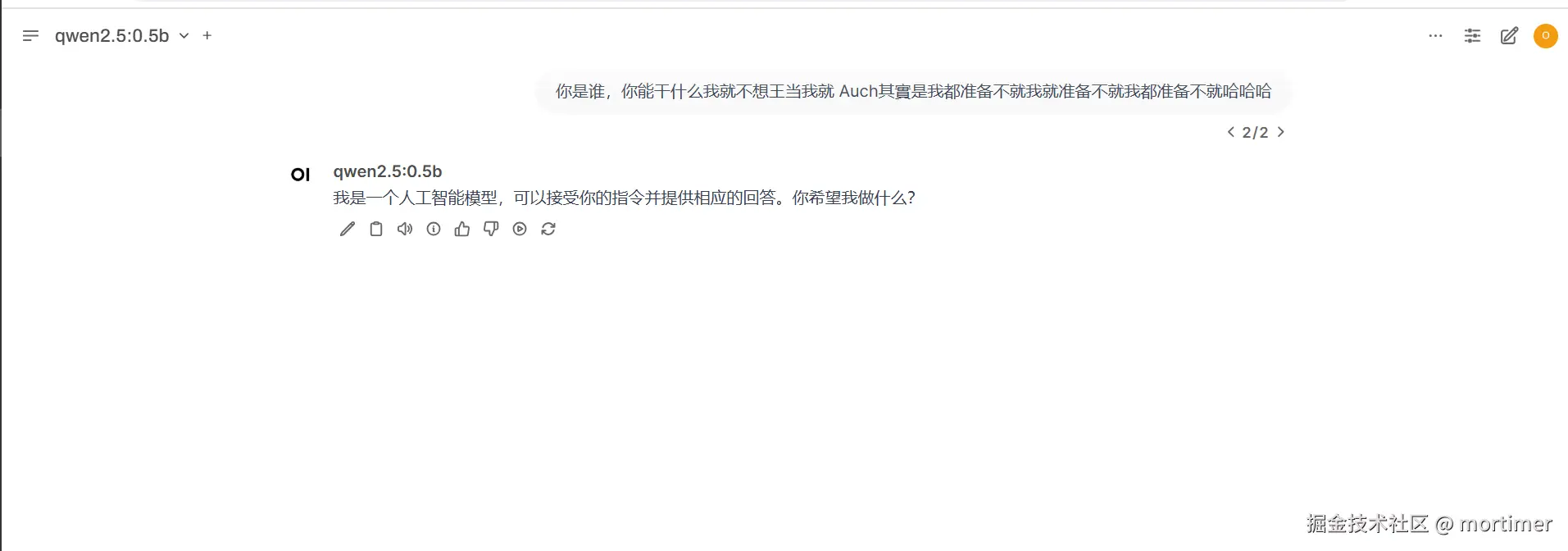
After deployment, simply open http://127.0.0.1:8080 in your browser to start chatting with your AI assistant:
Exclusive for Windows Users: One-Click Startup Package, Say Goodbye to Complicated Configuration!
Considering the difficulties Windows users may encounter when configuring the Docker environment, we have thoughtfully prepared an integrated package. Just download, extract, and use it—truly "ready to use out of the box"!
Download and Extract the Integrated Package:
Integrated Package Download Address https://www.123684.com/s/03Sxjv-JmvJ3
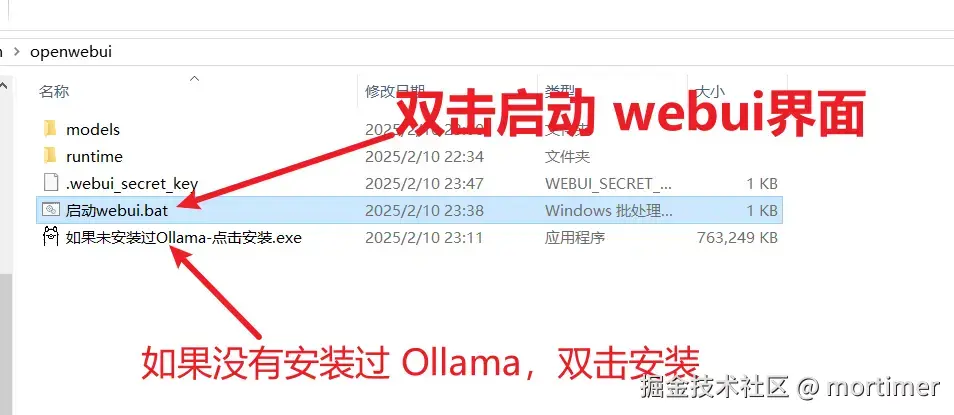
- If you haven't installed Ollama yet, please first double-click the
ollama-0.1.28-setup.exefile inside the integrated package to install it. The installation process is very simple, just click "Next" all the way.
- If you haven't installed Ollama yet, please first double-click the
Start WebUI:
- Double-click the
启动webui.batfile inside the integrated package to start Open WebUI.
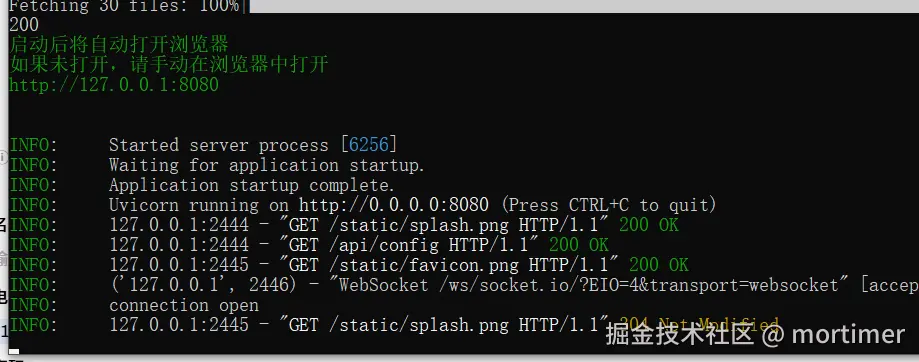
- On the first startup, the system will prompt you to set up an administrator account. Please complete the registration as prompted.
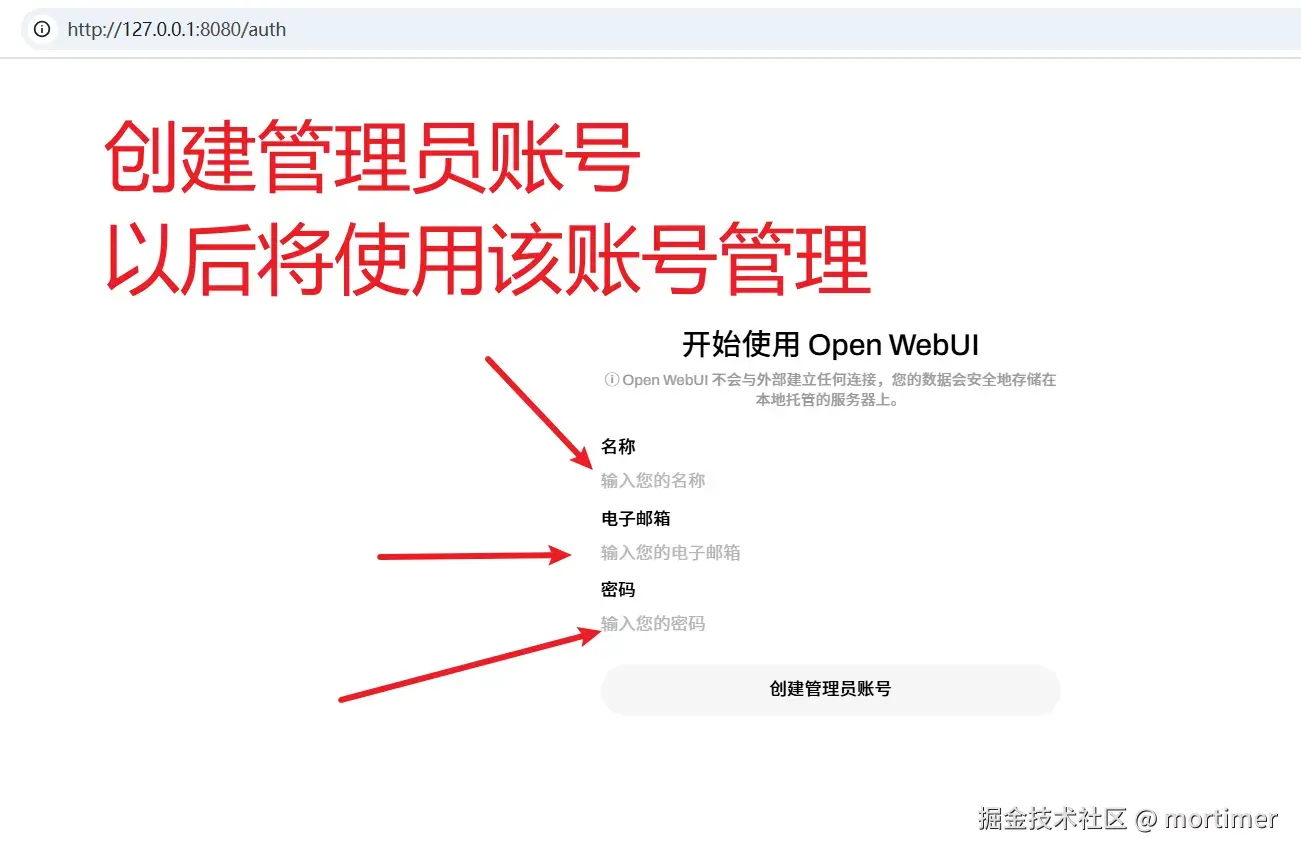
- Double-click the
Choose the Model You Want to Use
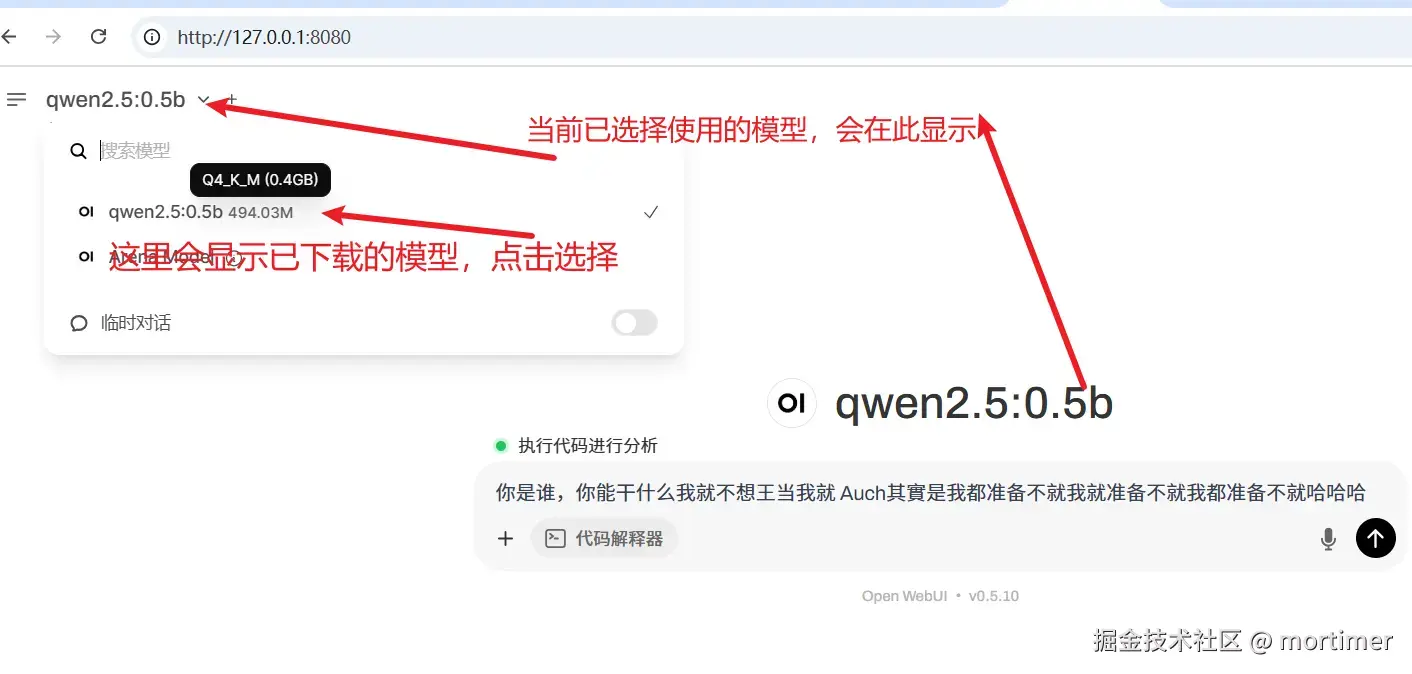
After entering Open WebUI, you will see the model selection area in the top left corner. If there are no models in the list, don't worry, it means you haven't downloaded any models yet.
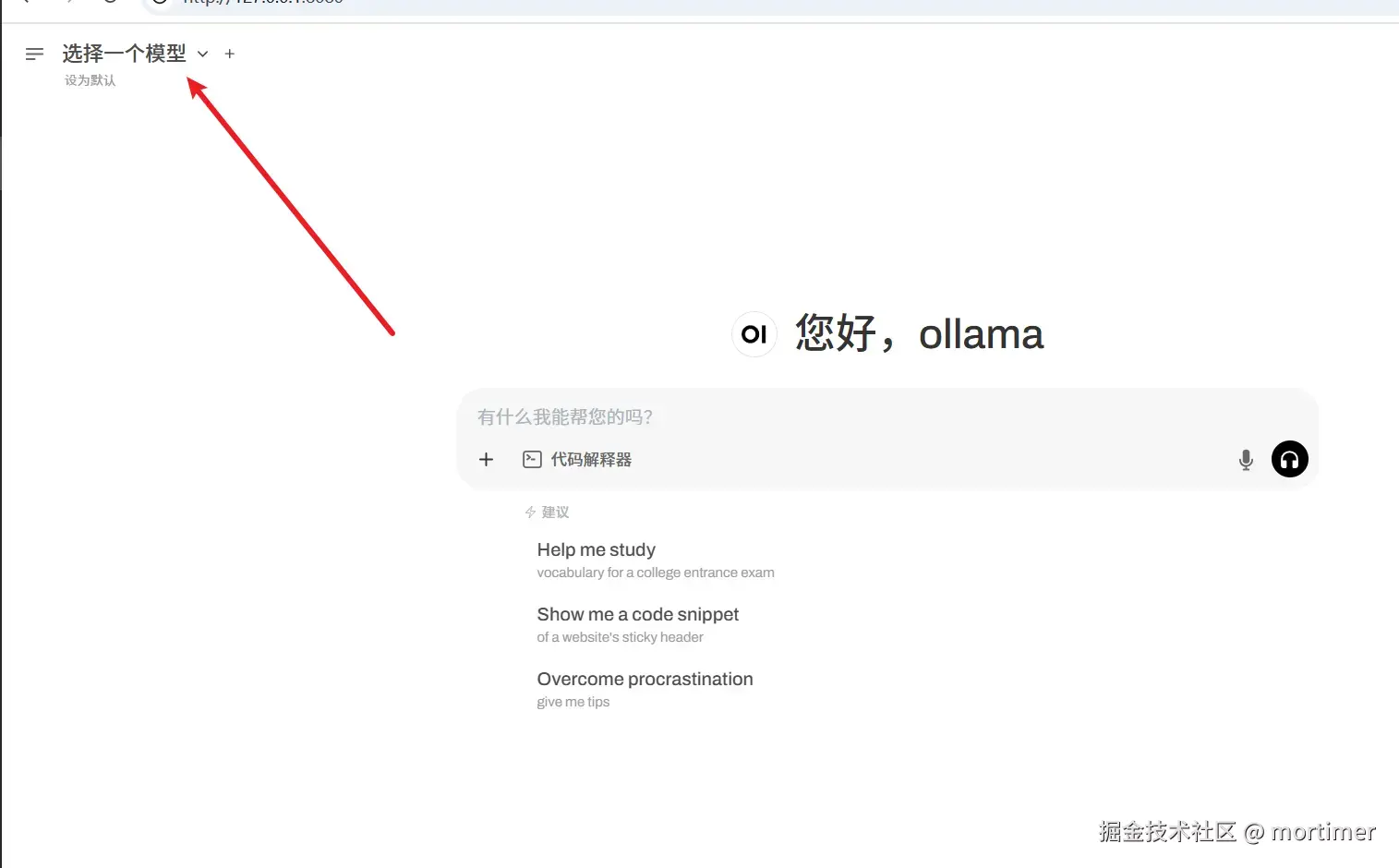
You can directly enter the model name in the input box to download it online from Ollama.com:
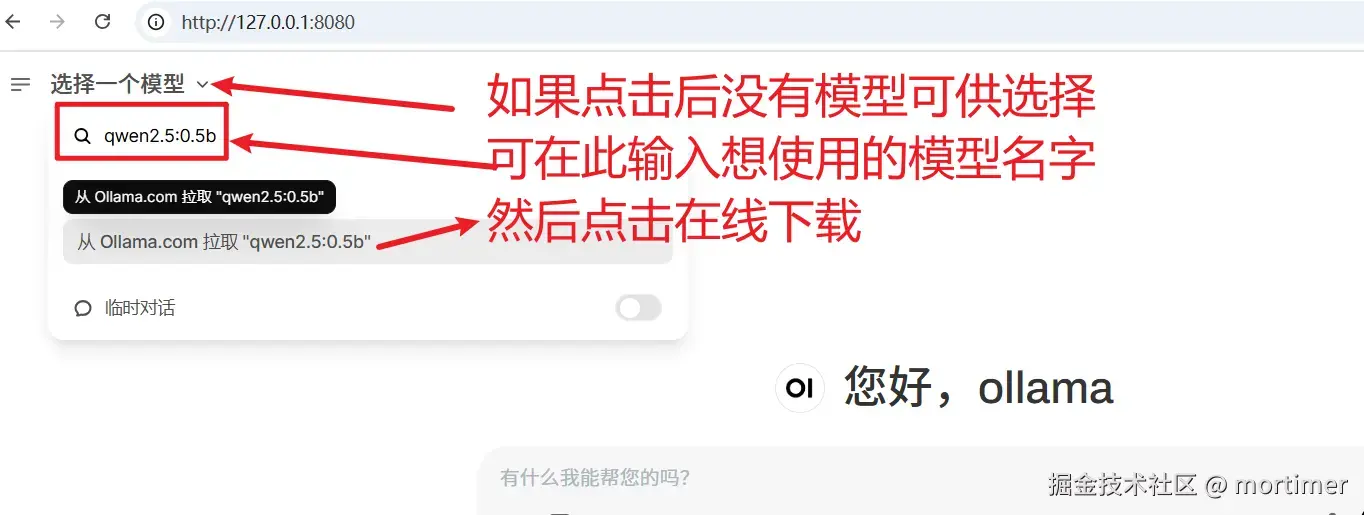
Model Selection Tips:
- Model Treasure Trove: Go to https://ollama.com/models to browse the rich model resources officially provided by Ollama.
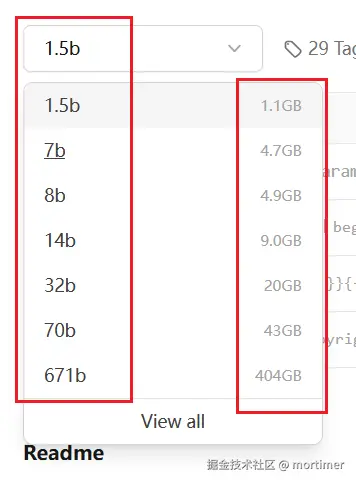
- Parameter Scale: Each model has different versions (e.g., 1.3B, 7B, 67B, etc.), representing different parameter scales. More parameters usually mean a more powerful model, but also require more computing resources (memory and VRAM).
- Choose According to Your Capabilities: Select a suitable model based on your hardware configuration. Generally, if your "RAM + VRAM" size is larger than the model file size, you can run that model smoothly.
- Choosing Deepseek-R1: Search for
deepseek-r1in Ollama's model library to find it.
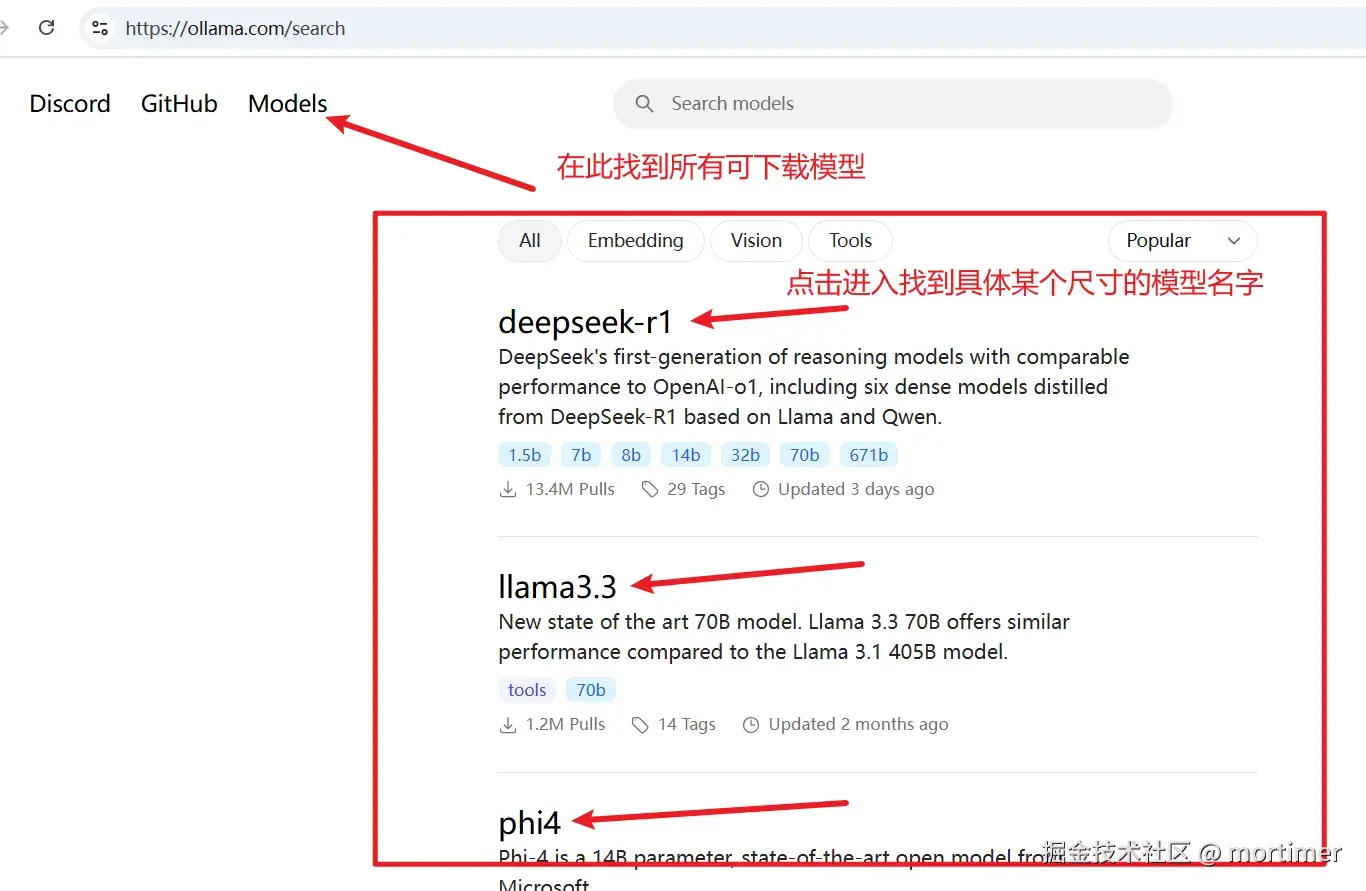
Taking the deployment of the deepseek-r1 model as an example:
Select Model Specification: On the https://ollama.com/library page, find the model version you want to deploy (e.g.,
deepseek-r1).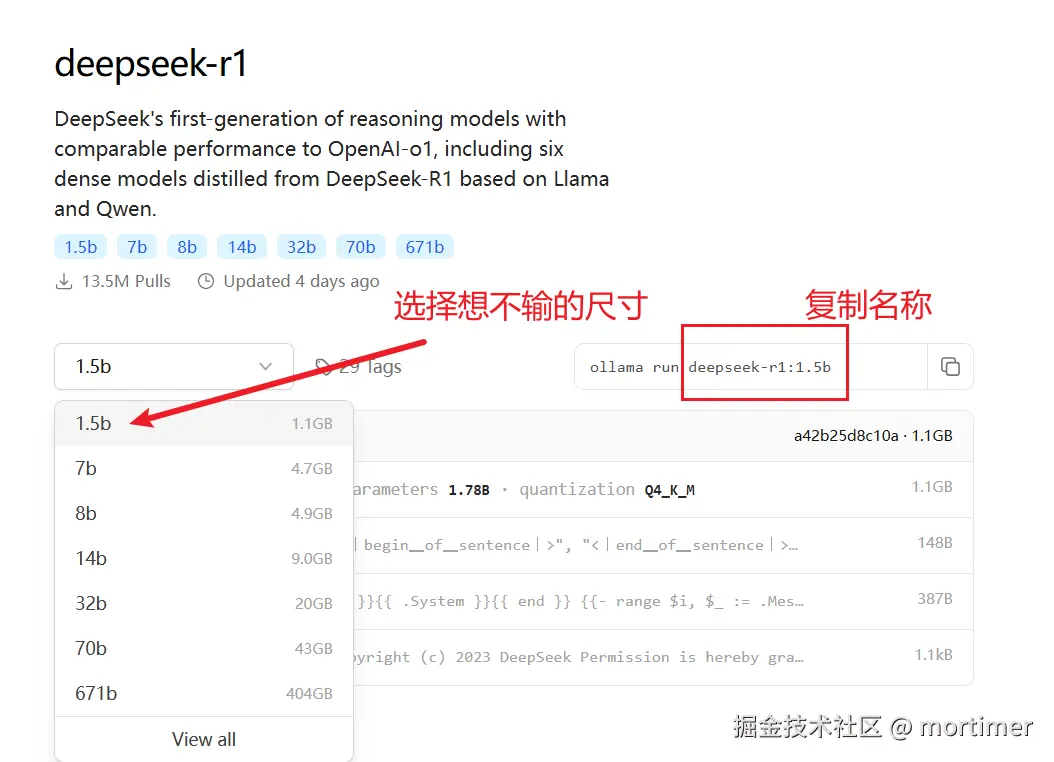
Download the Model: Paste the model name (e.g.,
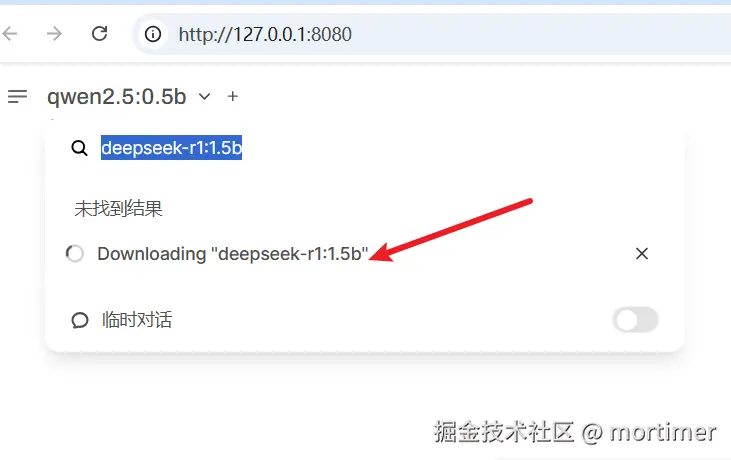
deepseek-r1) into the input box in the top left corner of Open WebUI, and click the "Pull from ollama.com" button to start the download.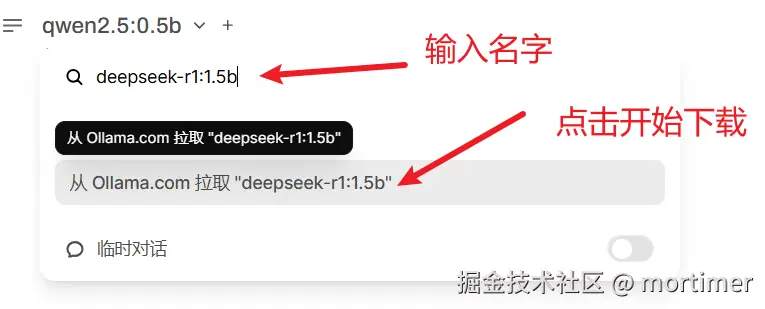
Wait for the Download to Complete: The download time depends on your network speed and model size, please be patient.
Start Your AI Journey
Once the model download is complete, you can have a smooth conversation with DeepSeek-R1 in Open WebUI! Explore its powerful features to your heart's content!
If the model supports it, you can also upload images, files, etc., for multimodal interaction. Let your AI assistant not only be eloquent but also "read pictures and recognize text"!
Advanced Exploration: Open WebUI's Hidden Treasures
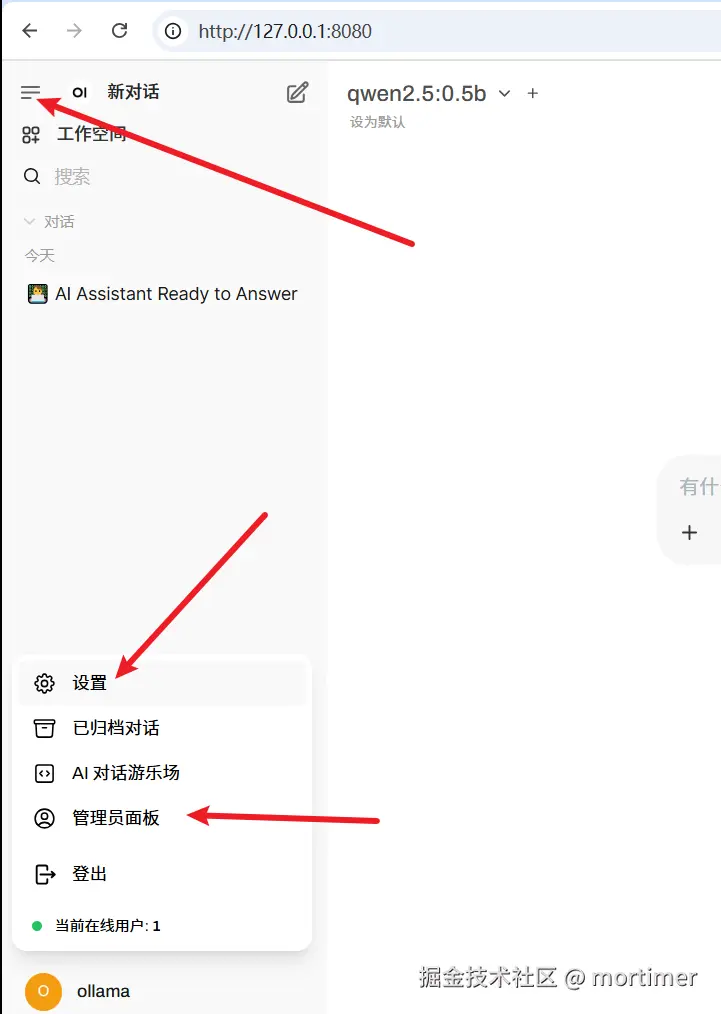
Open WebUI's functionality goes far beyond this! Click the menu button in the top left corner, and you'll find more surprises:
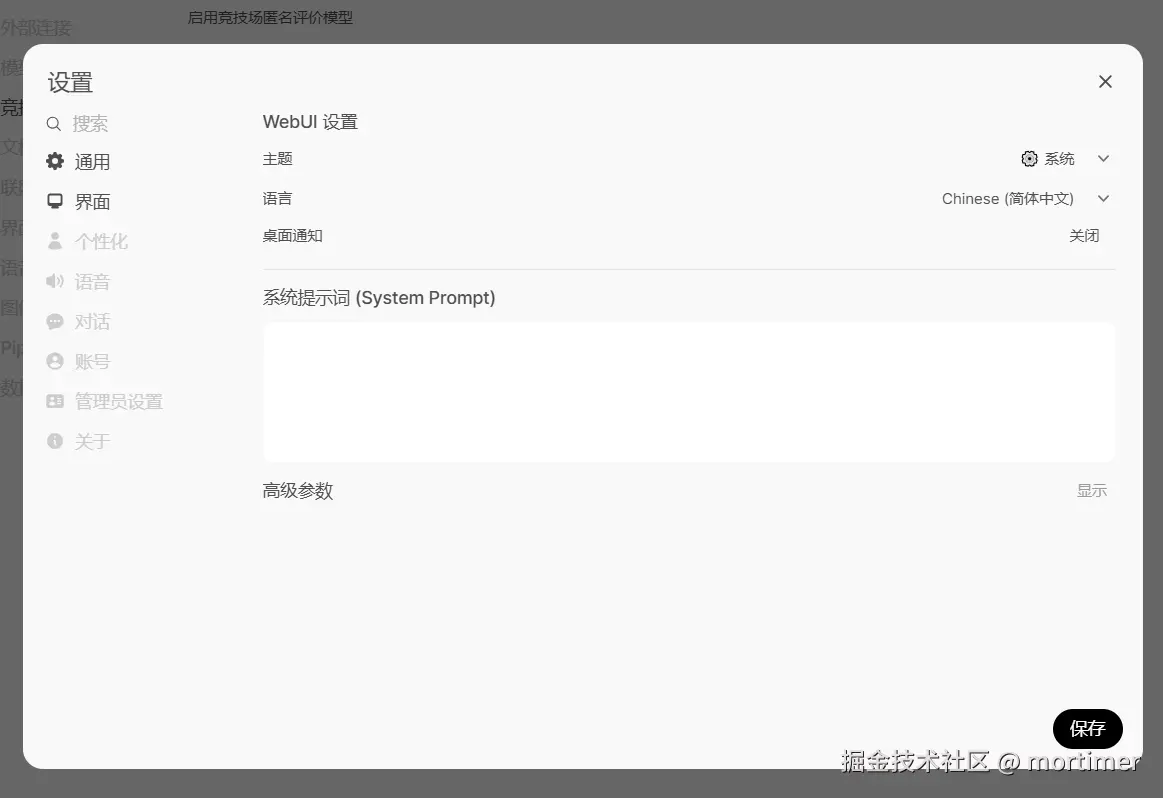
Personalization: In the "Settings" panel, you can adjust the interface theme, font size, language, etc., according to your preferences to create a personalized AI interaction experience.
- You can also customize prompts to make the AI assistant understand you better!
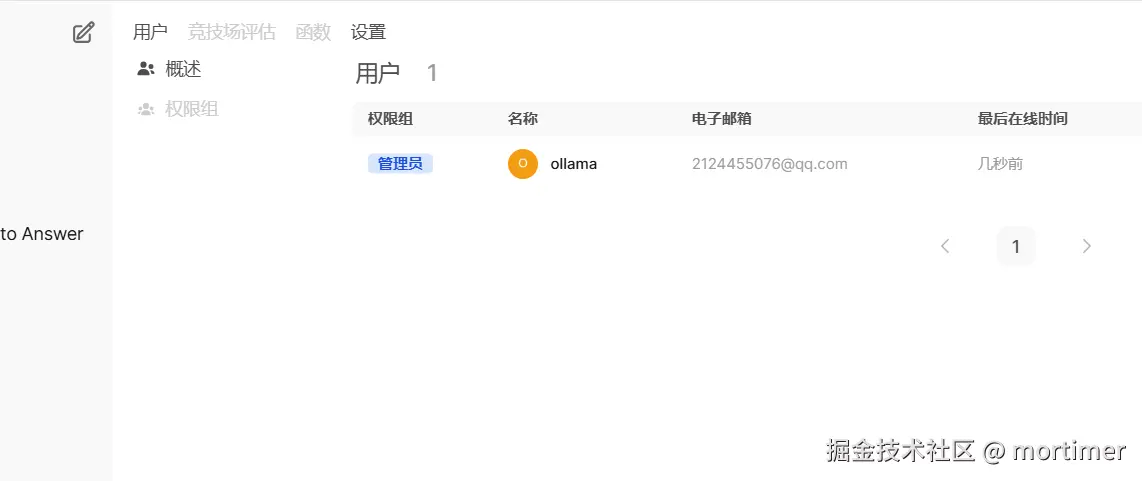
Multi-User Management: In the "Admin" panel, you can set user registration methods, permissions, etc., making it easy for multiple people to share your local AI resources.
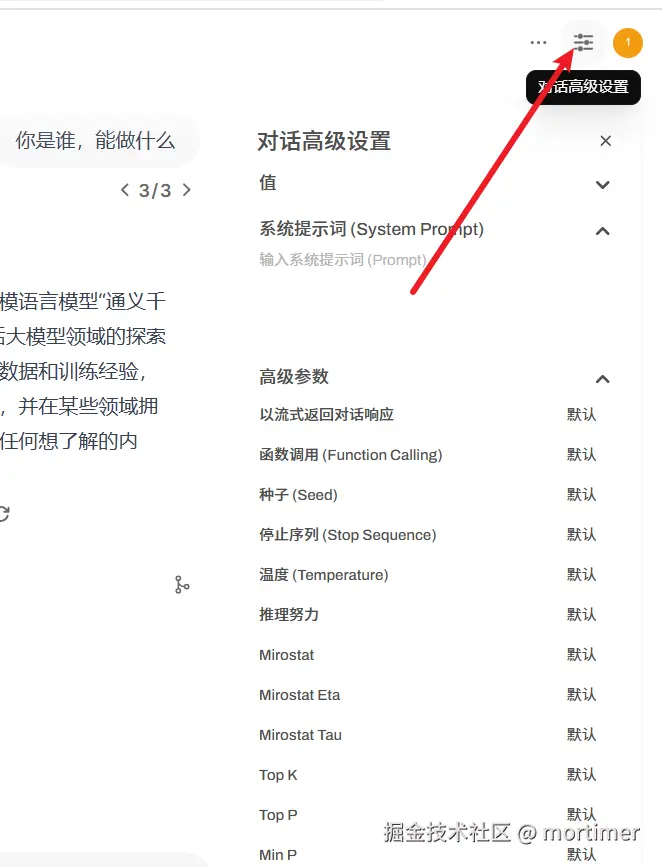
Adjust Detailed Parameters: Click the top right corner to set advanced parameters.
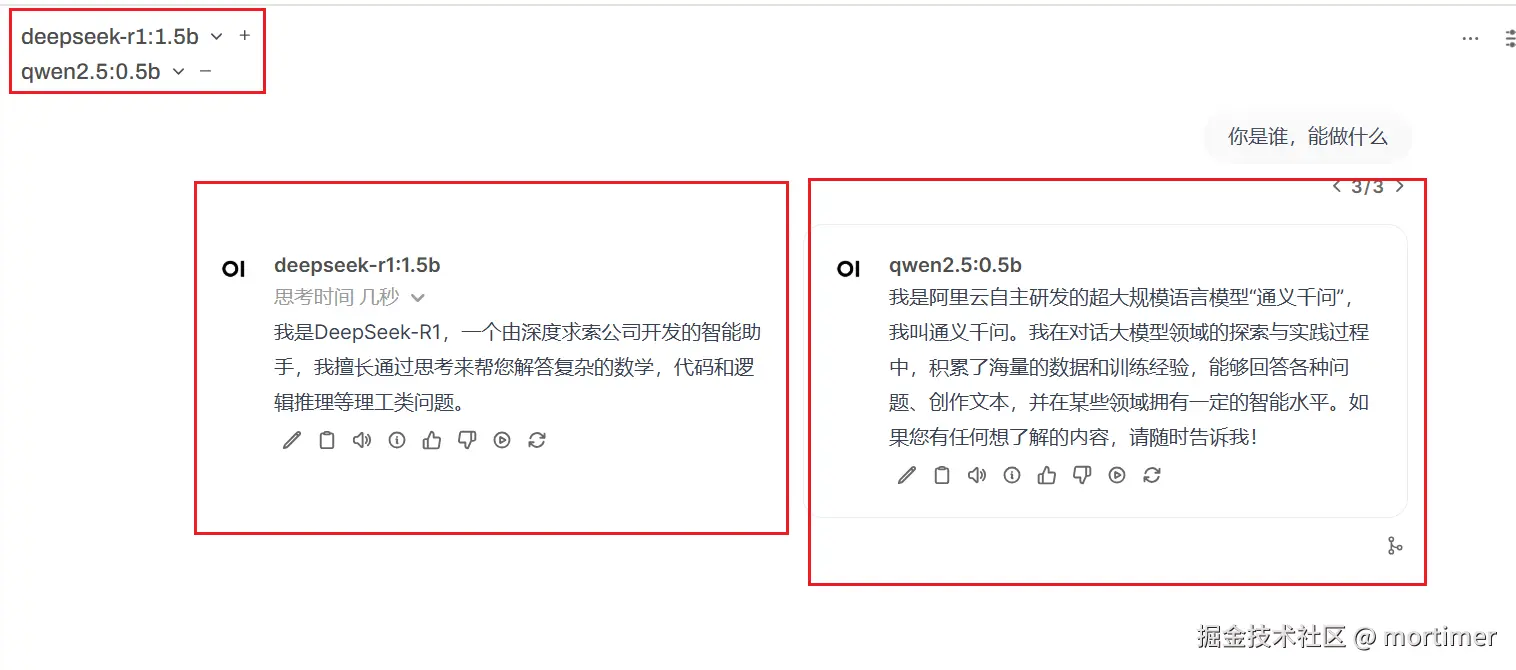
Multi-Model Comparison: Which One Performs Better?
Open WebUI also supports multi-model comparison, allowing you to easily compare the output results of different models and find the one that best meets your needs!
GPU Acceleration: Squeeze the Performance Out of Your Graphics Card! (Optional)
If you have an NVIDIA graphics card and have already installed the CUDA environment, congratulations! You can perform a simple operation to let Ollama use GPU acceleration for model inference, significantly improving your AI assistant's response speed!
- Double-click the
GPU-cuda支持.batfile inside the integrated package to install CUDA dependencies.
Ollama + Open WebUI, this golden combination, opens a door to the world of local AI for you. Now, you can break free from cloud constraints, build a truly personal AI think tank, and explore the infinite possibilities of AI to your heart's content!